Magento Login: Admin Panel Access Guide
[Updated: January 28, 2026]
Locked out of your Magento admin? The admin URL is not always /admin. Since Magento 2.0, the installer creates a random path. And since Magento 2.4, Two-Factor Authentication blocks access until configured.
This guide shows you how to find your actual admin URL, set up mandatory 2FA, and secure your admin panel.
Magento Admin Login = Access your store backend via a custom URL path (not always
/admin). Requires admin credentials, HTTPS, and mandatory 2FA setup since Magento 2.4.First time? Find your admin path in
app/etc/env.php, then configure 2FA on first loginLocked out? Check the correct URL path, clear browser cache, or unlock via CLI
Finding Your Magento Admin URL
Important: The admin path is NOT always /admin.
Since Magento 2.0, the installer generates a random admin path during setup (e.g., /admin_abc123 or /backend_xyz). This is a security feature to prevent automated attacks on the default /admin path.
How to Find Your Admin Path
Check app/etc/env.php on your server:
'backend' => [
    'frontName' => 'admin_abc123'  // This is your admin path
]
Your admin URL is: https://yourstore.com/admin_abc123
Common Admin URL Locations
| Scenario | Where to Find It |
|---|---|
| Fresh install | Random path in app/etc/env.php |
| Custom path | Check with your admin or hosting provider |
| Managed hosting | Often provided in your hosting dashboard |
Security tip: Many stores change the admin path to a custom value (e.g., /secure-admin or /mgt-backend) via Stores > Configuration > Advanced > Admin > Admin Base URL. This prevents brute-force attacks targeting common paths.
Prerequisites for Magento Admin Login
Before logging in, you need:
-
Your admin URL: The exact path from
app/etc/env.phpor your hosting provider. Not/adminunless configured that way. -
Admin credentials: Username and password. Contact your store administrator if you don't have these.
-
HTTPS connection: Always use HTTPS. Admin access over HTTP is insecure and blocked by modern browsers.
-
2FA ready: Since Magento 2.4, you must configure Two-Factor Authentication on first login. Have your authenticator app ready (Google Authenticator, Authy, or Duo).
How to Log Into the Magento Admin Panel
Step 1: Open the Admin URL
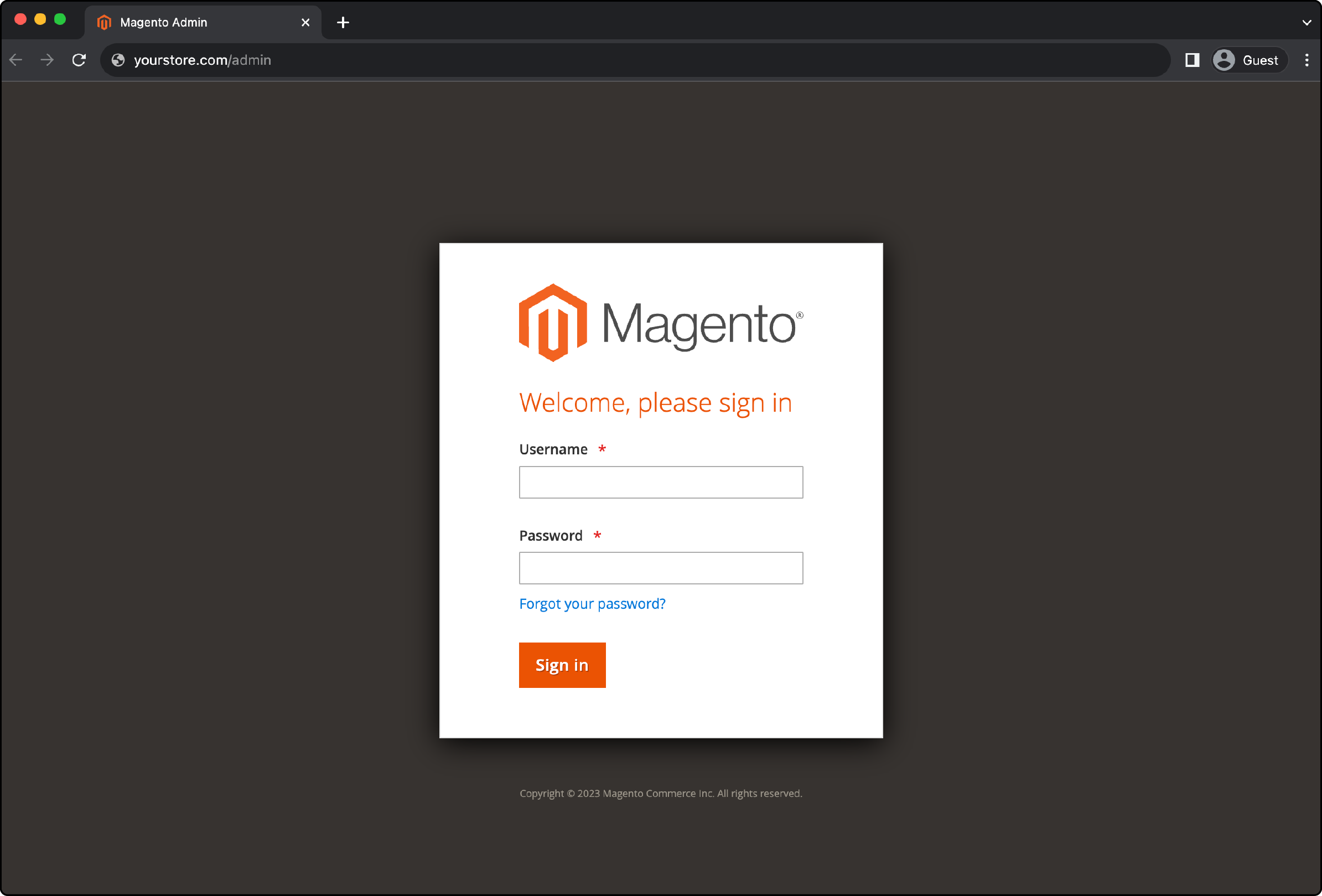
Open your browser and enter your admin URL:
https://yourstore.com/your_admin_path
Replace your_admin_path with the actual value from app/etc/env.php.
Step 2: Enter Your Credentials
On the login page:
- Enter your admin username
- Enter your password
- Complete the CAPTCHA if shown
- Click Sign In
Step 3: Configure 2FA (First Login)
Since Magento 2.4, Two-Factor Authentication is mandatory.
On your first login, Magento blocks access until you set up 2FA:
- Choose your 2FA provider (Google Authenticator, Authy, Duo, or U2F key)
- Scan the QR code with your authenticator app
- Enter the verification code
- Complete the setup
You cannot skip this step. Without 2FA configuration, you cannot access the admin panel.
Step 4: Access the Dashboard
After successful login and 2FA verification, you reach the Magento Admin Dashboard.
Two-Factor Authentication (2FA) in Magento 2.4+
2FA is Mandatory
Since Magento 2.4.0 (2020), 2FA is enabled by default and required for all admin logins. This applies to both UI and Web API access.
Key facts:
- All admin users must configure 2FA on first login
- Magento blocks admin access until 2FA is set up
- You cannot disable 2FA in production environments
- Disabling is only possible in development via custom modules (not recommended)
Supported 2FA Providers
| Provider | Type | Best For |
|---|---|---|
| Google Authenticator | TOTP app | Most users |
| Authy | TOTP app | Multi-device sync |
| Duo Security | Push notification | Enterprise teams |
| U2F Keys | Hardware key | Highest security |
2FA Configuration
Go to Stores > Configuration > Security > 2FA to:
- Set allowed providers
- Configure provider-specific settings
- Manage user 2FA requirements
Troubleshooting Magento Login Issues
404 Error on Admin URL
Cause: Wrong admin path
Fix:
- Check
app/etc/env.phpfor the correctfrontName - Verify HTTPS is used
- Clear browser cache
Account Locked
Cause: Too many failed login attempts (default: 6 attempts)
Fix:
- Wait 30 minutes for automatic unlock, or
- Use CLI:
bin/magento admin:user:unlock username
2FA Not Working
Cause: Time sync issues or lost authenticator
Fix (development only):
bin/magento module:disable Magento_TwoFactorAuth
bin/magento cache:flush
Warning: Never disable 2FA on production stores.
Forgotten Password
Fix via UI:
- Click "Forgot Your Password?" on login page
- Enter your admin email
- Check inbox for reset link
Fix via CLI:
bin/magento admin:user:create \
  --admin-user="newadmin" \
  --admin-password="SecurePass123!" \
  --admin-email="admin@example.com" \
  --admin-firstname="Admin" \
  --admin-lastname="User"
Security Best Practices 2026
1. Use a Custom Admin Path
Change the default path to something unique:
Option A: Edit env.php
'backend' => [
    'frontName' => 'your-secret-path'
]
Option B: Via Admin Stores > Configuration > Advanced > Admin > Admin Base URL
- Set "Use Custom Admin Path" to Yes
- Enter your custom path
Clear cache after changes: bin/magento cache:flush
2. Enable Admin CAPTCHA
Prevent bot attacks on your login page:
Stores > Configuration > Advanced > Admin > CAPTCHA
- Enable CAPTCHA for Admin Login
- Set minimum word length and symbols
3. Limit Login Attempts
Configure lockout settings:
Stores > Configuration > Advanced > Admin > Security
- Maximum Login Failures: Set to 3-5 (default is 6)
- Lockout Time: 30 minutes (default)
4. Keep Secret Key in URLs
Enabled by default. Protects against session fixation attacks:
Stores > Configuration > Advanced > Admin > Security
- Add Secret Key to URLs: Yes (keep enabled)
5. Restrict Admin Access by IP
Allow only trusted IPs via .htaccess:
<Files "index.php">
    Order Deny,Allow
    Deny from all
    Allow from 192.168.1.100
    Allow from 10.0.0.0/24
</Files>
Or configure via your server firewall.
6. Install Security Patches
Keep Magento updated with the latest security patches. Check for updates:
- Adobe Security Bulletins
-
bin/magento maintenance:status - Composer updates for
magento/product-community-edition
7. Use Role-Based Access
Apply the Least Privilege Principle:
- Create roles with minimal permissions
- Assign users only the access they need
- Review permissions on a regular basis
System > Permissions > User Roles
8. Monitor Admin Actions
Enable admin action logging:
- Track who did what and when
- Use built-in reports or third-party extensions
- Set up alerts for suspicious activity
Key Functions of the Magento Admin Backend
Once logged in, you can access:
| Section | Function | Path |
|---|---|---|
| Products | Add, edit, manage inventory | Catalog > Products |
| Orders | View orders, process payments | Sales > Orders |
| Customers | Manage accounts and groups | Customers > All Customers |
| Content | Pages, blocks, media | Content > Pages |
| Marketing | Promotions, campaigns, SEO | Marketing > Promotions |
| Reports | Sales, customers, products | Reports |
| Configuration | Store settings, payment, shipping | Stores > Configuration |
FAQs
1. What is the Magento admin URL?
The admin URL is NOT always /admin. Since Magento 2.0, the installer generates a random path (e.g., /admin_xyz123). Find your actual path in app/etc/env.php under backend > frontName. Many stores use custom paths for security.
2. Is Two-Factor Authentication required?
Yes. Since Magento 2.4, 2FA is enabled by default and mandatory. You must configure it on your first login using Google Authenticator, Authy, Duo, or a U2F key. Without 2FA setup, you cannot access the admin panel.
3. How do I find my admin path?
Check app/etc/env.php on your server. Look for the backend section and find frontName. This value is your admin path. For example, if frontName is admin_abc123, your URL is yourstore.com/admin_abc123.
4. Why can't I log into the Magento admin?
Common causes: wrong admin URL (check env.php), incorrect credentials, account locked after failed attempts, 2FA not configured, or browser cache issues. Always use HTTPS. Clear cache and verify the correct admin path first.
5. How do I reset my Magento admin password?
Click "Forgot Your Password?" on the login page and enter your admin email. Or use CLI: bin/magento admin:user:create to create a new admin user. For locked accounts, use bin/magento admin:user:unlock username.
6. Can I disable 2FA in Magento 2.4?
Not in production. 2FA is mandatory since Magento 2.4. Disabling is only possible in development environments via custom modules or CLI. For production stores, keep 2FA enabled for security.
7. How do I change the admin URL?
Edit app/etc/env.php and change the frontName value. Or go to Stores > Configuration > Advanced > Admin > Admin Base URL and set a custom path. Clear cache after changes.
Summary
Magento admin login requires finding your actual admin path (not always /admin) and completing mandatory 2FA setup (since Magento 2.4).
Key points:
- Check
app/etc/env.phpfor your admin path - Always use HTTPS
- Configure 2FA on first login (required)
- Use a custom admin path for security
- Set login attempt limits and enable CAPTCHA
- Keep security patches updated