

How to Configure Magento 2 PayPal Sandbox Setup
[Updated: March 17, 2026]
Testing PayPal payments on a live store risks real charges and angry customers. One misconfigured API key can process actual transactions.
Magento 2 PayPal sandbox creates an isolated testing environment that mirrors production. Merchants verify complete payment flows, test edge cases, and catch integration errors before a single real dollar moves.
This guide covers sandbox setup in 5 steps, compares Express Checkout vs Payflow Pro vs Smart Buttons, and explains when to use webhooks over legacy IPN.
Key Takeaways
- PayPal sandbox mirrors production without processing real money. Test every payment scenario before launch.
- Separate buyer and seller test accounts are required for full transaction simulation.
- Express Checkout, Payflow Pro, and Smart Buttons serve different business models and technical requirements.
- API credentials (Client ID + Secret) connect Magento 2 with the PayPal sandbox environment.
- Webhooks replace legacy IPN for real-time payment notifications in new integrations.
What Is a PayPal Sandbox?
PayPal sandbox = a virtual testing environment that simulates live PayPal without real money. Merchants test payment configurations before launch, catching integration bugs that would otherwise cost sales.
Perfect for: Magento store owners testing checkout flows, developers building payment integrations, QA teams validating order processing.
Not ideal for: Stores that only accept cash on delivery or bank transfers.
The sandbox duplicates the full PayPal ecosystem. Developers create test accounts with virtual funds, simulate purchases, refunds, and disputes. Every API response matches what the live system returns.
Sandbox testing reveals problems that staging environments miss. Currency conversion errors, timeout handling, and failed transaction recovery all surface during sandbox testing rather than after launch. Before setting up the sandbox, review the available Magento 2 payment methods to choose the right PayPal solution.
How the Sandbox Environment Improves Magento 2 Checkout
Risk-Free Transaction Testing
Merchants test every payment amount, currency, and failure scenario without financial consequences. Development teams run hundreds of test transactions across guest checkout and registered user flows.
Payment errors surface before real customers encounter them. The sandbox processes declined cards, expired accounts, and insufficient funds to validate error handling.
Checkout Flow Customization
Button placement and style testing shows which configurations convert best. Teams validate checkout performance across desktop and mobile before committing changes to production.
Express checkout options, payment button positions, and cart transfer behavior all need testing. The sandbox confirms each variation works without breaking the purchase flow.
Integration and Security Verification
API connections between Magento and PayPal require validation before launch. The sandbox confirms that payment hooks trigger correct order processing, that currency conversion works for international customers, and that database records capture complete transaction details.
Fraud protection features, payment verification steps, and data encryption all need testing in sandbox mode. SSL setup protects all payment communication in both sandbox and production.
Express Checkout vs Payflow Pro vs Smart Buttons
Integration Complexity
Express Checkout requires minimal development. Magento 2 configuration follows clear steps in the admin panel. Payflow Pro demands advanced API knowledge and longer setup time. Smart Buttons use modern JavaScript and integrate well with current Magento versions. PayPal recommends Smart Buttons (REST API) for all new integrations. Classic Express Checkout (NVP/SOAP) is a legacy integration path.
| Feature | Express Checkout | Payflow Pro | Smart Buttons |
|---|---|---|---|
| Setup Difficulty | Easy | Complex | Moderate |
| Developer Skills | Basic | Advanced | Intermediate |
| Integration Time | 1-2 hours | 1-3 days | 3-5 hours |
| Maintenance | Low | High | Medium |
Customer Experience
Express Checkout redirects to the PayPal website where customers complete payment in a familiar environment. Payflow Pro keeps buyers on your store, maintaining brand consistency throughout checkout. Smart Buttons appear on product and cart pages, reducing clicks to purchase.
| Feature | Express Checkout | Payflow Pro | Smart Buttons |
|---|---|---|---|
| Checkout Steps | 5-6 steps | 3-4 steps | 2-3 steps |
| User Location | PayPal site | Your site | Your site |
| Mobile Experience | Strong | Good | Strong |
| Guest Checkout | Yes | Yes | Yes |
Payment Options
Express Checkout accepts PayPal balances and linked accounts across 24 currencies. Payflow Pro processes credit cards direct through major card networks. Smart Buttons display relevant payment methods based on customer location, including local options.
| Feature | Express Checkout | Payflow Pro | Smart Buttons |
|---|---|---|---|
| Payment Methods | PayPal, Cards | Credit Cards | PayPal, Cards, Local Methods |
| Currencies | 24 | Account dependent | 24 |
| International | Full support | Limited | Good support |
| Conversion | Automatic | Manual setup | Automatic |
Security and PCI Compliance
Express Checkout moves card data off your servers. Payment details never touch your Magento database, which reduces PCI compliance requirements. Payflow Pro stores data on your servers with customizable fraud protection layers. Smart Buttons include machine learning risk management.
| Feature | Express Checkout | Payflow Pro | Smart Buttons |
|---|---|---|---|
| Data Storage | PayPal servers | Your servers | PayPal servers |
| Fraud Protection | Strong | Customizable | Strong |
| PCI Requirements | Minimal (SAQ A) | Full (SAQ D) | Minimal (SAQ A) |
| Tokenization | Yes | Yes | Yes |
Cost Structure (2026)
Current US merchant rates (updated February 2026):
| Fee Type | Express Checkout / Smart Buttons | Payflow Pro |
|---|---|---|
| PayPal / Venmo / Guest Checkout | 3.49% + $0.49 | N/A |
| Standard Credit/Debit Cards | 2.99% + $0.49 | Processor dependent |
| Gateway Fee | Included | $0.10/transaction |
| Monthly Fee | $0 | $25 |
| International Add-on | +1.50% | Processor dependent |
| Setup Fee | $0 | $0 |
Express Checkout and Smart Buttons include payment processing. Payflow Pro is a gateway-only service where you bring your own merchant account and processor. Volume discounts available for high-transaction merchants. Rates from paypal.com/us/business/paypal-business-fees.
Setting Up PayPal Sandbox in 5 Steps
Step 1: Create a PayPal Developer Account
Go to developer.paypal.com and log in with an existing PayPal account or create a new one. Verify your email using the confirmation link. After verification, the Developer Dashboard provides access to all sandbox tools.
Step 2: Create Sandbox Test Accounts
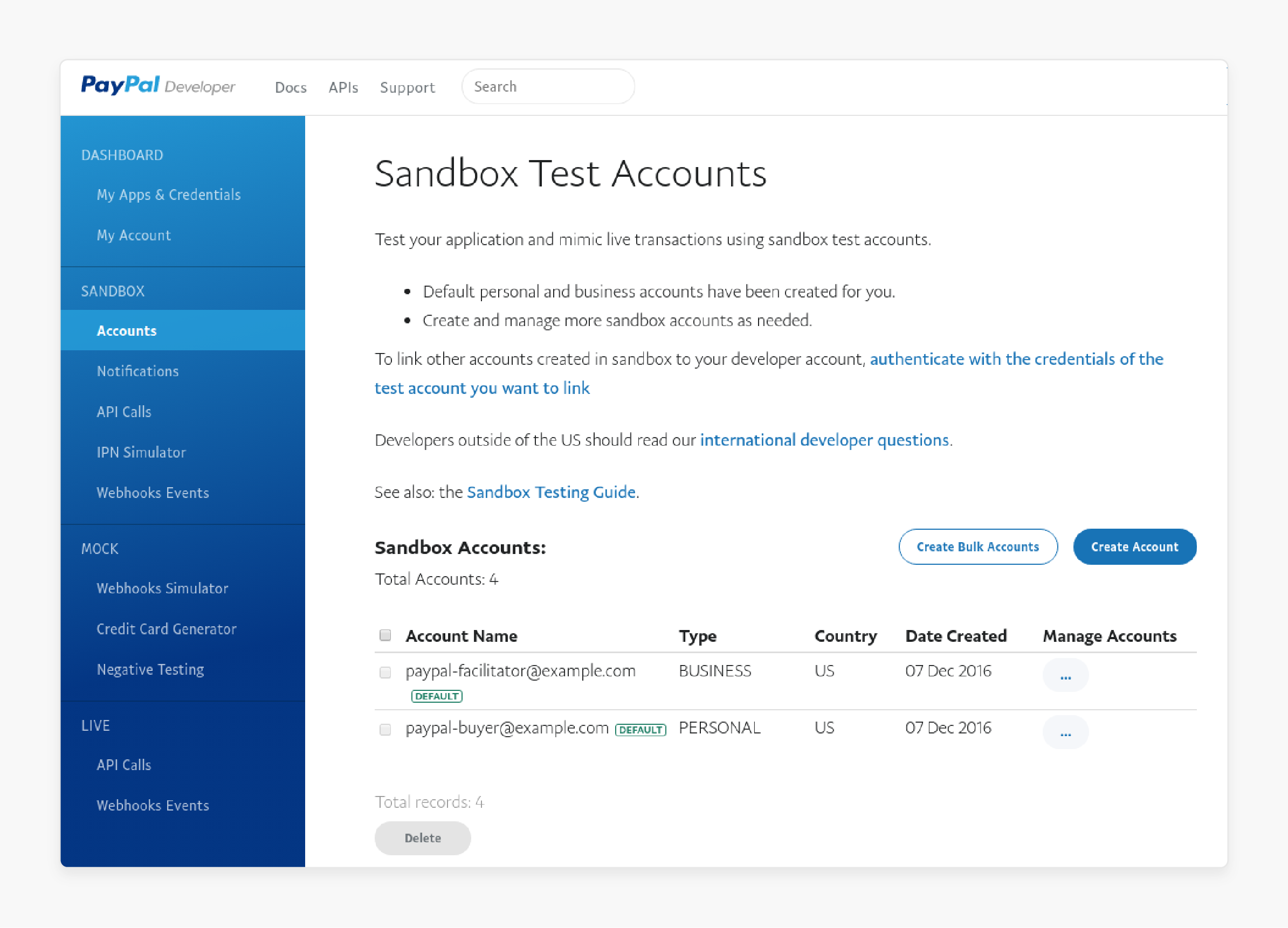
Navigate to Testing Tools > Sandbox Accounts in the Developer Dashboard. Click Create Account to set up test accounts.
Select Personal for buyer accounts and Business for merchant accounts. Configure virtual balances for transaction testing. PayPal auto-creates one business and one personal account when you register, but you can create additional accounts for specific test scenarios.
Save the email addresses and passwords for both account types. You need these credentials during Magento configuration and when simulating purchases.
Step 3: Retrieve API Credentials
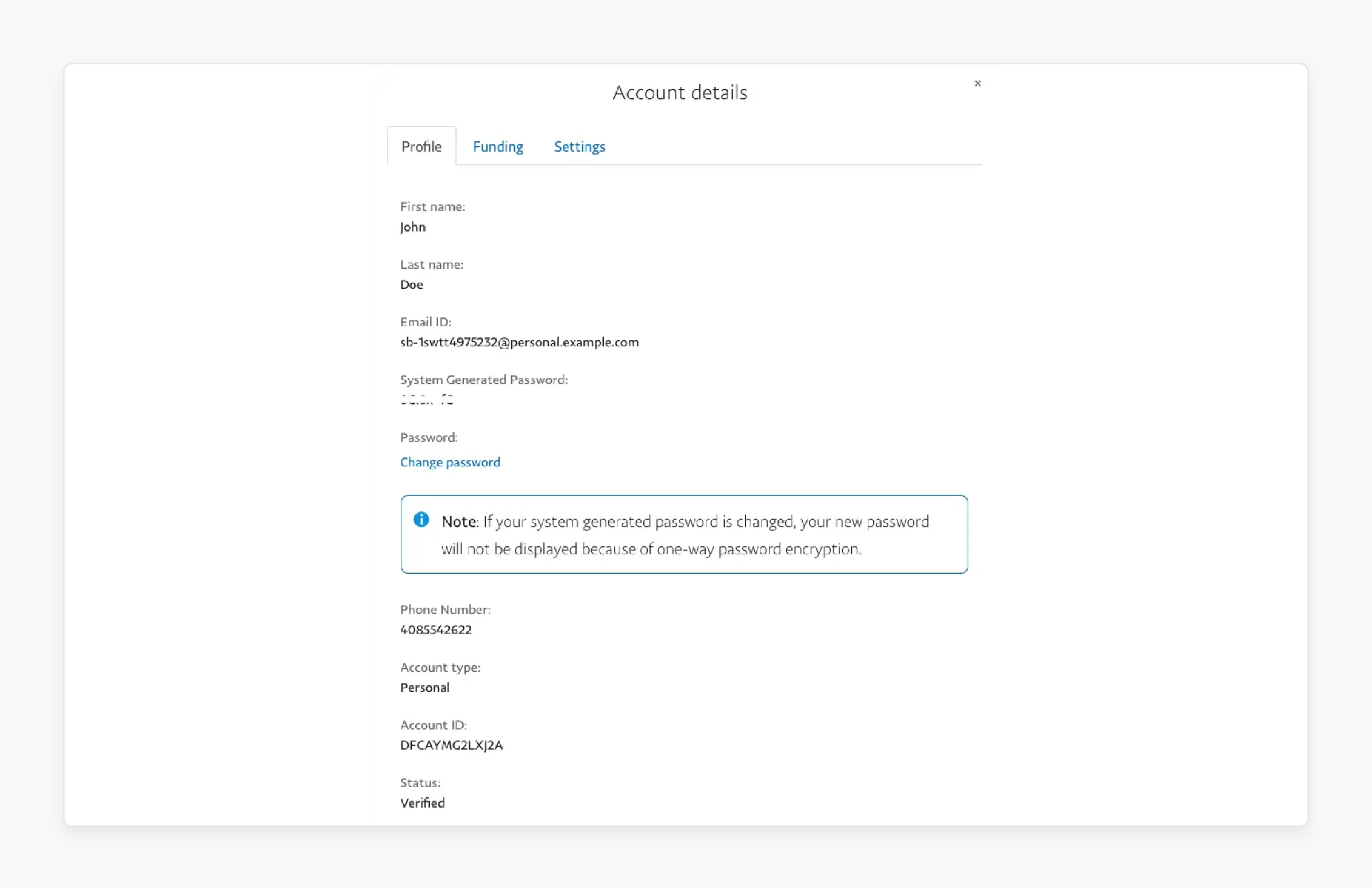
Each PayPal solution requires different credentials. Match the credentials to your chosen integration:
| PayPal Solution | Required Credentials | Where to Find |
|---|---|---|
| Smart Buttons (REST) | Client ID + Secret | My Apps & Credentials (REST App) |
| Express Checkout (NVP) | API Username, Password, Signature | Sandbox Business Account Settings |
| Payflow Pro | Vendor, User, Partner, Password | manager.paypal.com |
For Smart Buttons and REST-based integrations, go to My Apps & Credentials in the Developer Dashboard. Select your sandbox app (or create one) and copy your Client ID and Secret.
For classic Express Checkout, retrieve the API Username, API Password, and API Signature from your sandbox business account profile.
For Payflow Pro, you need credentials from manager.paypal.com. Payflow Pro sandbox setup requires a support ticket to link your Payflow account with your sandbox business account.
Step 4: Configure Magento Admin Settings
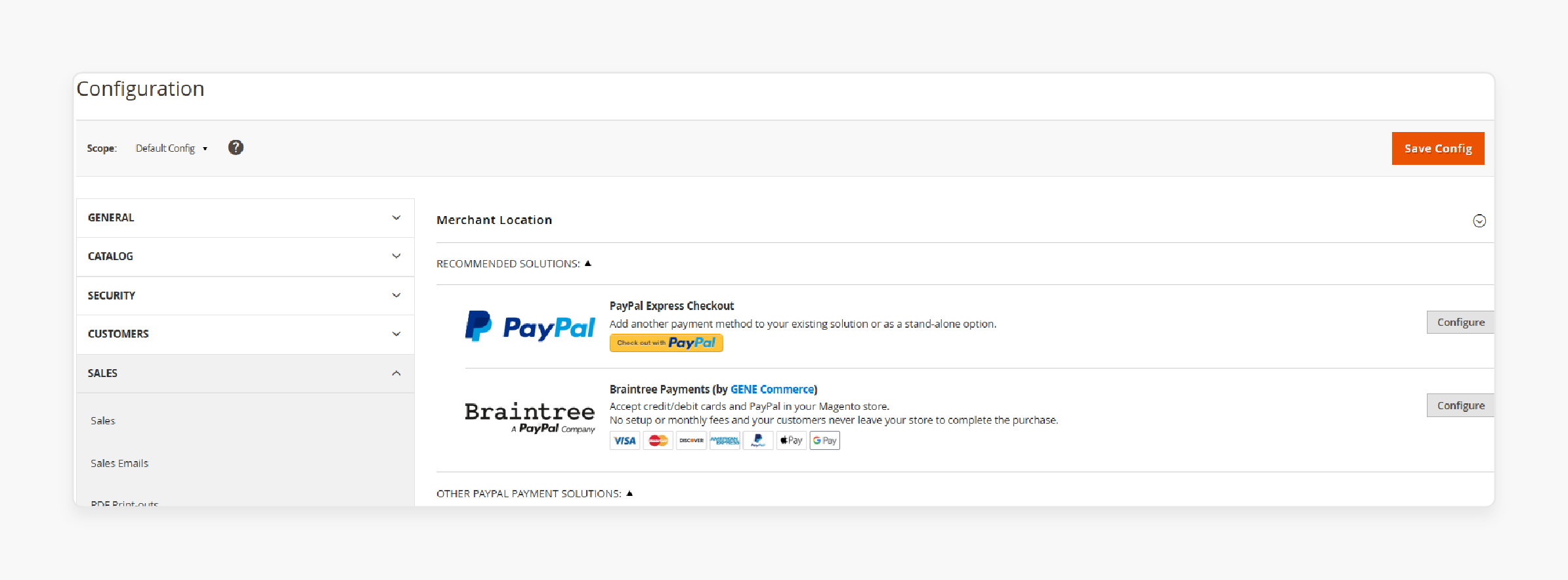
Log in to your Magento admin panel. Navigate to Stores > Configuration > Sales > Payment Methods. Expand PayPal Express Checkout and click Configure.
Enter your sandbox API credentials:
- API Username (or Client ID for REST)
- API Password (or Secret for REST)
- API Signature (or Certificate)
Set Sandbox Mode to Yes. Set Enable this Solution to Yes. Save the configuration.
For Adobe Commerce with Payment Services: use the Sandbox onboarding button under Sales > Payment Services instead. This connects your sandbox PayPal account through an OAuth flow and replaces manual credential entry.
Step 5: Test the Integration
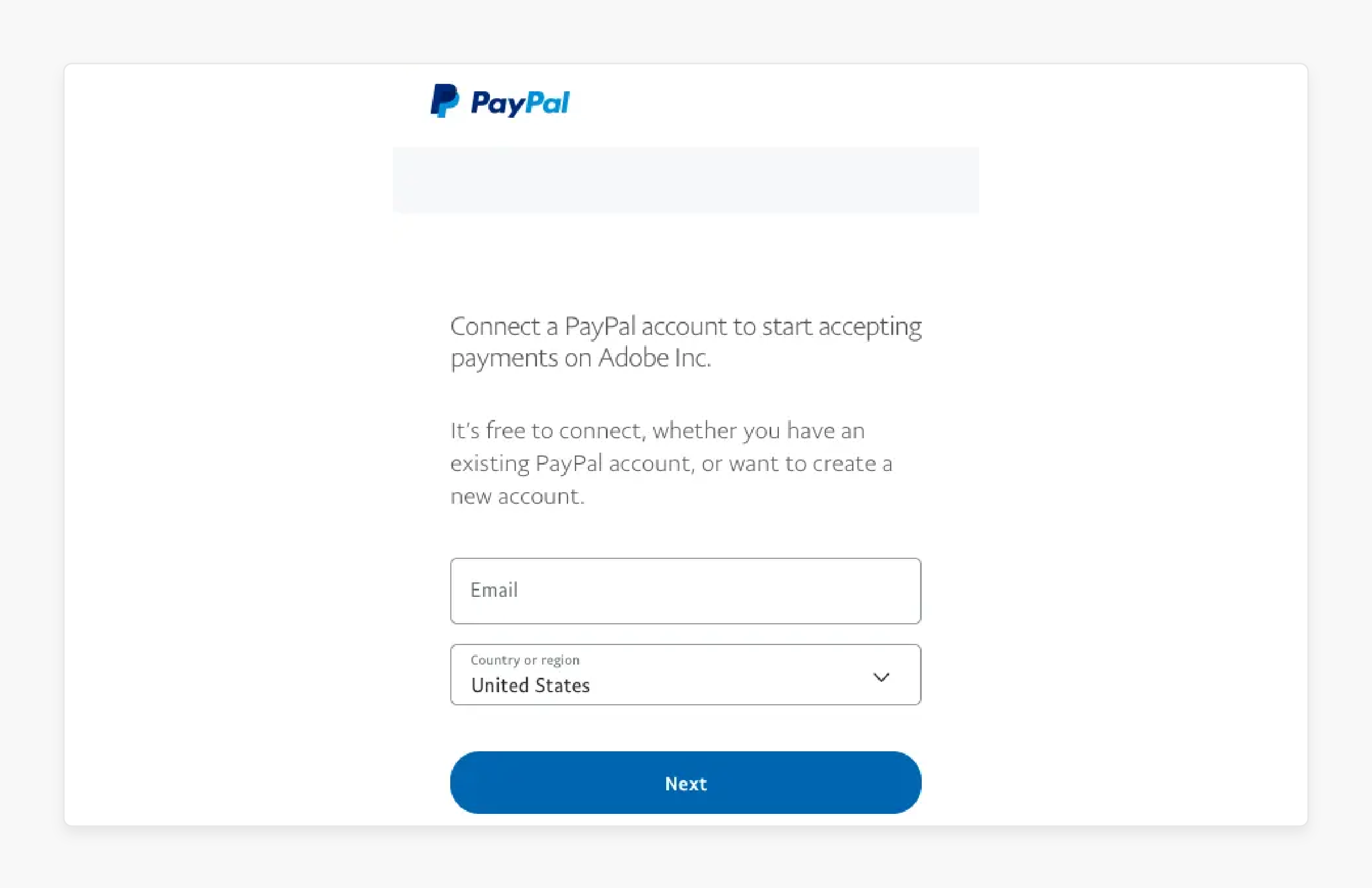
Clear Magento cache after saving configurations. Add products to the cart on your storefront. Proceed to checkout and select PayPal as the payment method.
Log in with your sandbox buyer credentials during payment. Complete the test transaction. Verify that:
- Orders appear in the Magento admin order grid
- Transaction details match in the PayPal sandbox dashboard
- Order status updates follow the expected flow
- Confirmation emails send with correct information
Troubleshooting Common Issues
Connection failures: Confirm sandbox mode is active and API credentials match the sandbox (not production) values.
Payment buttons missing: Test with different browsers. Clear Magento cache and static content. Check that the PayPal module is enabled.
SSL errors: Verify your SSL certificate is valid. PayPal requires HTTPS for all integrations, including sandbox.
Order status stuck: Check Magento logs at var/log/payment.log and var/log/exception.log for API call errors.
Payment Notifications: Webhooks vs Legacy IPN
Why Webhooks Replace IPN
PayPal's Instant Payment Notification (IPN) system is a legacy technology. While PayPal continues to support IPN for existing integrations, webhooks are the recommended approach for all new implementations.
| Feature | IPN (Legacy) | Webhooks (Recommended) |
|---|---|---|
| Delivery Speed | Delayed | Near real-time |
| Payload Format | URL-encoded | Structured JSON |
| Verification | HTTP postback | RSA-SHA256 signature |
| Event Types | Limited | 50+ event types |
| Retry Logic | Basic | Configurable |
Setting Up Webhooks in Magento 2
- In the PayPal Developer Dashboard, go to My Apps & Credentials
- Select your app and scroll to Webhooks
- Click Add Webhook and enter your Magento notification URL
- Select the events you want to receive (payment completed, refund processed, dispute opened)
- Save the webhook configuration
Magento 2.4.x handles PayPal webhooks through the built-in payment module. The webhook URL format is: https://yourstore.com/paypal/webhook/
For REST-based integrations (Smart Buttons, PayPal Checkout), webhooks register in the Developer Dashboard and Magento processes them through the active payment module. Use the Webhook Simulator in the Developer Dashboard to test event delivery before going live.
Legacy IPN Setup (Existing Integrations)
For stores already using IPN, the setup remains functional:
- Access your sandbox business account via the Developer Dashboard
- Navigate to Notifications > Instant Payment Notifications
- Enable Receive IPN messages and enter your listener URL
- In Magento admin, the IPN URL is configured under PayPal Express Checkout settings
Migration path: Run both IPN and webhooks in parallel during transition. Verify webhooks handle all your use cases before disabling IPN.
Transitioning from Sandbox to Production
Moving from sandbox to production requires careful credential management:
- Create production API credentials in your live PayPal business account
- Replace all sandbox credentials with production values in Magento admin
- Switch Sandbox Mode to No in Payment Methods configuration
- Run one small test transaction with a real payment method
- Verify order processing matches sandbox behavior
Keep sandbox credentials stored for future testing. Never mix sandbox and production credentials in the same environment.
FAQ
What accounts do I need for PayPal sandbox testing?
You need two sandbox accounts: a Business (merchant) account that receives payments and a Personal (buyer) account that makes purchases. PayPal creates one of each when you register as a developer. Create additional accounts for specific test scenarios.
How do API credentials connect Magento to PayPal?
API credentials authenticate every request between Magento and PayPal. The Client ID identifies your application. The Secret (or API Signature) validates that requests come from an authorized source. Enter these in Magento admin under Payment Methods configuration.
Can I test PayPal Credit in sandbox mode?
Yes. PayPal Credit works in the sandbox environment. Test accounts can simulate financing approvals, and the checkout flow matches production behavior. PayPal Credit buttons appear on product pages during sandbox testing.
What causes sandbox connection failures?
API credential mismatches cause most failures. Verify that sandbox credentials (not production) are entered in Magento. Check that SSL certificates are valid, sandbox mode is enabled, and the PayPal module is active. Review var/log/payment.log for detailed error messages.
Should new integrations use IPN or webhooks?
Use webhooks. PayPal recommends webhooks for all new integrations. Webhooks deliver faster, use structured JSON payloads, and support RSA-SHA256 signature verification. IPN remains supported for existing integrations but is considered legacy technology.
How do I switch from sandbox to live payments?
Replace sandbox API credentials with production credentials in Magento admin. Set Sandbox Mode to No. Process one small real transaction to verify the connection. Keep sandbox credentials stored for future testing and development.
Does sandbox testing require a real PayPal account?
Yes. You need a real PayPal account to access the Developer Dashboard and create sandbox accounts. The developer account is free. Sandbox accounts use virtual funds and never process real payments.
How long do sandbox test accounts remain active?
Sandbox accounts remain active as long as your developer account exists. PayPal does not delete sandbox accounts due to inactivity. You can create, modify, or delete test accounts at any time through the Developer Dashboard.
Summary
PayPal sandbox testing catches payment integration problems before they reach real customers. Create separate buyer and seller test accounts, configure API credentials in Magento admin, and verify every transaction scenario in the sandbox.
For new integrations, use webhooks instead of legacy IPN for faster, more reliable payment notifications. Test with different payment methods, currencies, and failure scenarios before switching to production credentials.
Managed Magento hosting provides the server environment and SSL infrastructure that PayPal integrations require for secure payment processing.
