

Magento 2 Visibility Values: Complete Configuration Guide
[Updated: March 18, 2026]
Magento 2 visibility values control where products appear in your store. Set them wrong and products vanish from search results, category pages, or both.
This guide covers all four visibility options with their API constants, shows you how to change them through the admin panel, REST API, GraphQL, and CLI, and explains the SEO impact of each setting.
Key Takeaways
- Magento 2 has four visibility values: Not Visible Individually (1), Catalog (2), Search (3), and Catalog, Search (4)
- "Catalog, Search" is the default and gives products maximum exposure in both category listings and search results
- "Not Visible Individually" is correct for child products of configurable, grouped, and bundle products
- Visibility affects SEO indexing: products set to "Not Visible Individually" are excluded from sitemaps and search engine indexing
- You can change visibility through the admin panel, REST API, GraphQL queries, or CLI commands for bulk operations
What Are Magento 2 Visibility Values?
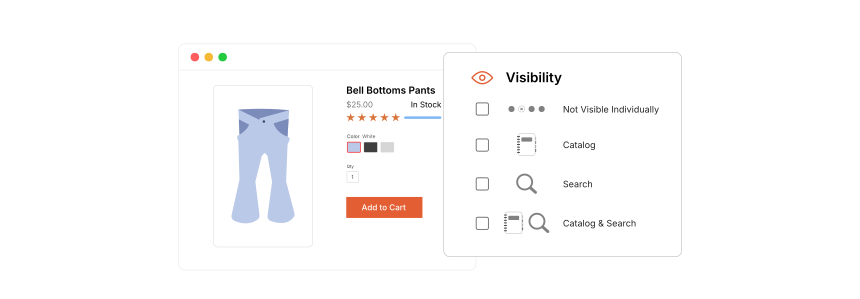
Magento 2 visibility values = product-level settings that determine where items appear in your storefront. Each product gets one of four states that controls its presence in category listings, search results, or both.
Perfect for: Store administrators managing product catalogs, developers building custom import scripts, merchants troubleshooting missing products
Not ideal for: Controlling stock availability (use product status instead), restricting access by customer group (use catalog permissions)
Visibility and status are two separate concepts. Status controls whether a product is enabled or disabled. Visibility controls where an enabled product shows up. A product can be enabled but invisible in the catalog if set to "Not Visible Individually."
The 4 Visibility Options
Magento 2 provides four settings. Each maps to a numeric constant used in the API and database.
| Value | Name | Catalog Pages | Search Results | API Constant |
|---|---|---|---|---|
| 1 | Not Visible Individually | No | No | VISIBILITY_NOT_VISIBLE |
| 2 | Catalog | Yes | No | VISIBILITY_IN_CATALOG |
| 3 | Search | No | Yes | VISIBILITY_IN_SEARCH |
| 4 | Catalog, Search | Yes | Yes | VISIBILITY_BOTH |
These constants are defined in Magento\Catalog\Model\Product\Visibility and remain unchanged since Magento 2.0 through the current 2.4.8 release.
When to Use Each Setting
Not Visible Individually (Value: 1)
Use this for products that should never appear on their own in the storefront. Common scenarios:
- Simple products inside a configurable product: Each size/color variant is a simple product set to "Not Visible Individually." Customers interact with the parent configurable product instead.
- Components of bundle products: Individual items sold only as part of a bundle should be hidden from standalone browsing.
- Grouped product children: Items available only within a group do not need their own catalog presence.
The parent product handles all customer-facing display. Setting children to "Not Visible Individually" prevents duplicate listings and keeps the catalog clean.
Catalog (Value: 2)
Products appear in category listings but not in search results. Use this for:
- Seasonal or promotional items displayed in a dedicated category but excluded from general search
- Accessories or add-ons that make sense within a specific category context but would clutter search results
- Clearance items grouped in a sale category
Search (Value: 3)
Products appear in search results but not in category pages. Use this for:
- Replacement parts customers search for by part number
- Limited availability items that do not belong in a browsing category
- Cross-sell items found through search but not featured in the main catalog navigation
Catalog, Search (Value: 4)
The default option. Products appear everywhere: category pages, search results, layered navigation, and product widgets. Use this for all standard products you want maximum exposure.
This is correct for core inventory, bestsellers, and any product that should be discoverable through both browsing and searching.
How to Change Product Visibility
Admin Panel
- Navigate to Catalog > Products in the admin panel
- Click on the product you want to edit
- Scroll to the Visibility dropdown in the product form
- Select the desired option
- Click Save
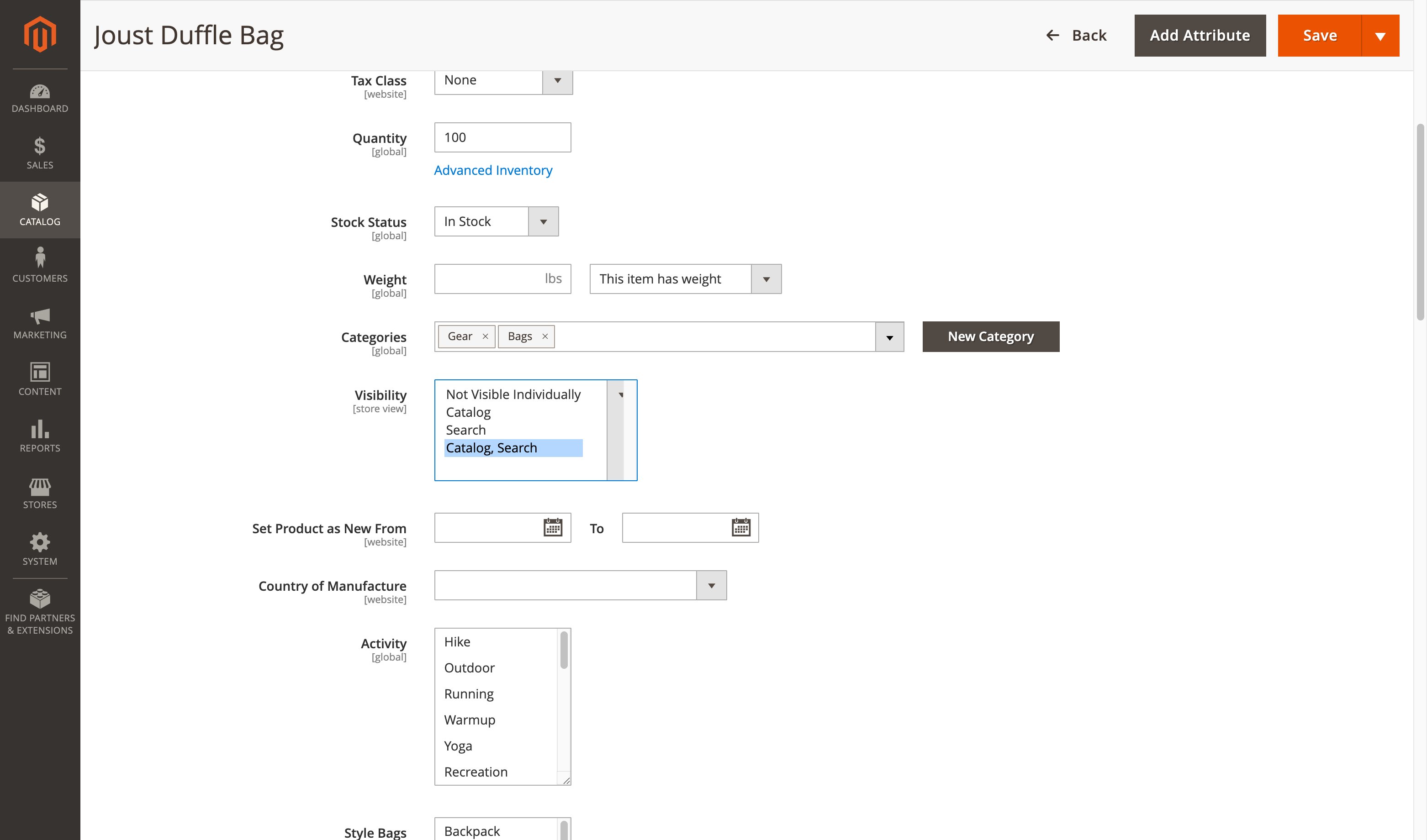
Bulk update: Select multiple products using the checkboxes, choose Update Attributes from the Actions dropdown, then change the field for all selected products at once.
REST API
Update a single product:
PUT /rest/V1/products/{sku}

{
  "product": {
    "visibility": 4
  }
}
Values: 1 = Not Visible Individually, 2 = Catalog, 3 = Search, 4 = Catalog, Search.
GraphQL
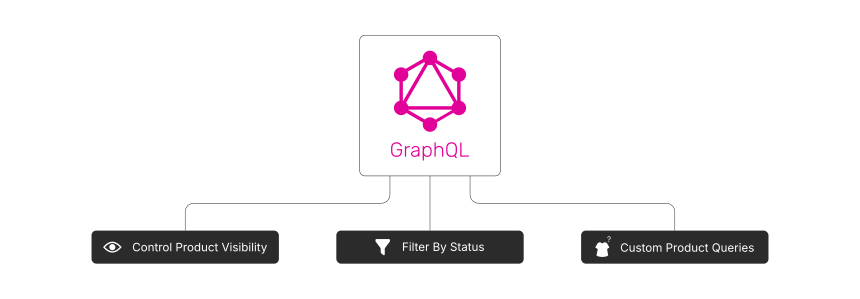
Retrieve a product's current setting through a GraphQL query:
{
  products(search: "jacket") {
    items {
      name
      sku
      visibility
    }
  }
}
The visibility field returns the numeric value (1, 2, 3, or 4) for each product. This attribute is not filterable by default in Magento 2 GraphQL. To enable filtering, either add it as a custom filterable attribute in your module's etc/schema.graphqls file, or mark it as filterable in the admin under Stores > Attributes > Product > visibility > Use in Layered Navigation.
Once enabled, you can filter products by their setting:
{
  products(filter: { visibility: { eq: "4" } }) {
    items {
      name
      sku
      visibility
    }
  }
}
CLI (Bulk Updates)
For large catalogs, use the Magento CLI with a custom script or CSV import:
# Reindex after changes
bin/magento indexer:reindex catalog_product_flat
bin/magento indexer:reindex catalogsearch_fulltext
bin/magento cache:flush
CSV Import method: Export your product catalog, change the visibility column values (use the text labels: "Not Visible Individually", "Catalog", "Search", or "Catalog, Search"), then reimport through System > Import. Third-party import tools may require the numeric values 1, 2, 3, or 4 instead of text labels.
SEO Impact of Visibility Settings
These settings direct how search engines discover and index your products.
Indexing and Sitemap Inclusion
Products set to "Not Visible Individually" are excluded from your store's XML sitemap. Search engines will not discover these products through the sitemap. Only products with "Catalog", "Search", or "Catalog, Search" appear in the generated file.
Duplicate Content Prevention
When simple products exist on their own and as children of configurable products, set the children to "Not Visible Individually." This prevents search engines from indexing both the parent and child URLs for the same content. For cases where products must appear in multiple categories, use canonical URLs to signal the preferred page.
Product Page SEO
Products with "Catalog, Search" get the most organic search exposure. They are indexable, appear in the sitemap, and are accessible through internal category links and search. If a product has strong keyword potential, keep it at "Catalog, Search" to maximize organic discoverability.
Troubleshooting Common Issues
Product Not Showing on Frontend
Check these settings in order:
- Status: Confirm the product is set to "Enabled" (not "Disabled")
- Visibility: Verify it is not set to "Not Visible Individually"
- Stock status: Ensure the product is "In Stock" (out-of-stock items are hidden by default)
- Category assignment: The product must be assigned to at least one active category
- Website assignment: In multi-store setups, verify the product is assigned to the correct website
Changes Not Reflecting
After making changes, run a full reindex:
bin/magento indexer:reindex
bin/magento cache:flush
Flat catalog tables and Elasticsearch/OpenSearch indexes both need to reflect the new value before frontend changes appear.
Configurable Product Children Still Showing
If child simple products appear in search results despite being set to "Not Visible Individually," check for:
- Third-party extensions that override default filtering
- Flat catalog not reindexed after the change
-
Elasticsearch index stale, needs
catalogsearch_fulltextreindex
FAQ
What are the four visibility values in Magento 2?
The four options are Not Visible Individually (1), Catalog (2), Search (3), and Catalog, Search (4). Each numeric value corresponds to a constant in the Magento codebase.
What is the difference between visibility and status in Magento 2?
Status controls whether a product is active (Enabled) or inactive (Disabled). Visibility controls where an active product appears. A disabled product never shows up regardless of its visibility setting.
What visibility should configurable product children have?
Set child simple products to "Not Visible Individually" (value 1). This prevents them from appearing as standalone products in the catalog and search results. Customers interact with the parent configurable product.
How do I change visibility for multiple products at once?
Go to Catalog > Products, select the products with checkboxes, choose "Update Attributes" from the Actions dropdown, and change the field. For hundreds of products, use CSV import or the REST API for batch updates.
Does visibility affect product URLs?
No. A product retains its URL regardless of its setting. A product set to "Not Visible Individually" still has a valid URL that works when accessed direct. However, search engines are unlikely to crawl that URL since no internal links or sitemap entries point to it.
Why is my product not appearing in search results?
The product may be set to "Catalog" (value 2) or "Not Visible Individually" (value 1). Change it to "Search" (3) or "Catalog, Search" (4). After the change, reindex the search index and flush the cache.
Can I set different visibility per store view?
Yes. Magento 2 supports store view-level settings. Switch to the specific store view scope in the admin panel before changing the value. This lets you show a product in one store view while hiding it in another.
How does visibility affect the XML sitemap?
Products with "Not Visible Individually" are excluded from the XML sitemap. Only products with "Catalog", "Search", or "Catalog, Search" are included when the sitemap generates.
Summary
Magento 2 visibility values determine product discoverability across your store. The four settings (Not Visible Individually, Catalog, Search, and Catalog, Search) give you precise control over where each product appears. Set child products of configurable and bundle items to "Not Visible Individually" to prevent duplicate listings. Keep core inventory at "Catalog, Search" for maximum exposure.
For stores running on managed Magento hosting, proper configuration ensures clean indexing, better search engine crawling, and a catalog structure that converts browsers into buyers.
