

Import and Export Orders in Magento 2
[Updated: March 13, 2026]
A single lost order record during migration can mean hours of manual reconciliation. Whether you are moving to a new Magento instance, syncing with an ERP, or building monthly reports, clean order data transfers keep operations running smooth.
This guide covers every method for exporting and importing orders in Magento 2, from native admin tools to third party extensions and CLI workflows.
Key Takeaways
- Magento 2 supports native order export to CSV and XML from the admin panel, but offers no built in order import.
- The entity_id (internal database key) and increment_id (visible order number) serve different roles during data transfers.
- Extensions from vendors like Amasty, BSS Commerce, and XTENTO fill the import gap with field mapping, scheduled transfers, and validation.
- Export profiles with filters (date range, order status, customer group) let you automate recurring data pulls without manual steps.
- Large order datasets require adequate server resources. Memory limits and PHP execution time affect both export generation and import processing.
Quick Answer
Magento 2 order export = built in feature that generates CSV or XML files from the Sales > Orders grid. Order import requires a third party extension because Magento has no native import for order data.
Perfect for: Store migrations, ERP integrations, accounting reconciliation, multi store data consolidation
Not ideal for: Real time order sync (use REST API instead), single order lookups
Understanding Export Formats in Magento 2
Magento 2 supports two formats for order data export. Each serves a different purpose.
CSV (Comma Separated Values) stores order data as plain text with commas between fields. Any spreadsheet application or text editor can open CSV files. This format works best for smaller datasets and straightforward imports into accounting or ERP systems.
XML (Extensible Markup Language) uses structured tags to define data blocks. XML handles complex nested data better than CSV and can store additional metadata. Choose XML when your target system requires hierarchical data structures or when exporting large datasets with related entities (invoices, shipments, credit memos).
| Format | Best For | Opens With | Data Complexity |
|---|---|---|---|
| CSV | Spreadsheets, simple imports, ERP sync | Excel, Google Sheets, any text editor | Flat, single level |
| XML | Complex integrations, large datasets | XML viewers, browsers, Excel | Nested, hierarchical |
Both formats preserve order information. Choose based on what your receiving system expects.
How to Export Orders from the Magento Admin Panel
The fastest way to get order data out of Magento 2 is through the admin panel. No extensions required.
Step 1: Navigate to the Orders Grid
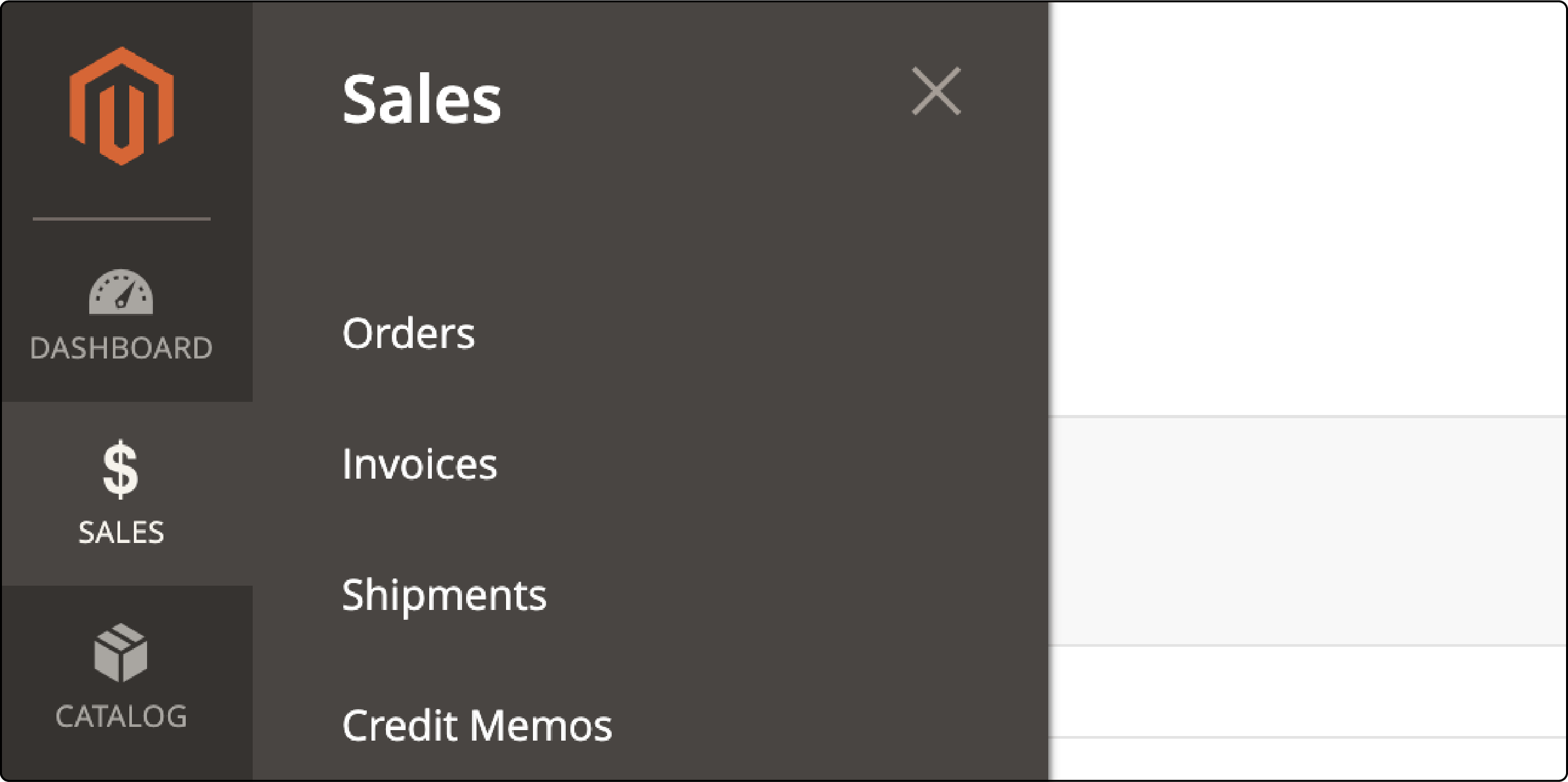
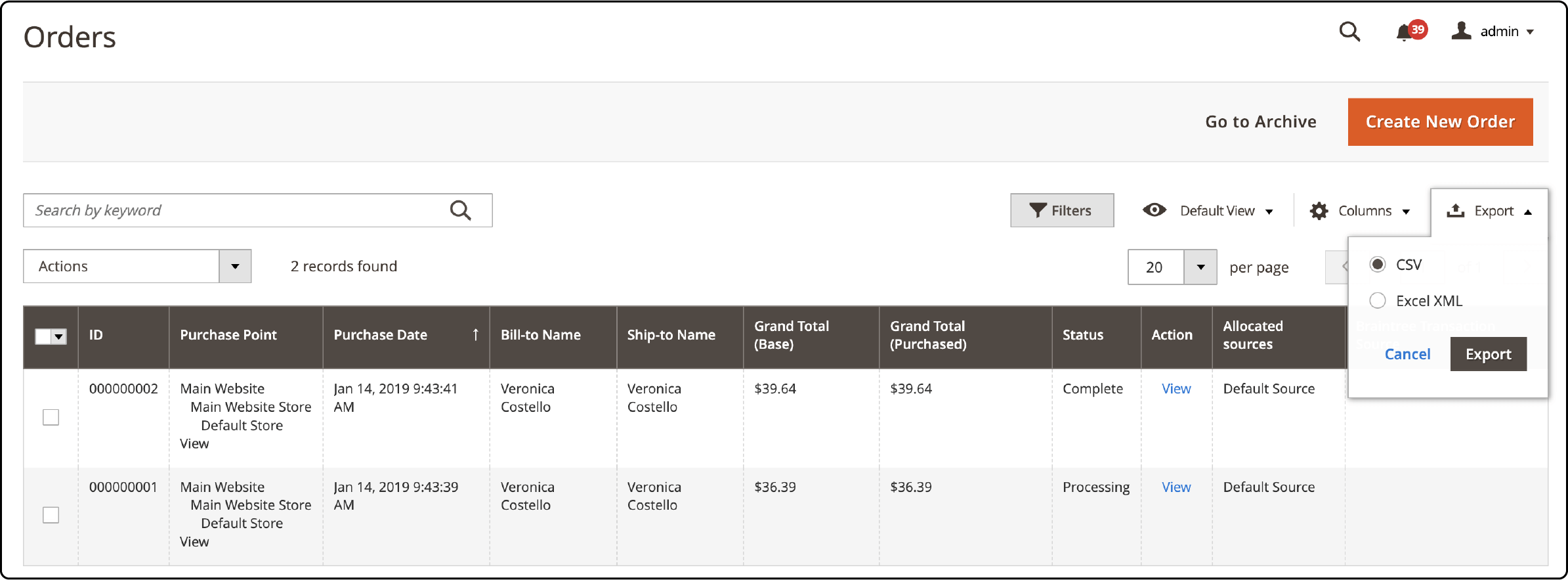
Log into your Magento admin panel and go to Sales > Orders. The grid displays all orders with default columns: ID, Purchase Point, Purchase Date, Bill to Name, Ship to Name, Grand Total, Status, and Action.
Step 2: Apply Filters (Optional)
Use the grid filters to narrow your export. Filter by date range, order status, customer group, or grand total to export a subset instead of the full order history.
Step 3: Select Export Format
Click the Export dropdown above the grid. Select CSV or XML.
Step 4: Download the File
Click Export. The browser downloads a file containing order data matching your current grid view and applied filters.
This native export captures the order grid columns. It does not include line item details, shipping addresses, or payment method specifics. For granular order data, use an export extension or programmatic approach.
How to Export Orders with Custom Data
When the default grid export lacks the fields you need, create custom export columns using Magento's UI component system.
Add a Custom Column
Add your column definition in sales_order_grid.xml:
<column name="custom_product_name" class="Magento\Ui\Component\Listing\Columns\Column">
    <argument name="data" xsi:type="array">
        <item name="config" xsi:type="array">
            <item name="filter" xsi:type="string">text</item>
            <item name="visible" xsi:type="boolean">false</item>
            <item name="label" xsi:type="string" translate="true">Custom Product Name</item>
        </item>
    </argument>
</column>
Update the Database Table
Add the corresponding column to the sales_order_grid table:
ALTER TABLE `sales_order_grid` ADD `custom_product_name` VARCHAR(255) NOT NULL;
Populate Data with an Observer
Create an observer that fires on checkout_submit_all_after to populate the custom field:
events.xml:
<config xmlns:xsi="https://www.w3.org/2001/XMLSchema-instance"
        xsi:noNamespaceSchemaLocation="urn:magento:framework:Event/etc/events.xsd">
    <event name="checkout_submit_all_after">
        <observer name="yourcompany_yourmodule_checkout_submit_all_after"
                  instance="YourCompany\YourModule\Observer\ProcessOrder" />
    </event>
</config>
Observer class:
public function execute(\Magento\Framework\Event\Observer $observer)
{
    $order = $observer->getOrder();
    $quote = $observer->getQuote();

    // Add your custom data logic here

    return $this;
}
After deploying the module, the custom column appears in the Orders grid and gets included in CSV/XML exports.
Alternative approach: You can also add custom columns to the order grid without altering the database table by using a plugin on the Sales Order Grid Collection. This avoids schema changes and works better for stores with frequent updates. See the Webkul guide on custom order grid columns for a step by step walkthrough.
How to Export Orders Using Extensions
For scheduled exports, granular field selection, and delivery to external systems, dedicated export extensions offer what the native admin panel cannot.
Amasty Export Orders
Amasty's extension provides full export profile configuration with automated execution.
Setting up an export profile:
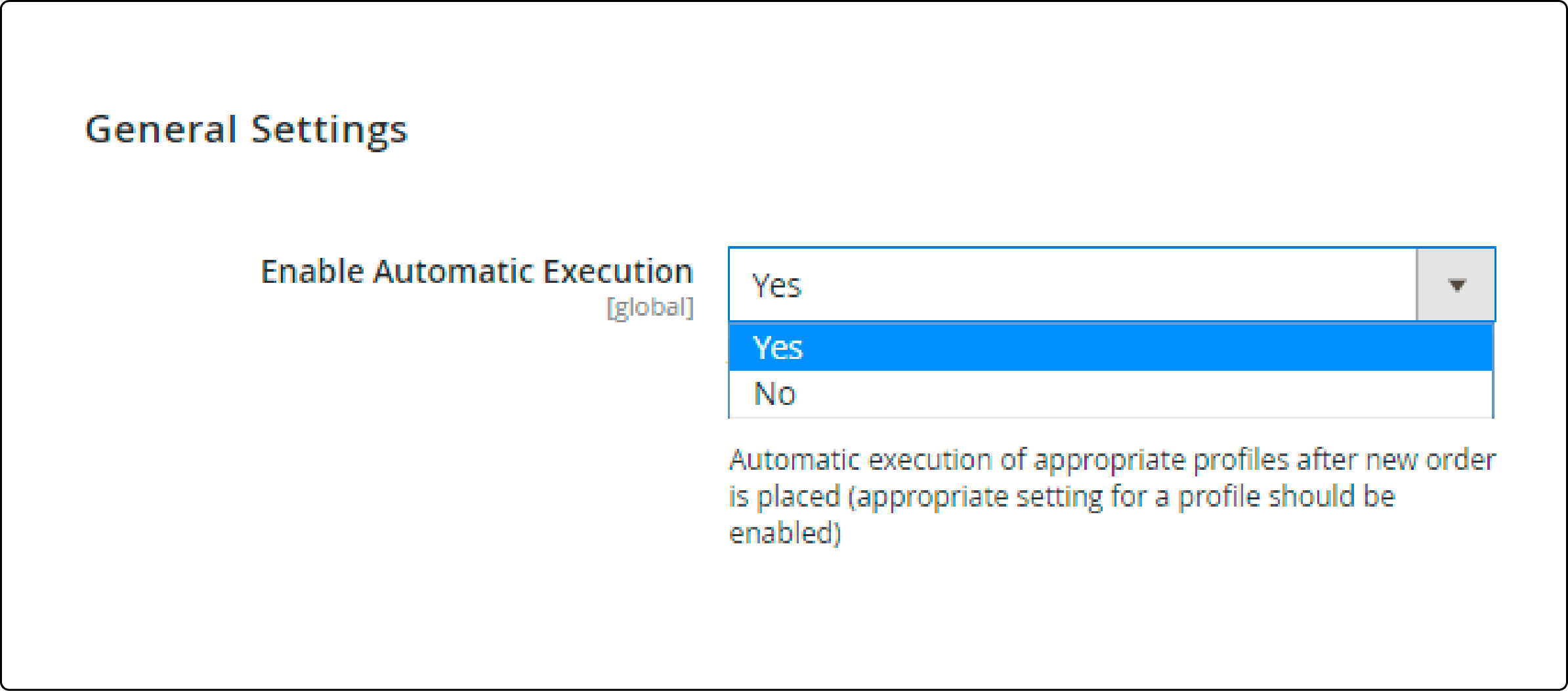
- Navigate to Stores > Configuration > Efficient Order Export > General Settings.
- Set Enable Automatic Execution to Yes to trigger exports after each new order.
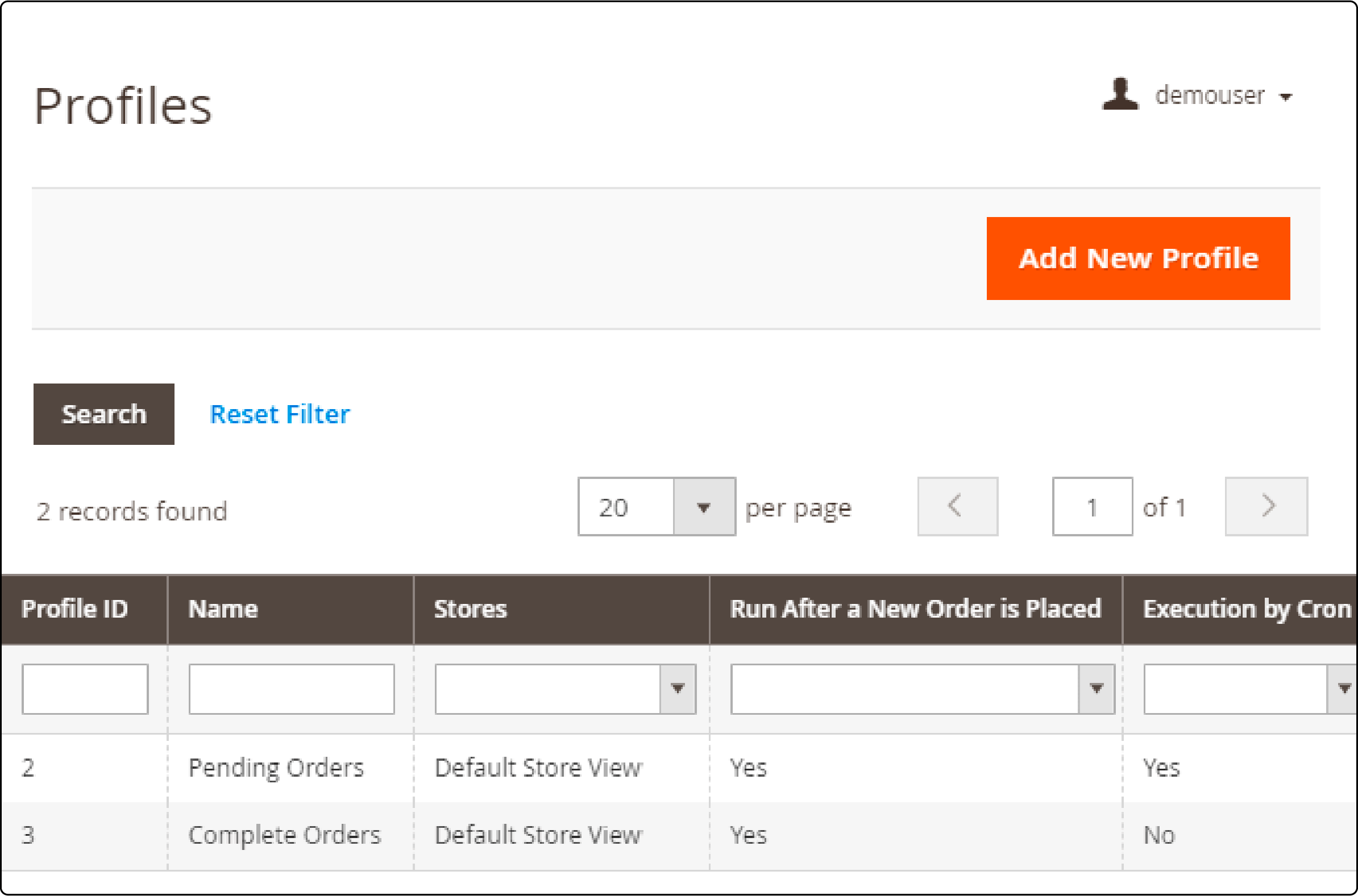
- Go to Efficient Order Export > Profiles to create or edit export profiles.
Profile options include:
- Skip Child Products: Export parent configurable products only.
- Skip Parent Products: Export child products, excluding bundles and configurables.
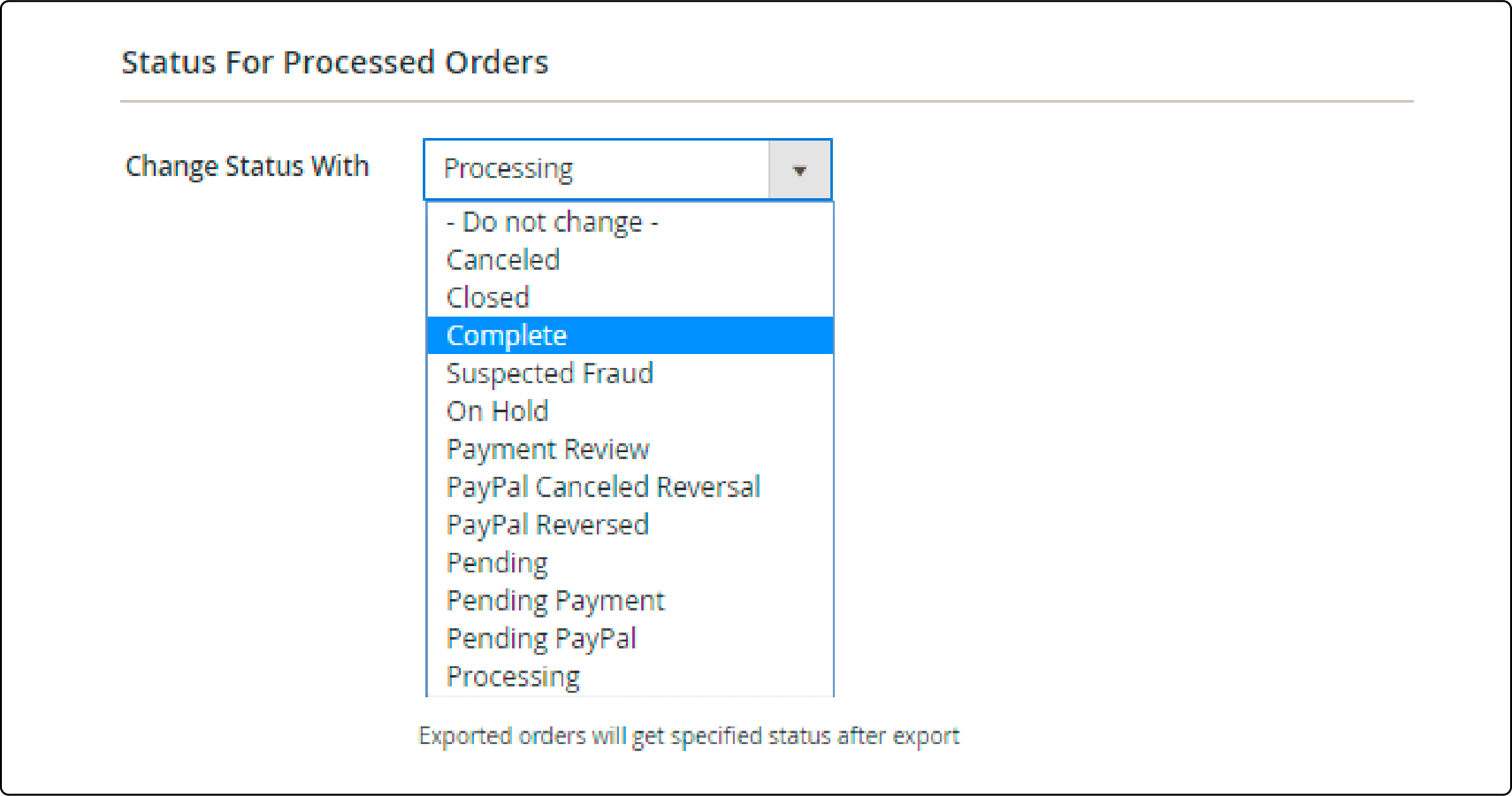
- Change Status of Processed Orders: Automatically update order status after export.
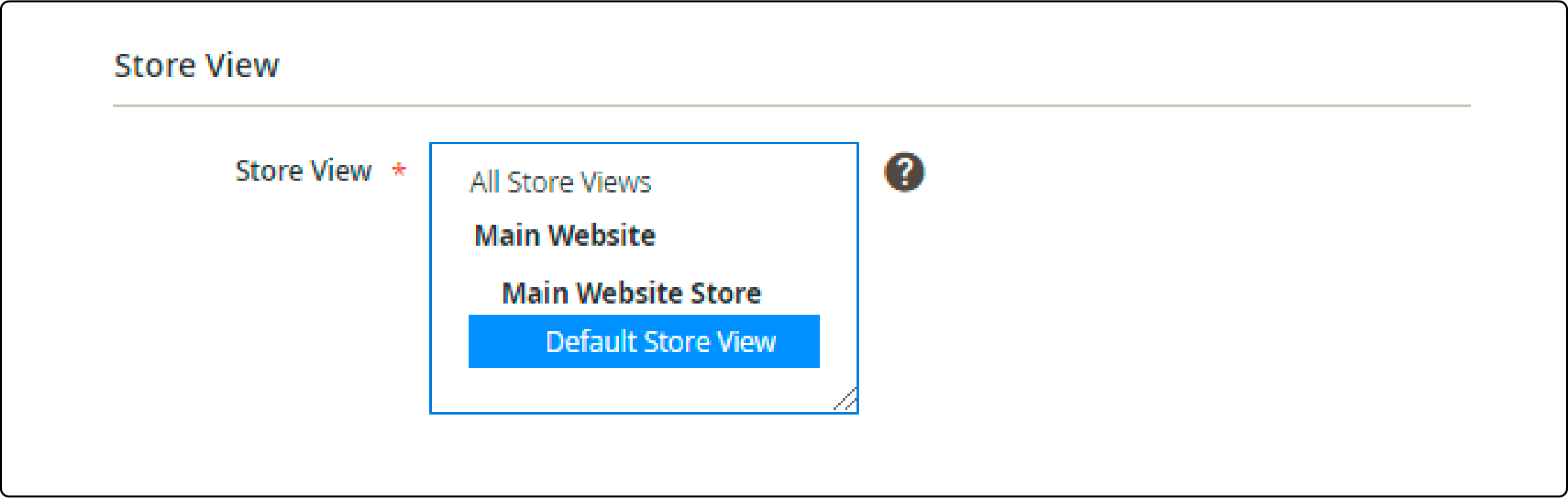
- Store View Selection: Choose which store view data to export.
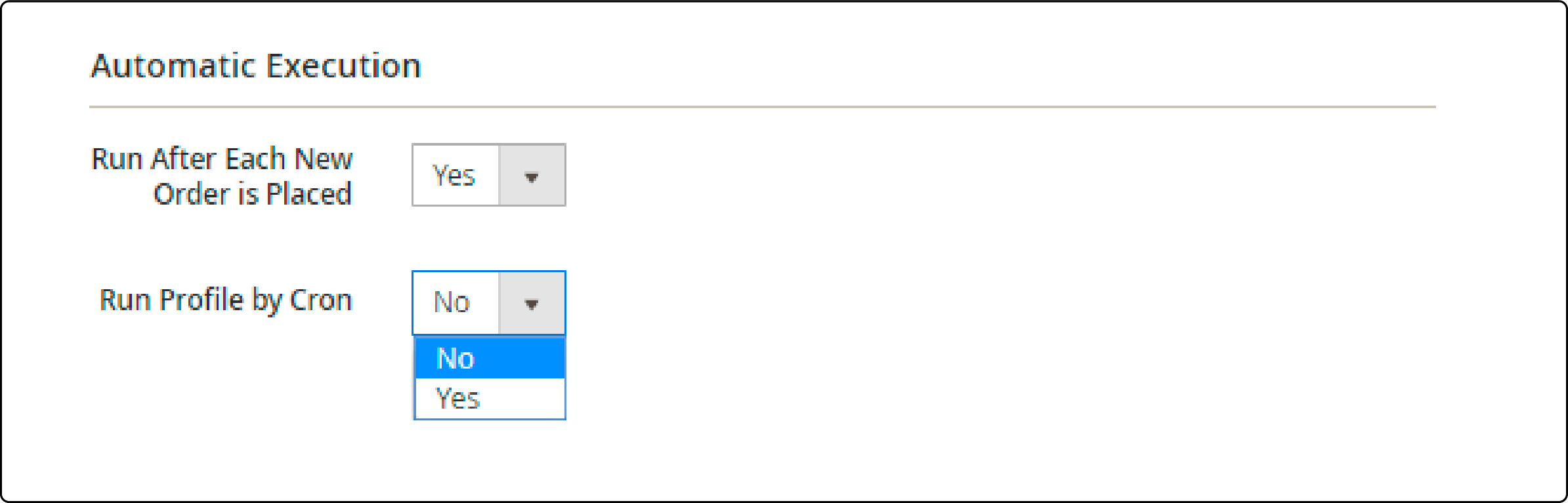
- Auto-run: Set Run After Each New Order to Yes for real time export.
Configuring Export Filters
Filters let you export precise subsets of your order data.
Order Number Filters:
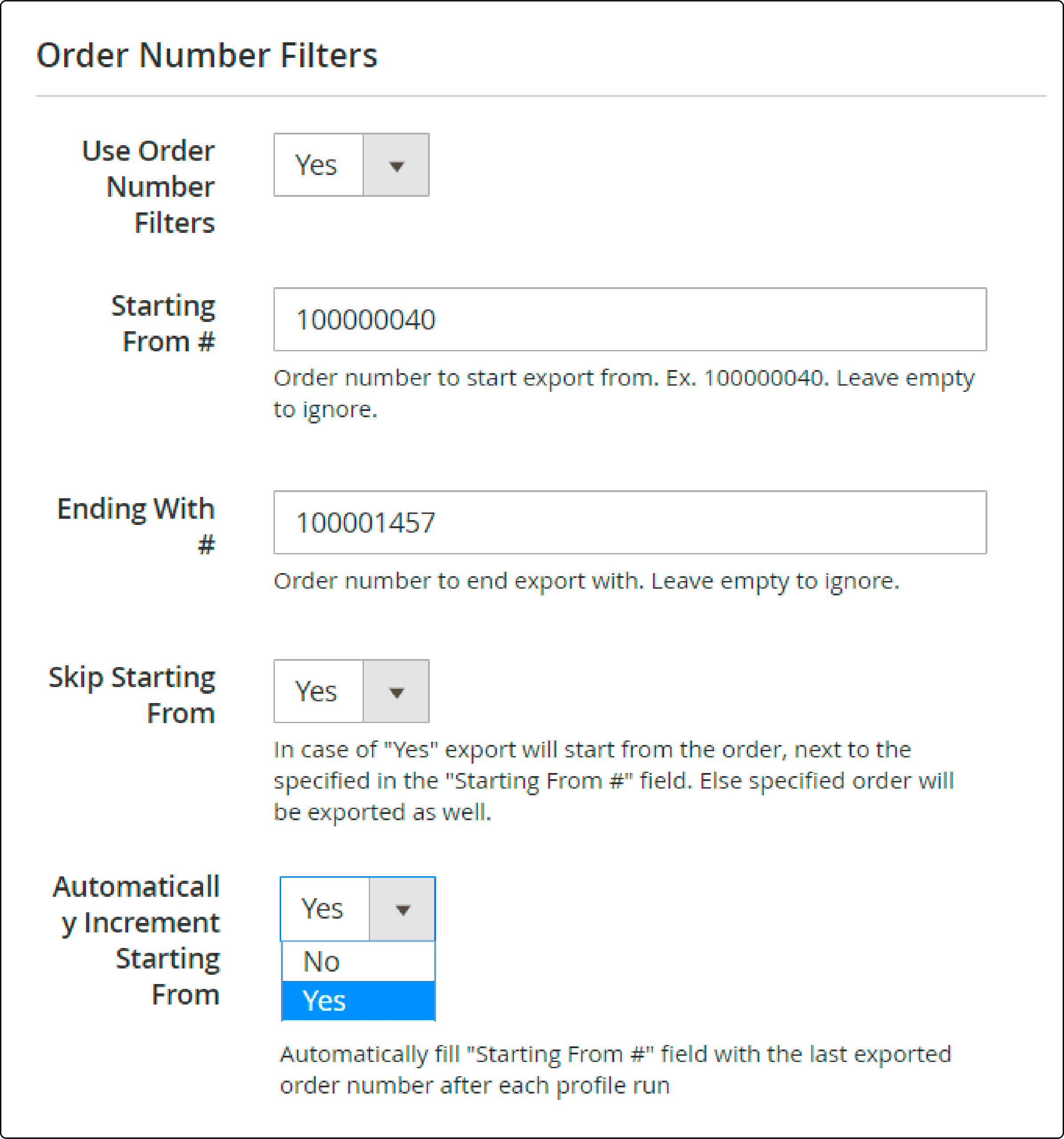
- Set starting and ending order numbers to export a specific range.
- Enable Skip Starting From to exclude the boundary order.
- Turn on Automatically Increment Starting From to track the last exported order number.
Invoice and Shipment Filters:
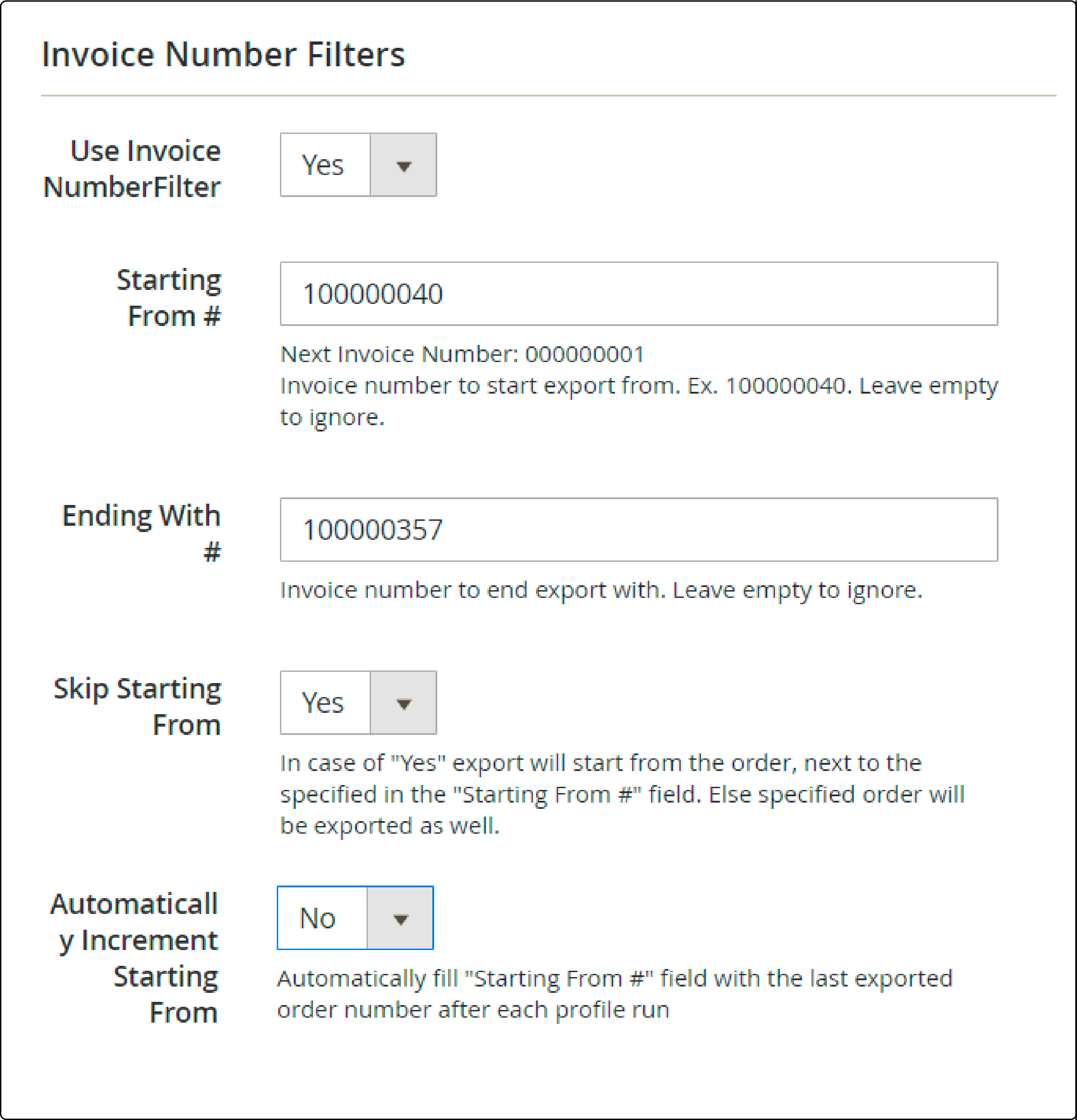
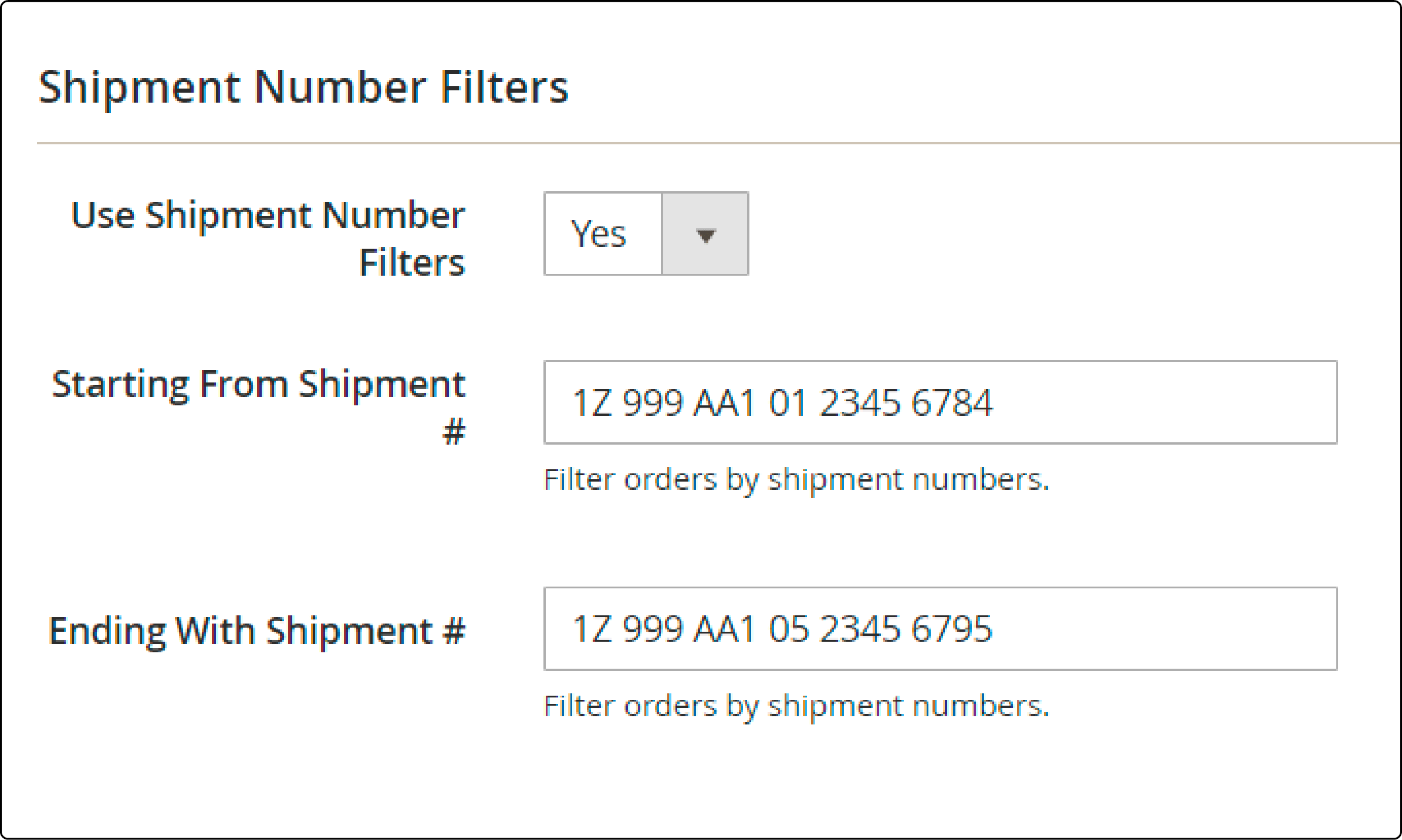
Use the same approach as order number filters. Specify starting and ending numbers for invoices or shipments.
Date Range and Customer Groups:
- Enable Date Range to export orders from a specific period.
- Enable Filter by Customer Group to limit exports to selected groups.
- Under Other Export Filters, choose which order statuses to include.
File Delivery Options
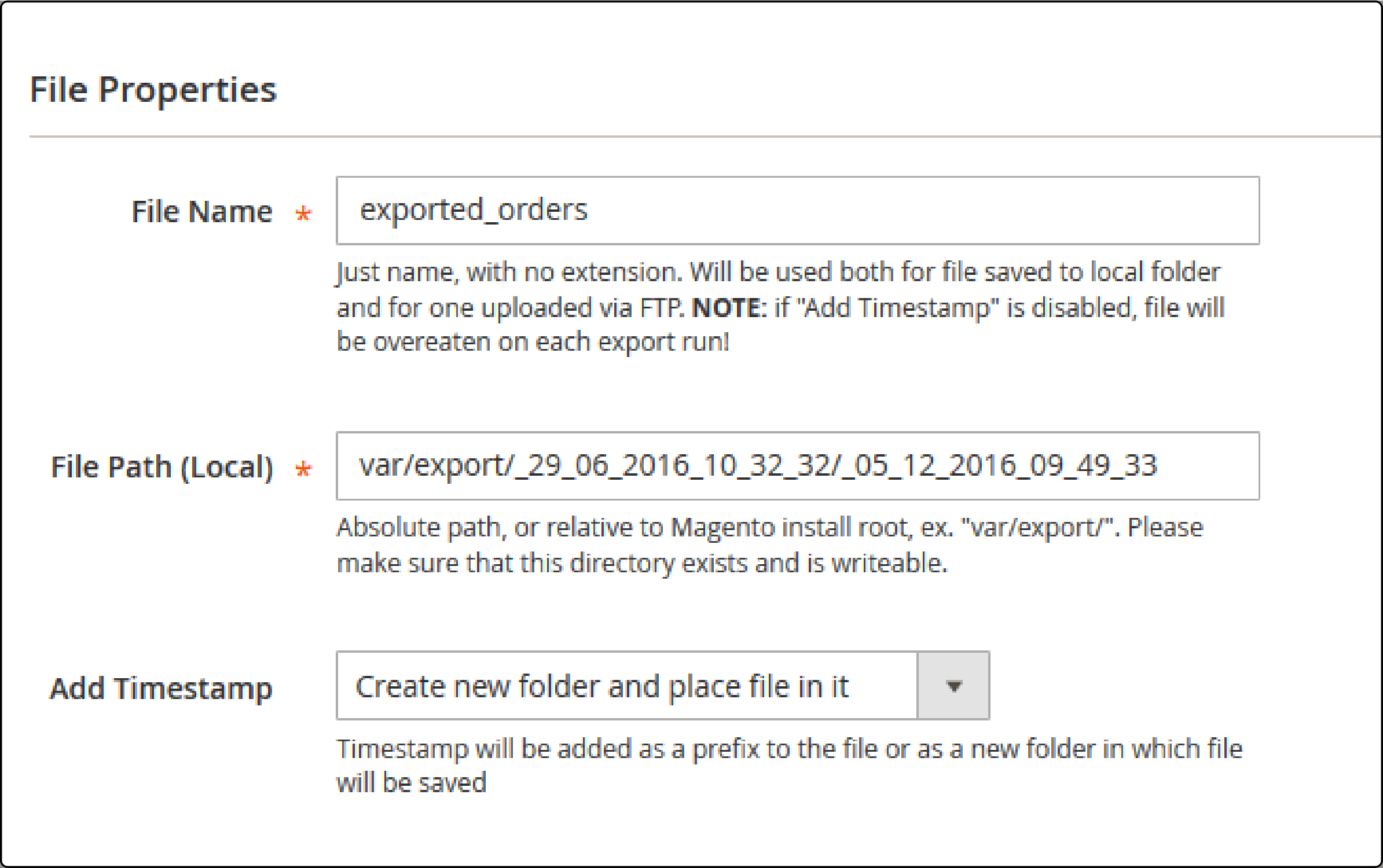
| Option | Description |
|---|---|
| File Name | Custom name for the export file |
| File Path | Local directory for storing exports |
| Add Timestamp | Prefix timestamp or create dated folders |
| FTP/SFTP Upload | Send files to external servers |
| Email Delivery | Receive export files via email |
Field Mapping
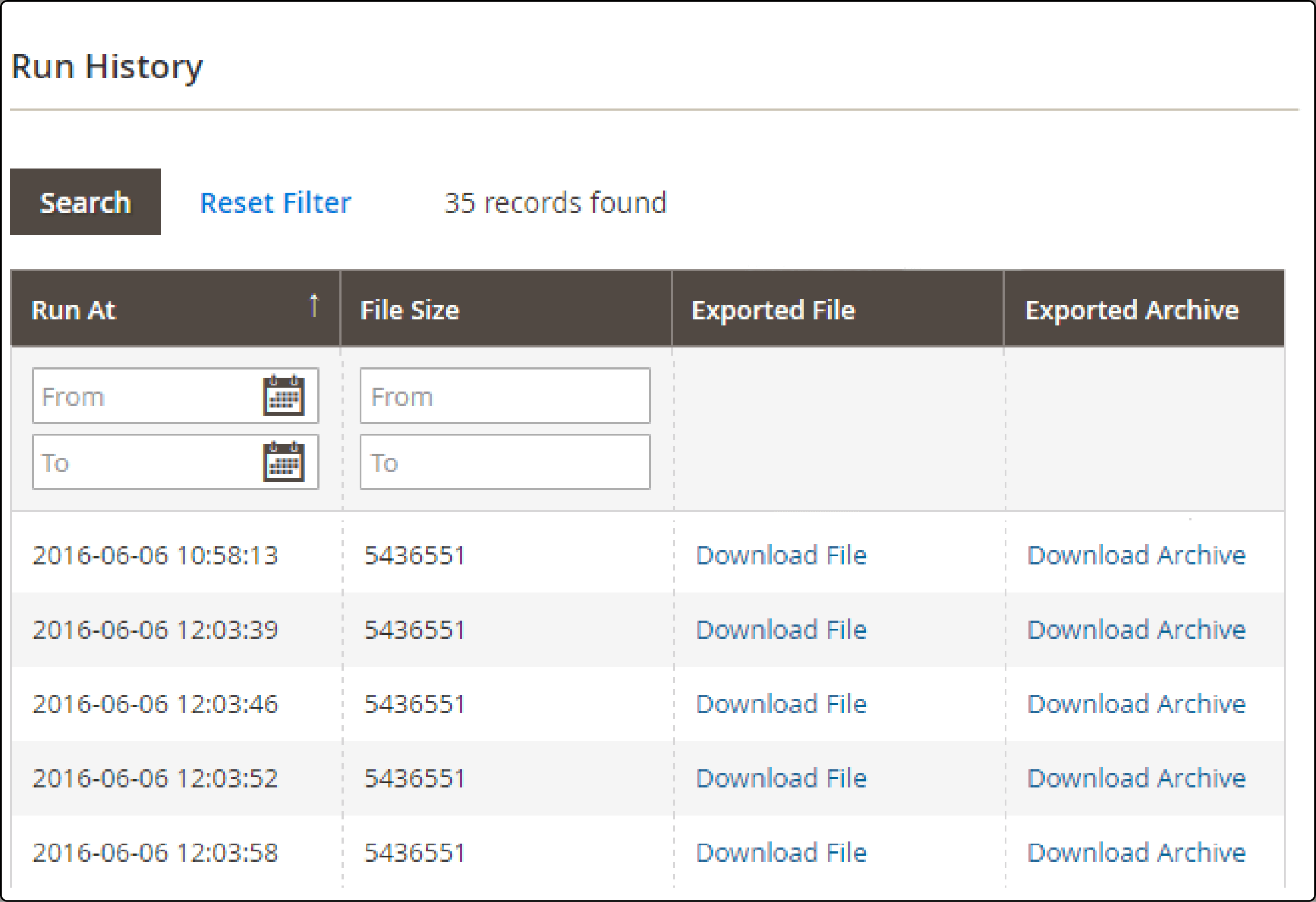
Under System > Efficient Order > History, configure which fields to export and how they map to your target system. Choose Export Specified Fields Only for lean files, or export all available fields for complete datasets.
Other Popular Export Extensions
| Extension | Key Feature | Formats |
|---|---|---|
| XTENTO Order Export | Multi entity export (orders, invoices, shipments, credit memos) | CSV, XML, TXT |
| BSS Commerce | Bulk import and export with validation | CSV |
| FireBear Improved Import & Export | Google Sheets integration, REST API, consecutive export | CSV, XML, JSON |
How to Import Orders in Magento 2
Magento 2 has no native order import function. This is a deliberate design choice. Order data involves complex relationships between customers, products, addresses, payment methods, and shipment records. A faulty import can corrupt transaction history.
To import orders, you need a third party extension.
Key Concepts for Order Import
entity_id vs increment_id:
The entity_id is the internal database identifier. Magento assigns it automatically. If an imported order shares an entity_id with an existing record, Magento assigns a new one.
The increment_id is the visible order number shown in the admin grid and on invoices. This value must be unique. Magento rejects imports with duplicate increment_ids.
Product assignment: Orders link to products through SKU. If the store lacks a product with the imported SKU, the order still imports but the reorder function will not work for that item.
Customer assignment: Orders match customers by email address. If no matching customer exists, the imported order categorizes the buyer as a guest.
Both editions (Magento Open Source and Adobe Commerce) use compatible order table structures. You can import order data between editions without conversion.
Import Workflow Using BSS Commerce Extension
-
Go to System > Import by BSS > Set Entity Type to Orders.
-
Configure Import Behavior:
- Add: Insert new orders into the database.
- Update: Modify existing orders with new CSV data.
- Delete: Remove orders matching entity_ids in the CSV file.
-
Set Validation Strategy:
- Stop on Error: Halt import when errors appear.
- Skip error entries: Continue importing, bypass problematic rows.
-
Set Allowed Errors Count to control the error threshold before the import stops.
-
Define Value Separators to match your CSV format (comma by default).
-
Click View sample data to download a template CSV with required columns.
-
Upload your prepared CSV file and click Check Data to validate.
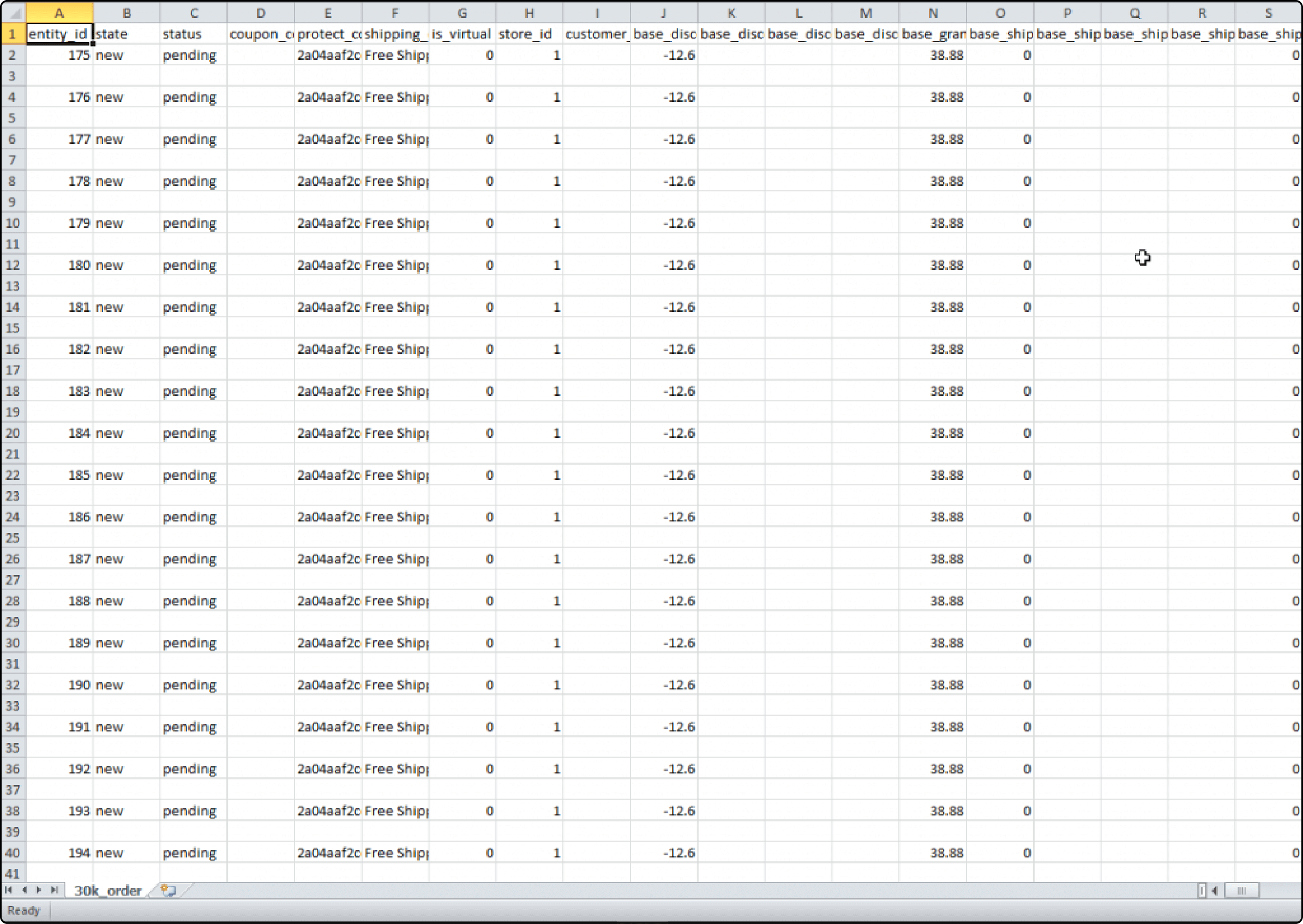
- If validation passes, click Import to process the data.
Automating Order Exports with Cron Jobs
For stores that need recurring order exports without manual intervention, set up cron schedules to run export profiles on a timer.
Most export extensions support cron based execution. Set the frequency (minute, hourly, daily, weekly) and the extension generates fresh export files at each interval. Combined with FTP/SFTP delivery, this creates a hands off pipeline to your ERP or accounting system.
Server considerations for scheduled exports:
Large order datasets can consume significant memory and CPU during export generation. If your store processes thousands of orders per month, ensure your hosting infrastructure supports background processing. Increase memory_limit and max_execution_time in PHP settings if exports time out.
Integrating Order Data with External Systems
Order exports and imports serve larger business workflows beyond simple file transfers.
ERP Integration: Feed order data into enterprise resource planning systems for inventory management, financial reporting, and supply chain coordination. Many businesses connect Magento orders to their ERP through scheduled CSV transfers or REST API integrations.
Data Migration: When moving from one Magento instance to another, or upgrading between versions, order data transfers via CSV remain the most reliable method. Export from the source instance, validate the file, then import into the target using a dedicated extension.
Product Data Sync: Order management connects to broader data workflows. Keeping product import processes aligned with order data ensures consistent SKU references across your catalog and transaction history.
Troubleshooting Common Issues
| Issue | Cause | Solution |
|---|---|---|
| Export file is empty | Grid filters too restrictive | Clear all filters and retry |
| Import rejects all rows | Missing required fields | Download sample CSV and compare column headers |
| Duplicate increment_id error | Order number conflict | Remove conflicting rows or let Magento auto assign new IDs |
| Import times out | Large file, low PHP limits | Increase memory_limit to 2G and max_execution_time to 3600 |
| SKU not found warning | Product deleted or never existed | Import proceeds, but reorder disabled for missing SKUs |
| Customer shows as guest | Email address mismatch | Verify email addresses match existing customer accounts |
| CSV encoding errors | Wrong character encoding | Save CSV as UTF-8 without BOM |
| Export missing line items | Native export limits | Use an extension for detailed order line export |
Best Practices for Order Data Management
Validate before importing. Run the validation check on every import file. One malformed row can halt the entire batch or create orphaned records.
Use staging environments. Test imports on a development instance before running them on production. A corrupted order table on a live store disrupts customer service and reporting.
Back up the database. Before any bulk import, create a database snapshot. Recovery from a bad import without a backup means manual data reconstruction.
Standardize file naming. Use consistent naming conventions with timestamps: orders_export_2026-03-13_daily.csv. This prevents overwriting previous exports and simplifies file retrieval.
Monitor server resources. Large exports and imports consume memory and CPU. Schedule bulk operations during low traffic periods. Track PHP memory usage and execution time to catch timeouts before they corrupt data.
Audit imported data. After import, spot check a sample of orders in the admin panel. Verify that customer associations, product SKUs, totals, and statuses transferred correct.
FAQ
How do I export all orders with line item details in Magento 2?
The native admin export only captures grid level data. For line item details (product names, SKUs, quantities, individual prices), install a dedicated export extension like Amasty Export Orders or XTENTO Order Export. These extensions let you include order items, shipping details, and payment information in a single export file.
Can I schedule automatic order exports in Magento 2?
Yes. Export extensions support cron based scheduling. Configure the frequency (hourly, daily, weekly) and delivery method (local storage, FTP, SFTP, email) in the extension profile settings. The system generates fresh export files at each scheduled interval without manual intervention.
Why does Magento 2 not support native order import?
Order data involves complex relational structures spanning customers, products, addresses, payment records, and shipment tracking. A native import without robust validation could corrupt transaction history. Adobe chose to delegate this function to specialized extensions that include field mapping, validation, and error handling.
What happens if I import an order with a duplicate order number?
Magento 2 rejects imports with duplicate increment_id values. Either remove the conflicting rows from your CSV or configure the import extension to auto generate new increment IDs. The entity_id (internal database key) auto assigns without conflicts.
How do I transfer orders between Magento Open Source and Adobe Commerce?
Both editions use compatible order table structures. Export orders from the source instance as CSV, then import into the target instance using an import extension. No data conversion is required between editions.
What is the maximum file size for order imports?
There is no hard limit in Magento itself. The practical limit depends on your server's PHP memory_limit, max_execution_time, and upload_max_filesize settings. For files exceeding 100MB, split them into smaller batches or increase PHP limits.
How do I export orders for a specific date range?
In the native admin export, apply a date filter on the Orders grid before clicking Export. With extensions, configure the Date Range filter in the export profile to specify exact start and end dates.
Can I export order data through the Magento REST API?
Yes. Magento 2 provides REST API endpoints for order data at /rest/V1/orders. This method suits real time integrations better than file based exports. API access requires authentication tokens and proper ACL permissions.
Summary
Order data management in Magento 2 combines native export tools with third party extensions to cover the full range of business needs. The admin panel handles basic CSV and XML exports. Extensions fill the import gap and add features like profile configuration, automated scheduling, field mapping, and multi format support.
For stores processing high order volumes, invest in a proper export workflow early. Scheduled exports, validated imports, and database backups prevent data loss and keep your order management running clean.
Looking for Magento hosting that handles large order databases without performance drops? Explore MGT Commerce managed hosting for infrastructure built around Magento workloads.
