

How to Configure Magento 2 Pagination Controls
[Updated: March 17, 2026]
Pagination splits large product catalogs into smaller, faster pages. Without it, category pages load slow, frustrate shoppers, and tank your search rankings.
This guide covers admin configuration, custom collection code, and the SEO techniques most Magento stores miss.
Key Takeaways
- Magento 2 offers four pagination controls: View As, Sort By, Show Per Page, and Pagination Links
- Configure pagination in the admin panel under Content > Design > Configuration > Pagination
- Add pagination to custom collections using the
Magento\Theme\Block\Html\Pagerblock class - SEO-friendly pagination requires rel=next/prev tags and unique meta titles per page
- Traditional pagination outperforms infinite scroll for SEO in most cases
- Keep products per page between 12 and 36 for the best balance of speed and usability
What Is Magento 2 Pagination?
Magento 2 pagination = a built-in feature that divides large data sets (product listings, search results, order history) into numbered pages. It keeps page load times fast and gives users clear navigation through your catalog.
Perfect for: Stores with 50+ products per category, custom modules displaying large data sets, any page with filterable collections
Not ideal for: Single-product landing pages, content pages with no listings
Pagination appears as numbered links at the top or bottom of category pages. When a customer clicks "Page 2," Magento loads the next batch of products without reloading the entire catalog.
Every Magento 2 store uses pagination by default on catalog pages. The real question is how to configure it for your store's product volume and customer behavior.
Types of Pagination Controls in Magento 2
Magento 2 includes four built-in pagination controls on catalog and search result pages:
| Control | Function | Default Location |
|---|---|---|
| View As | Switches between grid and list display | Top toolbar |
| Sort By | Orders products by attribute (name, price, position) | Top toolbar |
| Show Per Page | Sets how many products appear per page | Top and bottom toolbar |
| Pagination Links | Numbered page navigation with previous/next arrows | Bottom toolbar |
View As lets customers choose between grid layout (visual browsing) and list layout (detailed comparison). Grid works better for fashion and lifestyle products. List works better for technical products where specifications matter.
Sort By pulls from product attributes configured in your Magento admin panel. Default sort options include position, product name, and price. You can add custom attributes like "bestseller" or "newest" through the admin.
Show Per Page controls load time more than any other pagination setting. The default options (12, 24, 36) work for most stores. Avoid setting values above 48 on stores with image-heavy product cards.
Pagination Links display the page numbers and navigation arrows. The number of visible page links depends on the Pagination Frame setting covered in the next section.
How to Configure Pagination Controls in Magento 2
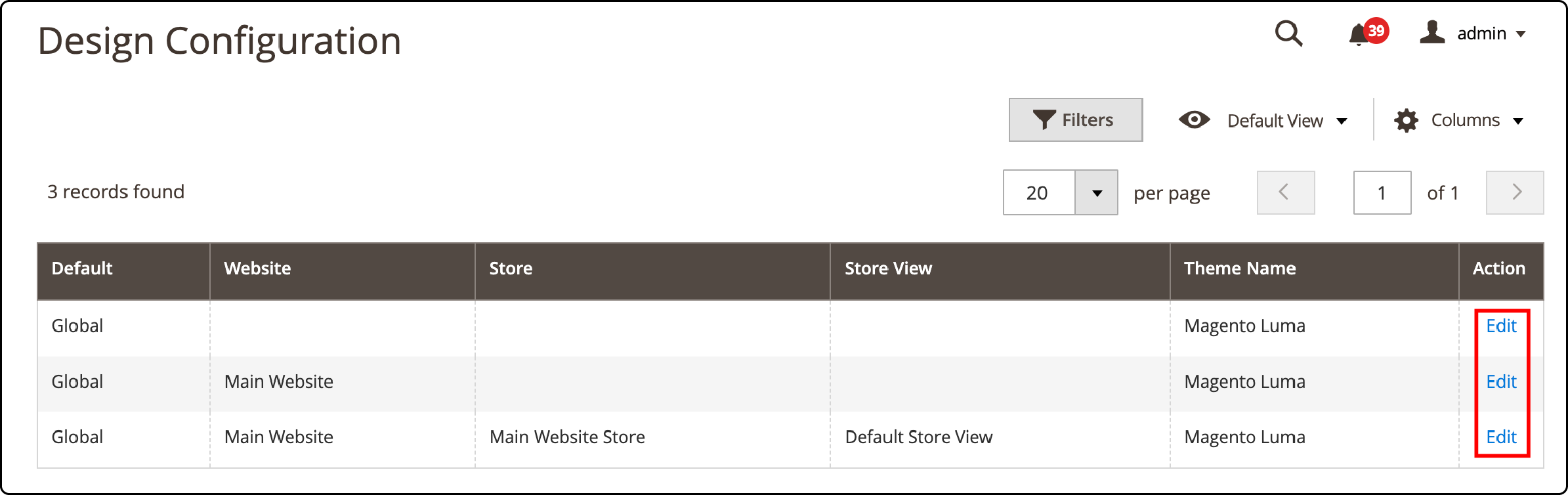
Step 1: Open the Design Configuration
- Log in to your Magento 2 admin panel
- Navigate to Content > Design > Configuration
- Find the store view you want to configure
- Click Edit in the Action column
Step 2: Configure Pagination Settings
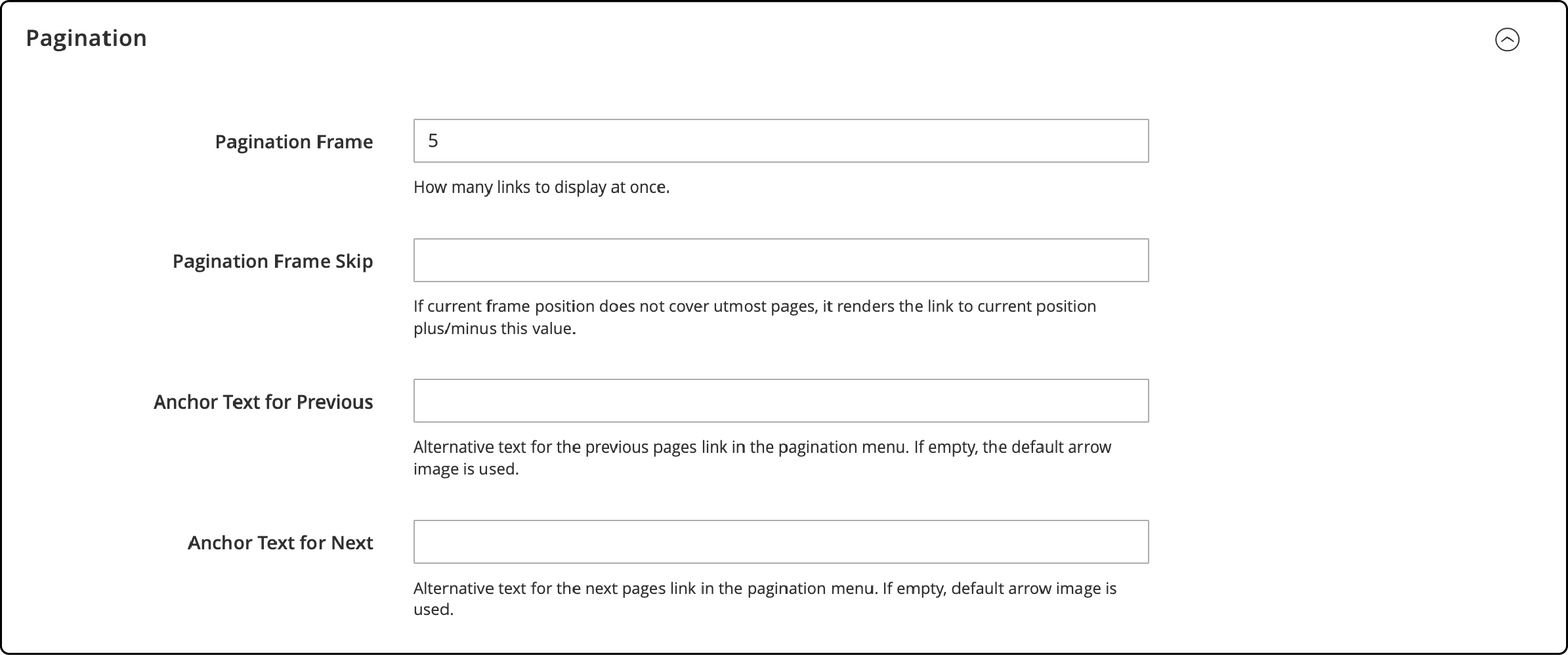
Expand the Pagination section under your theme settings. You will see these fields:
| Field | What It Controls | Recommended Value |
|---|---|---|
| Pagination Frame | Number of page links displayed | 5 for small catalogs, 7 for large ones |
| Pagination Frame Skip | Links skipped between page groups | Leave default (null) |
| Anchor Text for Previous | Text for the "previous" link | Leave empty for default arrow |
| Anchor Text for Next | Text for the "next" link | Leave empty for default arrow |
Pagination Frame determines how many numbered links appear in the pagination bar. If you set it to 5 and have 20 pages, customers see links for pages 1 through 5, then a jump link to the next group.
Pagination Frame Skip controls the overlap between page groups. With a frame of 10 and skip of 7, the last 3 links from the previous set become the first 3 links in the next set. Leave this on the default setting unless you have a specific UX requirement.
Step 3: Configure Products Per Page
Navigate to Stores > Configuration > Catalog > Catalog > Storefront to set:
- Products per Page on Grid: Default values allowed (e.g., 12, 24, 36)
- Products per Page on List: Default values allowed (e.g., 5, 10, 15, 20, 25)
- Products per Page on Grid Default Value: The initial value loaded on grid view
- Products per Page on List Default Value: The initial value loaded on list view
Click Save Config after making changes. Flush the cache under System > Cache Management to see updates on the frontend.
How to Add Pagination to a Custom Collection
When building custom modules that display collections (blog posts, FAQs, dealer locators), you need to add pagination. Here is the complete implementation compatible with Magento 2.4.8 and PHP 8.3+.
Step 1: Create the Collection Method
Add this method to your block class to retrieve a paginated collection:
public function getCollection(): \Magento\Framework\Model\ResourceModel\Db\Collection\AbstractCollection
{
    $page = (int) $this->getRequest()->getParam('p', 1);
    $pageSize = (int) $this->getRequest()->getParam('limit', 10);

    $collection = $this->collectionFactory->create();
    $collection->addFieldToFilter('is_active', 1);
    $collection->setOrder('created_at', 'DESC');
    $collection->setPageSize($pageSize);
    $collection->setCurPage($page);

    return $collection;
}
setCurPage() sets the active page based on the URL parameter p. setPageSize() controls items per page based on the limit parameter.
Step 2: Create the Pager Block
Override _prepareLayout() to attach the pager to your block:
protected function _prepareLayout(): self
{
    parent::_prepareLayout();

    if ($this->getCollection()) {
        $pager = $this->getLayout()->createBlock(
            \Magento\Theme\Block\Html\Pager::class,
            'custom.collection.pager'
        )
        ->setAvailableLimit([10 => 10, 20 => 20, 50 => 50])
        ->setShowPerPage(true)
        ->setCollection($this->getCollection());

        $this->setChild('pager', $pager);
        $this->getCollection()->load();
    }

    return $this;
}
The setAvailableLimit() method defines the "Show Per Page" dropdown values. setShowPerPage(true) makes that dropdown visible on the frontend.
Step 3: Add the Pager HTML Method
public function getPagerHtml(): string
{
    return $this->getChildHtml('pager');
}
Step 4: Render in Your Template
Add this to your .phtml template file. Use a <nav> element with aria-label for accessibility:
<?php if ($block->getPagerHtml()): ?>
    <nav aria-label="Page navigation" class="toolbar bottom">
        <?= $block->getPagerHtml() ?>
    </nav>
<?php endif; ?>
The pager block generates the full pagination HTML including page numbers, previous/next arrows, and the "Show Per Page" selector. It reads URL parameters and updates the collection state on each page load.
For more context on how blocks and layout containers work in Magento 2, review the layout XML system.
SEO Best Practices for Magento 2 Pagination
Most Magento pagination guides skip SEO. That is a mistake. Paginated pages create duplicate content risks and crawl budget waste if not handled right.
Use Rel="next" and Rel="prev" Tags
Add these link tags to the <head> section of paginated pages:
-
First page: Only
<link rel="next" href="...?p=2" /> -
Middle pages: Both
<link rel="prev" href="...?p=1" />and<link rel="next" href="...?p=3" /> -
Last page: Only
<link rel="prev" href="...?p=9" />
Google deprecated these tags in 2019, but Bing, Yandex, and other search engines still use them. Including them costs nothing and benefits cross-engine visibility. Several Magento SEO extensions add these tags with zero custom code.
Set Canonical Tags on Paginated Pages
Each paginated page should have a self-referencing canonical tag. Do not point all paginated pages back to page 1. That tells search engines to ignore products listed on pages 2 and beyond.
<!-- Page 3 should have: -->
<link rel="canonical" href="https://example.com/category.html?p=3" />
Create Unique Meta Titles Per Page
Duplicate meta titles across paginated pages trigger duplicate content flags in search console audits. Append the page number to each title:
Category Name | Page 2 | Your Store
Remove the ?p=1 Parameter
The first page of any category should not include ?p=1 in its URL. Implement a 301 redirect from category.html?p=1 to category.html to consolidate link equity on the clean URL.
Block Faceted Navigation Parameters
If your store uses layered navigation with URL parameters like ?color=red&size=m, set these filter pages to noindex or use canonical tags pointing to the clean category URL. This prevents crawl budget waste on thousands of filter combinations.
For broader Magento search optimization strategies, the official Adobe Commerce SEO documentation covers canonical setup and crawl optimization in detail.
Pagination vs Infinite Scroll
Some stores replace traditional pagination with AJAX infinite scroll. Here is how they compare:
| Factor | Traditional Pagination | Infinite Scroll |
|---|---|---|
| SEO crawlability | Search engines follow page links | Requires fallback pagination for crawlers |
| Page speed | Loads fixed product count per page | Can cause memory issues on long scrolls |
| User orientation | Users know exact position in catalog | Users lose sense of position |
| Footer access | Footer visible on every page | Footer unreachable on long catalogs |
| Back button | Returns to exact page | Often resets to top of list |
| Server load | Predictable per-page queries | AJAX requests increase with scroll depth |
Recommendation: Use traditional pagination for SEO-focused stores. If you implement infinite scroll, keep paginated URLs as a fallback so search engines can crawl all products. Extensions from popular Magento vendors provide this hybrid approach out of the box.
How Pagination Affects Store Performance
Pagination controls how much data your server processes per request. Setting "Show Per Page" to 100 forces the server to load 100 product records, images, and price calculations in a single query. That adds response time and drains server memory.
Best practices for performance:
- Keep default products per page between 12 and 36
- Apply Magento speed optimization techniques alongside pagination tuning
- Enable full page cache so paginated pages serve from cache after the first load
- Monitor server response time on category pages with 500+ products
- Test pagination load times with and without layered navigation active
Stores running on managed Magento hosting benefit from auto-scaling that handles traffic spikes across paginated category pages without manual server tuning.
FAQ
What is the default products per page in Magento 2?
The default value is 12 for grid view and 10 for list view. You can change these under Stores > Configuration > Catalog > Catalog > Storefront.
How do I change the pagination frame in Magento 2?
Go to Content > Design > Configuration, select your theme, expand the Pagination section, and enter your desired value in the Pagination Frame field.
Can I use infinite scroll instead of pagination in Magento 2?
Yes, but it requires a third-party extension. Magento 2 does not include infinite scroll by default. Popular options include AJAX scroll extensions that maintain SEO-friendly fallback URLs.
Does pagination affect Magento SEO?
Yes. Paginated pages can create duplicate content if canonical tags and rel=next/prev are not configured. Each paginated page should have a unique meta title and self-referencing canonical tag.
How do I add pagination to a custom module?
Use the Magento\Theme\Block\Html\Pager class in your block's _prepareLayout() method. Set available limits, attach your collection, and render with $block->getPagerHtml() in your template.
What is the Pagination Frame Skip setting?
It controls how many links overlap when jumping between page groups. If your frame is 10 and skip is 7, the last 3 links of the current group become the first 3 of the next group.
Should I set a high products-per-page value?
No. Values above 48 increase server response time and memory usage. Keep the default between 12 and 36 for the best balance between user experience and performance.
How do I remove the ?p=1 parameter from pagination URLs?
Add a 301 redirect in your Nginx or Apache configuration from any URL containing ?p=1 to the same URL without the parameter. This consolidates link equity on the clean URL.
Does Magento 2 support AJAX pagination?
Not by default. AJAX pagination that loads products without a full page reload requires a third-party extension or custom JavaScript implementation.
How do I test pagination on a staging environment?
Create a category with 50 or more products. Verify that page links appear, the "Show Per Page" dropdown changes the product count, and URL parameters like ?p=2 and ?limit=24 update the displayed products.
Summary
Magento 2 pagination is more than page numbers at the bottom of a category. It controls load time, user experience, and how search engines crawl your catalog. Configure the admin settings for your store's product volume, add proper SEO tags to paginated pages, and keep products per page between 12 and 36.
For stores where server performance matters, a managed hosting environment handles the database queries and cache management that pagination depends on.
