Magento 2 PayPal Smart Buttons: Setup, Customization, and Testing
[Updated: March 17, 2026]
Your checkout page decides whether customers complete purchases or abandon carts. PayPal Smart Buttons adapt to each buyer's location and device, showing the most relevant payment methods at the right moment.
This guide covers configuration, button customization, Pay Later setup, and testing for Magento 2 stores.
Key Takeaways
- PayPal Smart Buttons display relevant payment methods per buyer based on geolocation and device type
- Three integration paths exist: Payment Services for Adobe Commerce (recommended), PayPal Complete Payments, and Express Checkout
- Pay Later offers include Pay in 4 ($30 to $1,500) and Pay Monthly ($199 to $10,000) for US stores
- Button customization controls layout, color, shape, and label across product pages, cart, checkout, and mini cart
- Sandbox testing validates all payment scenarios before going live
What Are PayPal Smart Buttons?
PayPal Smart Buttons = Dynamic payment buttons that show each buyer their most relevant payment options. The PayPal JavaScript SDK uses geolocation and device detection to render the right methods, from PayPal accounts to credit cards and local payment options.
Perfect for: Magento stores selling to multiple countries, merchants wanting one-click checkout, stores reducing cart abandonment
Not ideal for: Stores that accept bank transfers only, B2B businesses with invoice-based payments
PayPal Smart Buttons replace static payment buttons with dynamic ones. The JavaScript SDK renders buttons that adjust per buyer. A customer in the US sees PayPal, Venmo, and credit card options. A customer in the Netherlands sees iDEAL. A customer in Belgium sees Bancontact.
The buttons support PayPal accounts, credit and debit cards, Venmo (US), Pay Later installments, Apple Pay, Google Pay, and region-specific local payment methods.
PayPal Payment Integration Options for Magento 2
Magento 2 offers three paths for PayPal integration. The right choice depends on your store's version, feature needs, and transaction volume.
| Feature | Payment Services (Recommended) | PayPal Complete Payments | Express Checkout (Legacy) |
|---|---|---|---|
| Magento Version | 2.4.4+ | 2.4.4+ | 2.4.3+ |
| Smart Buttons | Yes | Yes | Yes |
| Apple Pay / Google Pay | Yes | Yes (Apple Pay) | No |
| Pay Later | Yes | Yes | Yes (US) |
| Local Payment Methods | Yes (configurable) | Yes | Limited |
| Card Fields on Site | Hosted Fields (no redirect) | Advanced card fields | Redirects to PayPal |
| Fastlane Guest Checkout | Yes | No | No |
| Setup | Extension install + config | Extension install + config | Built-in, config only |
| Best For | Most stores (2026 standard) | PayPal-focused stores | Legacy stores, quick setup |
Payment Services for Adobe Commerce (v2.14.0, February 2026) is the recommended path. It bundles smart buttons, hosted card fields, Apple Pay, Google Pay, and Fastlane for accelerated guest checkout into one extension. Merchants configure local payment methods direct from the Commerce admin.
PayPal Complete Payments is the official PayPal extension on the Adobe Commerce Marketplace. It covers PayPal, Venmo, Pay Later, Apple Pay, and card payments in a single package.
Express Checkout is the legacy built-in option. It works without extra extensions but lacks modern features like Apple Pay and on-site card fields.
For a full overview of available options, see our guide to payment methods for Magento.
Benefits of Smart Button Integration
Adaptive payment rendering. Buttons show each buyer their preferred payment methods based on location and device. No manual configuration per region needed.
Reduced checkout friction. One-click payment with stored PayPal credentials. Guest checkout works without creating an account. Card payments process without redirecting to an external site (with Payment Services or PPCP).
International commerce support. Automatic currency display in the buyer's local currency. Real-time exchange rate integration. Region-specific payment methods render without store-level configuration changes.
Built-in security. PayPal handles PCI compliance for hosted payment fields. AVS and CSC verification reduce fraudulent transactions. Your PCI compliance requirements for card data stay with PayPal rather than your server.
Pay Later conversions. Offering installment options increases average order values. Pay in 4 covers purchases from $30 to $1,500. Pay Monthly handles $199 to $10,000 with 6, 12, or 24 month terms (US buyers).
How to Configure PayPal Express Checkout in Magento 2
Express Checkout is the built-in PayPal integration available in all Magento 2 versions from 2.4.3 onward. Follow these steps for a standard setup.
Step 1: Access Payment Configuration
Navigate to Stores > Configuration > Sales > Payment Methods in the Magento admin panel. Select your Merchant Country under the Merchant Location section.
Step 2: Connect Your PayPal Account
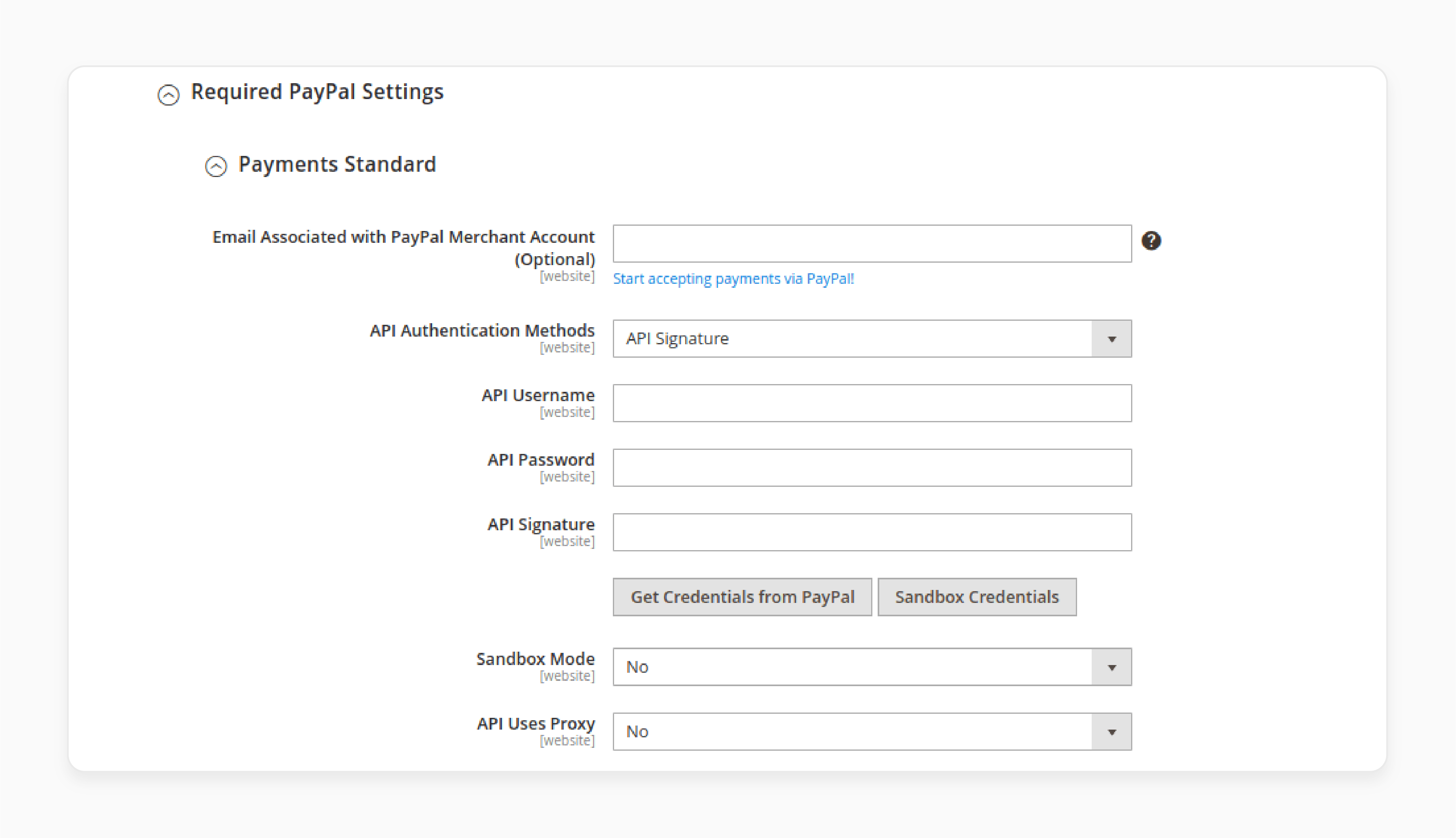
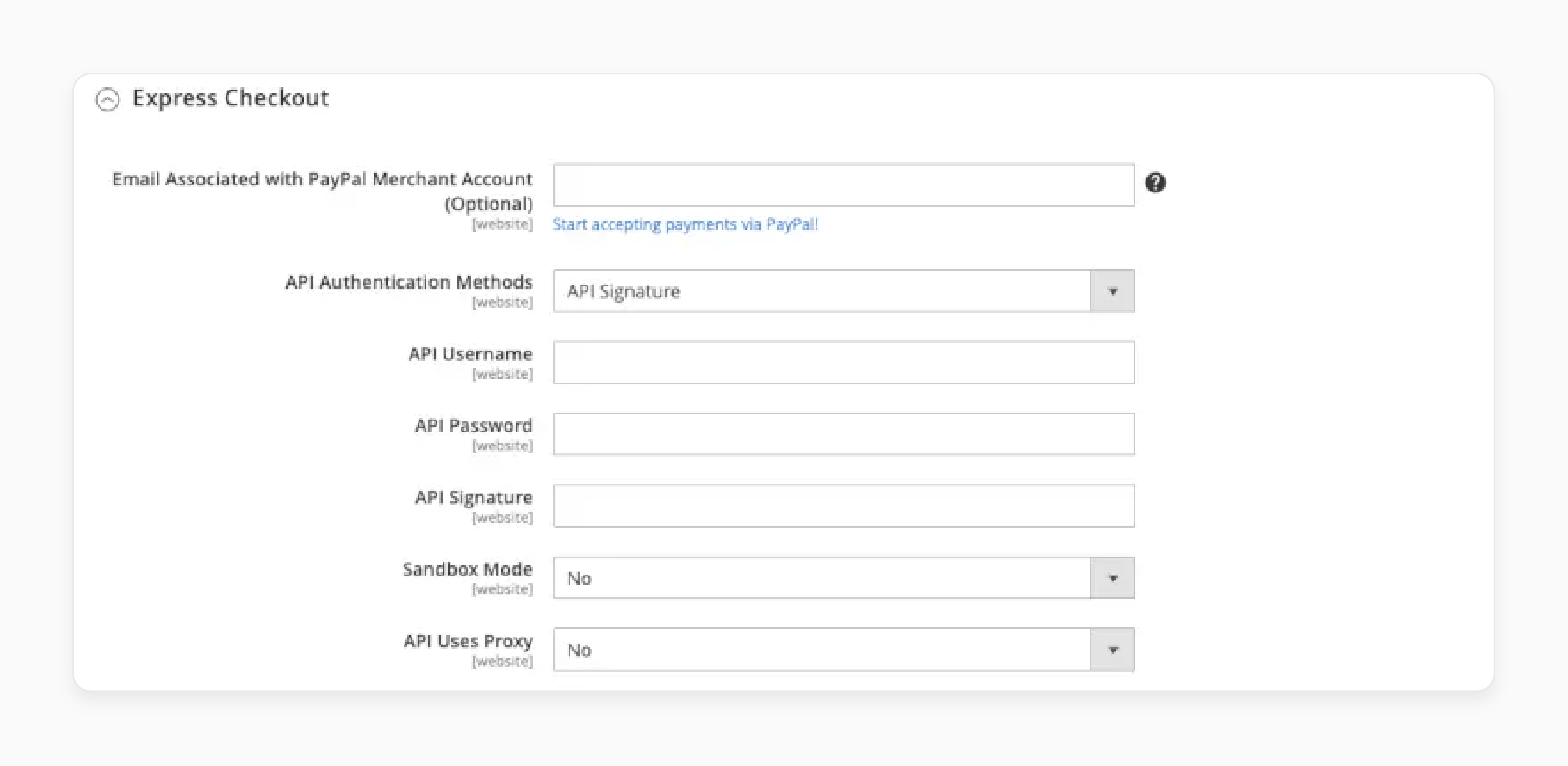
Under Recommended Solutions, click Configure next to PayPal Express Checkout. Expand Required PayPal Settings and click Connect with PayPal to link your merchant account.
Configure these fields:
- Email Associated with PayPal Merchant Account: Must match your PayPal business account email
- API Authentication: Choose API Signature or API Certificate method
- API Username, Password, and Signature: Copy from your PayPal merchant account under API Credentials
- Enable this Solution: Set to Yes
- Enable In-Context Checkout: Set to Yes for a popup checkout flow instead of full-page redirect
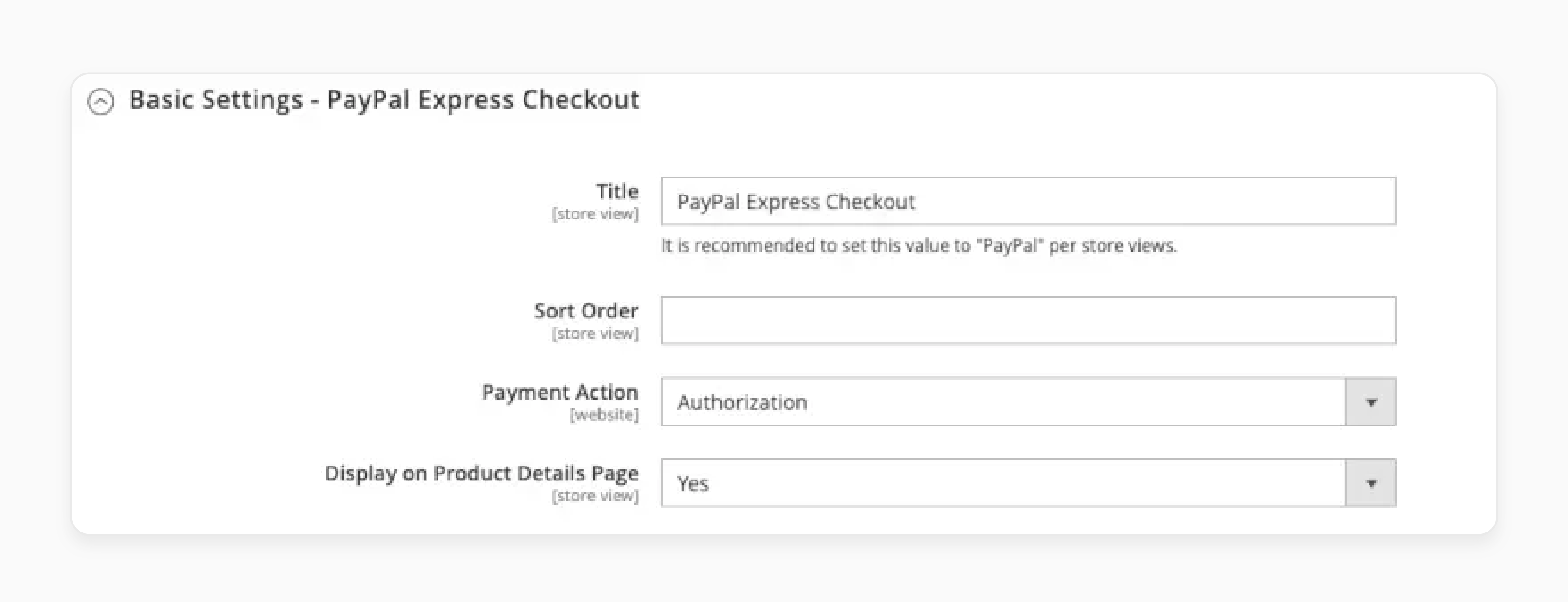
Step 3: Configure Basic Settings
- Title: Define the label shown during checkout (e.g., "PayPal Express Checkout")
- Payment Action: Choose Authorization (capture later), Sale (capture now), or Order
- Display on Product Details Page: Set to Yes to show the PayPal button on product pages
- Sort Order: Set the position among other payment methods in your store
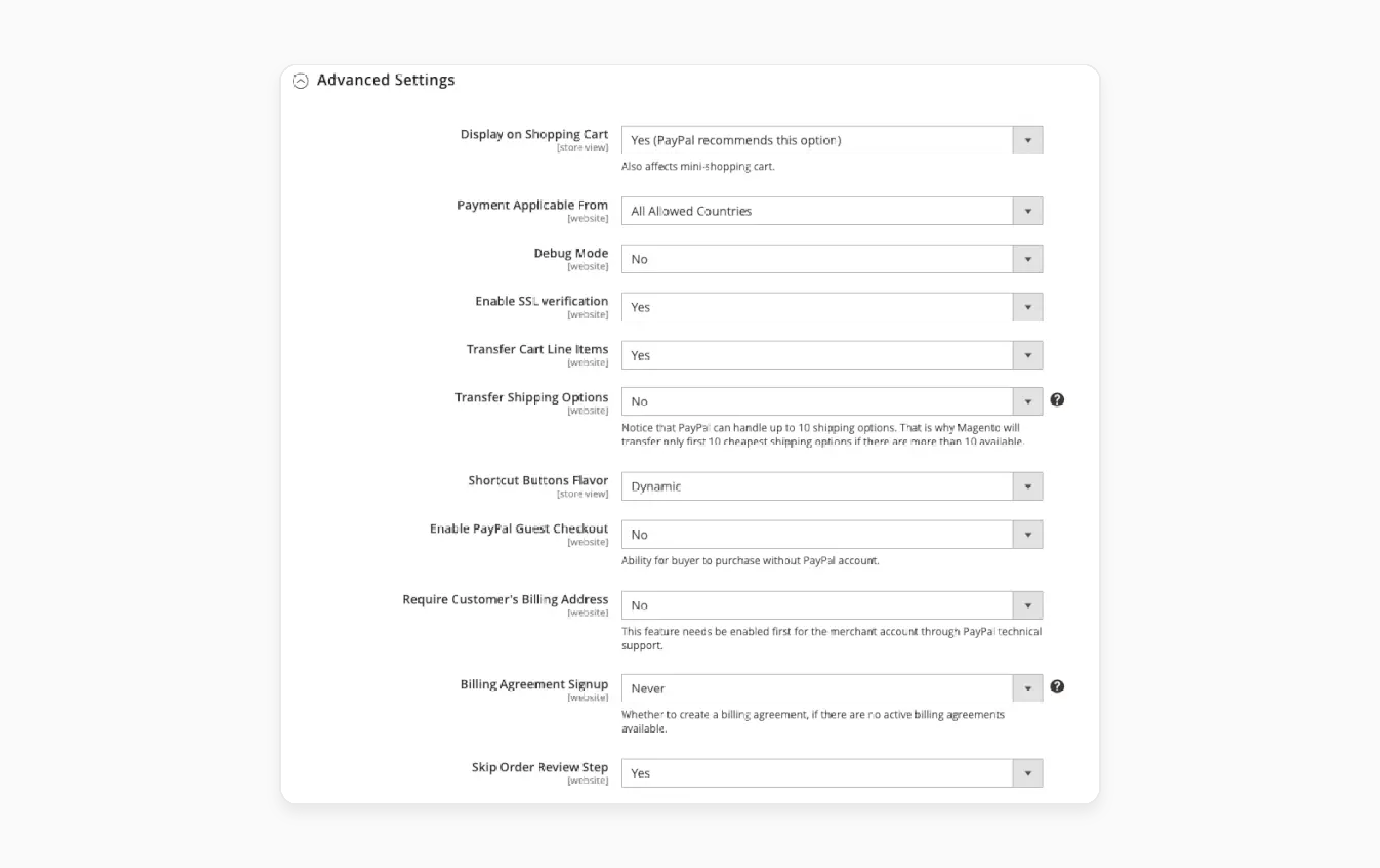
Step 4: Configure Advanced Settings
- Display on Shopping Cart: Set to Yes
- Payment Applicable From: Choose All Allowed Countries or Specific Countries
- Enable Guest Checkout: Set to Yes so buyers can pay without a PayPal account
- Transfer Cart Line Items: Set to Yes to show itemized order details on PayPal
- Skip Order Review Step: Optional. Lets buyers complete on PayPal without returning to your store
Click Save Config to apply all settings.
Migration note: PayPal recommends upgrading from Express Checkout to modern JavaScript SDK integrations. If your store runs Magento 2.4.4 or higher, consider migrating to Payment Services or PayPal Complete Payments for Apple Pay, Google Pay, Fastlane, and on-site card fields. See the PayPal upgrade guide for migration steps.
Configure Payment Services (Recommended)
For stores on Magento 2.4.4 or higher, Payment Services replaces Express Checkout as the recommended integration.
- Install the Payment Services extension from the Adobe Commerce Marketplace
- Navigate to Stores > Configuration > Sales > Payment Methods > Payment Services
- Enable PayPal Smart Buttons, credit/debit card fields, Apple Pay, and Google Pay
- Configure button styling per page type under PayPal Smart Button Styling
- Save config and flush cache via System > Cache Management
For the full configuration walkthrough, see the Payment Services admin guide.
Customize Smart Button Appearance
Smart Buttons support visual customization for each page type: checkout, product pages, cart, and mini cart.
| Option | Values | Notes |
|---|---|---|
| Layout | Vertical, Horizontal | Vertical works best on mobile (shows up to 4 buttons). Horizontal fits desktop layouts (max 2 buttons). |
| Color | Gold, Blue, Silver, Black, White | Gold is the default and has the highest brand recognition. |
| Shape | Rectangle, Pill | Rectangle is the default. Pill matches rounded UI designs. |
| Label | Checkout, Pay, Buy Now, PayPal, Installment | Choose the call-to-action that fits your checkout flow. |
| Size | 25px to 55px height | Buttons scale to container width between 100px and 500px. |
Access these settings in Stores > Configuration > Sales > Payment Methods > PayPal Express Checkout > Frontend Experience Settings. Each page type has its own customization section.
Funding Options: Disable specific payment methods (like Venmo or Pay Later) if they do not apply to your store's market.
Enable Pay Later Options
Pay Later messaging and buttons encourage higher order values by offering installment payments. This feature requires Magento 2.4.3 or higher and a US-based merchant account.
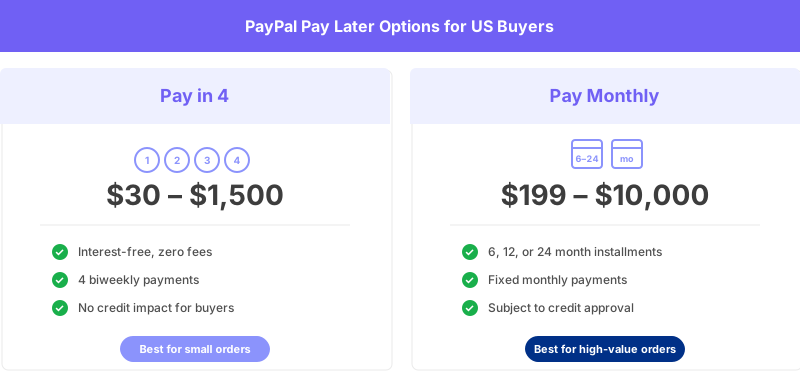
Available offers for US buyers:
- Pay in 4: Interest-free payments for purchases between $30 and $1,500
- Pay Monthly: 6, 12, or 24 month installments for purchases between $199 and $10,000
To enable Pay Later:
- In PayPal Express Checkout settings, set Enable PayPal Pay Later Experience to Yes
- Configure Advertise PayPal Pay Later settings to display messaging on product and cart pages
- Set Display on Shopping Cart to Yes (PayPal recommends this for best conversion results)
Pay Later messaging shows buyers their installment options before checkout. This reduces price shock and increases conversion for higher-priced items. For the complete Pay Later integration guide including messaging placement, see the PayPal Pay Later documentation.
Test Smart Buttons in Sandbox Mode
Never go live without testing. PayPal's sandbox environment simulates real transactions without processing actual payments.
Setup:
- Create a PayPal Developer Account at developer.paypal.com
- Set up sandbox merchant and buyer test accounts
- In Magento admin, set Sandbox Mode to Yes under PayPal Express Checkout settings
- Enter your sandbox API credentials
Test these scenarios:
- Standard PayPal checkout with a sandbox buyer account
- Credit and debit card payments
- Guest checkout without a PayPal account
- Pay Later payment selection
- Order creation, capture, and refund workflows
- Button display on product pages, cart, and checkout
- Mobile checkout flow on different screen sizes
After all tests pass, switch Sandbox Mode to No and enter your live API credentials.
Common Integration Issues
| Issue | Cause | Fix |
|---|---|---|
| Buttons do not display | JavaScript conflicts or cache | Clear Magento cache, check for theme JS conflicts |
| API authentication fails | Wrong credentials or environment mismatch | Verify API username and password match your PayPal account. Check sandbox vs live mode |
| IPN notifications fail | Firewall blocks PayPal IPs | Whitelist PayPal IPN IP addresses. Validate IPN URL in PayPal settings |
| Currency errors | Mismatch between store and PayPal currencies | Enable matching currencies in both Magento and your PayPal account |
| SSL errors | Missing or expired certificate | Install a valid SSL certificate. Update store URL to HTTPS |
| Pay Later not showing | Non-US merchant or unsupported product type | Confirm US merchant account. Check that products meet Pay Later eligibility |
For stores running on managed Magento hosting, server-side issues like SSL configuration, firewall rules, and IPN connectivity are handled by the hosting provider.
FAQ
1. What payment methods do PayPal Smart Buttons support?
Smart Buttons support PayPal accounts, credit and debit cards, Venmo (US), Pay Later installments, Apple Pay, Google Pay (via Payment Services), and local payment methods like iDEAL and Bancontact based on the buyer's location.
2. Do I need a PayPal Business account?
Yes. A PayPal Business account is required to receive payments. Buyers can use personal PayPal accounts or pay with cards, but the merchant account must be a Business type.
3. What is the difference between Payment Services and Express Checkout?
Payment Services for Adobe Commerce is the modern solution with hosted card fields, Apple Pay, Google Pay, Fastlane guest checkout, and local payment methods. Express Checkout is the legacy built-in option that redirects buyers to PayPal for card payments.
4. Can customers check out without a PayPal account?
Yes. Enable Guest Checkout in your Express Checkout settings. Buyers can pay with credit or debit cards without creating a PayPal account. Payment Services also offers Fastlane for accelerated guest checkout.
5. How do I test PayPal before going live?
Use PayPal's sandbox environment. Create test merchant and buyer accounts at developer.paypal.com. Enable Sandbox Mode in Magento, enter sandbox credentials, and run test transactions.
6. Is Pay Later available outside the US?
Pay in 4 and Pay Monthly are available to US buyers with US-based merchants. PayPal offers similar installment products in the UK, Australia, France, Germany, and other markets with different terms and eligibility.
7. How do Smart Buttons improve conversion rates?
Smart Buttons reduce checkout friction by showing buyers their preferred payment method first. One-click checkout for logged-in PayPal users and guest card payments without redirects remove common abandonment triggers.
8. Can I customize how PayPal buttons look on my store?
Yes. You control layout (vertical or horizontal), color (gold, blue, silver, black, white), shape (rectangle or pill), and label text for each page type: product pages, cart, checkout, and mini cart.
9. What Magento version do I need for PayPal Smart Buttons?
Express Checkout works on Magento 2.4.3 and higher. Payment Services requires Magento 2.4.4 or higher. For the latest features including PHP 8.4 support, upgrade to Magento 2.4.8.
10. How does server performance affect PayPal checkout?
Slow page loads between cart and checkout increase abandonment. A fast hosting environment ensures PayPal's JavaScript SDK loads without delay and API calls to PayPal complete within expected timeframes.
Summary
PayPal Smart Buttons give Magento 2 stores adaptive, one-click payment options that match each buyer's location and device. Express Checkout handles the basics. Payment Services for Adobe Commerce delivers the full modern stack with Apple Pay, Google Pay, Fastlane, and local payment methods.
Configure your buttons, enable Pay Later, test in sandbox mode, and go live with confidence. For the best checkout performance, pair your PayPal integration with optimized Magento hosting that keeps every page fast and every API call responsive.