

Magento 2 Search Settings: How to Configure Catalog Search in 2026
[Updated: March 12, 2026]
Your store's search function determines whether customers find products or leave. Poor search configuration costs sales.
This guide covers how to configure Magento 2 search settings for OpenSearch, manage search terms, set up synonyms, and optimize catalog search in 2.4.8.
Key Takeaways
- OpenSearch 2.19 is the required search engine for Magento 2.4.8. Elasticsearch is no longer compatible.
- Configure catalog search through Stores > Configuration > Catalog > Catalog Search.
- Weighted search lets you prioritize product attributes like color or name in search results.
- Search terms, synonyms, and redirect URLs help customers find products even with misspellings.
- The Search Terms Report reveals what customers look for and where gaps exist in your catalog.
What Are Magento 2 Search Settings?
Magento 2 search settings = Admin configurations that control how your store's product catalog search works. You define the search engine, query limits, autocomplete behavior, and search recommendations.
Perfect for: Store owners optimizing product discovery, developers configuring new installations, agencies setting up client stores.
Not ideal for: Headless setups using custom search APIs, stores running Adobe Live Search as their primary engine.
Magento 2 search settings live under Stores > Configuration > Catalog > Catalog Search in the admin panel. These settings control everything from the minimum characters a customer must type before results appear to how many autocomplete suggestions display in the dropdown.
Since Magento 2.4.0, a dedicated search engine is required. MySQL search was removed. OpenSearch became the default in 2.4.4, and as of 2.4.8, Elasticsearch is no longer compatible. OpenSearch 2.19 is the supported engine.
Search Types in Magento 2
Magento offers three search types out of the box. Each serves a different purpose in the product discovery process.
1. Quick Search
The search box in your store header lets customers type product names or keywords. As they type, autocomplete displays matching products.
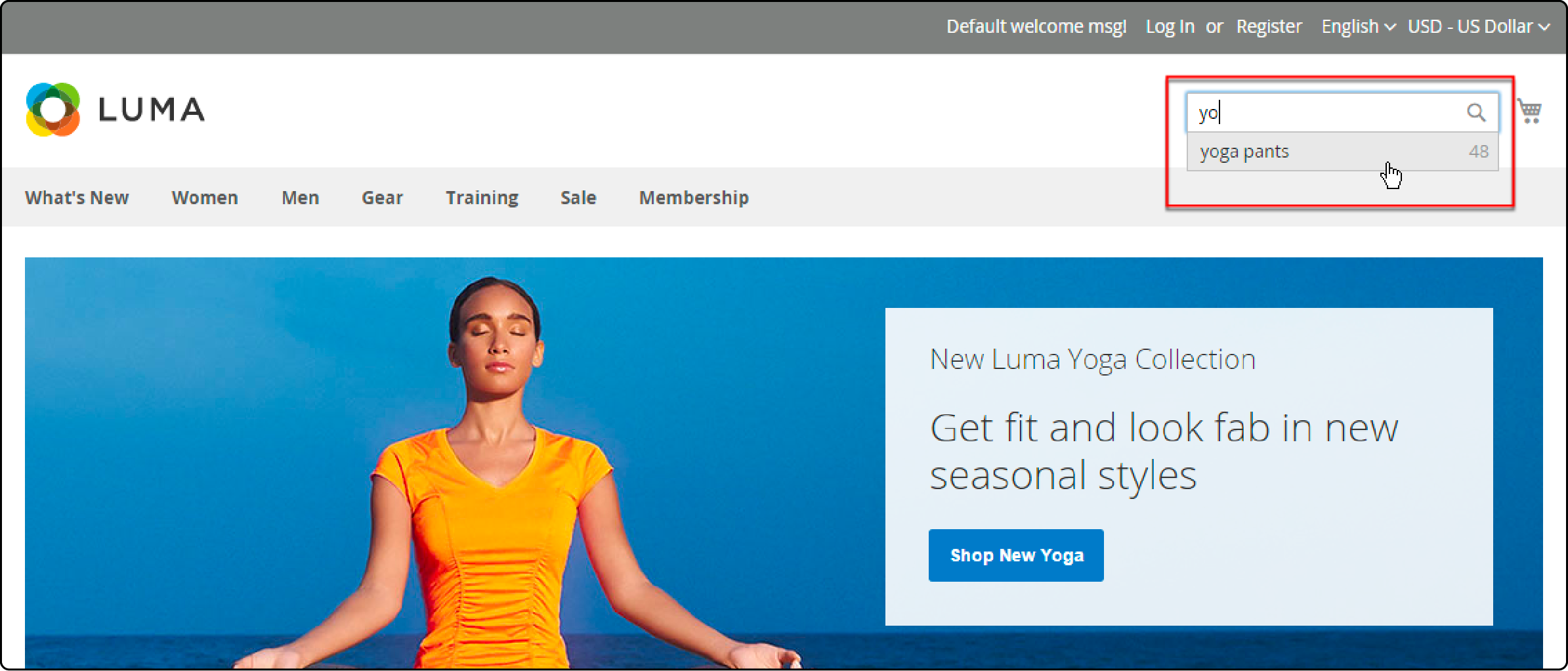
The system counts matching products in your catalog and displays the total. Customers press Enter or select a result from the dropdown to proceed.
You control autocomplete behavior in the catalog search configuration. The Autocomplete Limit setting determines how many suggestions appear. Lower values speed up search performance.
2. Advanced Search
Advanced search lets visitors filter by multiple criteria at once. Access it through the Advanced Search link in your store's footer.
Available filter fields include:
- Product Name
- SKU
- Description and Short Description
- Price range
- Tax Class
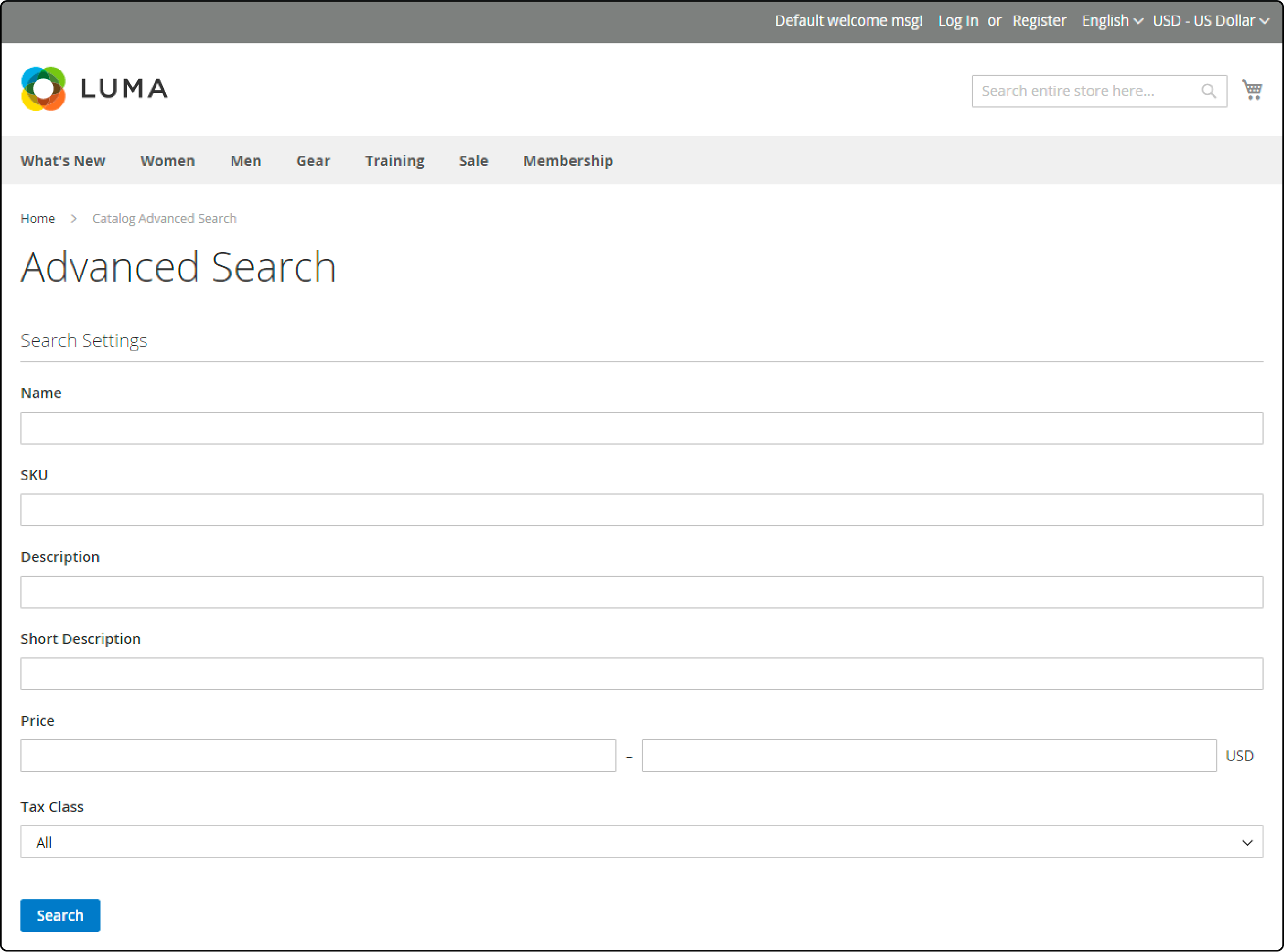
Each filter corresponds to a Magento product attribute. You can customize which fields appear by configuring attribute properties under Stores > Attributes > Product. Set Use in Search to Yes for any attribute you want searchable.
3. Weighted Search
Weighted search lets you assign priority to specific product attributes. This controls which attributes influence search result ranking the most.
If your store gets frequent color-based searches, assign a higher weight to the color attribute. Results matching that attribute rank above matches on description or SKU alone.
To configure search weights:
- Navigate to Stores > Attributes > Product.
- Click the attribute you want to adjust, then select Storefront Properties.
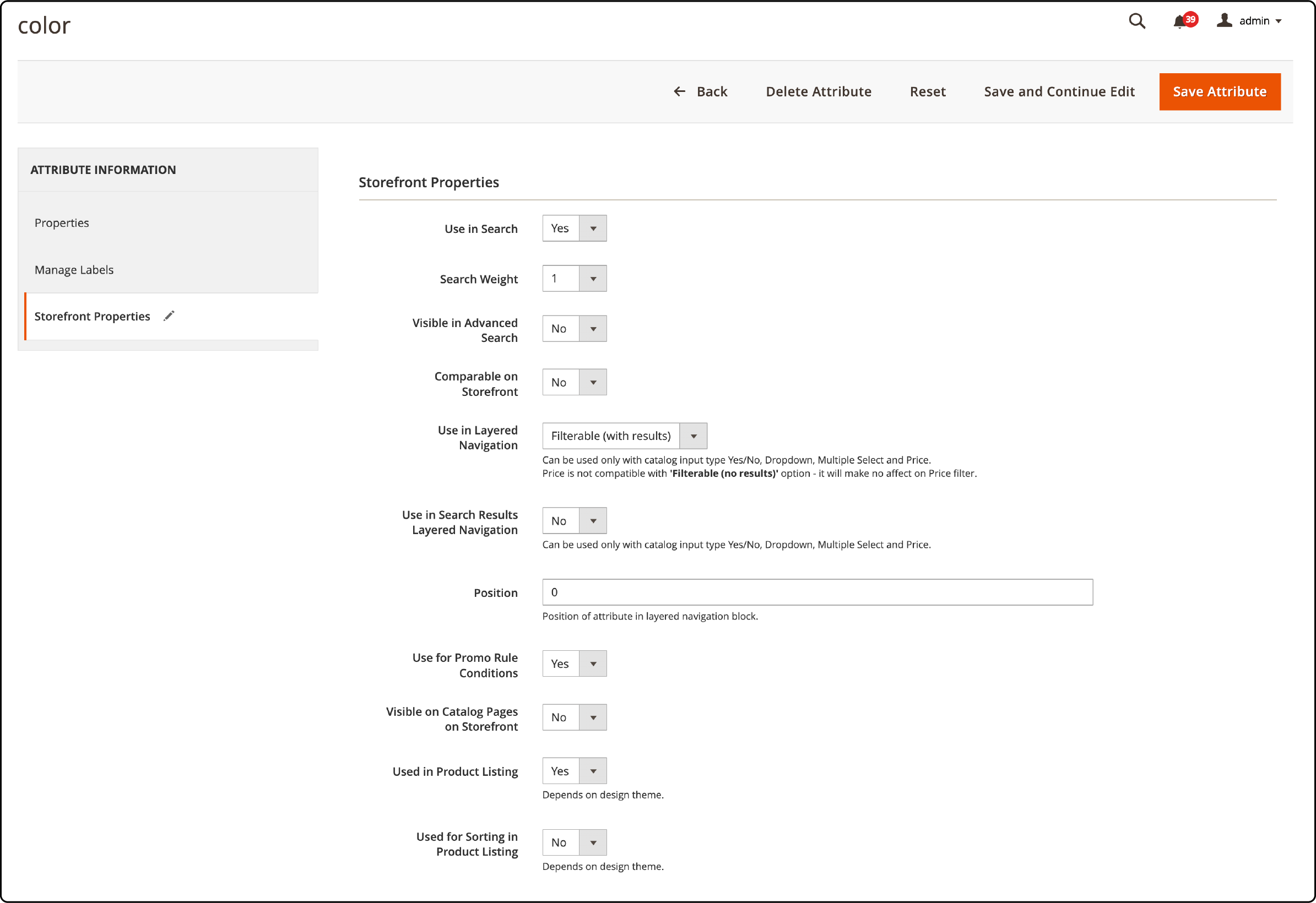
- Set Use in Search to Yes.
- Set Search Weight from 1 to 10. Higher values give that attribute more priority.
- Click Save.
Configure Catalog Search in Magento 2
All search engine settings live under Stores > Settings > Configuration > Catalog > Catalog Search.
Step 1: Configure OpenSearch (Default Since 2.4.4)
OpenSearch 2.19 is the required search engine for Magento 2.4.8. If you run an older version (2.4.4 through 2.4.7), OpenSearch and Elasticsearch 7 are both supported. For new installations, always choose OpenSearch.
In the Search Engine dropdown, select OpenSearch. If you still see Elasticsearch 7 or 8 listed, those options are marked as "(Deprecated)" in 2.4.8 and display a warning that Elasticsearch is no longer supported.
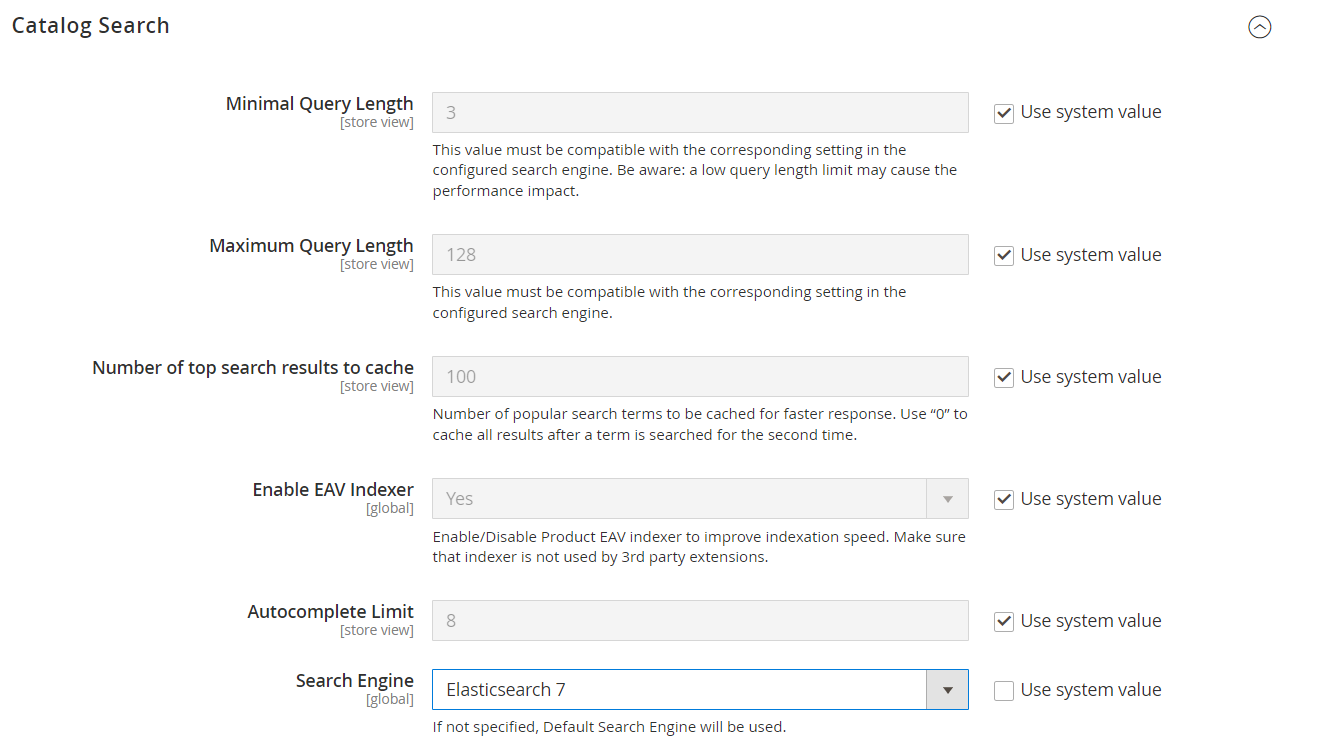
Connection settings:
- Enter the OpenSearch Server Hostname (default:
localhost). - Set the Server Port (default:
9200). - Define an Index Prefix to identify your store's search index.
- Set HTTP Auth to Yes if your OpenSearch instance requires authentication.
- Set the Server Timeout (default: 15 seconds).
- Click Test Connection to verify.
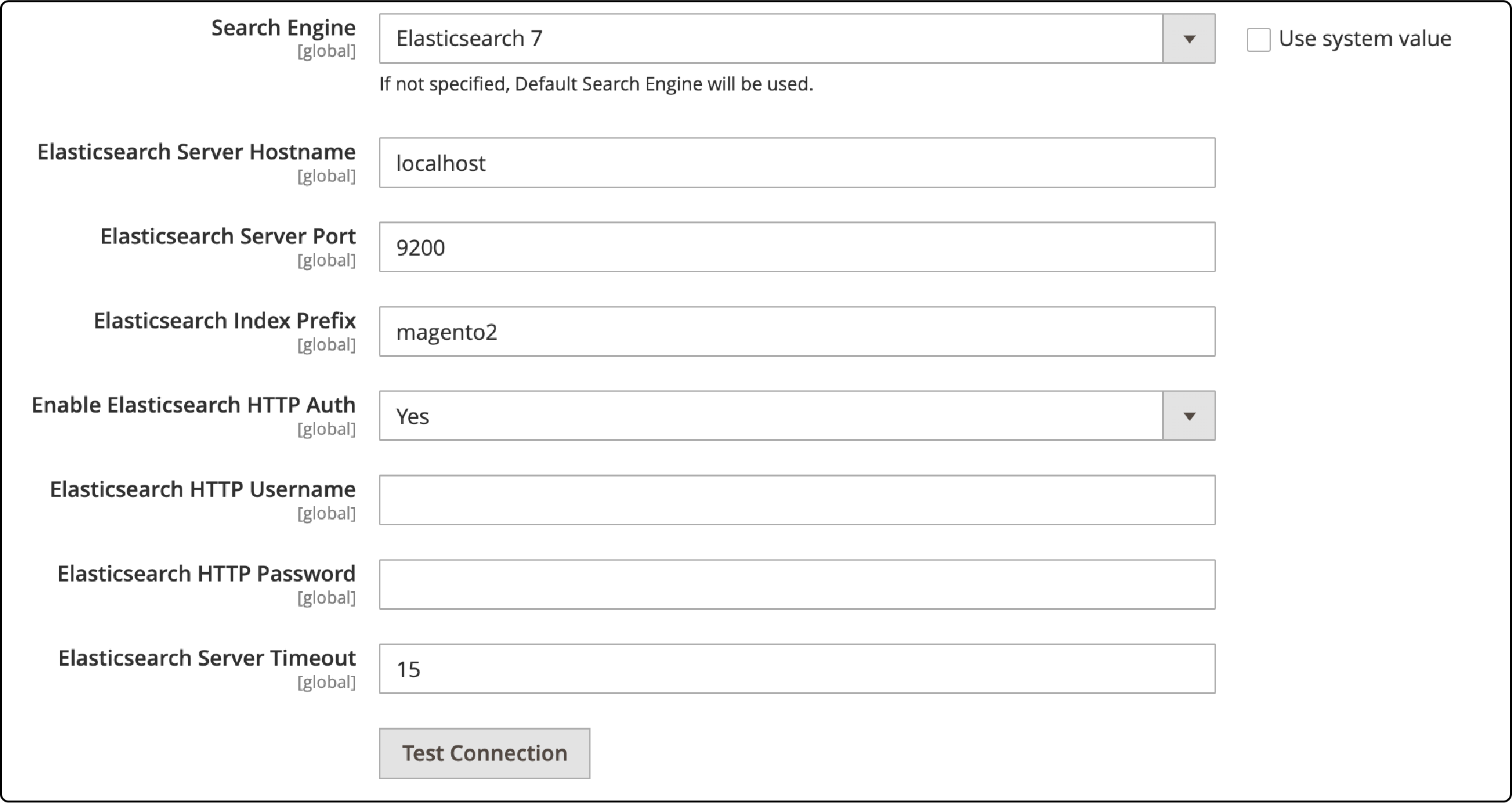
For a detailed walkthrough on Elasticsearch migration and configuration, see our Elasticsearch configuration guide.
Step 2: Set Search Options
These settings apply regardless of which search engine you use:
- Minimal Query Length: Minimum characters required to trigger a search (default: 3).
- Maximum Query Length: Maximum allowed characters in a search query (default: 128).
- Number of top search results to cache: Default is 100. Set to 0 to cache all results.
- Autocomplete Limit: Number of suggestions in the dropdown (default: 8). Lower values improve performance.
- Enable EAV Indexer: Improves indexing speed and restricts third-party extension indexer usage.
Step 3: Enable Suggestions and Recommendations
Search suggestions and recommendations help customers find products when their initial query returns few results.
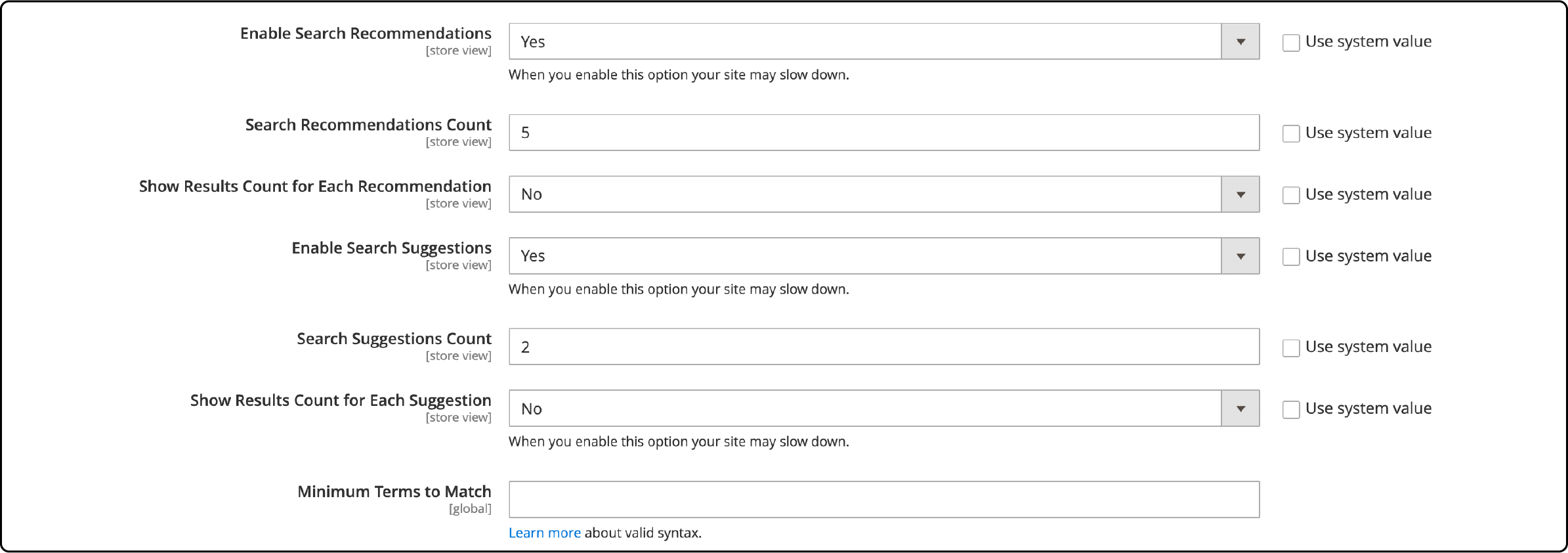
- Set Enable Search Suggestions to Yes.
- Define the Search Suggestions Count (how many alternatives to show).
- Enable Show Results Count for each suggestion.
- Set Enable Search Recommendations to Yes for related term recommendations.
- Set the Search Recommendation Count.
- Click Save Config.
After saving, flush the cache and reindex:
php bin/magento cache:flush
php bin/magento indexer:reindex catalogsearch_fulltext
Manage Search Terms
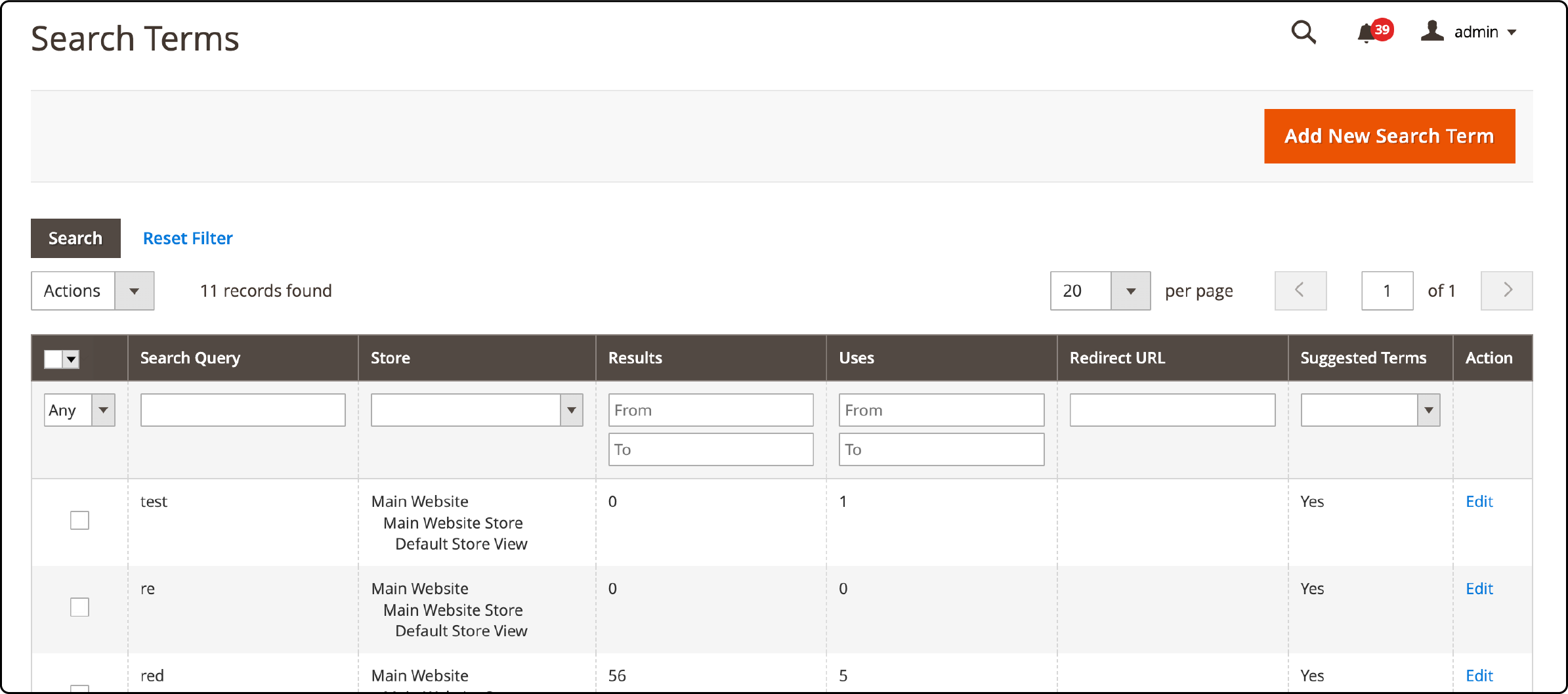
Search terms reveal what customers look for in your store. Access them under Marketing > SEO and Search > Search Terms.
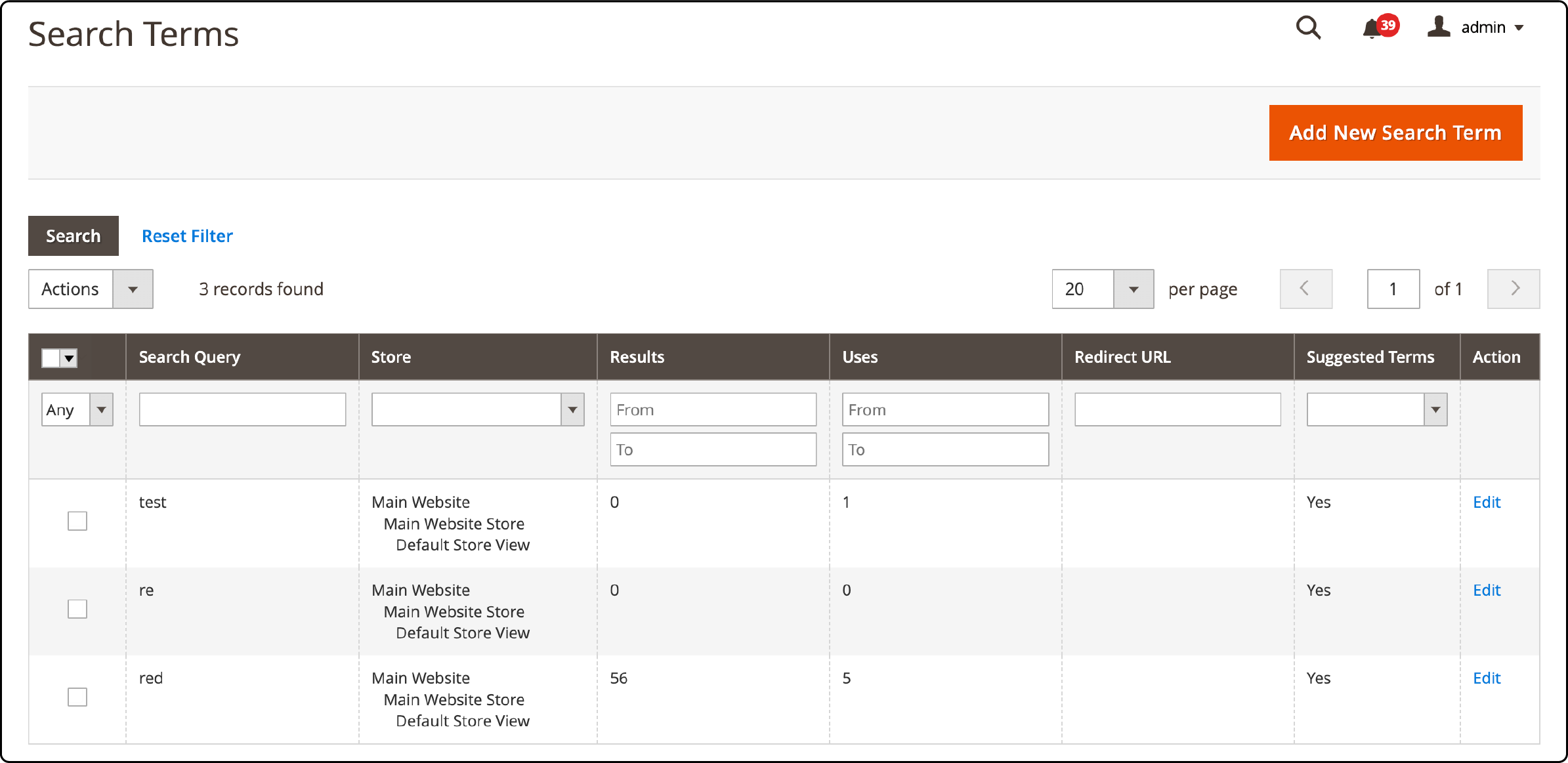
This grid shows every search query, its frequency, and the number of results returned. Use this data to identify gaps in your product catalog and improve product naming.
Add a New Search Term
- Navigate to Marketing > SEO and Search > Search Terms.
- Click Add New Search Term.
- Enter the search query text.
- Choose the store view scope.
- Set a Redirect URL to send users to a specific page for that query (optional but powerful).
- Set Display in Suggested Terms to Yes to include it in autocomplete.
- Click Save Search.
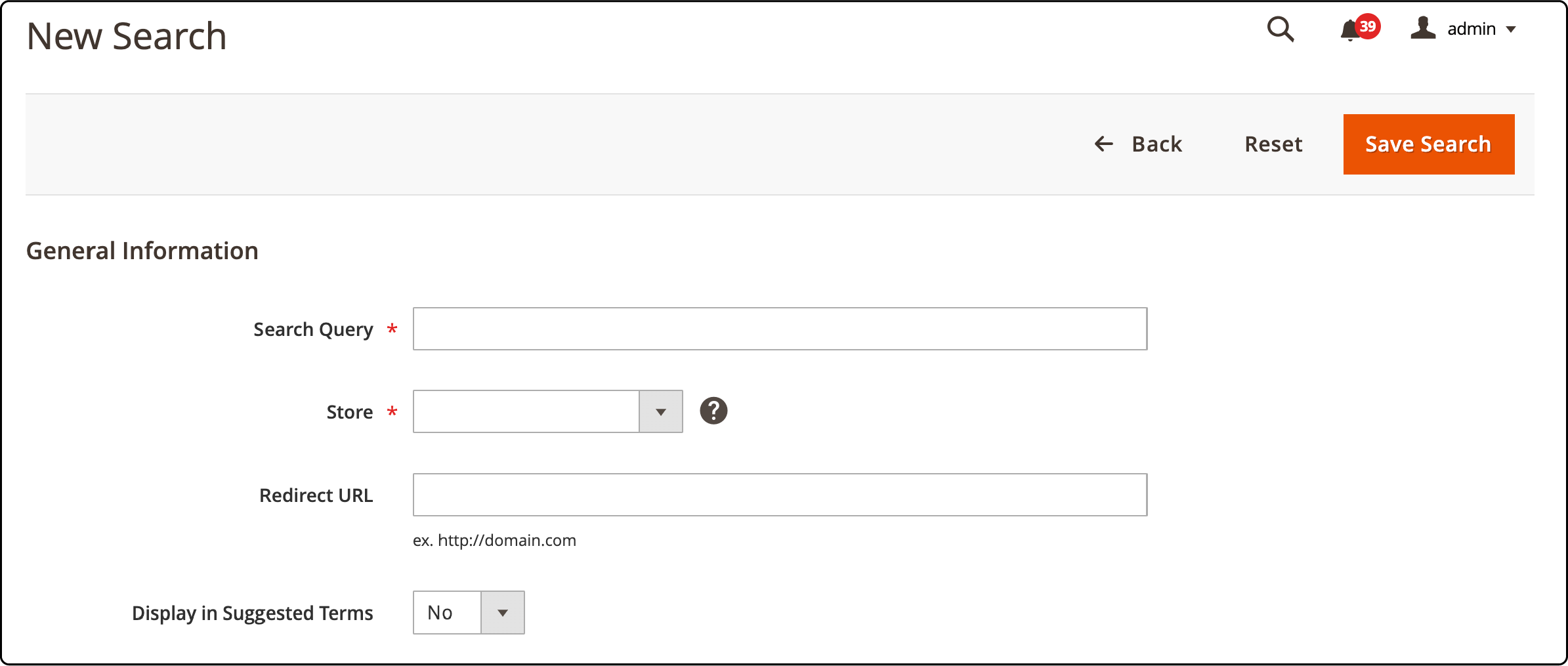
The redirect URL feature is valuable for queries that don't match product names but have clear intent. For example, redirect "free shipping" to your promotions page.
Edit and Delete Search Terms
Click any row in the Search Terms grid to edit it. Update the redirect URL, suggested term display, or scope.
To delete terms in bulk, select checkboxes next to each term, choose Delete from the Actions dropdown, and click Submit.

Search Synonyms
Customers use different words for the same product. "Couch" and "sofa" mean the same thing. Without synonyms configured, searches for one term won't return products tagged with the other.
To add synonyms:
- Go to Marketing > SEO and Search > Search Synonyms.
- Click New Synonym Group.
- Choose the scope (store view or all stores).
- Enter synonyms separated by commas (e.g., "couch, sofa, loveseat").
- Click Save Synonym Group.
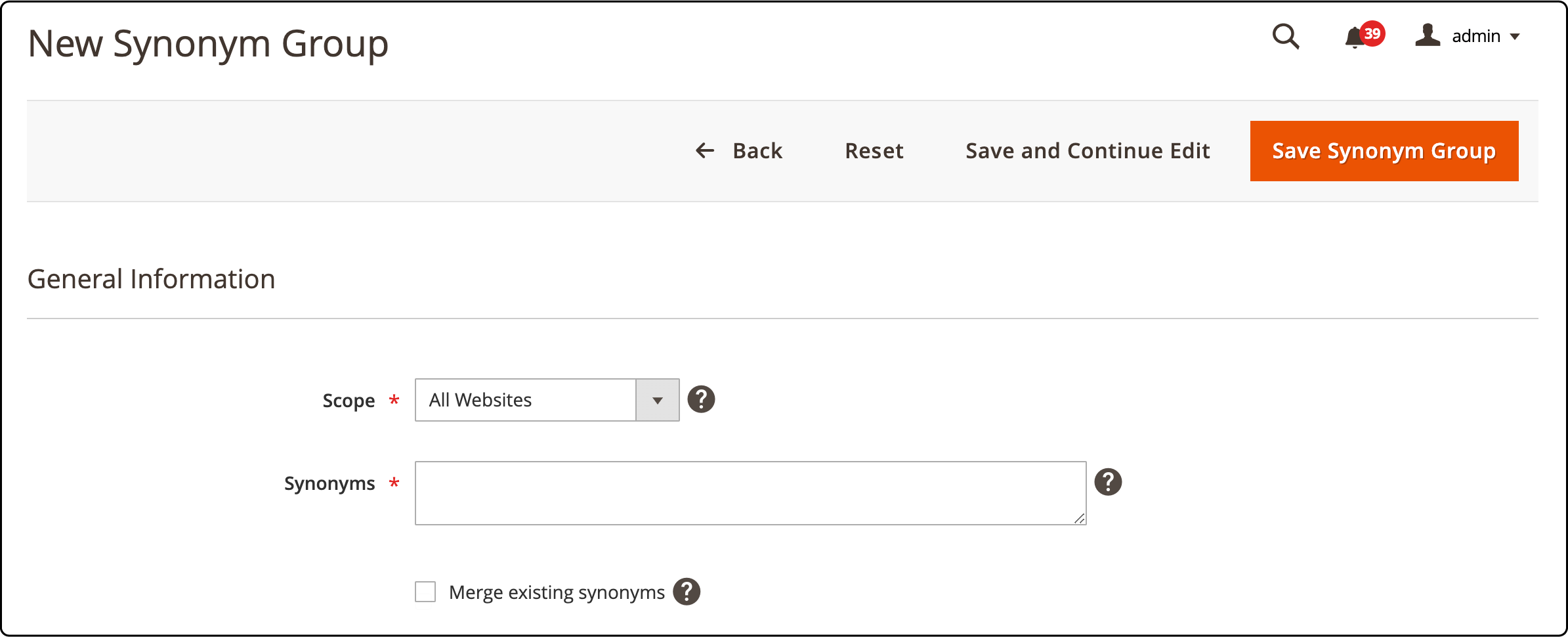
Build synonym lists based on your Search Terms Report data. If customers search for terms that return zero results but have obvious product matches, add those terms as synonyms.
Popular Search Terms
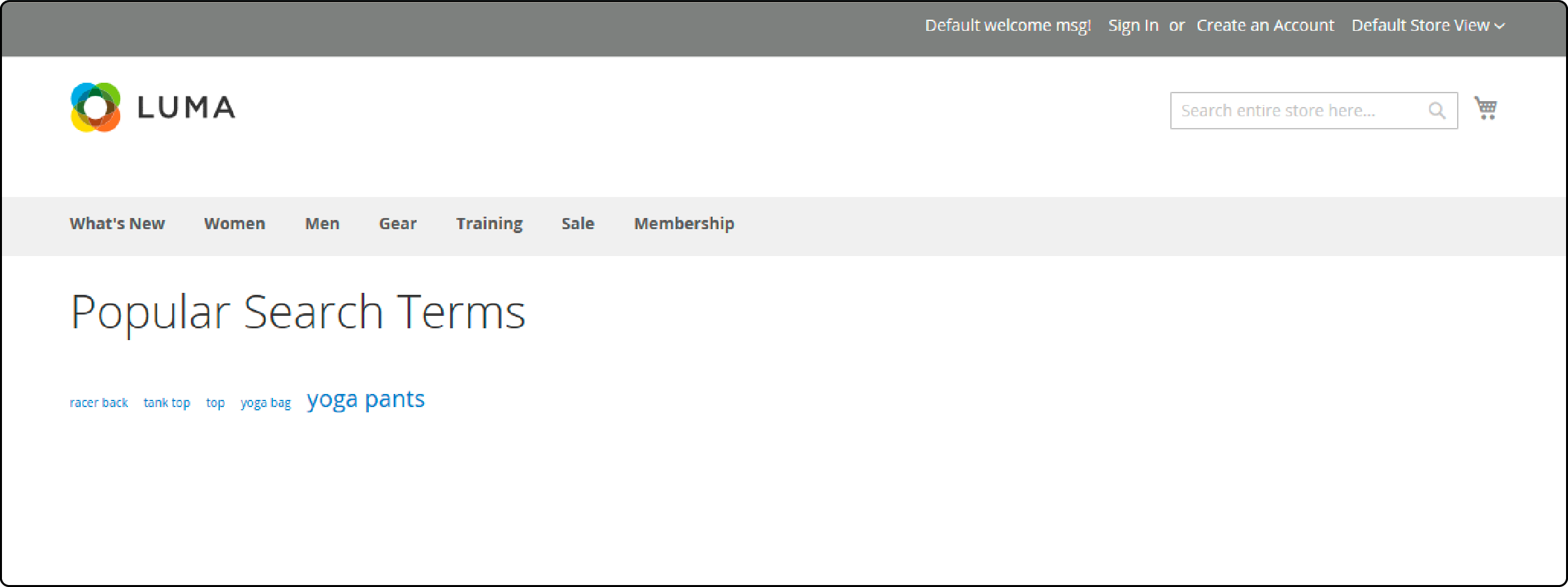
Magento displays popular search terms as a tag cloud in the store footer. Larger terms indicate higher search frequency. This gives customers a visual overview of trending products.
The dedicated Popular Search Terms page is accessible at yourstore.com/search/term/popular.
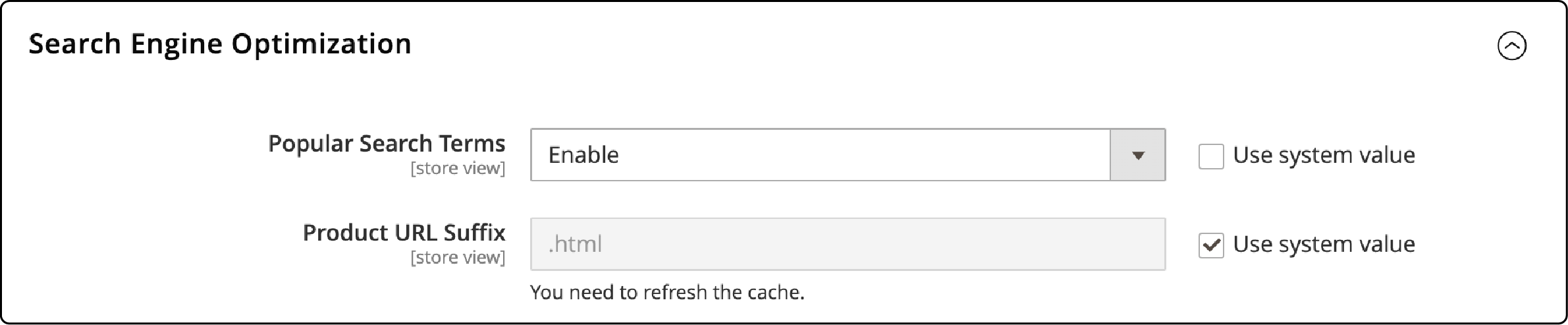
To configure this feature:
- Go to Stores > Settings > Configuration > Catalog > Catalog.
- Expand Search Engine Optimization.
- Adjust the Popular Search Terms settings.
- Click Save Config.
Search Terms Report
The Search Terms Report under Reports > Marketing > Search Terms provides analytics on customer search behavior.
The report tracks:
- Results: Number of products found for each search term
- Hits: How often each term was searched
- Store View: Which store view generated the search
Filter by term, store view, result count, or hit frequency. Export the data for deeper analysis in spreadsheet tools.
Use this report to:
- Identify high-frequency terms with zero results (missing products or poor naming)
- Find terms to add as synonyms
- Discover product trends and seasonal demand shifts
- Build redirect URLs for common non-product searches
For stores experiencing automated search abuse, our guide on blocking Magento search spam covers eight effective prevention methods.
Troubleshooting Common Search Issues
Search returns no results:
- Verify OpenSearch is running:
curl -X GET "localhost:9200" - Check product visibility is set to "Catalog, Search"
- Confirm the product attribute has "Use in Search" enabled
- Run a full reindex:
php bin/magento indexer:reindex catalogsearch_fulltext
Autocomplete not working:
- Flush cache after configuration changes
- Check that the Autocomplete Limit is greater than 0
- Verify your search engine connection with the Test Connection button
Slow search performance:
- Reduce the Autocomplete Limit value
- Lower the number of cached search results
- Check OpenSearch server resources (CPU, memory, disk I/O)
- Consider dedicated OpenSearch hosting for stores with large catalogs
Search results not updating after product changes:
- Reindex the
catalogsearch_fulltextindexer - Switch to "Update on Save" mode under System > Index Management for real-time updates
- Flush the full page cache after reindexing
Search Engine Infrastructure and Hosting
OpenSearch requires dedicated server resources. A typical production Magento store allocates about 2 GB of RAM to OpenSearch. Stores with 50,000+ products or high traffic volumes often need 4 to 8 GB depending on catalog complexity.
Running OpenSearch on the same server as your web application and database creates resource contention. Search indexing operations compete with frontend requests for CPU and memory.
Managed Magento hosting providers handle OpenSearch infrastructure as part of the stack. This includes server allocation, version updates, index optimization, and monitoring. You focus on search configuration while the provider maintains the engine.
For stores running Adobe Commerce (the paid edition), Adobe Live Search offers a SaaS alternative. It runs on Adobe's cloud infrastructure and requires no self-hosted search engine. Live Search includes AI-powered ranking, faceted search, and real-time indexing without server overhead.
Conclusion
Magento 2 search settings control how customers discover products in your store. Configure OpenSearch as your search engine, set query limits and autocomplete behavior, build synonym groups, and review the Search Terms Report to close gaps in product discovery.
Strong search configuration drives conversions. For stores that need reliable OpenSearch infrastructure without managing servers, explore Magento hosting with managed OpenSearch included in the stack.
FAQ
What search engine does Magento 2.4.8 use?
Magento 2.4.8 requires OpenSearch 2.19. Elasticsearch 7 and 8 are no longer compatible. The admin displays a warning: "This search engine option is no longer supported by Adobe. We recommend using OpenSearch as a search engine instead." See the official search engine prerequisites for version compatibility.
How do I access search settings in Magento 2?
Navigate to Stores > Settings > Configuration in the admin panel. In the left menu, select Catalog, then expand the Catalog Search section. All search engine, query length, and suggestion settings are configured here.
Can I still use Elasticsearch with Magento 2.4.8?
Adobe Commerce 2.4.8 is no longer compatible with Elasticsearch. The option still appears in the admin dropdown but is labeled "(Deprecated)" and displays a warning recommending OpenSearch. All Elasticsearch modules are deprecated. Plan your migration to OpenSearch before upgrading.
What is the minimum query length for Magento search?
The default minimum query length is 3 characters. You can adjust this in the Catalog Search configuration. Setting it too low (1 or 2 characters) triggers broad, slow queries. Setting it too high (5+) frustrates customers searching for short product names.
How do search synonyms work in Magento 2?
Synonyms group related terms so they return the same results. Add synonym groups under Marketing > SEO and Search > Search Synonyms. Enter terms separated by commas. All terms in the group then behave as equivalent in search queries.
Why does Magento search return zero results?
Common causes include: OpenSearch not running or misconfigured, product visibility set to "Not Visible Individually," the searched attribute lacking "Use in Search" enabled, or a stale search index. Run a full reindex and verify your search engine connection.
How do I improve Magento search relevance?
Use weighted search to prioritize important product attributes. Set higher weights (8 to 10) for product name and SKU. Set lower weights (1 to 3) for description fields. Add synonyms for common alternative terms. Use redirect URLs for non-product queries with clear intent.
What is the difference between search suggestions and recommendations?
Search suggestions appear when a customer types in the search box, showing alternative queries based on previous searches. Search recommendations display after a search completes, suggesting related terms that might yield better results. Both are enabled in the Catalog Search configuration.
How often should I review search terms?
Review your Search Terms Report at least monthly. Look for high-frequency zero-result terms, seasonal trends, and new product demand signals. Update synonyms and redirect URLs based on the data. Active search term management improves conversion rates and customer satisfaction.
Does OpenSearch require separate hosting?
For small stores (under 10,000 products), OpenSearch can run on the same server as Magento. For medium to large catalogs, a dedicated OpenSearch server or cluster provides better performance. Managed hosting providers include OpenSearch as part of the infrastructure stack.
