

What is Magento 2 Visual Merchandiser?
[Updated: March 12, 2026]
Arranging hundreds of products on category pages by hand wastes hours every week. Magento 2 Visual Merchandiser replaces manual sorting with automated rules, drag and drop controls and 12 built in sorting options.
Key Takeaways
- Visual Merchandiser is an Adobe Commerce exclusive feature, not available in Magento Open Source
- Arrange products with drag and drop or set position values for precise control
- Category rules automate product assignment based on attributes like price, SKU and stock level
- 12 automatic sorting options cover stock management, pricing, color and alphabetical ordering
- Each category supports one rule with multiple conditions using AND/OR logic
What is Magento 2 Visual Merchandiser?
Visual Merchandiser = A set of advanced tools in Adobe Commerce that positions products on category pages using automated rules and drag and drop controls. Saves hours of manual catalog management.
Perfect for: Adobe Commerce store owners, catalog managers, merchandising teams handling large product catalogs
Not ideal for: Magento Open Source users (feature unavailable), stores with fewer than 50 products
Visual Merchandiser replaces manual product positioning with automated, rule based sorting. The tool sits inside the Adobe Commerce admin panel under Catalog > Categories and offers two display modes: tile view (visual grid) and list view (traditional table).
When you define category rules, the system assigns and sorts products based on conditions you set. Change a product's price or stock level, save the category, and Visual Merchandiser adjusts positions based on your rules.
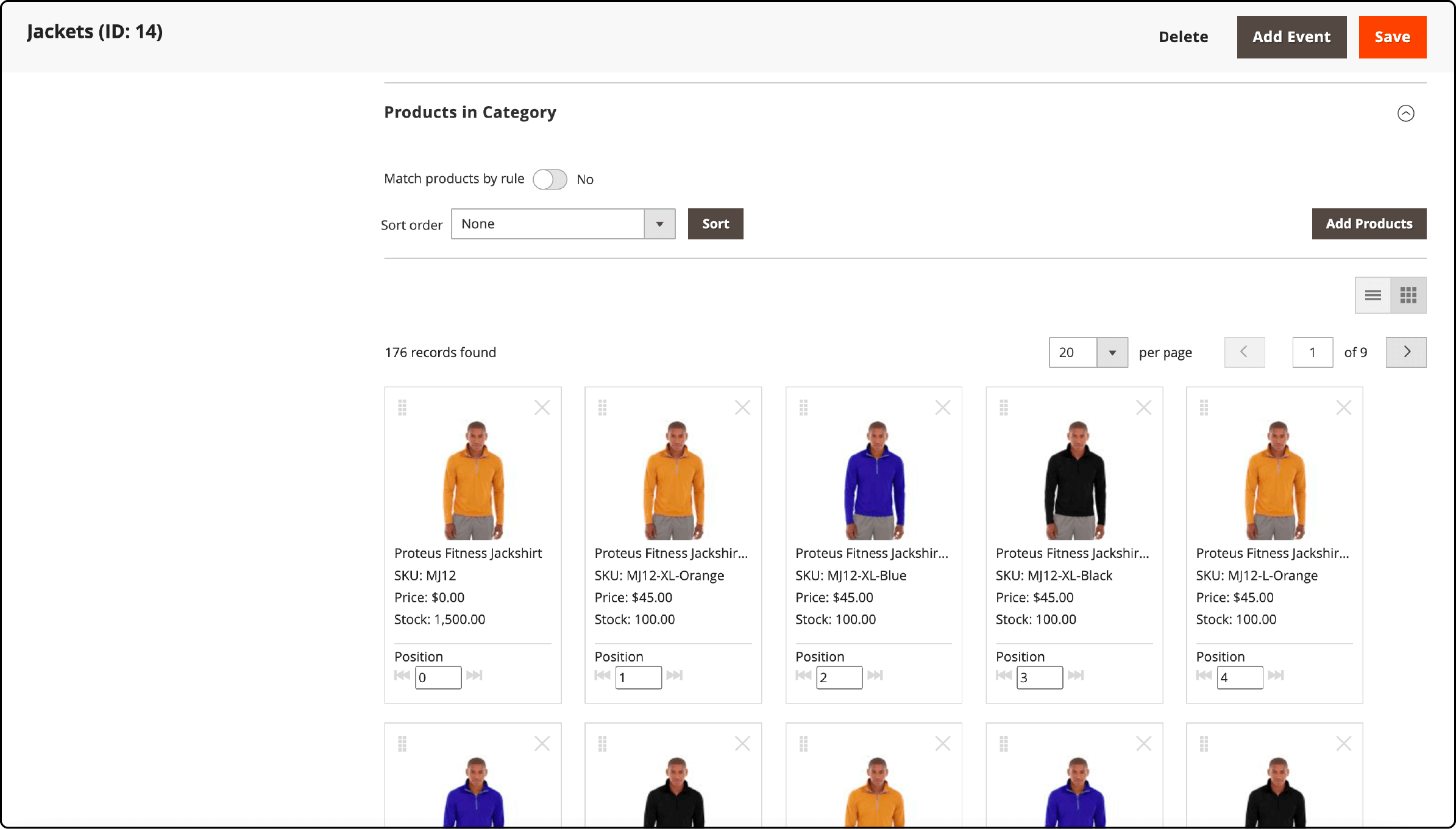
This feature is exclusive to Adobe Commerce (both on premises and cloud). Magento Open Source does not include Visual Merchandiser.
How to Configure Visual Merchandiser
Before using Visual Merchandiser, configure the smart attributes that power category rules.
- Log in to your Adobe Commerce admin panel
- Navigate to Stores > Settings > Configuration
- Expand Catalog in the left panel
- Click Visual Merchandiser
- Configure these settings:
| Setting | Description | Default |
|---|---|---|
| Attributes for Category Rules | Select which product attributes are available in rules | None selected |
| Minimum Stock Threshold | Stock level that marks a product as "low stock" | 1 |
| Color Attribute Code | Attribute code used for color based sorting | color |
| Color Order | Sort order for colors (enter one color per line) | Not set |
- Click Save Config
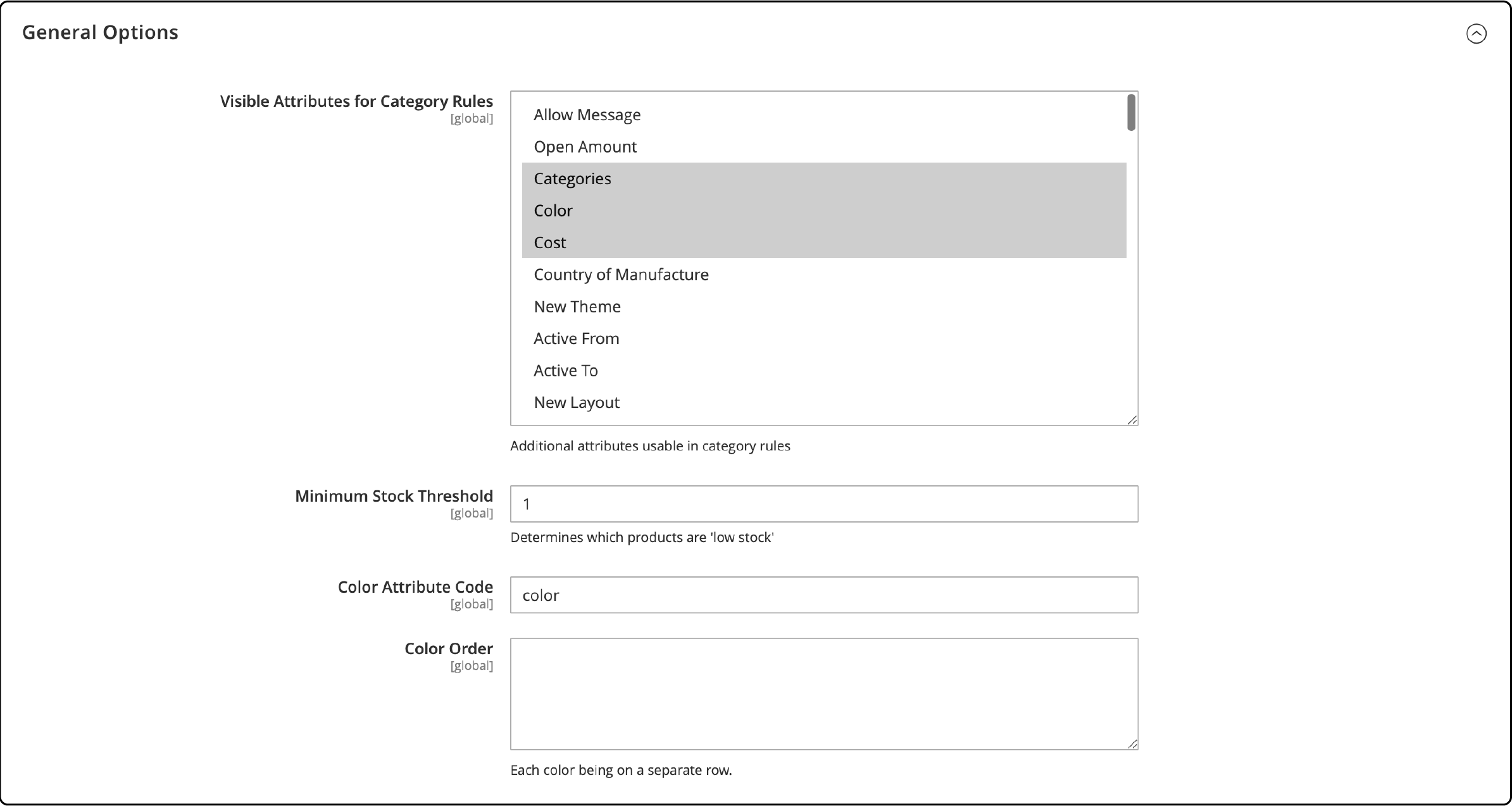
Important: For each attribute you want to use in category rules, set its Use in Product Listing storefront property to Yes. Multiselect input types are not supported as rule attributes.
Accessing Visual Merchandiser
- Go to Catalog > Categories in the admin panel
- Select the category you want to edit in the category tree
- Scroll to the Products in Category section
- Click View as Tiles to switch from the default grid to visual tile mode
- Click Save to keep the view setting
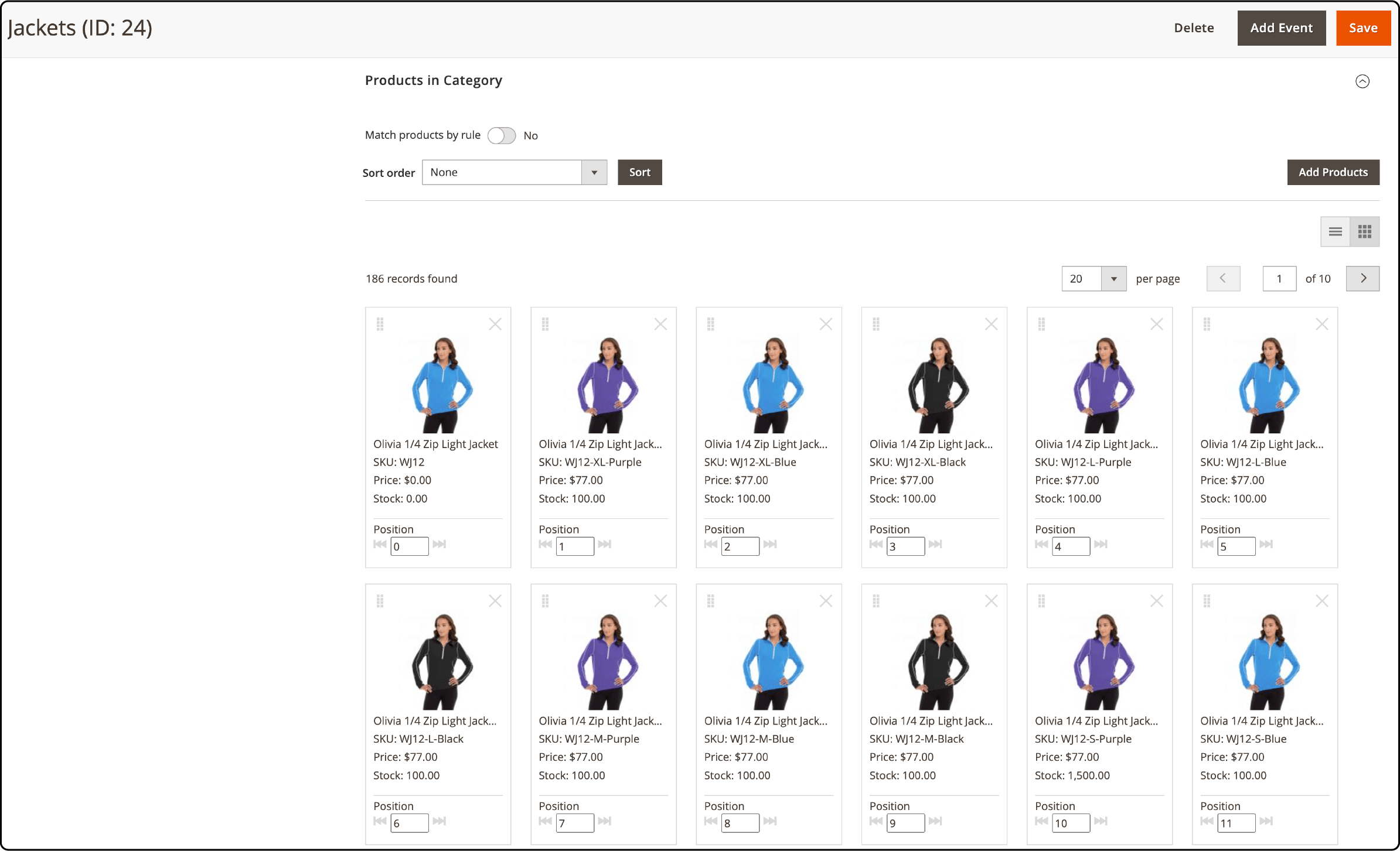
Visual Merchandiser works with categories that have an ID of 3 or higher. Category ID 2 is reserved for the root catalog in fresh Adobe Commerce installations.
Changing Product Position
Two methods control where products appear on category pages.
Drag and Drop
Hold the drag control icon on any product tile and move it to the desired position. Position numbers update on all tiles to reflect the new order.
Setting a Position Value
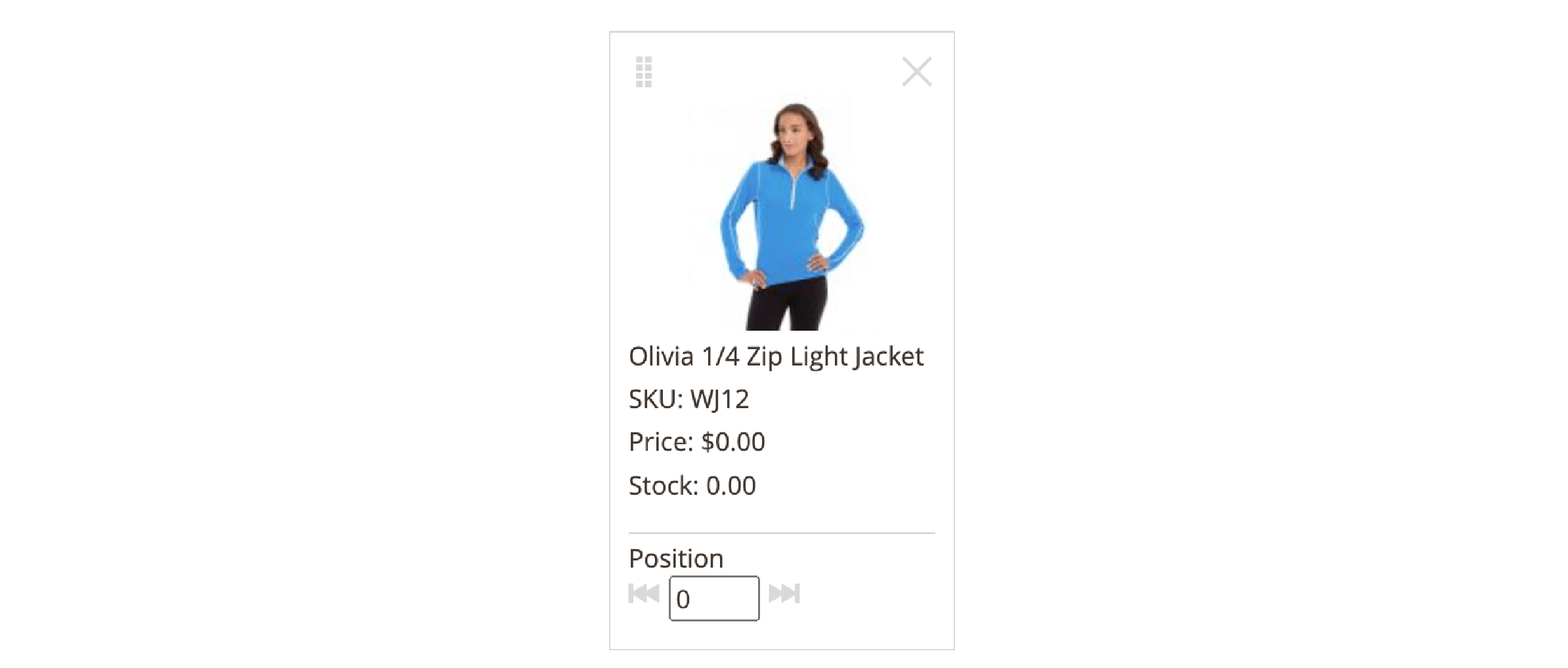
Enter a number in the Position field on any product tile. Set a product to 0 to place it at the top of the list. This method works well for precise placement of featured or promotional products.
Click Save after making changes.
Creating Category Rules
Category rules automate product assignment based on conditions. Instead of adding products to categories one by one, define rules that match products by their attributes.
Each category supports one rule with multiple conditions. The system evaluates conditions when you save the category.
Setting Up a Rule
- Select the category you want to edit
- Scroll to Products in Category
- Set Match products by rule to Yes
- Click Add Condition
- Choose an Attribute, an Operator and a Value
- Repeat for additional conditions
- Click Save
Available Operators
| Operator | Function |
|---|---|
| Equal | Matches exact value |
| Not Equal | Excludes exact value |
| Greater than | Matches values above threshold |
| Greater than or equal to | Matches values at or above threshold |
| Less than | Matches values below threshold |
| Less than or equal to | Matches values at or below threshold |
| Contains | Matches partial text strings |
Logic: AND vs OR
Use AND to require all conditions. Products must match every rule to appear. Use OR when products need to satisfy at least one condition.
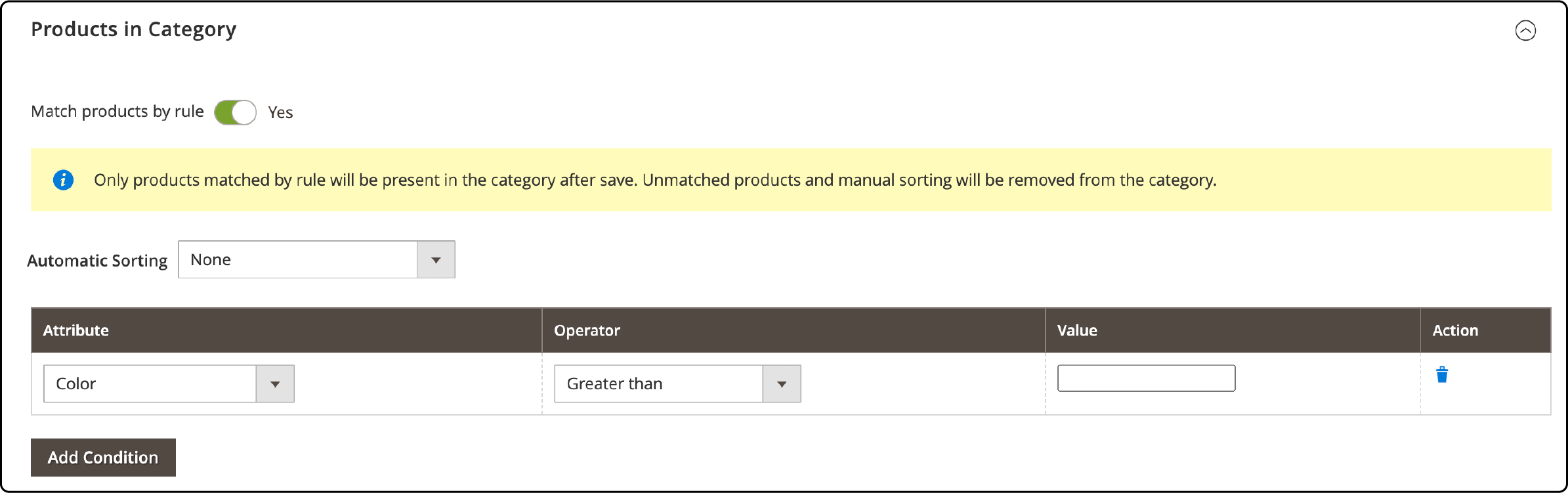
Note: Products are sorted, matched and assigned only when you save the category. Adding new products to your catalog requires resaving each rule based category to include them.
Supported Attributes for Rules
These product attributes work with Visual Merchandiser category rules in Adobe Commerce 2.4.8:
| Attribute | Use Case |
|---|---|
| Clone Category ID(s) | Mirror products from other categories |
| Color | Sort or filter by product color |
| Date Created (days ago) | Feature recent additions |
| Date Modified (days ago) | Highlight updated products |
| Name | Alphabetical product sorting |
| Price | Price based filtering and sorting |
| Quantity | Stock level based rules |
| SKU | SKU pattern matching |
Standard date attributes are not supported. Use the "days ago" variants instead.
These are the default smart attributes. Add custom attributes through Stores > Configuration > Catalog > Visual Merchandiser > Attributes for Category Rules. Any product attribute qualifies as long as it has Use in Product Listing set to Yes and does not use a multiselect input type.
Automatic Sorting Options
Visual Merchandiser offers 12 built in sorting options that work with or without category rules. Access them through the Automatic Sorting dropdown in the Products in Category section.
| Sorting Option | Best For |
|---|---|
| Move low stock to top | Clearing inventory before stockout |
| Move low stock to bottom | Hiding low availability items |
| Special price to top | Promoting sale items |
| Special price to bottom | Prioritizing full price products |
| Newest products first | Showcasing new arrivals |
| Sort by color | Color coordinated displays |
| Name: A to Z | Alphabetical browsing |
| Name: Z to A | Reverse alphabetical |
| SKU: Ascending | Warehouse order alignment |
| SKU: Descending | Reverse warehouse order |
| Price: High to Low | Premium first display |
| Price: Low to High | Budget conscious first display |
Combine automatic sorting with category rules for maximum control. Set a rule to filter products by attribute, then apply a sorting option to order the filtered results. For related sorting capabilities on the storefront, see our guide on how to sort products by price.
Key Limitations
Keep these constraints in mind when planning your merchandising strategy:
| Limitation | Detail |
|---|---|
| Adobe Commerce exclusive | Not available in Magento Open Source |
| One rule per category | Cannot stack multiple independent rules |
| No multiselect attributes | Multiselect input types excluded from rules |
| Category ID minimum | Works with categories ID 3 and above |
| Manual resave required | New products need a category resave to be assigned |
| Global scope | Sort orders apply across all store views |
| No standard date attributes | Use "Date Created/Modified (days ago)" instead |
For Magento Open Source stores that need similar functionality, third party extensions from providers like Amasty offer visual merchandising capabilities including drag and drop sorting, out of stock management and rule based product assignment.
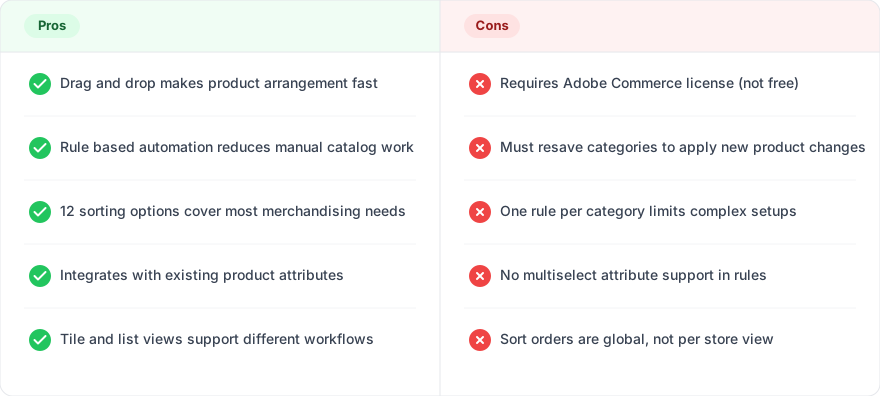
Pros and Cons of Visual Merchandiser
FAQ
1. Is Visual Merchandiser available in Magento Open Source?
No. Visual Merchandiser is exclusive to Adobe Commerce. Magento Open Source users need third party extensions to access similar product sorting and category management features.
2. How many category rules can I create per category?
One. Each category supports a single rule that can contain multiple conditions combined with AND or OR logic operators.
3. What happens when I add new products to my catalog?
New products are not assigned to rule based categories until you resave the category. Open each category with active rules and click Save to trigger product matching.
4. Can I use Visual Merchandiser with configurable products?
Yes. The system calculates stock for configurable products by combining quantities from all child simple products. This affects rules based on the Quantity attribute.
5. Which attributes work with category rules?
Eight attributes are supported: Clone Category ID(s), Color, Date Created (days ago), Date Modified (days ago), Name, Price, Quantity and SKU. Set "Use in Product Listing" to Yes for each attribute you want to use.
6. Does automatic sorting work without category rules?
Yes. Apply any of the 12 sorting options to any category, with or without active rules. Sorting affects the default product order on the category page.
7. Can I set different product orders for different store views?
No. Visual Merchandiser sort orders are global. The native tool does not support store view specific product positions.
8. What is the minimum Adobe Commerce version required?
Visual Merchandiser is available in all Adobe Commerce 2.x versions. The current latest release is Adobe Commerce 2.4.8 (April 2025) with security patch 2.4.8-p4 (March 2026).
Summary
Magento 2 Visual Merchandiser gives Adobe Commerce store owners full control over product positioning on category pages. The combination of drag and drop controls, rule based automation and 12 sorting options handles most merchandising scenarios without custom development.
Large catalogs with complex category rules need solid server resources. PHP memory allocation and database performance both affect how fast Visual Merchandiser processes rule based product assignments. Stores running on managed Magento hosting benefit from infrastructure optimized for these resource intensive catalog operations.
