

How to Enable and Disable Magento 2 Maintenance Mode
One bad deploy can break checkout for every visitor on the site. Magento maintenance mode blocks frontend access with a single CLI command while you apply updates, patches, or upgrades.
[Updated: March 4, 2026]
Key Takeaways
- Magento 2 maintenance mode blocks frontend access and returns HTTP 503 while you perform updates
- Enable and disable with
bin/magento maintenance:enableandbin/magento maintenance:disable - Exempt specific IP addresses so your team can access the store during maintenance
- Customize the 503 maintenance page at
pub/errors/default/503.phtml - Add a
Retry-Afterheader for SEO protection (Magento does not include one by default) - All commands work with Magento Open Source and Adobe Commerce 2.4.x (current stable: 2.4.8, released April 8, 2025, regular support ends April 11, 2028)
- Managed hosting eliminates most maintenance windows through zero downtime deployment
What is Magento Maintenance Mode?
Magento maintenance mode = A built-in CLI feature that blocks frontend access and returns a 503 HTTP response while you perform store updates. Exempt IP addresses bypass the block and see the live store.
Perfect for: Security patches, version upgrades, extension installs, database migrations
Not ideal for: Content edits, config changes, anything achievable with zero downtime deployment
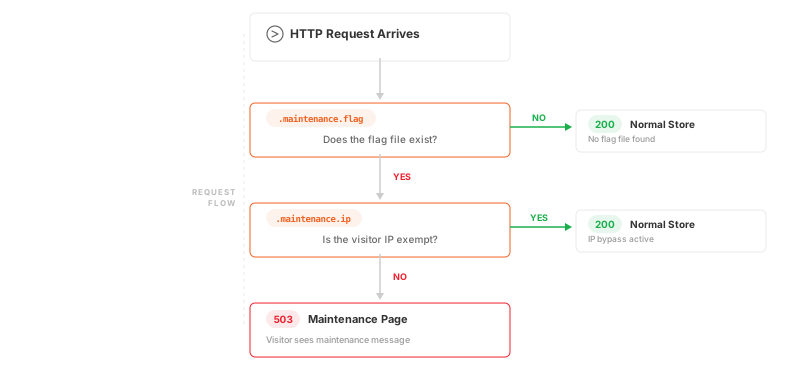
When you enable the maintenance mode in Magento 2, the system creates a hidden file at var/.maintenance.flag. Every incoming request checks for this file. If it exists, the server returns a 503 Service Unavailable response and displays the maintenance page instead of the regular store.
The admin panel stays accessible during maintenance. Only the frontend store is blocked.
You can exempt a list of IP addresses by adding them to var/.maintenance.ip. These visitors see the normal Magento 2 store while everyone else sees the maintenance page message in their web browser.
The official Adobe documentation on maintenance mode covers the full .maintenance.flag and .maintenance.ip logic including custom error pages.
When to Use Maintenance Mode
Not every change requires maintenance mode. Use it when the store cannot serve requests during an update.
Use maintenance mode for:
- Security patches that modify core files
- Version upgrades (e.g., Magento 2.4.6 to 2.4.8 via command line upgrade)
- Extension installs that require
setup:upgrade - Database schema migrations
- Server infrastructure changes (PHP version, MySQL upgrade)
Skip maintenance mode for:
- CMS page or product catalog edits
- Admin panel configuration changes
- Static content deployment
- Cache operations
For changes that do not touch database schema or core files, zero downtime deployment is the better choice.
How to Enable Maintenance Mode in Magento 2
Connect to your server via SSH and navigate to your Magento root directory. The Adobe Commerce CLI reference documents all maintenance mode commands.
Enable maintenance mode:
bin/magento maintenance:enable
This creates var/.maintenance.flag. All frontend visitors now see the 503 maintenance page.
Enable and exempt IP addresses in one step:
bin/magento maintenance:enable --ip=192.0.2.10 --ip=192.0.2.11
Use a separate --ip flag for each IP address you want to allow access. Do not use comma-separated lists.
Check the current status:
bin/magento maintenance:status
Output when maintenance mode is enabled:
Status: maintenance mode is active
List of exempt IP-addresses: 192.0.2.10, 192.0.2.11
After enabling, stop all message queue consumer processes. Running consumers during schema migrations can write to tables mid-change, causing data corruption or failed upgrades.
How to Exempt IP Addresses
Three methods to allow access from a specific IP address while Magento is in maintenance mode:
Method 1: Standalone command (recommended)
bin/magento maintenance:allow-ips 192.0.2.10 192.0.2.11
Space-separated arguments. This updates the list of IP addresses in var/.maintenance.ip without toggling the maintenance state.
Method 2: During enable or disable maintenance mode
bin/magento maintenance:enable --ip=192.0.2.10
The --ip flag works with both enable and disable commands.
Method 3: Direct file edit
Edit var/.maintenance.ip and add one IP address per line. Magento reads this file on every request. No cache clearing needed after changes.
Clear all exempt IPs:
bin/magento maintenance:allow-ips --none
How to Disable Maintenance Mode in Magento 2
Use the following command to disable maintenance mode in Magento:
bin/magento maintenance:disable
This deletes var/.maintenance.flag. Your Magento 2 store is back online.
Post-maintenance checklist:
-
Clear the cache:
bin/magento cache:clean - Verify the frontend loads and pages display
- Test checkout, search, and account login
- Check monitoring tools for error spikes
- Confirm Varnish serves fresh content (not cached 503 pages)
The .maintenance.ip file stays after disabling. Your exempt IP list carries over to the next maintenance window.
How to Customize the 503 Maintenance Page
The default Magento 2 maintenance page is plain text on a white background. Customize it to match your brand and communicate with visitors.
Default template location:
pub/errors/default/503.phtml
Create a custom skin:
- Copy
pub/errors/default/topub/errors/custom/ - Configure
pub/errors/local.xml:
<?xml version="1.0"?>
<config>
    <skin>custom</skin>
</config>
- Edit
pub/errors/custom/503.phtmlwith your brand logo, messaging, and estimated return time - Customize
pub/errors/custom/css/styles.cssfor visual styling
What to include on a custom maintenance page:
- Brand logo and colors for a professional look
- Clear message with estimated return time
- Contact email or support link
- Social media links
The maintenance page loads outside the Magento application. Avoid external JavaScript dependencies or database queries in your template.
Switch to developer mode while building your custom page. In production mode, Magento shows only the generic 503 page without detailed errors. Developer mode displays template errors in the browser, making custom page debugging faster.
SEO Impact: How Google Handles 503 Responses
This is the section most maintenance mode guides skip. Getting it wrong can cost you rankings.
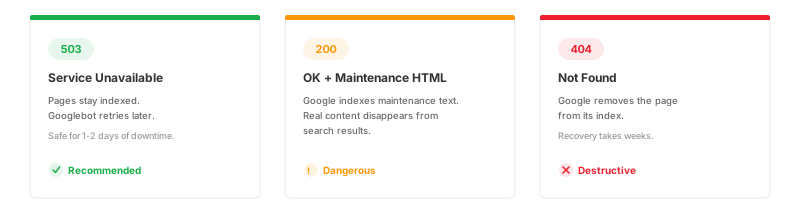
Why 503 is the correct response code:
| Response Code | Google's Behavior |
|---|---|
| 503 (Magento default) | Page stays indexed. Googlebot retries later. Safe for up to 1-2 days. |
| 200 with maintenance HTML | Google indexes the maintenance text. Your real content disappears from search results. |
| 404 | Google removes the page from its index. Recovery takes weeks. |
Magento returns 503 by default. Do not override this behavior.
Add a Retry-After header (Magento does not do this):
Magento 2 provides no Retry-After header by default. Add it to tell Googlebot when to return.
In your 503.phtml template (recommended):
<?php header('Retry-After: 3600'); ?>
Place this at the top of pub/errors/default/503.phtml or your custom skin file. The value is in seconds (3600 = 1 hour).
At the web server level (alternative):
For nginx, add the header in your server config:
# nginx: add Retry-After to 503 responses
add_header Retry-After 3600 always;
For Apache (.htaccess in your Magento root or errors directory):
<IfModule mod_headers.c>
    Header always set Retry-After "3600"
</IfModule>
Both server-level approaches work independent of the Magento application and persist across any error responses.
CDN caching gotcha:
If Varnish, Fastly, or CloudFront sits in front of your store, verify the CDN passes the 503 through to Googlebot. A common failure: the CDN caches a stale 200 response and serves it during maintenance, causing Google to index an old or wrong version of the page.
Safe downtime window:
A few hours of 503 is safe. Google does not de-index pages for short maintenance periods. Multiple consecutive days of 503 responses risk Google dropping URLs from the index.
When Managed Hosting Eliminates Maintenance Mode
Maintenance mode blocks all visitors. For stores with international traffic across time zones, even a 30-minute maintenance window affects sales.
Modern managed Magento hosting eliminates most maintenance scenarios through automated deployment pipelines. Blue-green deployments and zero downtime code deploy push new code to a parallel environment, test it, then switch traffic in seconds.
MGT Commerce offers MGT Code Deploy, a native zero downtime solution for AWS. It runs parallel deploys with auto-scaling and switches traffic in seconds, so maintenance mode becomes unnecessary for routine releases.
| Scenario | Self-Managed | Managed Hosting |
|---|---|---|
| Security patches | Maintenance mode + manual apply | Provider applies patches with zero downtime |
| PHP/MySQL upgrades | Maintenance mode + server changes | Provider handles infrastructure updates |
| Scaling during traffic spikes | Manual intervention | Auto-scaling, no maintenance needed |
| SSL certificate renewal | Potential brief downtime | Automated, zero downtime |
Reserve maintenance mode for changes that require database migrations or core file modifications. For everything else, managed hosting handles it without blocking a single visitor.
Common Issues and Fixes
| Problem | Cause | Fix |
|---|---|---|
| Maintenance mode not activating | File permissions on var/ directory |
Run chmod 775 var/ or verify file ownership |
| Cannot access admin during maintenance | Admin URL misconfigured | Admin is not blocked. Verify your admin URL path. |
| CDN serving cached pages instead of 503 | Varnish or CDN caches the response | Purge CDN cache. Configure cache bypass for 503. |
| Maintenance mode stuck after deploy | var/.maintenance.flag not deleted |
Run bin/magento maintenance:disable or delete the file |
| IP exemption not working | Wrong IP or proxy in front | Check your public IP. If behind a proxy, add the proxy IP. |
For persistent issues, check your Magento mode (developer, production, default). Developer mode shows detailed error output for debugging.
Back up your store before any maintenance that modifies files or the database.
FAQ
1. How do I enable maintenance mode in Magento 2?
Run bin/magento maintenance:enable from your Magento root directory via SSH. This creates var/.maintenance.flag and blocks frontend access for all visitors except exempt IP addresses.
2. How do I disable maintenance mode in Magento 2?
Run bin/magento maintenance:disable from the command line. This deletes the flag file and restores normal frontend access. Clear the cache with bin/magento cache:clean afterward.
3. Can I access the admin panel when maintenance mode is enabled?
Yes. Maintenance mode blocks only the frontend store. The admin panel remains accessible at your configured admin URL path regardless of the maintenance state.
4. How do I allow a specific IP address during maintenance?
Use bin/magento maintenance:allow-ips 192.0.2.10 192.0.2.11 with space-separated addresses. These IP addresses bypass the maintenance page and access the frontend store as normal.
5. Where is the maintenance flag file located?
At var/.maintenance.flag inside your Magento root directory. The file presence alone activates maintenance mode. Deleting it restores normal operations.
6. How do I customize the Magento 2 maintenance page?
Edit pub/errors/default/503.phtml or create a custom skin folder at pub/errors/custom/. Set <skin>custom</skin> in pub/errors/local.xml to activate your template.
7. Does maintenance mode hurt SEO rankings?
Magento returns HTTP 503, which tells Google the site is down for a short time. Google keeps your pages indexed and retries later. Add a Retry-After header for best results. Avoid maintenance periods longer than 1-2 days.
8. What is the difference between maintenance mode and developer mode?
Maintenance mode blocks frontend visitors and shows a 503 page. Developer mode changes how Magento handles errors, caching, and static file generation. Both can be active at the same time.
9. Can I enable maintenance mode without SSH access?
Yes. Create var/.maintenance.flag via FTP or your hosting file manager. For IP exemptions, create var/.maintenance.ip with one address per line. The CLI method is preferred because it handles file permissions.
10. How do I avoid maintenance windows altogether?
Use blue-green or rolling deployment strategies. Managed Magento hosting providers offer built-in deployment pipelines that eliminate maintenance windows for routine updates, security patches, and infrastructure changes. Adobe Commerce Cloud users can follow the zero downtime deployment guide.
