

How to Configure the Magento Navigation Menu (Step-by-Step)
[Updated: March 2, 2026]
A broken or confusing Magento navigation menu costs you sales. Customers who cannot find products leave.
This step-by-step guide covers setup, customization, troubleshooting, and the latest changes in Magento 2.4.8.
Key Takeaways
- The Magento 2 navigation menu is built from your category tree. Categories with "Include in Menu = Yes" appear in the top navigation.
- Maximal Depth = 0 means unlimited levels (not zero). Set 1 to 4 for controlled navigation.
- Varnish and Fastly can break the navigation menu through ESI caching conflicts. Specific fixes exist for each.
- Magento 2.4.8 fixed category tree sort order in admin, widget rendering, and layered navigation filter wording.
- Hyvä theme replaces the entire JavaScript stack for navigation. Standard Luma mega menu extensions do not work on Hyvä.
Quick Answer
Magento navigation menu = The top menu bar on your store, auto-generated from your category tree. You control which categories appear, how deep the menu goes, and how it looks on desktop and mobile.
Perfect for: Store owners setting up their first menu, admins troubleshooting missing categories, developers customizing mega menus.
Not ideal for: Headless/PWA setups where navigation is built via GraphQL (different approach).
Steps for Setting Up the Magento Navigation Menu
1. Create a Category
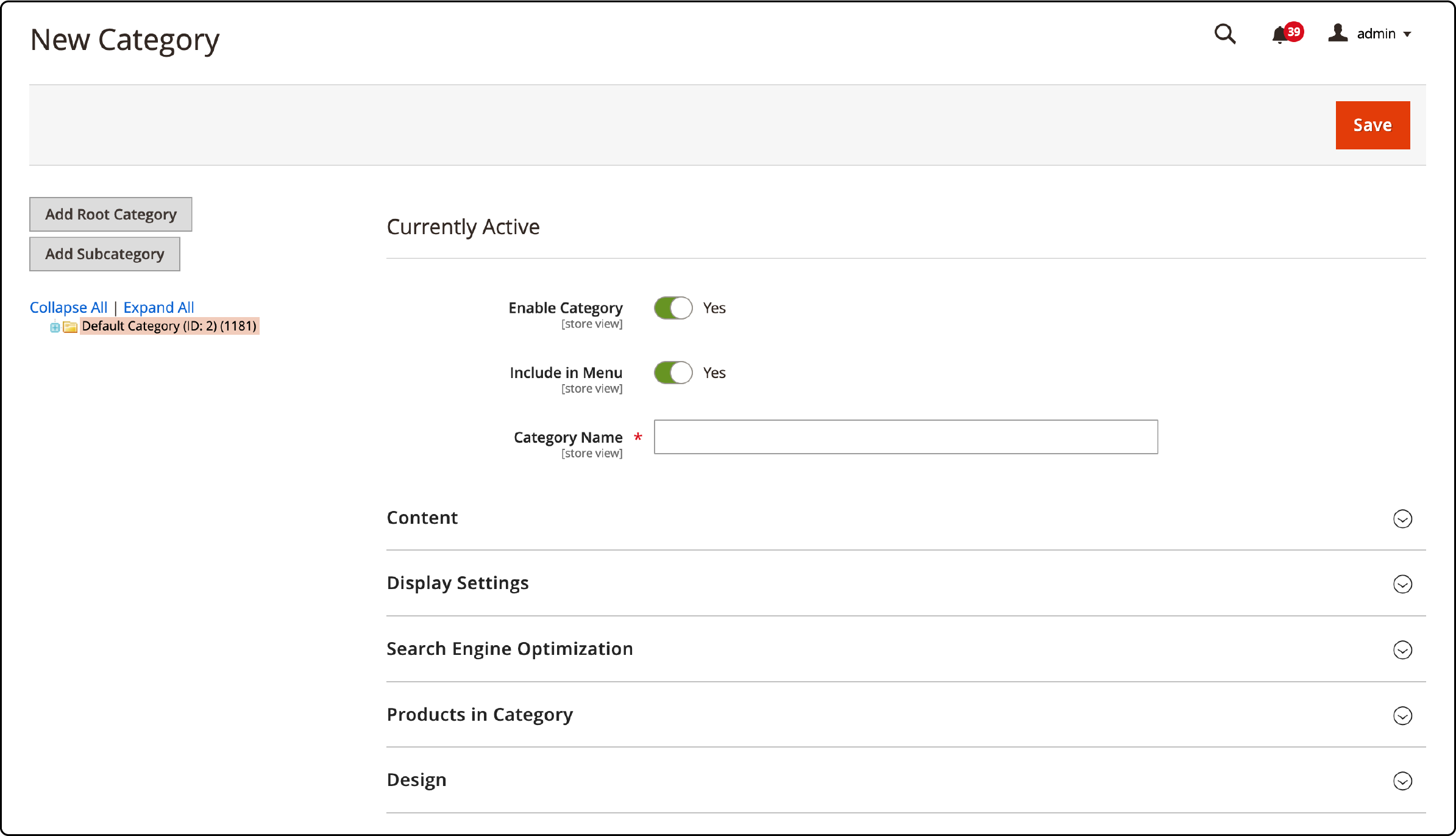
- Go to the Admin sidebar, select Products, then click Categories.
- Choose "Default Category" on the Category page (highlighted in pale orange).
- Click Add Subcategory to create a new level 2 category.
- Fill in the category name, set Is Active = Yes and Include in Navigation Menu = Yes.
- Click Save.
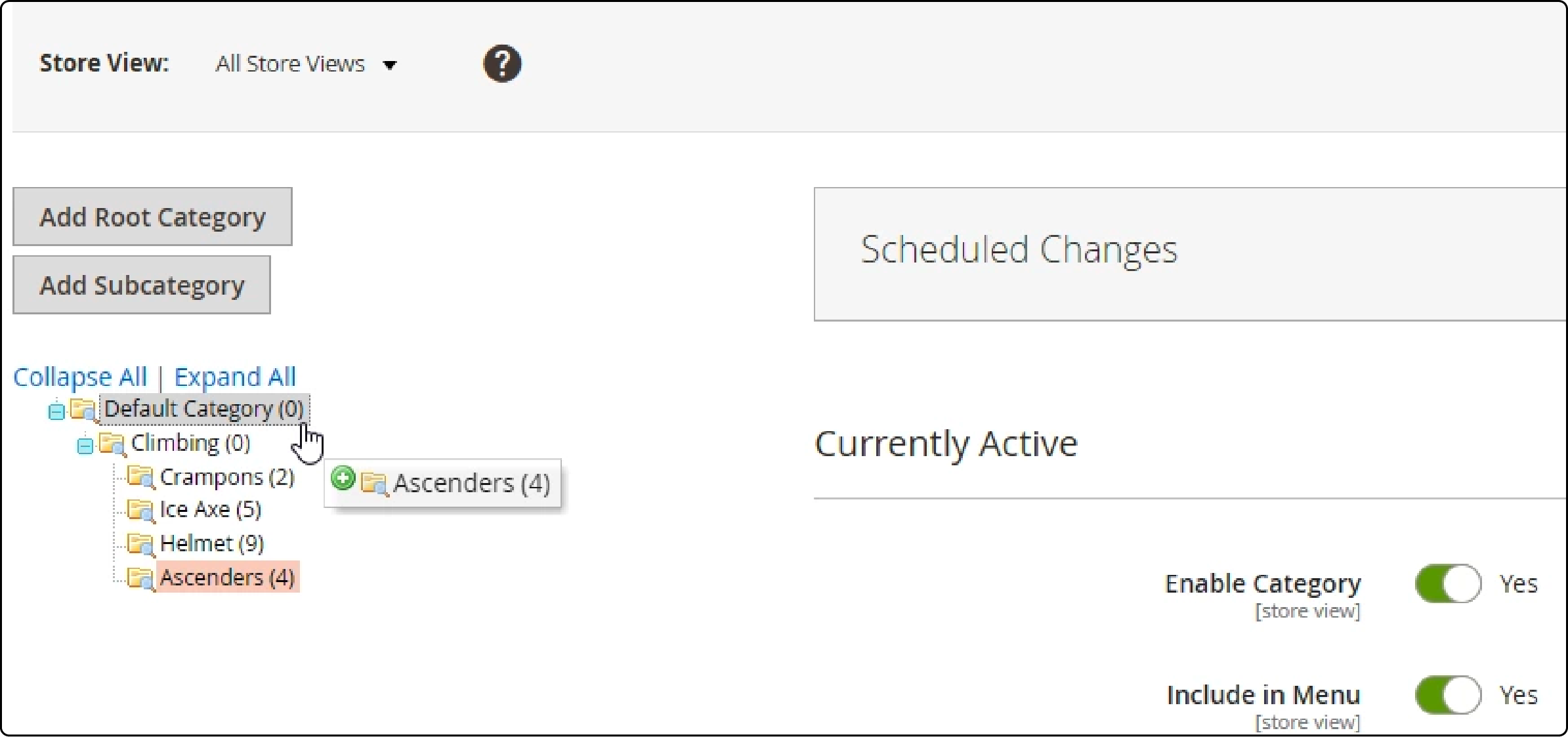
Drag and drop the new category to the desired position. Check the frontend to confirm.
Important: The "Is Anchor" Setting
New categories default to Anchor = No. This controls two things:
- Anchor = Yes: Shows products from all child subcategories on this category page. Displays layered navigation filters.
- Anchor = No: Shows only products assigned to this category. No layered navigation filters.
A parent category with Anchor = No will appear empty if no products are assigned to it. This is one of the most common reasons for "empty" category pages.
2. Set the Depth of the Top Navigation
- Navigate to Stores → Configuration → Catalog → Catalog.
- Expand Category Top Navigation.
- Set the Maximal Depth value.
Critical detail: The default value 0 means unlimited depth, not zero levels. This is the most common source of confusion. This confuses many store owners. Set it to 2 or 3 for most stores.

This setting has global scope only. It applies to all websites, stores, and views. You cannot set different depths per store view.
| Depth Value | Behavior |
|---|---|
| 0 | Unlimited levels (all subcategories visible) |
| 1 | Root categories only |
| 2 | Root + one level of subcategories |
| 3 | Root + two levels (recommended for most stores) |
How to Edit and Customize the Top Navigation Menu
1. Reorder and Delete Menu Items
- Go to Products → Categories.
- Drag and drop categories into your desired sequence.
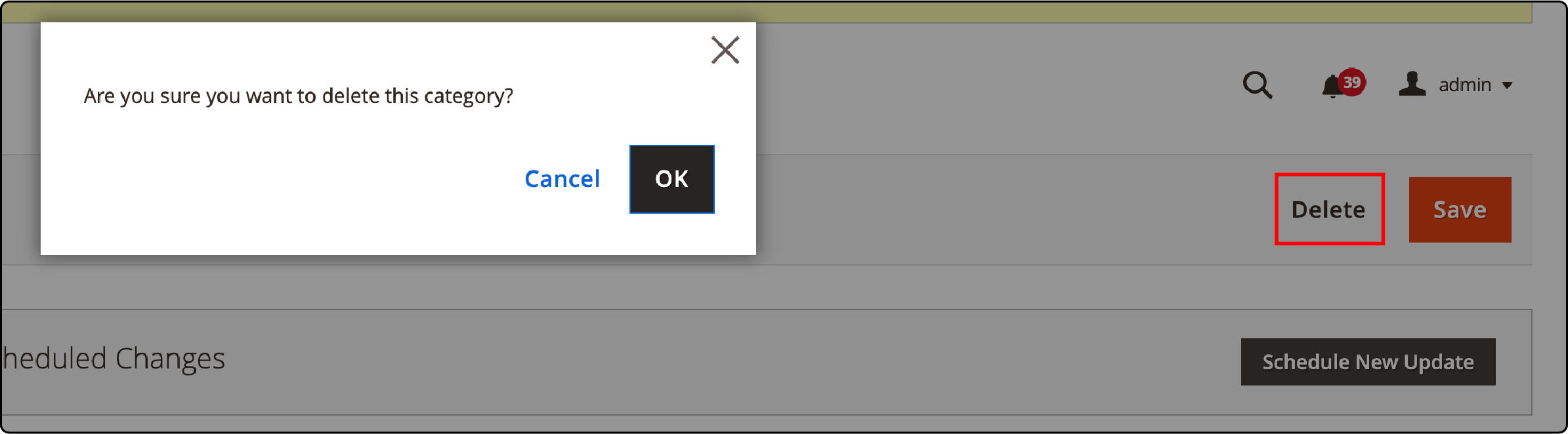
- To delete a category, select it and click Delete. Confirm in the pop-up.
- Save your changes.
2. Add New Menus
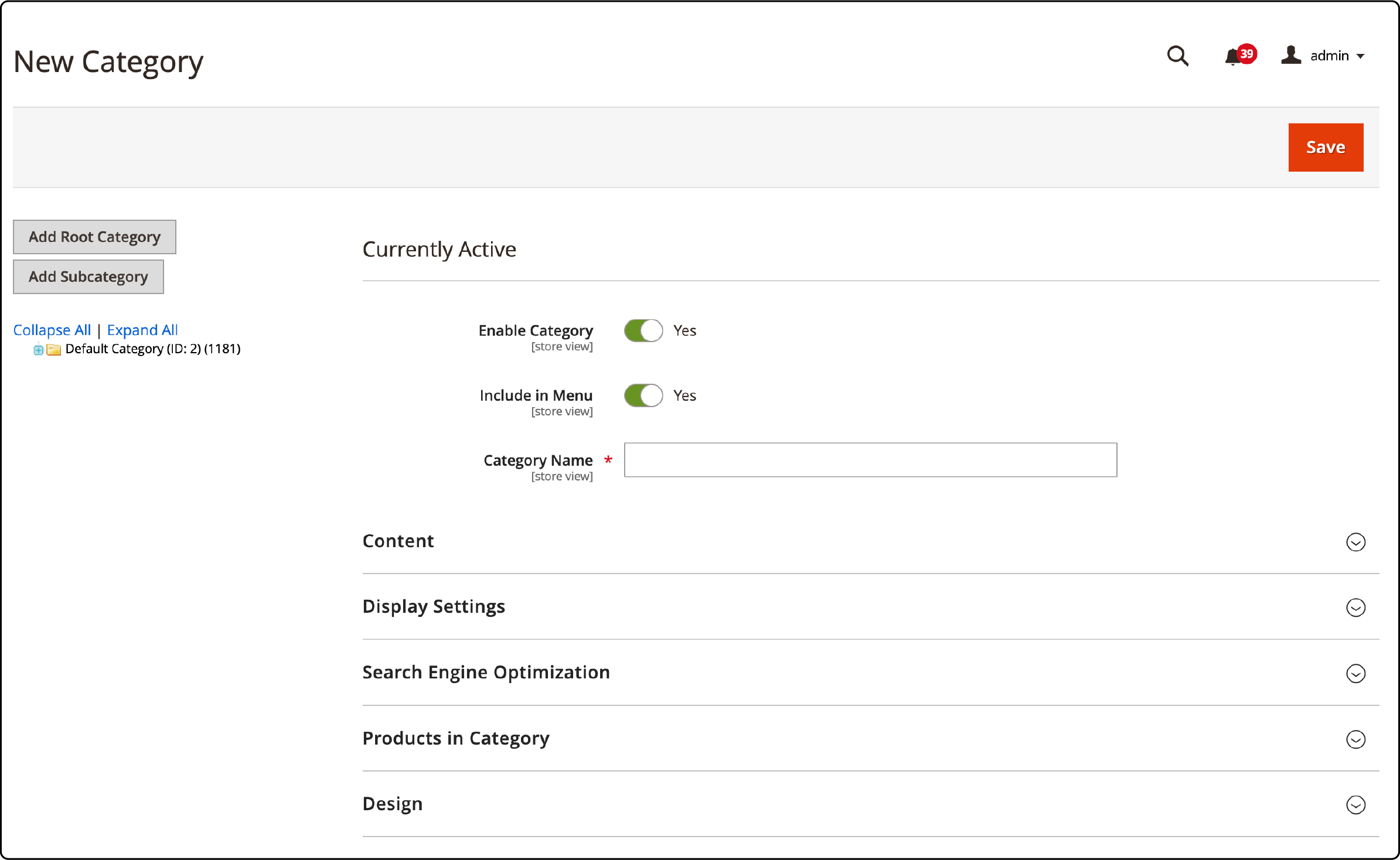
Adding new menus works the same as creating new categories:
- Go to Products → Categories.
- Click Add Subcategory or Add Root Category for a top-level entry.
- Fill out the category information and save.
3. Add CMS Blocks to the Navigation Menu
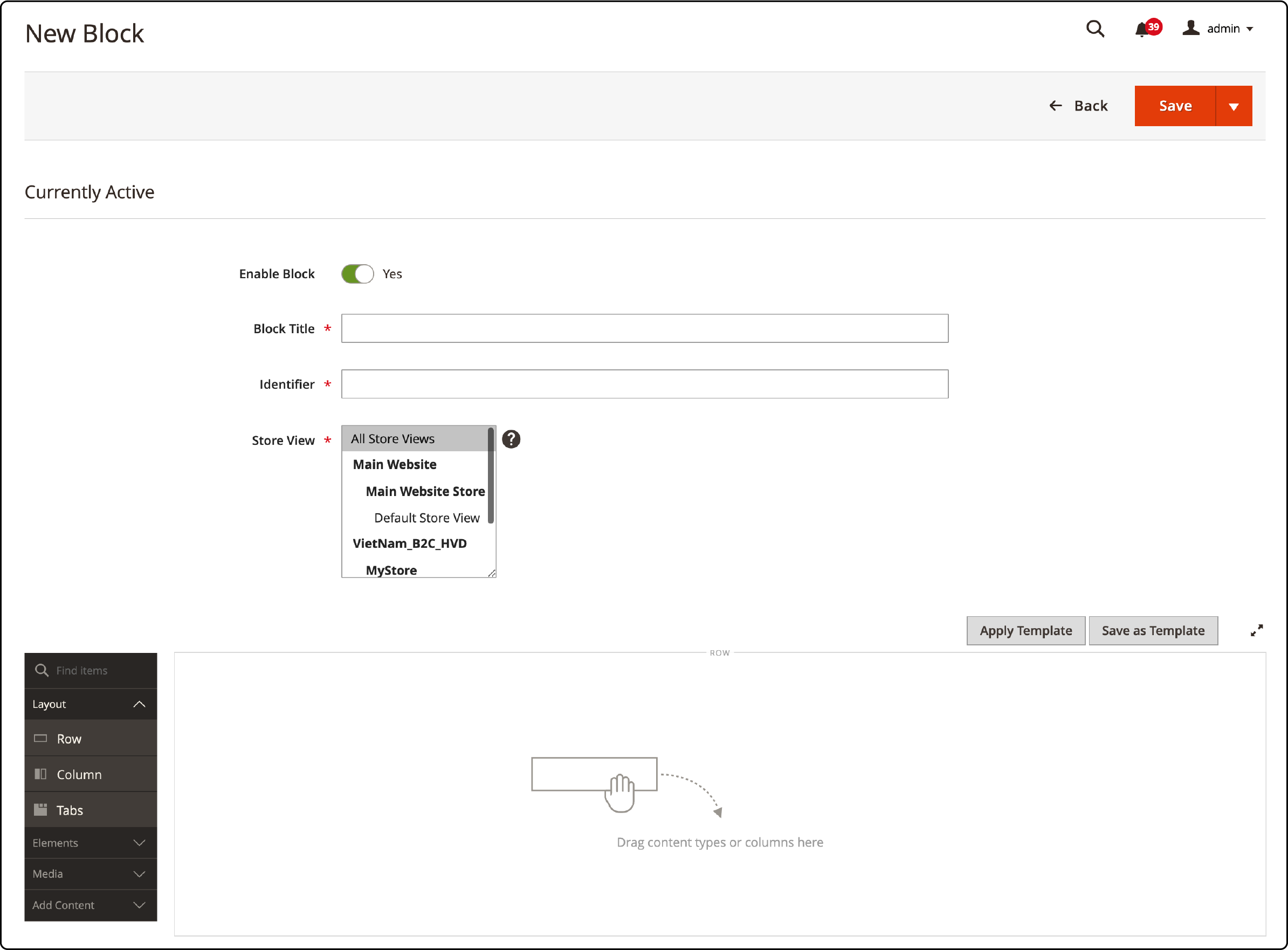
CMS blocks let you feature promotions, announcements, or links to specific pages within the navigation menu.
- Go to Content → Blocks and click Add New Block.
- Create your block content and save.
- Navigate to Products → Categories, choose the target category.
- In the Design section, add your block ID under Layout Update XML.
- Save changes.
4. Add Non-Category Links to the Top Menu
The built-in Magento admin only supports categories in the top navigation. To add custom links (CMS pages, external URLs), you need one of two approaches:
-
Layout XML: Reference the
catalog.topnavblock and add aMagento\Framework\View\Element\Html\Linkelement. -
Plugin: Create a
beforeplugin onMagento\Theme\Block\Html\Topmenu::getHtml().
No native no-code solution exists for non-category navigation links. Popular extensions that solve this: Amasty Mega Menu, WeltPixel Navigation, and SnowdogApps Menu. If you run Hyvä, check for Hyvä compatibility before purchasing.
Multi-Store Navigation
Each Magento store can have a different root category, which creates a separate navigation tree:
- Go to Stores → All Stores.
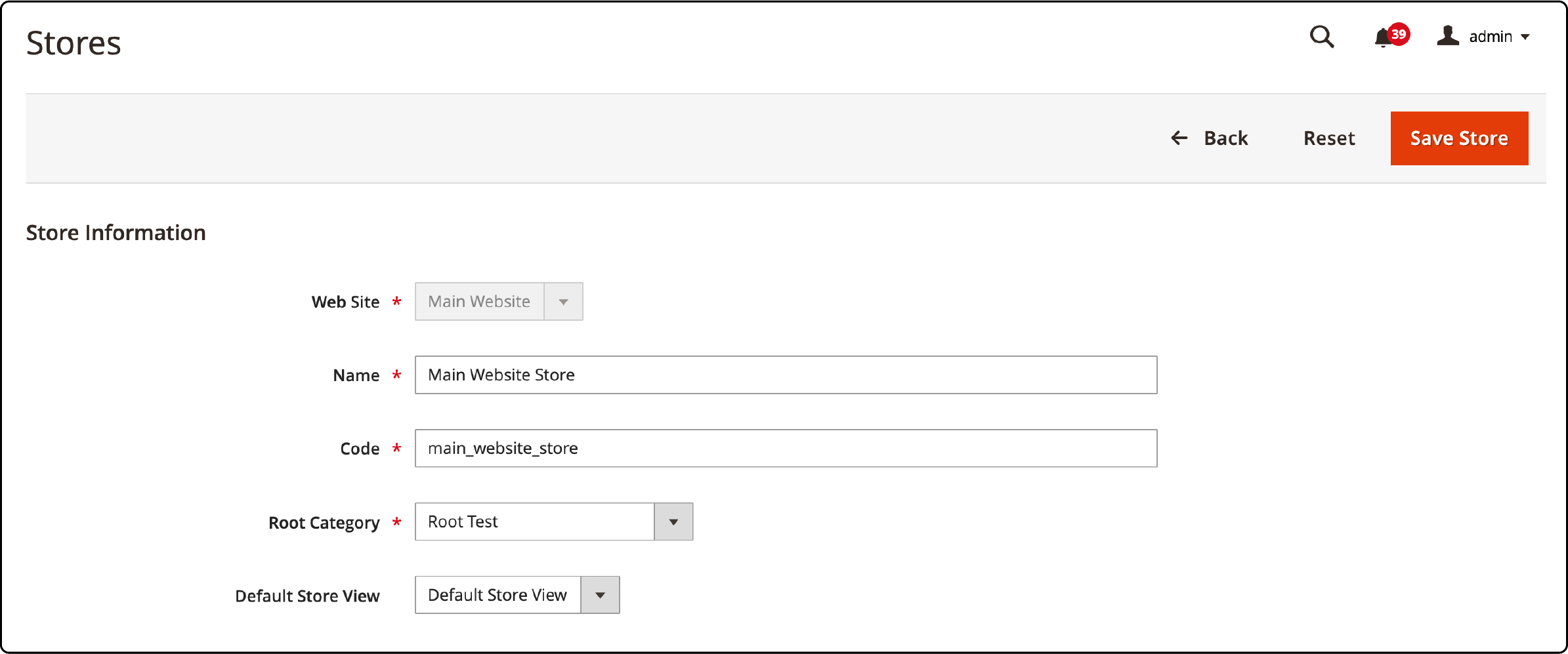
- Edit your store and change the Root Category dropdown.
- Save. Each store now shows a different menu.
This is how a single Magento installation can serve multiple brands or regions with different navigation structures.
What Changed in Magento 2.4.8 for Navigation
Magento 2.4.8 (released April 2025) brought over 500 quality improvements. Several affect category and navigation handling:
| Improvement | Detail |
|---|---|
| Category tree display | More stable rendering of category trees in admin, including sort order and deep nesting |
| Widget category tree | Corrected rendering issues in widget category tree display |
| Layered navigation | Filter counts use correct grammar, better anchor/non-anchor separation in widgets |
| Disabled categories | Disabled categories show as grayed out in the admin tree |
| PHP 8.4 support | Full compatibility with PHP 8.4, plus MariaDB 11.4 LTS |
| Indexing performance | Decoupled inventory indexing reduces slowdowns that affected catalog display |
Navigation was not the main focus of 2.4.8, but these incremental fixes improve daily admin work with category trees and layered navigation.
Navigation on the Hyvä Theme
If your store runs on the Hyvä theme, the navigation stack is different. Hyvä replaces Knockout.js and jQuery with Alpine.js, reducing JavaScript from ~300KB (Luma) to ~15KB.
This means:
- Standard Luma mega menu extensions do not work on Hyvä.
- Navigation is built as Alpine.js components.
- Hyvä-compatible mega menu extensions exist (Amasty Mega Menu, ProxiBlue MultiMenu).
- Custom navigation links are added via layout XML in the Hyvä theme.
Hyvä UI (the component library) now includes ready-made navigation and mega menu building blocks that are simple to extend. If you plan to migrate to Hyvä, verify that your mega menu extension has Hyvä compatibility before upgrading.
Fixing Common Navigation Menu Issues
1. Menu Not Showing
The most common cause: categories are set to Is Active = No or Include in Menu = No.
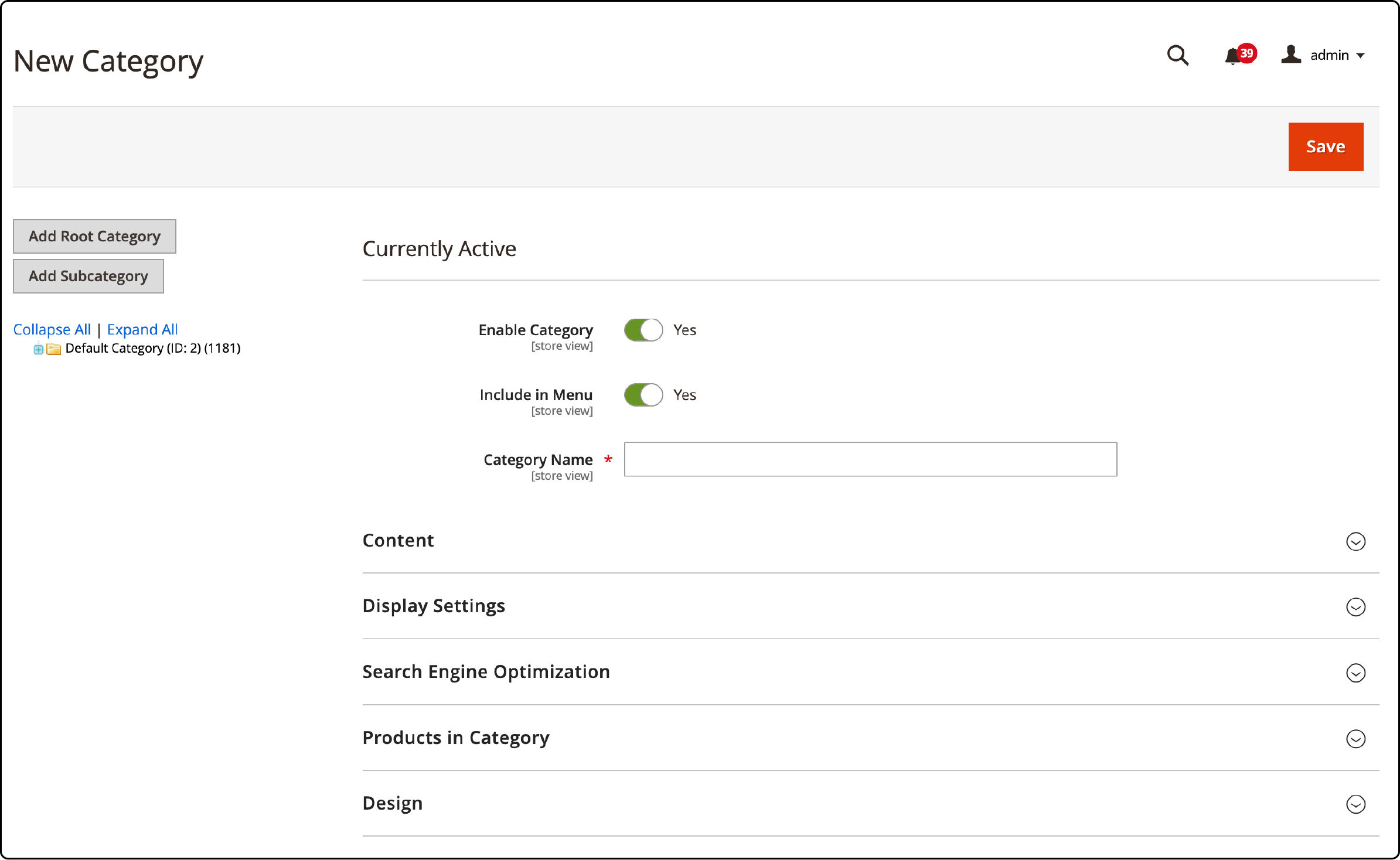
Fix: Create or reassign the root category
- Go to Products → Categories → Add Root Category.
- Set Is Active = Yes and Include in Navigation Menu = Yes.
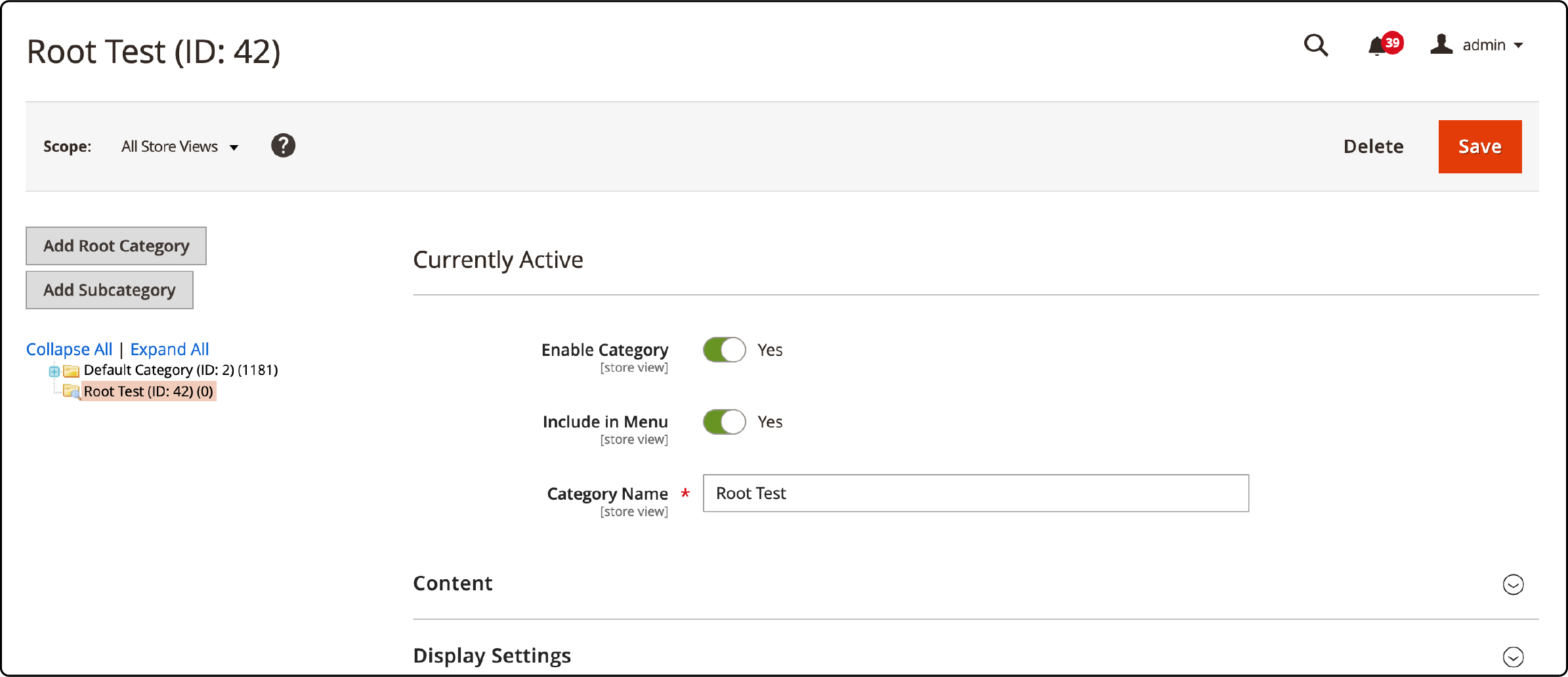
- Add subcategories with the same settings.
- Save, then go to Stores → All Stores, edit your store, and select the new root category.
Flush the entire cache: System → Cache Management → Flush Magento Cache.
2. Navigation Disappears with Varnish Enabled
The catalog.topnav block has a ttl="3600" attribute in Magento's default layout XML. This triggers ESI (Edge Side Includes) processing, which can fail and hide the menu.
Fix: Override the layout in your theme's default.xml and remove the ttl attribute from the topnav block. Alternative: set ttl="0" to disable ESI for this block.
3. Navigation Disappears on Subpages with Fastly (Adobe Commerce Cloud)
Two root causes:
- A slash
/in a CMS page's URL Key field breaks ESI processing for navigation. - Missing or outdated Fastly VCL snippets.
Fix: Remove slashes from CMS page URL keys. Re-upload default Magento Fastly VCL snippets from the Fastly configuration panel.
4. Mobile Menu Not Working
Verify that your theme includes the mobile menu JavaScript. If the default mobile menu is broken, a mobile-responsive menu extension provides a reliable alternative with touch support and smooth transitions.
SEO Impact of Navigation Structure
Your navigation menu structure affects search engine crawling:
- Category URL paths: Enable "Use Categories Path for Product URLs" in Stores → Configuration → Catalog → SEO for keyword-rich URLs. Trade-off: longer URLs vs. keyword benefit. For stores with deep category trees (4+ levels), shorter URLs may perform better.
- Canonical tags: Set "Use Canonical Link Meta Tag For Categories = Yes" to prevent duplicate content from layered navigation filter URLs.
- Crawl depth: Deep navigation trees (5+ levels) consume more Googlebot crawl budget. Keep menu depth at 3 levels for most stores.
- Breadcrumbs: Connected to your category structure. BreadcrumbList schema markup improves SERP display.
Proper navigation structure combined with managed Magento hosting ensures both fast page loads and efficient crawling.
FAQ
How do I add a category to the Magento 2 navigation menu?
Go to Products → Categories, create or edit a category, set "Is Active = Yes" and "Include in Navigation Menu = Yes", then save and flush cache.
Why is my category not showing in the top navigation?
Check three settings: Is Active must be Yes, Include in Navigation Menu must be Yes, and the category must belong to the root category assigned to your store. Flush cache after changes.
What does Maximal Depth = 0 mean?
Maximal Depth = 0 means unlimited. All subcategory levels will show in the navigation. Set it to 2 or 3 to limit visible levels.
What does "Is Anchor" mean in Magento 2 categories?
Anchor = Yes means the category page shows products from all child subcategories and displays layered navigation filters. Anchor = No shows only products assigned to that category.
Why does my navigation menu disappear when Varnish is enabled?
The topnav block's ESI caching (ttl="3600") can conflict with Varnish. Override the layout XML in your theme and remove the ttl attribute from the catalog.topnav block.
How do I add a non-category link to the top menu?
No native admin solution exists. Use a layout XML override to add custom links via Magento\Framework\View\Element\Html\Link, or create a plugin on the Topmenu block.
Does Magento 2 have a built-in mega menu?
No. Magento 2's default navigation is a standard dropdown menu. For mega menus with images, columns, and rich content, you need a mega menu extension.
How many navigation levels should I have?
Two to three levels work best for most stores. Deeper navigation increases page load time and confuses customers. Keep your menu flat and scannable.
How does navigation work on the Hyvä theme?
Hyvä replaces the Luma JavaScript stack with Alpine.js. Standard Luma menu extensions do not work. You need Hyvä-compatible extensions or custom Alpine.js components.
Why does my category page show no products from subcategories?
Check the "Is Anchor" setting. Set Is Anchor = Yes on the parent category. This tells Magento to aggregate products from all child subcategories and display layered navigation filters.
What navigation changes came in Magento 2.4.8?
Magento 2.4.8 improved category tree display stability in admin, widget category tree rendering, layered navigation filter handling, and visual display of disabled categories.
Conclusion
A well-structured Magento navigation menu helps customers find products fast and keeps search engines crawling your store. Set up your category tree, control menu depth, and address caching issues before they affect your customers.
For stores running complex catalogs with multiple categories, managed Magento hosting handles the server-side caching stack (Varnish, Redis, Fastly) that directly impacts navigation rendering speed.
