

Magento Variables: How to Create and Use Custom Variables in Magento 2
[Updated: March 18, 2026]
One phone number change. Forty pages to update. Custom Magento variables solve this problem by storing reusable content in one place and displaying it across your entire store.
This guide covers how to create custom variables, the correct directive syntax for templates, and practical use cases for CMS pages, blocks, and email templates.
Key Takeaways
- Custom variables store reusable values (text or HTML) that update across all pages from one location
- Magento 2 supports three directive types:
{{customVar}},{{config}}, and{{var}}for different data sources - Variables work in CMS pages, static blocks, email templates, and Page Builder content
- Each variable supports separate HTML and plain text values per store view
What Are Magento Variables?
Magento variables = placeholders that pull dynamic content into pages, blocks, and emails. Update the value once, and every instance across your store reflects the change.
Perfect for: Store owners managing multi-page content, developers building email templates, merchants with frequent promotional updates
Not ideal for: Single-page sites with static content that never changes
Magento 2 provides two categories of variables:
Predefined variables pull data from system configuration. Store name, email addresses, phone numbers, and base URLs all come from values set in Stores > Configuration. These use the {{config path="..."}} directive.
Custom variables store values you define. Contact details, promotional messages, legal disclaimers, or any text that appears on multiple pages. These use the {{customVar code="..."}} directive.
Both types eliminate manual updates across individual pages. Change the source value, and every reference updates on the next page load.
How to Create Custom Variables in Magento 2
Step 1: Open the Custom Variables Page
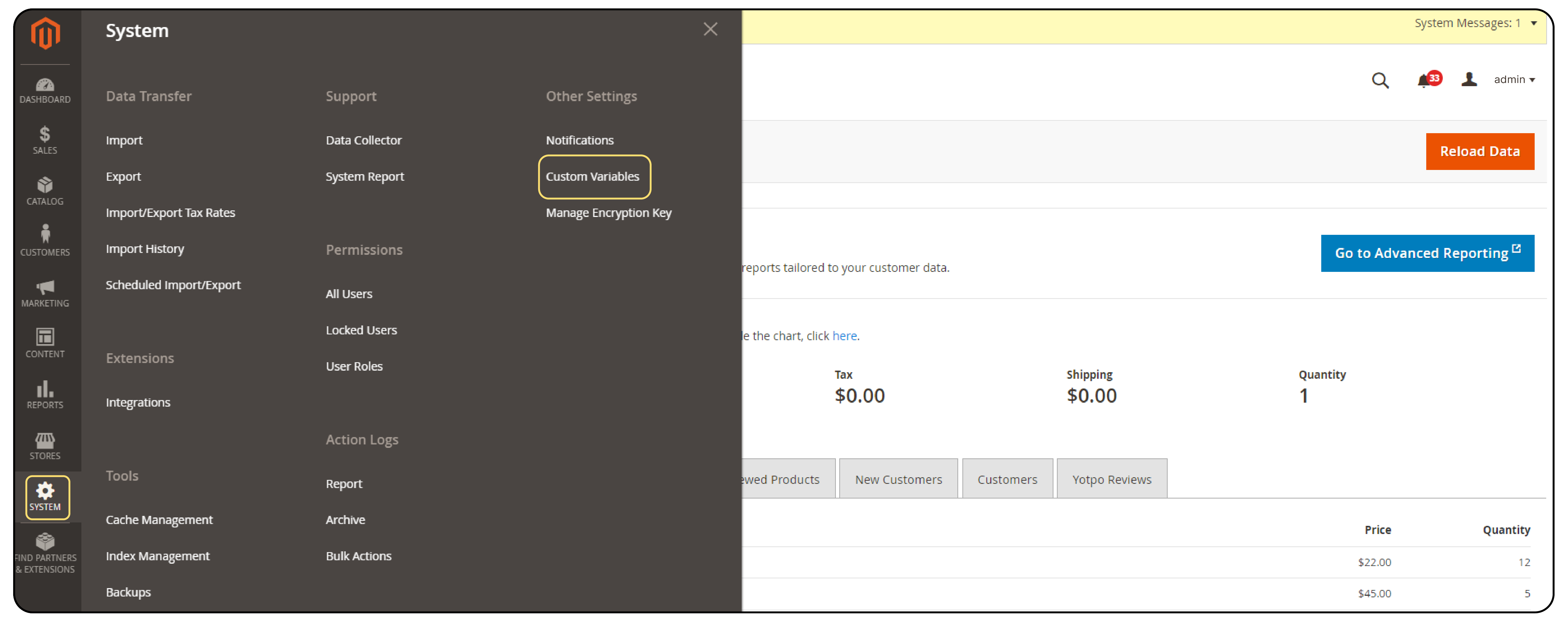
Log into your Magento admin panel and navigate to System > Other Settings > Custom Variables.
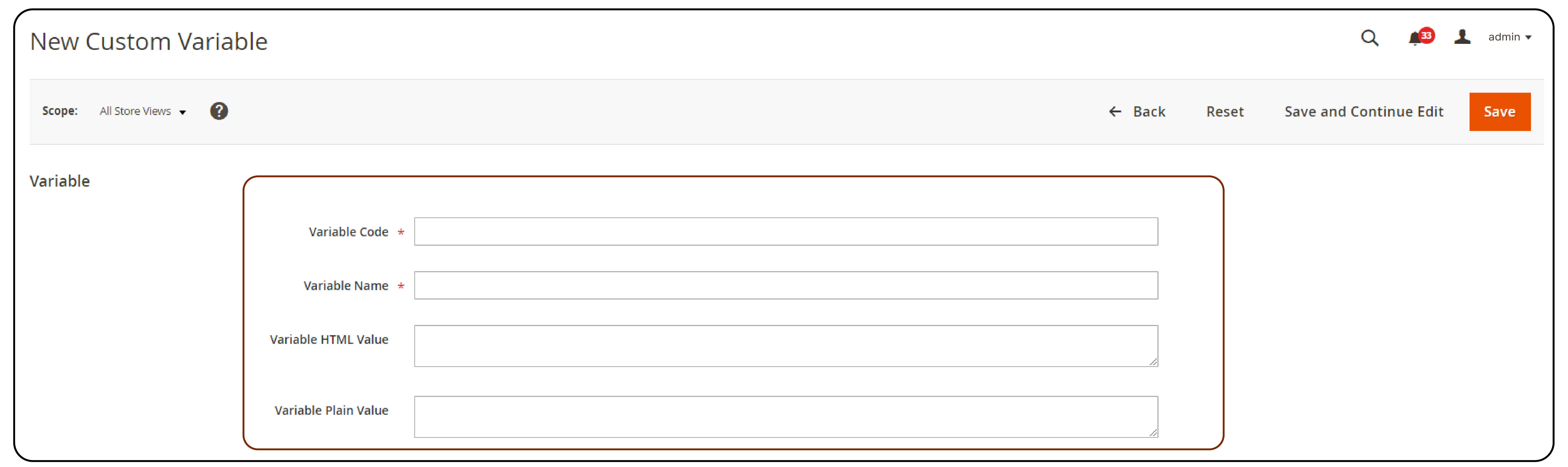
Step 2: Add a New Variable
Click Add New Variable to open the variable creation form.
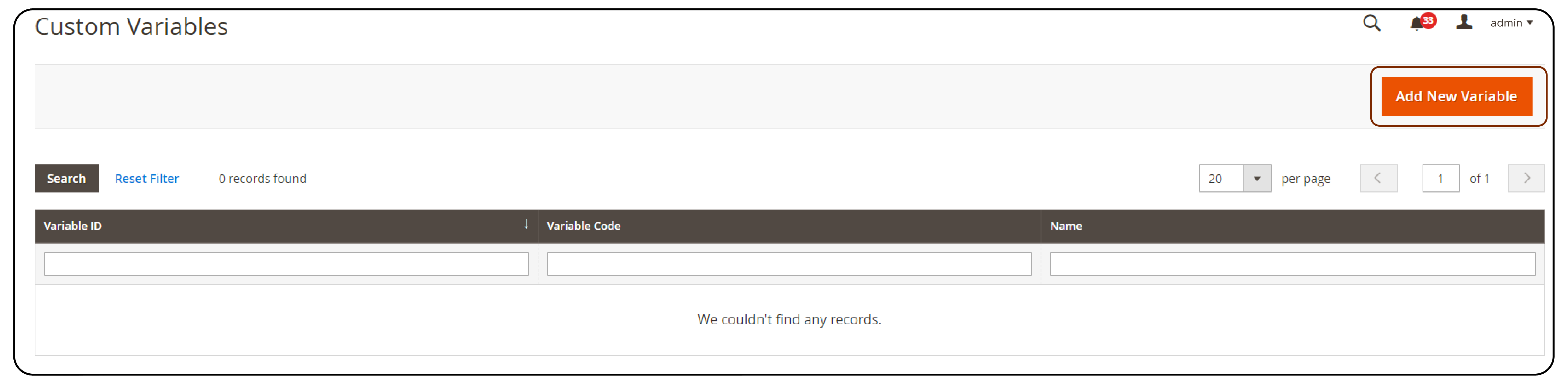
Step 3: Configure Variable Fields
Fill in the required fields:
| Field | Description | Example |
|---|---|---|
| Variable Code | Unique identifier (lowercase, no spaces, use underscores) | support_phone |
| Variable Name | Internal label for admin reference | Support Phone Number |
| Variable HTML Value | Formatted content with HTML tags | <strong>+1 (555) 123-4567</strong> |
| Variable Plain Value | Unformatted text version | +1 (555) 123-4567 |
The HTML value renders in CMS pages and blocks. The plain text value renders in email templates and areas that strip HTML formatting.
Step 4: Configure Store View Values
For multi-store setups, switch the Store View dropdown to set different values per store view. This lets you display different phone numbers, addresses, or promotional messages for each storefront.
Step 5: Save the Variable
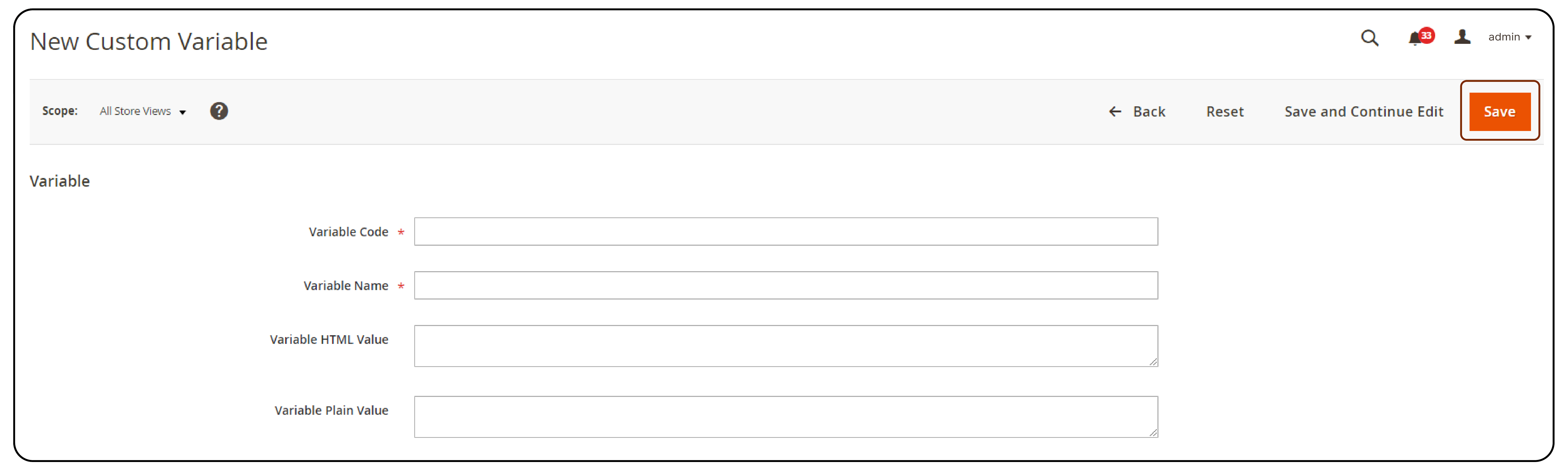
Click Save to store the variable. It becomes available for insertion across all content areas.
Variable Directive Syntax Reference
Magento 2 uses three directive types for inserting dynamic content. Each pulls data from a different source.
Custom Variable Directive: {{customVar}}
Inserts values from variables created in System > Other Settings > Custom Variables.
Syntax:
{{customVar code="your_variable_code"}}
Example:
Contact our support team at {{customVar code="support_phone"}}
Configuration Directive: {{config}}
Pulls values from Stores > Configuration settings.
Syntax:
{{config path="section/group/field"}}
Common configuration paths:
| Variable | Directive | Source |
|---|---|---|
| Store Name | {{config path="general/store_information/name"}} |
General > Store Information |
| Store Phone | {{config path="general/store_information/phone"}} |
General > Store Information |
| Store Hours | {{config path="general/store_information/hours"}} |
General > Store Information |
| Store Address | {{config path="general/store_information/street_line1"}} |
General > Store Information |
| General Contact Email | {{config path="trans_email/ident_general/email"}} |
Store Email Addresses |
| Sales Email | {{config path="trans_email/ident_sales/email"}} |
Store Email Addresses |
| Support Email | {{config path="trans_email/ident_support/email"}} |
Store Email Addresses |
| Base URL | {{config path="web/unsecure/base_url"}} |
Web > Base URLs |
| Secure Base URL | {{config path="web/secure/base_url"}} |
Web > Base URLs (Secure) |
| Base Media URL | {{config path="web/unsecure/base_media_url"}} |
Web > Base URLs |
| Default Country | {{config path="general/country/default"}} |
General > Country Options |
| VAT Number | {{config path="general/store_information/merchant_vat_number"}} |
General > Store Information |
Object Variable Directive: {{var}}
Accesses properties of objects passed to email templates. Available variables depend on the template context.
Syntax:
{{var object.property}}
Common email template variables:
| Context | Variable | Directive |
|---|---|---|
| Customer | Name | {{var customer.name}} |
| Customer | {{var customer.email}} |
|
| Order | Order Number | {{var order.increment_id}} |
| Order | Created Date | {{var order.created_at}} |
| Order | Grand Total | {{var order.grand_total}} |
| Order | Status | {{var order.status_label}} |
| Shipment | Tracking Number | {{var tracking_url}} |
| Invoice | Invoice Number | {{var invoice.increment_id}} |
Translation Directive: {{trans}}
Wraps text for translation into the store view's locale.
Syntax:
{{trans "Your order %order_id has shipped." order_id=$order.increment_id}}
Where to Use Magento Variables
CMS Pages and Blocks
Insert variables into any CMS page or static block through the Page Builder or WYSIWYG editor:
- Open Content > Elements > Pages (or Blocks)
- Edit the target page or block
- Click Insert Variable in the editor toolbar
- Select your custom variable from the list
The variable renders as the stored value on the frontend. Updating the variable value in System > Custom Variables propagates the change to every page that references it.
Email Templates
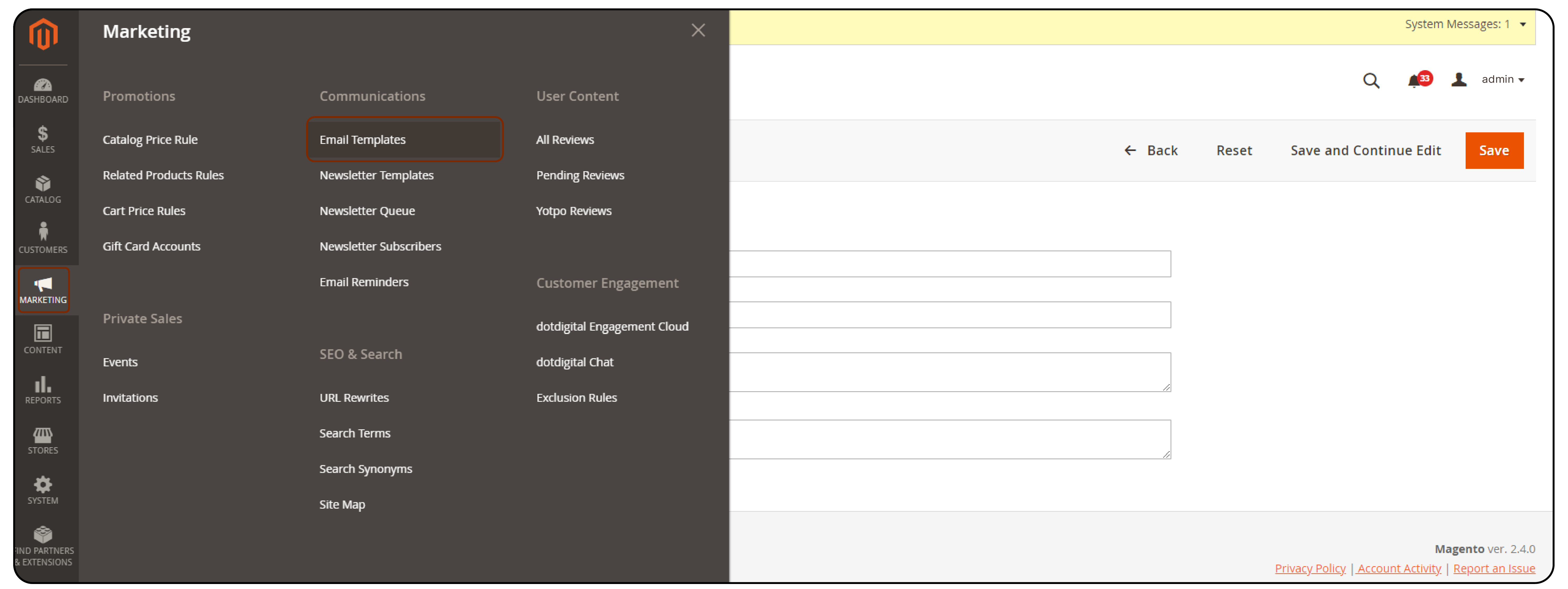
Add variables to transactional emails through Marketing > Communications > Email Templates:
- Create a new template or edit an existing one
- Place your cursor where the variable should appear
- Click Insert Variable
- Select the custom variable from the modal
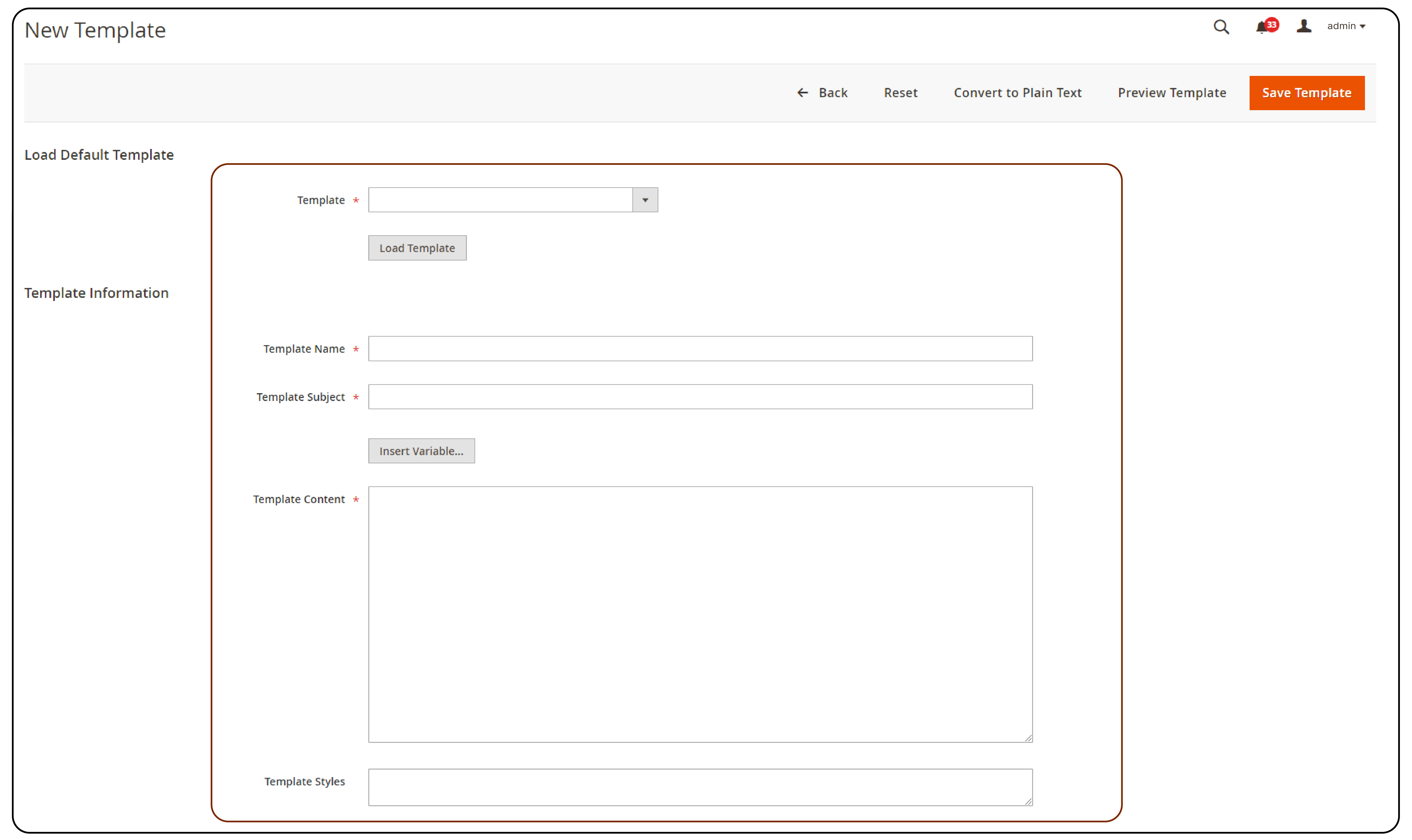
Custom variables in emails use the plain text value. For HTML emails, the HTML value renders when the email client supports it.
Product and Category Descriptions
Variables work in product descriptions and category pages too. This makes company-wide updates (new phone number, updated warranty terms, changed return policy) a single edit instead of hundreds.
Practical Use Cases
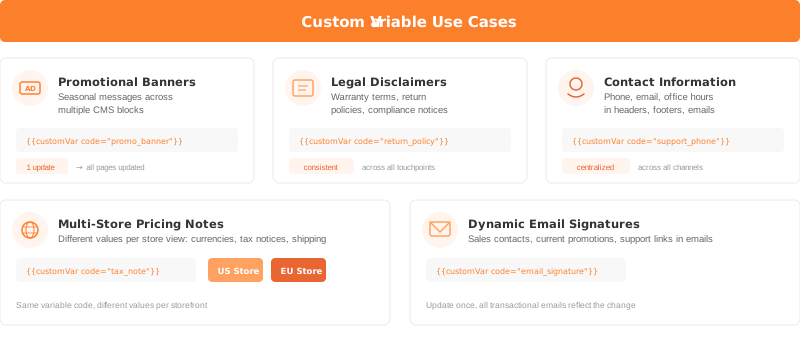
Promotional banners: Store a seasonal message as a custom variable. Insert it into multiple CMS blocks. When the promotion ends, update the variable once instead of editing each block.
Legal disclaimers: Warranty terms, return policies, or compliance notices that appear on product pages, checkout, and email footers. One variable, one update, consistent across all touchpoints.
Contact information: Phone numbers, email addresses, and office hours referenced across header blocks, footer blocks, contact pages, and email templates.
Multi-store pricing notes: Use store view scoping to display different currency symbols, tax notices, or shipping disclaimers per storefront.
Dynamic email signatures: Include the sales team contact, current quarter promotion, or support portal link in transactional emails through a single variable.
Common Mistakes to Avoid
| Mistake | Problem | Fix |
|---|---|---|
| Wrong variable code | {{customVar code=support_phone}} without quotes |
Use {{customVar code="support_phone"}} with double quotes |
Using {{var}} for custom variables |
{{var}} only works with template objects, not admin-created variables |
Use {{customVar code="..."}} for custom variables |
| HTML in plain text field | HTML tags render as visible text in plain-text emails | Put formatted content in HTML Value, clean text in Plain Value |
| Spaces in variable code | Magento rejects codes with spaces | Use underscores: support_phone not support phone |
| Missing store view values | Variable returns empty for non-default store views | Set values for each store view, or leave blank to inherit default |
Hosting Considerations for Variable-Heavy Stores
Custom variables add minimal overhead per page request. Magento loads variable values from the database and caches them with full page cache (FPC). The performance impact is negligible for stores with proper caching configured.
For stores with hundreds of variables across thousands of pages, managed Magento hosting with Redis caching and Varnish FPC ensures variable resolution adds zero perceptible latency. The database lookup happens once per cache warm, not per visitor request.
FAQ
What is the correct syntax for custom variables in Magento 2?
Use {{customVar code="your_variable_code"}} where your_variable_code matches the Variable Code field you set in System > Other Settings > Custom Variables.
Where do I create custom variables in the Magento 2 admin?
Navigate to System > Other Settings > Custom Variables. Click Add New Variable, fill in the code, name, and values, then save.
Can I use different variable values for different store views?
Yes. Edit the variable and switch the Store View dropdown. Set unique HTML and plain text values for each store view. If left blank, the default store view value applies.
What is the difference between {{customVar}}, {{config}}, and {{var}}?
{{customVar}} pulls from admin-created custom variables. {{config}} reads system configuration values (store name, email addresses). {{var}} accesses object properties available in email template contexts (order data, customer data).
Do custom variables work in email templates?
Yes. Insert them through Marketing > Communications > Email Templates using the Insert Variable button. The plain text value renders in plain-text emails, the HTML value in HTML emails.
How do I use a config variable for the store phone number?
Use {{config path="general/store_information/phone"}} in any CMS page, block, or email template. The value pulls from Stores > Configuration > General > Store Information.
Can I include HTML in custom variables?
Yes. The Variable HTML Value field accepts HTML markup. Use it for formatted content like bold text, links, or styled elements. The Variable Plain Value field strips formatting for plain-text contexts.
Are custom variables cached by Magento?
Yes. Magento caches variable values through the full page cache. After updating a variable value, flush the cache via System > Cache Management or CLI: bin/magento cache:flush. Changes appear on the frontend after the flush completes.
Summary
Custom Magento variables centralize content management across your store. Create them in System > Other Settings > Custom Variables, insert them with {{customVar code="..."}}, and update content across all pages from a single location.
The three directive types cover every data source: {{customVar}} for your custom values, {{config}} for system settings, and {{var}} for email template objects. Combined with store view scoping, variables give you full control over dynamic content without touching template files.
