

How to Install Magento 2 in 2026: 5 Methods for Every Store
[Updated: April 15, 2026]
Installing Magento 2 turns into hours of debugging when one PHP extension is missing or the wrong MySQL version is installed. Most guides skip the decisions that matter and jump straight to commands.
This 2026 guide covers the five installation paths for Magento 2.4.8-p4, the verified system requirements, step by step Composer install commands, prerequisites that make or break the setup, and the hosting configuration that turns a working install into a production ready store.
Key Takeaways
- Magento 2.4.8-p4 (March 2026) requires PHP 8.3 or 8.4, MySQL 8.4, OpenSearch 3, and Composer 2.9.3+.
- Composer is the official installation method Adobe recommends for production stores.
- You have five installation paths: Composer, manual archive, Docker, cloud (AWS), or local development (XAMPP, DDEV).
- Download requires Adobe Marketplace authentication keys (public key = username, private key = password).
- Production stores need Redis 7.2 or Valkey 8 for caching, Varnish 7.7 for full page cache, and RabbitMQ 4.1 for async queues.
- Managed Magento hosting skips the entire setup by shipping a preconfigured stack with Magento pre installed.
What Is a Magento 2 Installation?
A Magento 2 installation is the process of downloading the Magento source code, installing all dependencies, creating the database schema, and configuring the admin user for a new store. Magento 2 runs on a LAMP or LEMP stack with specific version requirements for PHP, MySQL, and a search engine.
The installation does not include theme customization, extension installation, or product imports. Those come after the base install is running. A successful install gives you a working storefront with the default Luma theme, an admin panel, and an empty catalog ready for configuration.
Most installation failures happen because the server does not match the required stack versions. Running PHP 8.2 when Magento 2.4.8 expects 8.3 or 8.4 is the number one reason new installs crash during setup.
Magento 2.4.8 System Requirements (2026)
These are the verified requirements for Magento 2.4.8-p4, the current patch as of March 2026. Use the exact versions listed below. Running older versions causes dependency conflicts during Composer installation.
| Component | Required Version | Notes |
|---|---|---|
| PHP | 8.3 or 8.4 | 8.4 recommended. PHP 8.2 allowed only during upgrades. PHP 8.1 removed. |
| MySQL | 8.4 LTS | Supported until 2032. Default collation utf8mb4. |
| MariaDB | 11.4 LTS | Alternative to MySQL. Supported until 2029. |
| OpenSearch | 3.x | Elasticsearch removed in 2.4.8. Earlier patches support OpenSearch 2.19. |
| Composer | 2.9.3+ | Composer 1.x not supported. |
| NGINX | 1.28 | Or Apache 2.4. |
| Redis | 7.2 | Or Valkey 8 as a drop in replacement. |
| Varnish | 7.7 | Full page cache for production. |
| RabbitMQ | 4.1 | Required for async and bulk REST endpoints. |
| RAM | 8 GB minimum | 16 to 32 GB for production stores. |
Source: Adobe Experience League — System Requirements
For a full technical breakdown of hardware sizing, PHP tuning, and database configuration, see our Magento system requirements guide.
Required PHP Extensions
Magento 2.4.8 needs these PHP extensions enabled before installation:
bcmath, ctype, curl, dom, gd, hash, iconv, intl, mbstring, openssl, pdo_mysql, simplexml, soap, spl, xsl, zip, sodium
Check your installed extensions with php -m. Missing extensions cause Composer to fail before the install even starts.
5 Ways to Install Magento 2
You have five installation paths. Each serves a different use case.
| Method | Best For | Skill Level | Time |
|---|---|---|---|
| Composer | Production stores, agencies | Intermediate | 30 to 45 min |
| Manual Archive | Offline installs, restricted environments | Intermediate | 45 to 60 min |
| Docker | Developer onboarding, reproducible stacks | Advanced | 15 to 30 min |
| Cloud (AWS) | Scalable production, DevOps teams | Advanced | 1 to 2 hours |
| Local (XAMPP, DDEV) | Development, testing, learning | Beginner | 20 to 40 min |
Composer is what Adobe officially recommends and the method most production stores use. Manual archive fits when your server has no outbound internet access. Docker is for teams that want a reproducible dev environment across machines. Cloud covers scaling out. Local is for learning the platform before you go live.
Method 1: Composer (Recommended)
Composer is the official Magento 2 installation method. It downloads Magento and every dependency in a single command, handles version pinning through composer.lock, and makes upgrades straightforward.
The high level flow:
composer create-project \
  --repository-url=https://repo.magento.com/ \
  magento/project-community-edition=2.4.8 \
  /var/www/magento2
For the complete step by step Composer walkthrough including file permissions, setup command parameters, and the post install checklist, see our Magento 2 Composer installation guide.
Method 2: Manual Archive
Manual installation downloads the full Magento 2 archive as a .zip or .tar.gz and extracts it to your web server. Use this path when your server has no outbound internet, when corporate firewall rules block Composer, or when you need a fully offline install.
Steps:
- Download the archive from marketplace.magento.com (requires an Adobe Commerce account)
- Upload the archive to your server with SFTP or SCP
- Extract to your web root:
tar -xzvf magento2-2.4.8.tar.gz -C /var/www/magento2 - Set file permissions (same commands as Composer install)
- Run the
bin/magento setup:installcommand with database and admin details
Manual installs skip dependency management. Upgrades later are harder because you have to re download and re apply patches. Only use this method when Composer is genuinely not an option.
Method 3: Docker
Docker installs Magento 2 in containers with the full stack (PHP, MySQL, OpenSearch, Redis) defined in a docker-compose.yml file. This makes the environment portable across machines and reproducible for the whole team.
Popular Docker setups for Magento:
- DDEV — one command setup with PHP, MySQL, OpenSearch, and mail testing
- Warden — community built Magento focused Docker stack
- Mark Shust's docker-magento — minimal, well maintained reference implementation
For a walkthrough of Docker based installation, see our Install Magento 2 with Docker guide. Docker is the best choice for development teams that onboard new developers regularly or run multiple Magento versions side by side.
Method 4: Cloud Installation (AWS)
Cloud installation runs Magento on AWS, Google Cloud, or Azure with auto scaling, managed databases, and CDN in front. This pattern is what high traffic production stores use.
The AWS path involves:
- Launch an EC2 instance (t3.large or larger for production)
- Install the LEMP stack (NGINX, MySQL 8.4, PHP 8.4, OpenSearch 3)
- Configure RDS for MySQL, ElastiCache for Redis, and OpenSearch Service
- Install Magento via Composer on the EC2 instance
- Point CloudFront at your store for global caching
For the full AWS walkthrough see our Install Magento 2 on AWS guide. Cloud installations give you maximum flexibility but require DevOps skills to maintain.
Method 5: Local Development (XAMPP, DDEV)
Local installs run Magento on your developer laptop for learning, testing extensions, or prototyping themes. The two most common paths:
- Localhost with XAMPP or MAMP — a LAMP stack you install on Windows, Mac, or Linux.
- Docker based DDEV or Warden — faster than XAMPP and matches production behavior more closely. Runs on any OS.
Local installs are not meant for production traffic. They skip hardening, HTTPS setup, and performance tuning. Use them for development only.
Operating System Specific Guides
If you are installing on a specific OS, use the dedicated tutorials:
- Install Magento 2 Manually on a VPS — covers Debian and Ubuntu Linux distributions
- Install Magento 2 on Windows 10 and 11
- Install Magento 2 on Amazon AWS
Each guide covers the OS specific package installation, file permissions, and web server configuration.
Prerequisites Before You Start
Before running any installation command, prepare these five items. Missing any of them causes the installer to fail.
1. Adobe Marketplace Authentication Keys
Composer pulls Magento from repo.magento.com, which requires authentication.
- Go to marketplace.magento.com and sign in
- Navigate to My Profile > Access Keys > Magento 2
- Click Create a New Access Key
- Copy the Public Key (used as Composer username) and Private Key (used as Composer password)
Store the keys in ~/.composer/auth.json so you do not have to retype them for every install.
2. Database
Create an empty MySQL or MariaDB database for Magento:
CREATE DATABASE magento2;
CREATE USER 'magento'@'localhost' IDENTIFIED BY 'YOUR_SECURE_PASSWORD';
GRANT ALL PRIVILEGES ON magento2.* TO 'magento'@'localhost';
FLUSH PRIVILEGES;
If you are migrating from MySQL 8.0 to 8.4, set restrict_fk_on_non_standard_key=OFF temporarily during the upgrade to avoid foreign key errors on legacy schema.
3. File System Owner
Create a dedicated Linux user for Magento and add it to the web server group so both share write access:
sudo useradd -m -g www-data magento
Use nginx instead of www-data if your server runs NGINX with the nginx user.
4. OpenSearch Running
Verify OpenSearch is running before the installer connects:
curl -X GET "localhost:9200"
You should see a JSON response with the OpenSearch version. Magento 2.4.8 defaults to OpenSearch, and the installer fails immediately if it cannot connect.
5. Sufficient Memory
Set PHP memory_limit to at least 2 GB in your php.ini for installation:
memory_limit = 2G
You can drop this to 1 GB for production runtime after the install finishes, but the initial setup and Composer dependency resolution need the higher limit.
Step by Step: Composer Installation
The Composer install is the recommended path for production. Here is the complete sequence.
Step 1: Install Composer
curl -sS https://getcomposer.org/installer | php
sudo mv composer.phar /usr/local/bin/composer
composer --version
Verify the version is 2.9.3 or higher. Earlier Composer versions are not compatible with Magento 2.4.8 patches.
Step 2: Create the Magento Project
composer create-project \
  --repository-url=https://repo.magento.com/ \
  magento/project-community-edition=2.4.8 \
  /var/www/magento2
Composer prompts for your Adobe Marketplace credentials. Enter the public key as username and private key as password.
For Adobe Commerce (paid edition), replace project-community-edition with project-enterprise-edition. Adobe Commerce requires a valid license key in addition to the Marketplace keys.
Step 3: Set File Permissions
cd /var/www/magento2
find var generated vendor pub/static pub/media app/etc \
  -type f -exec chmod g+w {} +
find var generated vendor pub/static pub/media app/etc \
  -type d -exec chmod g+ws {} +
chown -R magento:www-data .
chmod u+x bin/magento
Step 4: Run the Installation Command
bin/magento setup:install \
  --base-url="https://your-domain.com/" \
  --db-host="localhost" \
  --db-name="magento2" \
  --db-user="magento" \
  --db-password="YOUR_DB_PASSWORD" \
  --admin-firstname="Admin" \
  --admin-lastname="User" \
  --admin-email="admin@your-domain.com" \
  --admin-user="admin" \
  --admin-password="YOUR_ADMIN_PASSWORD" \
  --language="en_US" \
  --currency="USD" \
  --timezone="America/New_York" \
  --search-engine="opensearch" \
  --opensearch-host="localhost" \
  --opensearch-port="9200" \
  --use-rewrites=1
The --search-engine="opensearch" flag matters. Previous Magento versions used elasticsearch7 here. Magento 2.4.8 defaults to OpenSearch and rejects the old flag.
Step 5: Verify the Install
bin/magento info:adminuri
This outputs your admin panel URL. Open it in a browser and log in with the credentials from Step 4.
Run the post install checks:
bin/magento setup:di:compile
bin/magento setup:static-content:deploy -f
bin/magento cache:flush
Step 6: Switch to Production Mode
bin/magento deploy:mode:set production
Production mode disables error reporting, enables full page cache, and serves pre compiled static files. Never run a live store in developer mode.
Post Installation Configuration
Installation gives you a working Magento, but not a production ready one. Configure these five items before going live.
1. Redis for caching. Default file cache cannot handle concurrent traffic. Point Magento at Redis:
bin/magento setup:config:set \
  --cache-backend=redis \
  --cache-backend-redis-server=127.0.0.1 \
  --cache-backend-redis-port=6379 \
  --cache-backend-redis-db=0
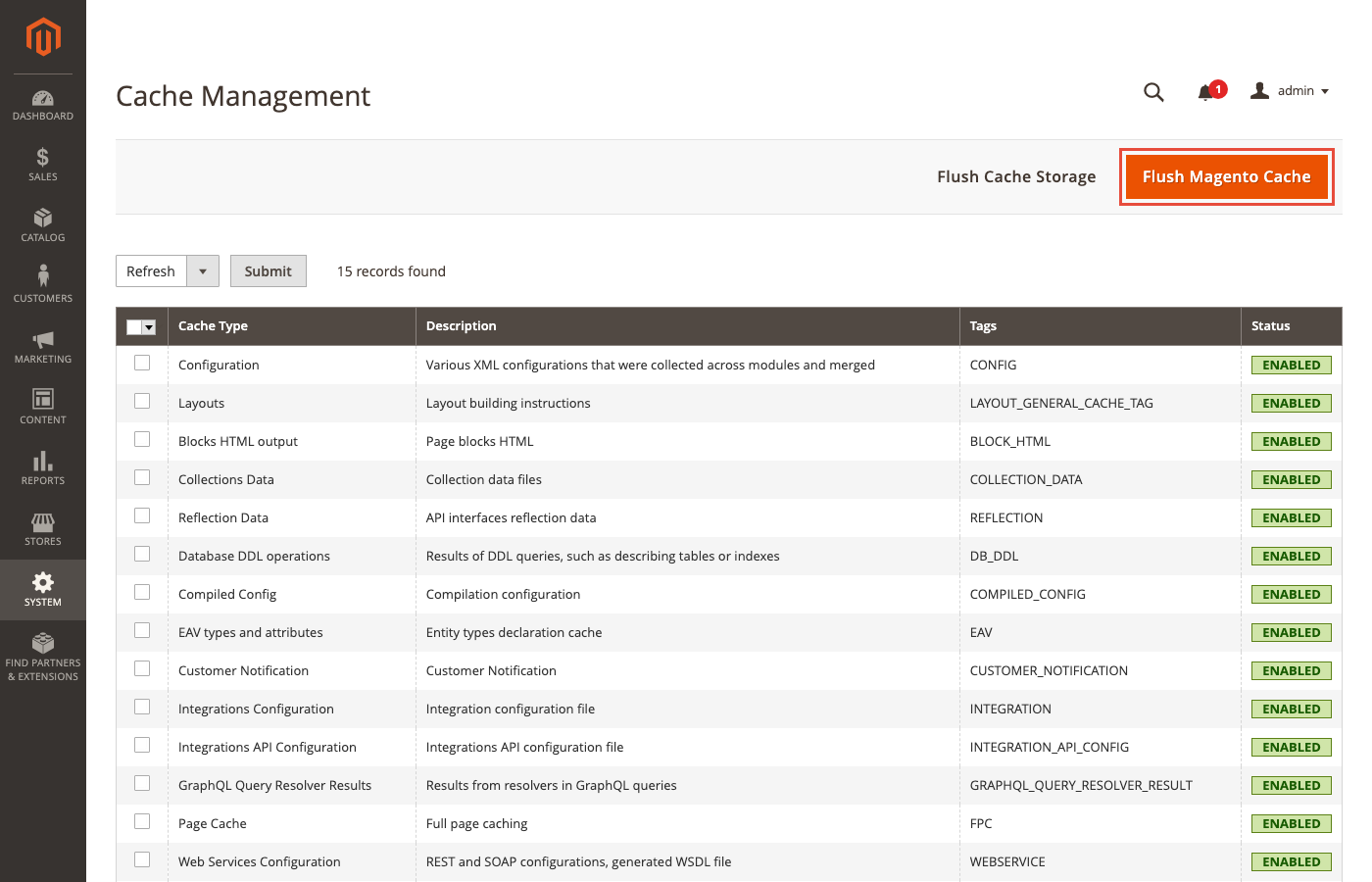
After configuration, flush the cache from the admin at System > Tools > Cache Management or with bin/magento cache:flush.
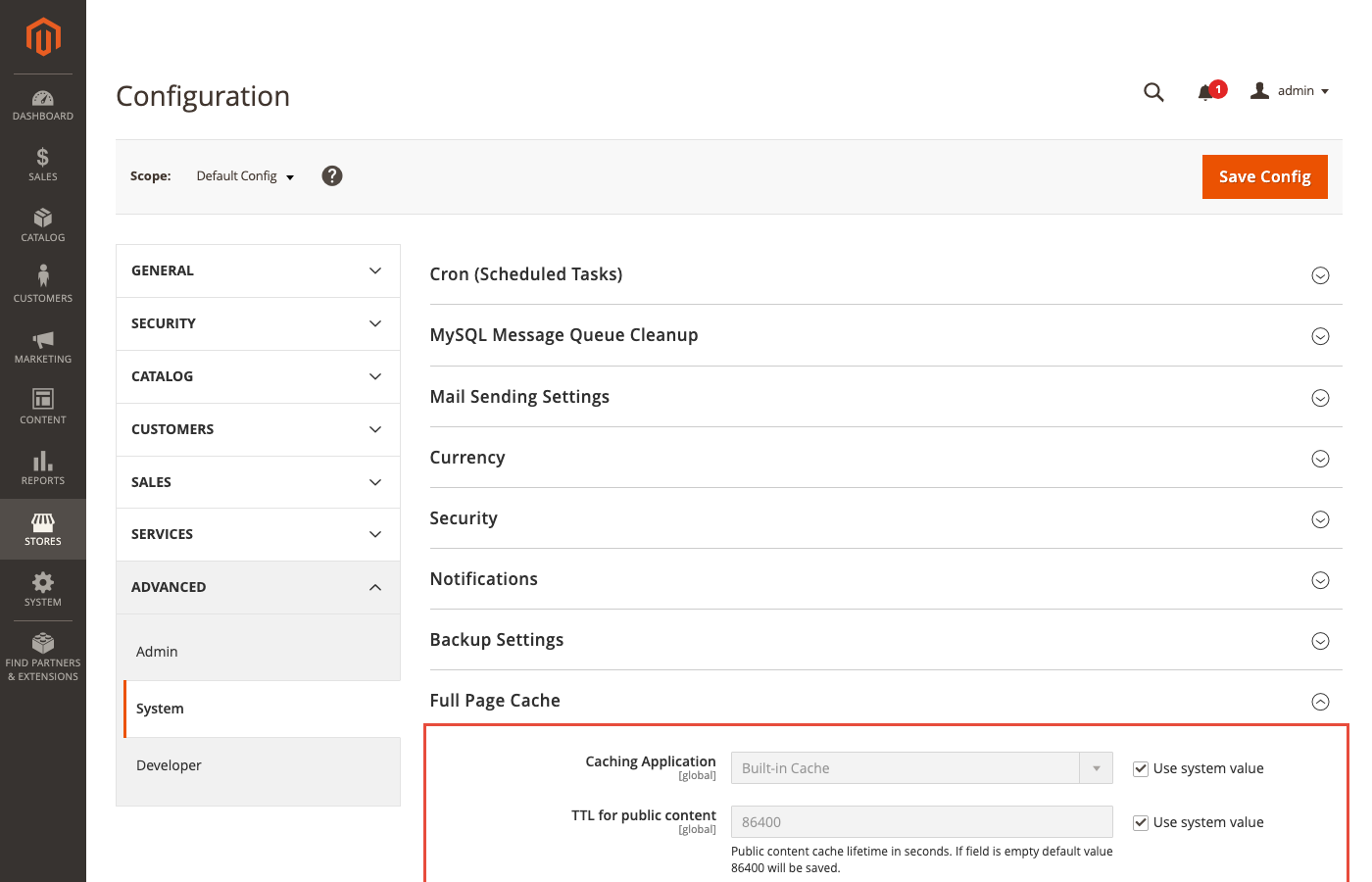
2. Varnish for full page cache. Configure Varnish 7.7 in front of Magento for dramatic page load improvements. Generate the VCL from the admin: Stores > Configuration > Advanced > System > Full Page Cache, set caching application to Varnish, and export the varnish.vcl file.
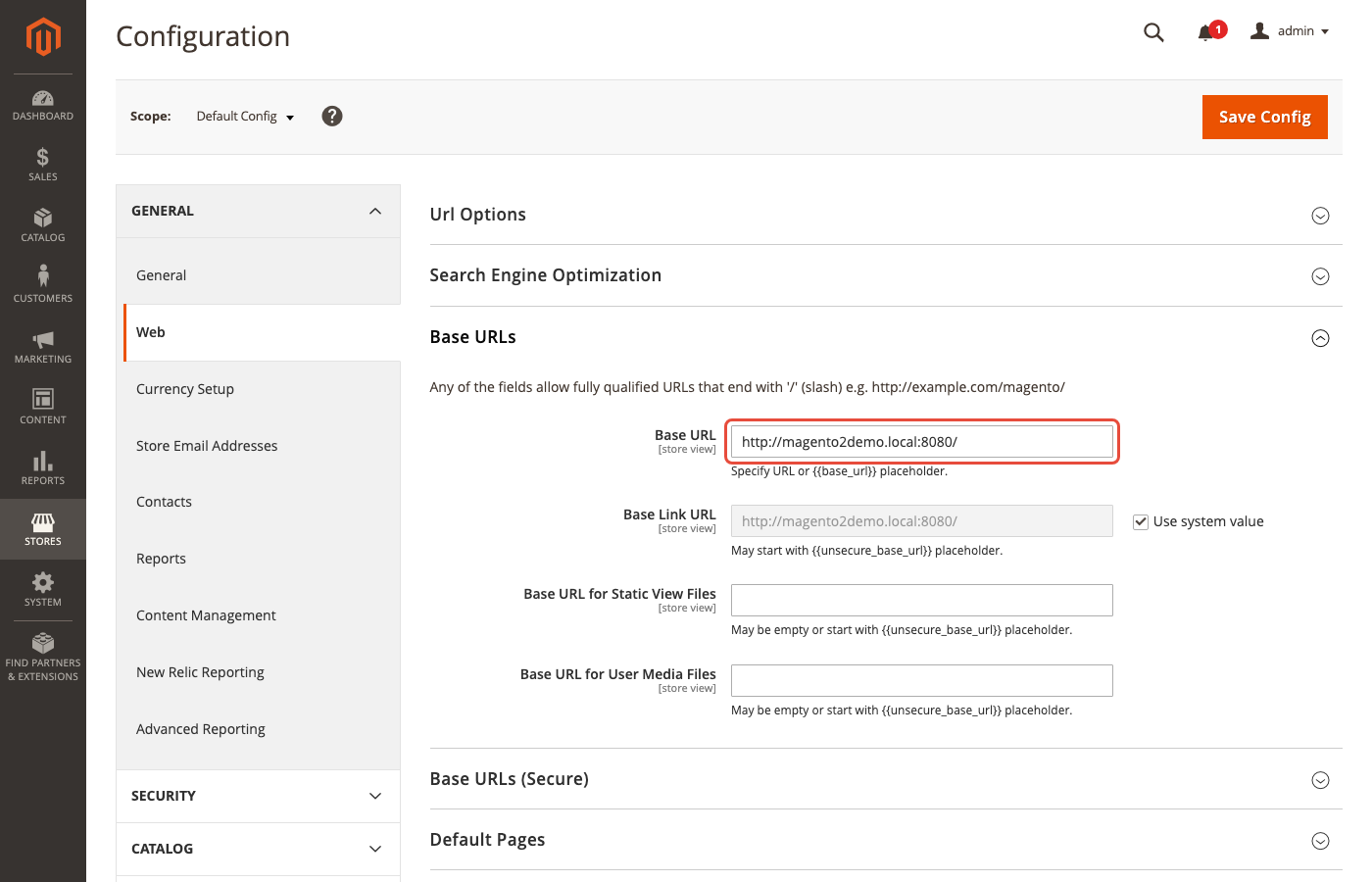
3. SSL and HTTPS. Every production store needs HTTPS. Update base URLs and enable secure flags:
bin/magento setup:store-config:set --base-url-secure="https://your-domain.com/"
bin/magento setup:store-config:set --use-secure=1
bin/magento setup:store-config:set --use-secure-admin=1
You can also update base URLs from the admin at Stores > Configuration > General > Web > Base URLs.
4. Cron jobs. Magento depends on cron for indexing, email queues, cache cleanup, and sales rule evaluation. Install the three Magento cron entries:
bin/magento cron:install
5. Sample data (optional). If you want demo products to test theme and layout work:
bin/magento sampledata:deploy
bin/magento setup:upgrade
Only deploy sample data in developer mode. Switch back to production mode afterward.
Common Installation Errors and Fixes
These are the errors that crash installs most often.
Killed or out of memory. Composer runs out of memory during dependency resolution. Fix by raising PHP memory or using the Composer specific env variable:
COMPOSER_MEMORY_LIMIT=-1 composer create-project ...
Add 2 GB of swap if the server has less than 4 GB of RAM.
Could not validate a connection to OpenSearch. The installer cannot reach OpenSearch. Verify it is running (systemctl status opensearch) and the port matches the --opensearch-port flag.
Directory not writable. File permissions are wrong. Rerun the permission commands from Step 3 and verify with ls -la var generated.
Your requirements could not be resolved. Composer dependency conflict. Clear the cache and retry:
composer clear-cache
composer update --with-all-dependencies
If the conflict persists, verify all PHP extensions from the requirements list are installed and enabled.
Invalid admin email or password. Admin password must be at least 7 characters and include both letters and a number. Email must be a valid format.
Hosting Requirements for Production
Installing Magento 2 is the first step. Running it reliably under real traffic is harder. A production Magento store needs:
- PHP FPM with enough workers to handle concurrent requests. Undersized FPM pools cause 502 errors during peak traffic.
- Redis 7.2 or Valkey 8 for session storage and backend cache. Never use filesystem cache in production.
- Varnish 7.7 as a full page cache. Reduces Magento backend load by 90%+ for anonymous traffic.
- OpenSearch 3 on a dedicated node for high traffic catalogs. Sharing the database server with search kills performance.
- RabbitMQ 4.1 for async queues. Bulk API endpoints, order placement, and indexer updates go through queues.
- Consumer workers running under supervisord or systemd. Starved consumers mean bulk operations time out.
- SSL certificate from Let's Encrypt or a commercial provider. Required for HTTPS and admin login.
- Regular backups of both database and file system. Before every upgrade and weekly otherwise.
Setting up and tuning this stack yourself takes days and ongoing maintenance eats developer time. Our Magento hosting platform ships every component preconfigured: PHP 8.4, MySQL 8.4, OpenSearch 3, Redis 7.2, Varnish 7.7, RabbitMQ 4.1, supervised consumers, and automated backups. Magento comes preinstalled and upgrades are one click.
FAQ
What is the fastest way to install Magento 2?
The fastest DIY method is composer create-project on a server with all prerequisites ready, which takes 15 to 30 minutes. Managed hosting eliminates setup entirely by shipping preinstalled Magento environments. For a fresh store you can go live in under an hour with managed hosting versus several hours with manual install.
Can I install Magento 2 without Composer?
Yes. Download the .zip or .tar.gz archive from the Adobe Marketplace and extract it to your server. This path skips dependency management and makes future upgrades harder. Adobe officially deprecated the Web Setup Wizard in 2.3.6 and recommends Composer for all production installs.
What PHP version does Magento 2.4.8 need?
Magento 2.4.8 requires PHP 8.3 or 8.4, with 8.4 recommended for best performance. PHP 8.2 is allowed only during the upgrade from older versions. PHP 8.1 and earlier are not compatible. Check your version with php -v before starting installation.
Does Magento 2 still use Elasticsearch? No. Elasticsearch was removed in Magento 2.4.8. Adobe requires OpenSearch 3 for new 2.4.8-p4 installations (earlier 2.4.8 patches support OpenSearch 2.19). Existing Elasticsearch deployments must migrate to OpenSearch before upgrading.
How much server RAM does Magento 2 need?
Minimum 8 GB for a production store with moderate traffic. High traffic catalogs need 16 to 32 GB. Development environments run on 4 GB. PHP memory_limit should be at least 1 GB for runtime and 2 GB during installation and code compilation.
Can I install Magento 2 on shared hosting? No. Magento 2 needs SSH access, Composer, specific PHP extensions, and control over PHP memory and execution time. Most shared hosts do not provide these. Use a VPS, dedicated server, or managed Magento hosting for a reliable install.
How do I install Magento 2 on localhost for development?
Set up a local LAMP stack with PHP 8.3 or 8.4, MySQL 8.4, OpenSearch 3, and Composer. Tools like DDEV or Warden automate this with Docker containers. Run the same composer create-project command pointing to a localhost base URL.
What is the difference between Magento Open Source and Adobe Commerce installation?
The Composer command uses project-community-edition for Open Source and project-enterprise-edition for Adobe Commerce. The install process is otherwise identical. Adobe Commerce requires a paid license key in addition to the Marketplace authentication keys.
How do I update Magento 2 after installation?
Run composer require magento/product-community-edition=2.4.8-p4 --no-update followed by composer update and bin/magento setup:upgrade. Back up the database and files before every update. Managed hosting providers handle updates automatically.
How long does a Magento 2 installation take?
On a prepared server with all prerequisites installed, Composer download takes 5 to 10 minutes and bin/magento setup:install takes another 5 minutes. First time server preparation (installing PHP, MySQL, OpenSearch, NGINX) adds 1 to 2 hours. Managed hosting cuts this to about 15 minutes total.
Summary
Installing Magento 2.4.8 in 2026 is straightforward when your server matches the required stack. The critical versions: PHP 8.3 or 8.4, MySQL 8.4 or MariaDB 11.4, OpenSearch 3, and Composer 2.9.3+.
You have five installation paths. Composer is what Adobe recommends and most production stores use. Manual archive fits offline environments. Docker gives reproducible dev stacks. Cloud (AWS) covers scale out. Local (DDEV, XAMPP) is for development only.
Whichever method you pick, the work does not end at bin/magento setup:install. Production readiness means Redis for cache, Varnish for full page cache, OpenSearch 3 on a dedicated node, RabbitMQ for queues, supervised consumer workers, HTTPS, and backups.
Self installing all of this takes days and ongoing ops eats developer time. For a production ready Magento store without the setup work, managed Magento hosting ships the complete stack preconfigured with Magento 2.4.8 preinstalled, one click upgrades, and 24/7 infrastructure support.
