Magento 2 Load Testing Guide: Tools, Setup, and Benchmarks
[Updated: March 20, 2026]
Your Magento store handles 50 concurrent users fine. But what happens during a flash sale with 500? Load testing answers that question before your customers do.
This guide covers the tools, setup, and optimization workflow for Magento 2 load testing with real CLI commands and benchmark thresholds.
Key Takeaways
- Load testing simulates real traffic patterns to find performance bottlenecks before they cost you sales
- JMeter and Grafana k6 are the primary open source tools for Magento 2 load testing
- The Magento Performance Toolkit generates realistic test data across four profile sizes (800 to 600,000 products)
- One CPU core handles about two Magento requests. Use this formula to size your infrastructure
- Target response times under 200ms and error rates below 1% as your performance benchmarks
What Is Magento 2 Load Testing?
Magento 2 load testing = simulating real user traffic against your store to find performance bottlenecks before they affect customers. You trade testing time for production stability.
Perfect for: Store owners preparing for sales events, DevOps teams sizing infrastructure, agencies validating client deployments
Not ideal for: Stores with fewer than 100 daily visitors, development environments without production-equivalent hardware
Magento 2 load testing pushes your store with simulated concurrent users to measure how it performs under pressure. The goal is to find the breaking point before your customers find it for you.
A load test answers three questions: How many concurrent users can your store handle? Where do bottlenecks appear first? What infrastructure changes give you the most headroom?
The process involves generating realistic traffic patterns against a test environment that mirrors production. You measure response times, error rates, throughput, and server resource consumption across each test cycle.
Load Testing vs Stress Testing vs Performance Testing
These three terms overlap, but they test different things.
Load testing applies expected traffic levels to verify your store meets performance requirements. You simulate 200 concurrent users because that's your Black Friday projection.
Stress testing pushes beyond expected limits to find the breaking point. You ramp from 200 to 2,000 users until something fails. The goal is to understand failure modes and recovery behavior.
Performance testing is the umbrella term covering both. It includes measuring page load times, Time to First Byte (TTFB), database query execution, and API response times under various conditions.
For Magento 2, load testing is the most actionable starting point. It validates your infrastructure against real traffic projections.
Essential Tools for Magento 2 Load Testing
| Tool | Type | Language | Best For | Version |
|---|---|---|---|---|
| Apache JMeter | Open source | Java | Full Magento test plans with GUI | 5.6.3 |
| Grafana k6 | Open source | JavaScript | Modern, scriptable load tests | Latest |
| Gatling | Open source | Java/JS/TS/Scala/Kotlin | High-performance protocol testing | 3.11 |
| Siege | Open source | C | Quick HTTP benchmarking | 4.x |
Apache JMeter
JMeter is the tool Adobe recommends for Magento 2 load testing. It ships with pre-built test plans in the Magento Performance Toolkit and supports both GUI and command-line execution.
Key strengths: Protocol support (HTTP/S, SOAP, FTP), extensible plugin ecosystem, visual test plan builder, HTML report generation.
Run a basic test:
jmeter -n -t benchmark.jmx -Jhost=your-store.com \
  -Jbase_path=/ -Jusers=100 -Jramp_period=300
This simulates 100 concurrent users ramping up over 300 seconds (5 minutes).
Grafana k6
k6 is a modern alternative built by Grafana Labs. Tests are written in JavaScript, making them version-controllable and CI/CD-friendly. A Magento-specific k6 toolkit exists on GitHub (Genaker/magento-k6-performance) with pre-built scenarios for product browsing, cart operations, and checkout flows.
Run a basic test:
k6 run magento.js -e url=https://your-store.com -u 200 -i 6000
This runs 200 virtual users for 6,000 total iterations.
Gatling
Gatling 3.11 supports Java, JavaScript, TypeScript, Scala, and Kotlin for test scenarios. It generates detailed HTML reports with percentile breakdowns and integrates with CI/CD pipelines.
Best for: Teams that need high-performance load generation with code-based test definitions.
Siege
Siege is a lightweight HTTP benchmarking tool for quick tests. It supports concurrent user simulation and basic authentication.
siege -c 50 -t 60s https://your-store.com/
This runs 50 concurrent users for 60 seconds. Useful for quick smoke tests, not for comprehensive load testing.
Common Bottlenecks Load Testing Reveals
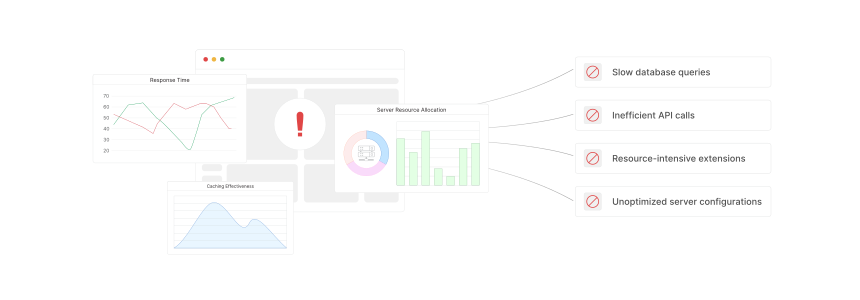
Load testing surfaces issues that never appear during development or low-traffic periods.
Slow Database Queries
Product catalog pages, layered navigation, and search generate complex SQL queries. Under load, unindexed queries that finish in 50ms with one user take 5+ seconds with 200 concurrent users. Optimize slow queries before scaling hardware.
Inefficient API Calls
REST API endpoints like /V1/products can take 10+ seconds to return large result sets under concurrency. Third-party integrations (ERP, PIM, payment gateways) add external latency that compounds under load.
Resource-Intensive Extensions
Third-party extensions are the most common performance bottleneck in Magento stores. A single bad extension can double page load times. Load testing with extensions enabled (vs disabled) isolates the impact.
Cache Misses Under Load
Varnish and Redis handle cached requests in single-digit milliseconds. But cache misses (first requests, personalized content, admin operations) hit the full Magento stack. Load testing reveals the ratio of cached to uncached requests your store handles in production.
Checkout Bottlenecks
Checkout flows involve payment gateway calls, inventory checks, and order creation. These operations are write-heavy and cannot benefit from page caching. This is where most stores hit their concurrency ceiling first.
How to Set Up a Magento 2 Load Test
Step 1: Mirror Your Production Environment
Create a test environment that matches production hardware, software stack, and data. For Magento 2.4.8, this means:
| Component | Required Version |
|---|---|
| PHP | 8.3 or 8.4 |
| MySQL | 8.4 |
| MariaDB | 11.4 LTS |
| OpenSearch | 2.x |
| Redis | 7.2 |
| Varnish | 7.6 |
| Nginx | 1.28 |
| Composer | 2.9.3+ |
Using different versions between test and production invalidates your results.
Step 2: Install Monitoring
Set up server monitoring tools to track CPU, memory, disk I/O, and network during tests. Without monitoring, you see symptoms (slow responses) but not causes (CPU saturation, memory swapping, disk I/O bottleneck).
Key metrics to monitor during tests:
- CPU utilization per core
- Memory usage (RSS, swap)
- Disk I/O wait
- MySQL query execution time
- Redis memory and hit rate
- Varnish hit/miss ratio
Step 3: Configure Realistic Test Scenarios
JMeter's default Magento test plan uses this user journey distribution:
| User Behavior | Percentage |
|---|---|
| Browse catalog + abandon cart | 62% |
| Browse catalog only | 30% |
| Guest checkout | 4% |
| Customer checkout | 4% |
Adjust these percentages based on your store's analytics. A B2B store can have a 15% checkout rate instead of 8%.
Think time settings: Default 2,000ms offset with 1,000ms deviation between actions. This simulates real user reading and browsing behavior. Remove think time for stress testing only.
Generating Test Data with the Performance Toolkit
Magento ships with a Performance Toolkit that generates realistic sample data. Choose a profile that matches your store's catalog size.
Profile Sizes
| Profile | Simple Products | Configurable Products | Categories | Customers | Orders |
|---|---|---|---|---|---|
| Small | 800 | 16 (24 options) | 30 | 200 | 80 |
| Medium | 24,000 | 640 (24 options) | 300 | 2,000 | 50,000 |
| Large | 300,000 | 8,000 (24 options) | 3,000 | 5,000 | 100,000 |
| Extra Large | 600,000 | 16,000 (24 options) | 6,000 | 10,000 | 150,000 |
Generate Fixtures
bin/magento setup:perf:generate-fixtures \
  setup/performance-toolkit/profiles/ce/small.xml
After generation, reindex all data:
bin/magento indexer:reindex
Prerequisites:
- Disable all cron jobs before running the generator
- For Medium or Large profiles, set MySQL
tmp_table_sizeandmax_heap_table_sizeto 512MB or more - Set PHP
memory_limitto 1GB or more - Run as the file system owner
Running Your Load Test
Execute the Test
Start with a small user count and ramp up. This prevents overwhelming your test environment and helps isolate where degradation begins.
JMeter command-line execution:
jmeter -n -t setup/performance-toolkit/benchmark.jmx \
  -Jhost=test-store.com -Jbase_path=/ \
  -Jusers=100 -Jramp_period=300 \
  -l results.jtl -e -o report/
This generates an HTML report in the report/ directory.
k6 with ramp-up stages:
export const options = {
  stages: [
    { duration: '2m', target: 50 },
    { duration: '5m', target: 200 },
    { duration: '2m', target: 0 },
  ],
};
Monitor During Execution
Watch these indicators in real time:
- Response time increasing: A bottleneck is forming
- Error rate climbing: Resource exhaustion
- CPU at 100%: Web server or PHP-FPM is saturated
- Memory swapping: Insufficient RAM for the workload
Stop the test if error rates exceed 10%. At that point you're testing failure behavior, not load capacity.
Analyzing Results and Key Metrics

Target Benchmarks
| Metric | Good | Acceptable | Poor |
|---|---|---|---|
| Average response time | < 200ms | 200-500ms | > 500ms |
| 95th percentile response time | < 1s | 1-3s | > 3s |
| TTFB | < 600ms | 600ms-1.5s | > 1.5s |
| Error rate | < 0.1% | 0.1-1% | > 1% |
| Throughput | Baseline dependent | Stable | Declining under load |
Google recommends server response times under 200ms for a responsive user experience. Your goal is to maintain this under your projected peak traffic.
What to Optimize First
- Database queries with execution times over 100ms under load
- Cache configuration if hit rates drop below 90%
- PHP-FPM pool size if worker processes max out
- Reduce your TTFB if server response exceeds 600ms
After each optimization, rerun the load test. Compare results against the baseline. If the 95th percentile improves, the change is effective. If the average improves but the 95th percentile does not, you fixed typical requests but not the worst cases.
Hardware Sizing Based on Load Test Results
Adobe provides a formula for calculating the CPU cores your store needs:
N[Cores] = (N[Expected Requests] / 2) + N[Cron Processes]
One CPU core handles about two Magento requests. If your load test shows 100 requests per second at peak and you run 4 cron processes, you need at least 54 cores.
Memory Guidelines
| Component | Minimum | Production Recommendation |
|---|---|---|
| PHP (single server) | 2 GB | 4-8 GB |
| MySQL | Half the database size | 16-32 GB for large catalogs |
| Redis sessions | Based on concurrent sessions | 1-4 GB |
| Varnish | Based on cache object count | 2-8 GB |
If your load test results show memory swapping, increase RAM before adding CPU cores. Memory bottlenecks cause more performance degradation than CPU constraints for most Magento stores.
How Managed Hosting Simplifies Load Testing
Load testing reveals infrastructure limitations. Fixing those limitations requires server expertise that not every team has in-house.
Managed Magento hosting providers handle the infrastructure layer: auto-scaling during traffic spikes, optimized PHP-FPM configuration, pre-tuned Varnish caching, and Redis configuration. This lets your team focus on application-level optimization rather than server tuning. See our speed optimization guide for application-level improvements.
Key infrastructure capabilities to look for:
- Auto-scaling that adds resources during traffic spikes and scales down after
- Pre-configured caching layers (Varnish + Redis) tuned for Magento workloads
- Database optimization with read replicas for high-concurrency scenarios
- Monitoring and alerting built into the hosting platform
FAQ
What is the difference between load testing and stress testing in Magento 2?
Load testing simulates expected traffic levels to verify your store meets performance goals. Stress testing pushes beyond those levels to find the breaking point and understand failure behavior.
Which tool is best for Magento 2 load testing?
Apache JMeter is the tool Adobe recommends. It ships with pre-built Magento test plans. Grafana k6 is the best modern alternative for teams that prefer JavaScript-based, CI/CD-integrated testing.
How many concurrent users should I test with?
Start with your peak traffic data from Google Analytics. If your busiest hour sees 500 sessions, test with 500 concurrent virtual users. Then test at 2x and 3x that number to understand your headroom.
What is a good response time for a Magento 2 store?
Under 200ms average response time delivers a responsive feel per Google's recommendation. For Magento stores with full page cache enabled, aim for under 100ms on cached pages and under 500ms on uncached pages.
How long should a load test run?
Run each test for at least 10 minutes at steady state after the ramp-up period completes. Short tests miss problems like memory leaks, connection pool exhaustion, and cache eviction patterns that surface over time.
Do I need a separate environment for load testing?
Yes. Never load test your production environment. Create a test environment with identical hardware, software versions, and a recent database copy. Test results from different hardware configurations are not comparable.
How often should I run load tests?
Run load tests before major sales events, after significant code deployments, after infrastructure changes, and after adding new extensions. Test once a month as a baseline for active stores.
What should I do if my store fails the load test?
Start with the biggest bottleneck first. Check database query performance, cache hit rates, and PHP-FPM worker utilization. Fix one issue at a time and retest after each change to measure the impact.
Can I load test with the Magento Performance Toolkit alone?
The Performance Toolkit generates test data (products, customers, orders) but does not run load tests. You need a separate tool like JMeter or k6 to generate the traffic. The toolkit and JMeter work together: the toolkit creates realistic data, JMeter simulates the users.
How does caching affect load test results?
Cached pages respond in single-digit milliseconds through Varnish. Uncached pages hit the full Magento PHP stack and take 200 to 2,000ms. Your load test should include a mix of cached and uncached requests to reflect real traffic patterns.
Summary
Magento 2 load testing validates your store's performance under real traffic conditions. Use JMeter for comprehensive testing with Adobe's pre-built test plans, or k6 for modern JavaScript-based testing. Generate realistic test data with the Performance Toolkit, monitor server metrics during test execution, and optimize based on concrete benchmark results.
The goal is not to achieve perfect scores in a testing tool. The goal is to know your store can handle Black Friday traffic without customers seeing errors or slow pages.
Scale your store with confidence using managed Magento hosting that handles auto-scaling, caching optimization, and infrastructure tuning for you.