

Magento 2 Shipping Table Rates: Weight vs Destination Setup Guide
[Updated: April 13, 2026]
A 20kg order shipped across the country should not cost the same as a 2kg order shipped across town. Magento's table rate shipping method solves this by calculating fees based on weight and destination.
This guide walks through the complete setup: CSV configuration, condition types, troubleshooting, and when to use weight vs destination vs price conditions.
Key Takeaways
- Magento 2 table rates calculate shipping costs based on weight, destination, price, or item count
- Weight vs Destination is the most accurate condition for stores with varied product weights
- Configuration requires a CSV file with country codes, regions, weight ranges, and prices
- Three condition types exist: Weight vs Destination, Price vs Destination, and Number of Items vs Destination
- Common issues come from incorrect CSV formatting, missing region codes, or cache not cleared after import
What is Magento 2 Shipping Table Rates?
Magento 2 table rates = A shipping method that calculates fees from a CSV lookup table. You define rules based on weight, destination, price, or item count. Magento matches each order against your table and returns the correct shipping fee.
Perfect for: Stores with varied product weights, multiple shipping zones, or zone-based pricing strategies
Not ideal for: Stores needing real-time carrier rates (use UPS/FedEx API integration instead)
The table rates shipping method replaces flat-rate or free shipping with granular control. Each row in your CSV file defines a rule: if an order weighs X kg and ships to destination Y, charge Z dollars.
Three condition types are available:
| Condition | Calculates Based On | Best For |
|---|---|---|
| Weight vs Destination | Product weight + shipping address | Stores with heavy and light products |
| Price vs Destination | Order subtotal + shipping address | Stores offering tiered shipping discounts |
| # of Items vs Destination | Item count + shipping address | Stores where items have similar weight |
How to Configure Weight vs Destination Table Rates
Step 1: Access Shipping Method Settings
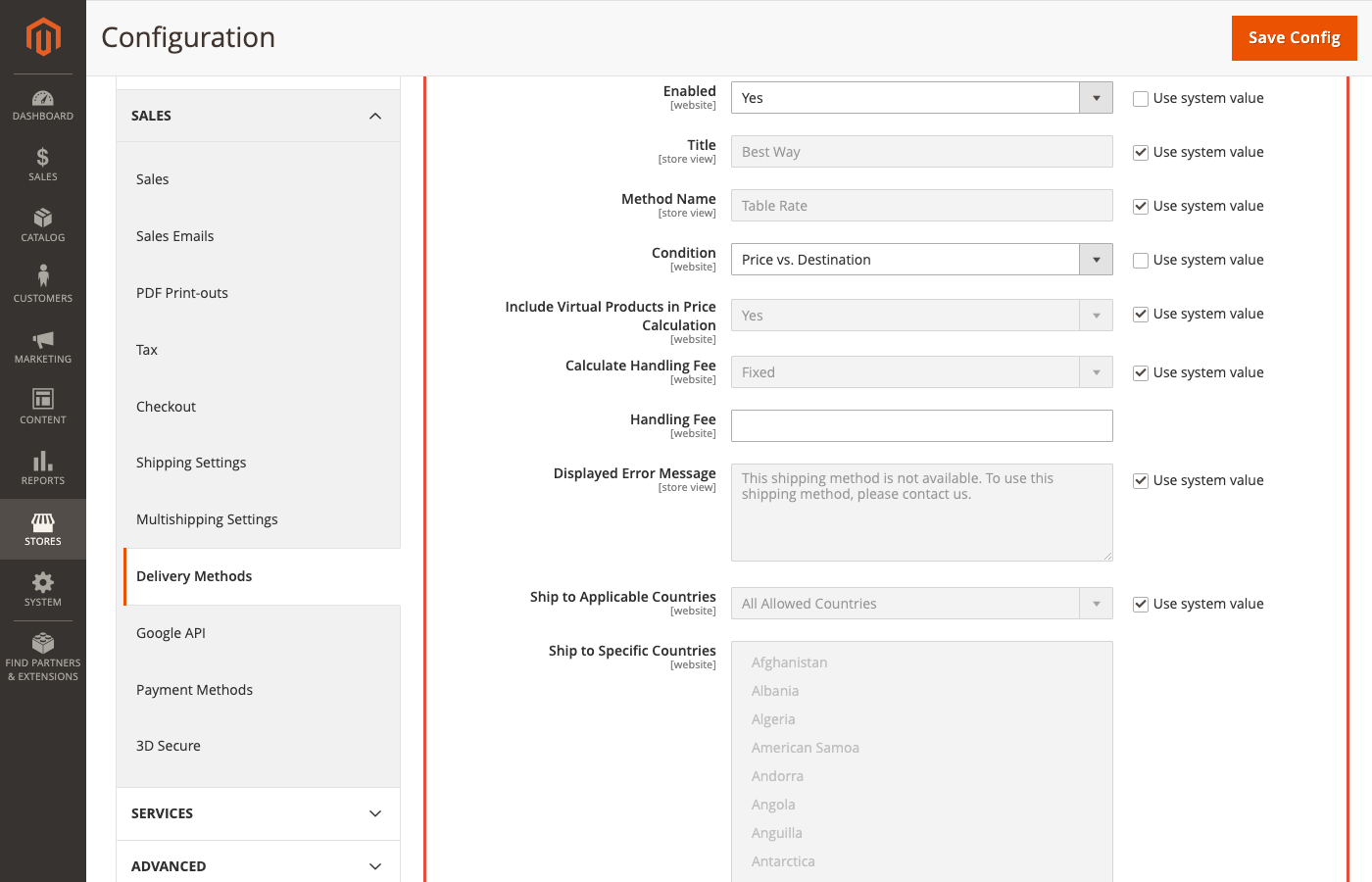
Navigate to Stores > Settings > Configuration > Sales > Shipping Methods. Expand the Table Rates section.
Step 2: Enable and Configure Table Rates
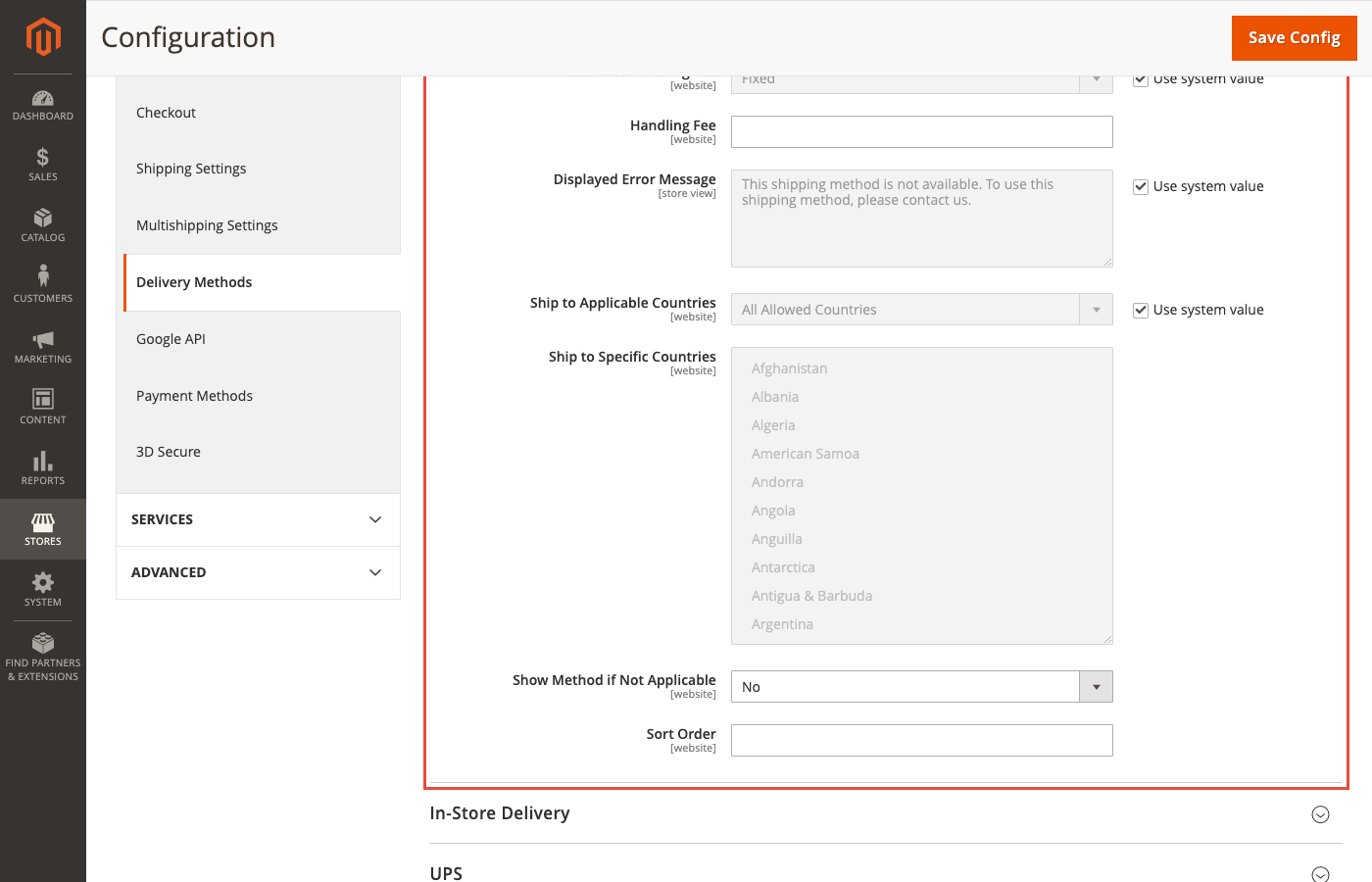
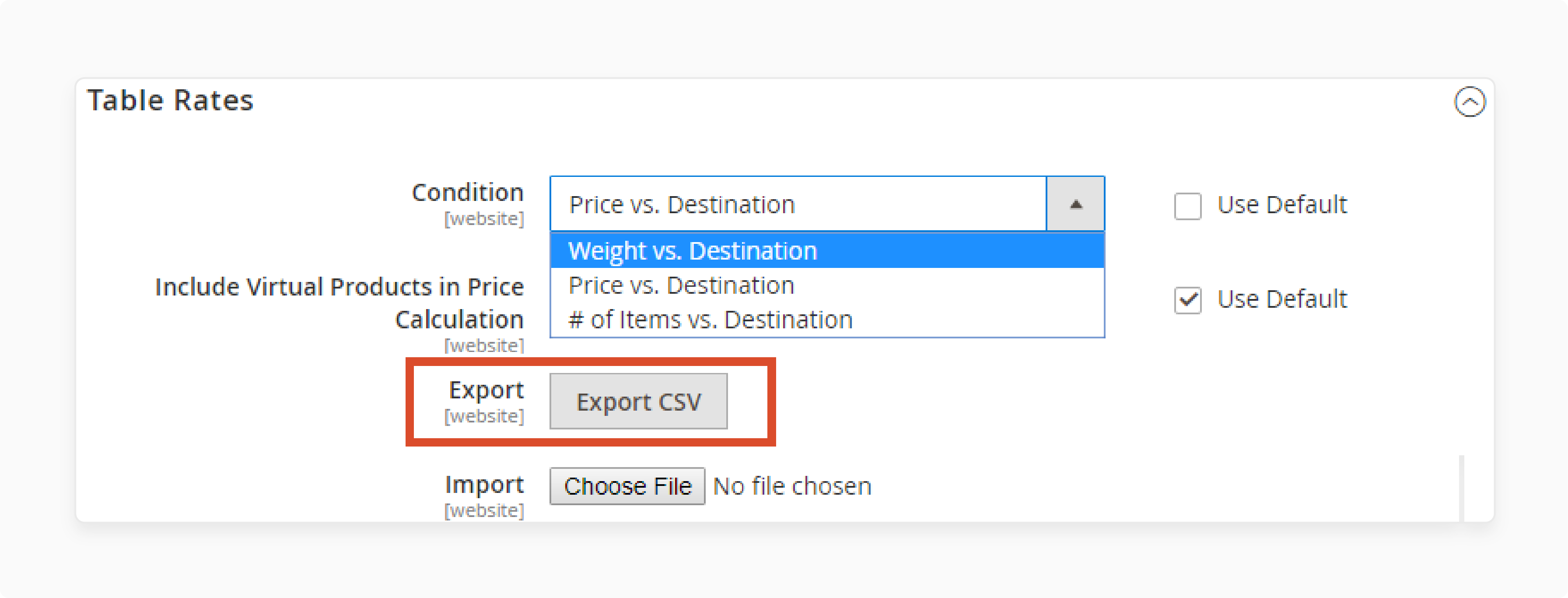
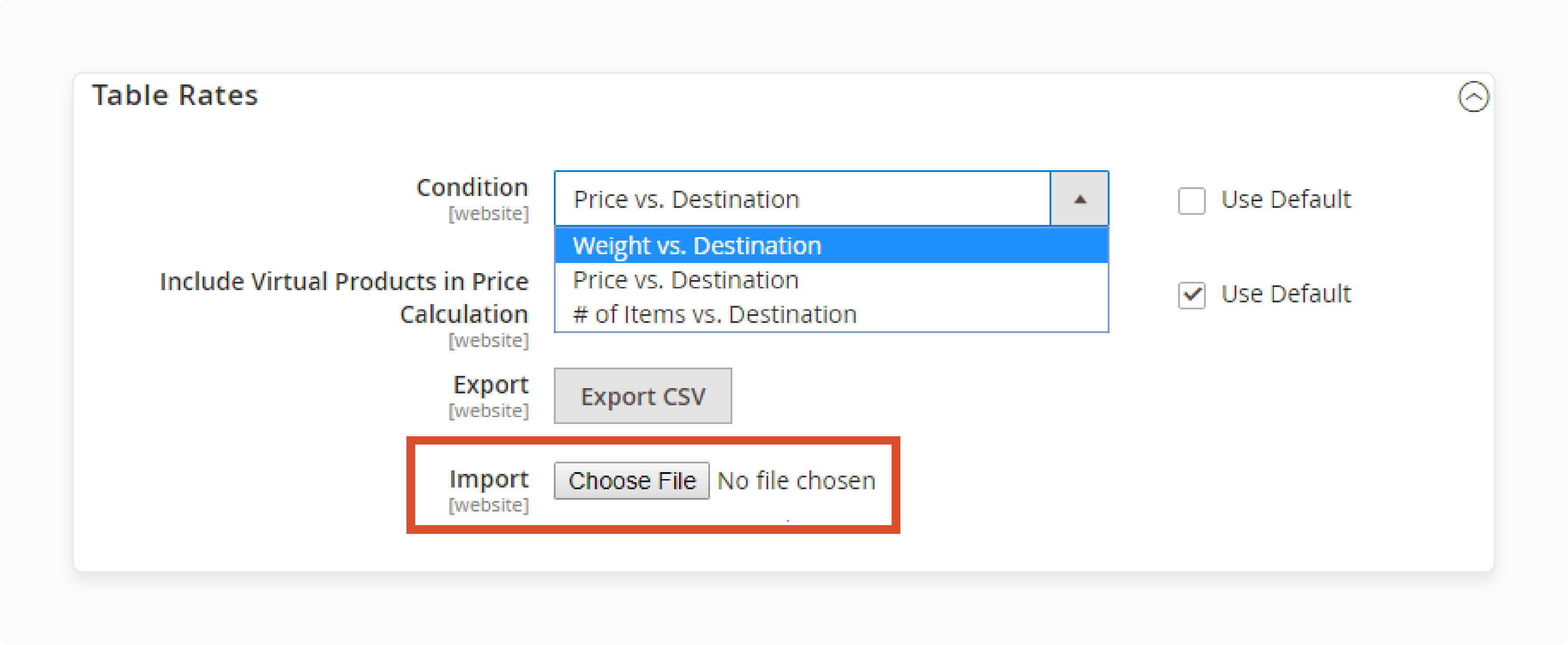
Set Enabled to Yes. In the Condition dropdown, select Weight vs. Destination. Configure the remaining settings:
| Setting | Value | Notes |
|---|---|---|
| Title | Shipping name visible to customers | e.g., "Standard Shipping" |
| Method Name | Internal description | e.g., "Weight-Based Table Rate" |
| Include Virtual Products | Yes/No | Set Yes to include virtual products in weight calculation |
| Calculate Handling Fee | Fixed or Percentage | Fixed = flat amount, Percentage = % of shipping cost |
| Handling Fee | Amount | e.g., 5 for $5 fixed, or 0.05 for 5% |
| Displayed Error Message | Custom message | Shown when method is unavailable for an address |
| Ship to Applicable Countries | All or specific | Restrict to countries you ship to |
Step 3: Prepare the CSV File
Click Export CSV to download the tablerates.csv template.
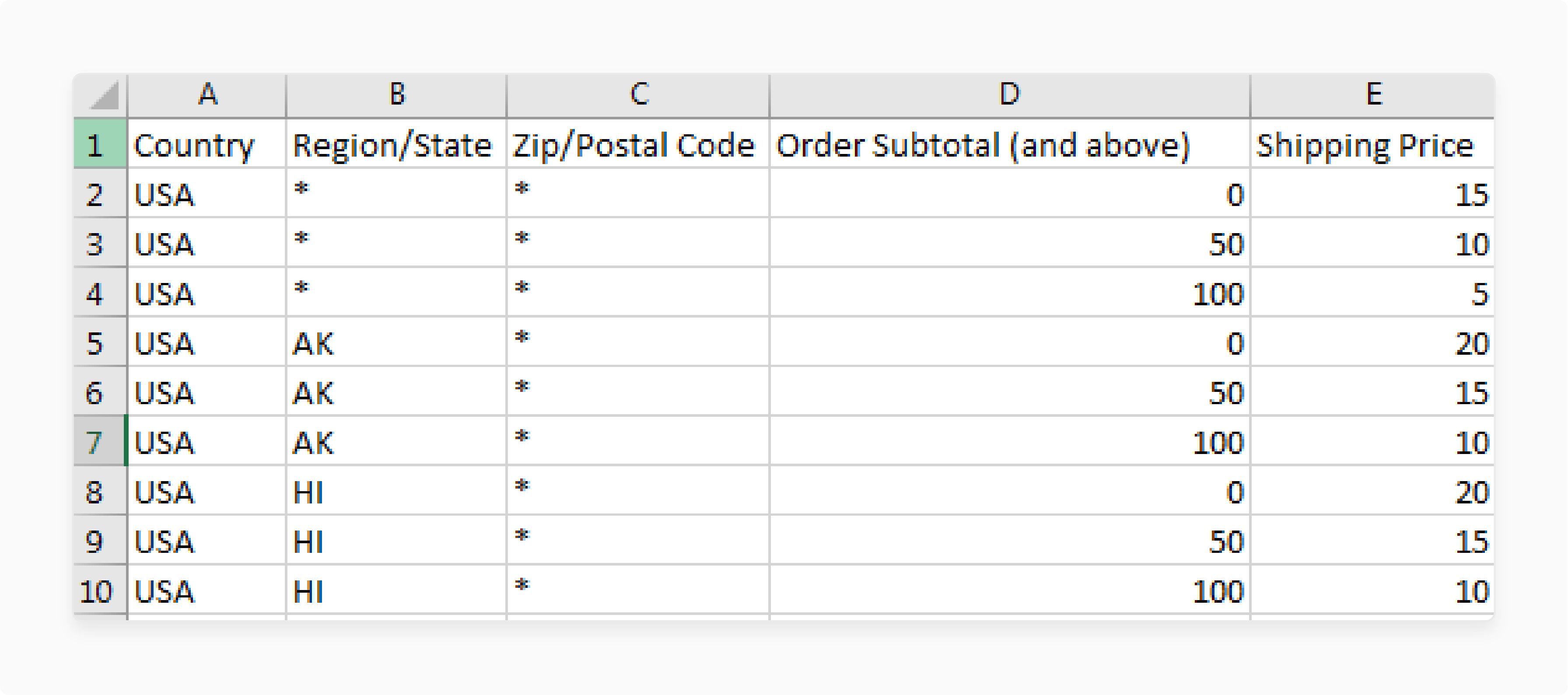
Open the file in a spreadsheet editor. Each row defines a shipping rule:
| Column | Description | Example |
|---|---|---|
| Country | ISO Alpha-3 country code | USA, DEU, GBR |
| Region/State | Region code or * for all |
CA, NY, * |
| Zip/Postal Code | Zip range or * for all |
90210, * |
| Weight (and above) | Minimum weight threshold | 0, 5, 10, 25 |
| Shipping Price | Fee for this rule | 5.00, 12.50, 25.00 |
Sort the CSV by Region/State to ensure Magento processes rules in the correct order.
Step 4: Import the CSV
Click Choose File under Import, select your updated tablerates.csv, and click Import.
Step 5: Save and Test
Click Save Config. Clear your cache under System > Cache Management. Test by placing orders with different weights and addresses to verify correct fee calculation.
CSV File Structure: Practical Examples
Example 1: Domestic US Shipping by Weight
Country,Region/State,Zip/Postal Code,Weight (and above),Shipping Price
USA,*,*,0,5.00
USA,*,*,5,10.00
USA,*,*,15,18.00
USA,*,*,30,25.00
Orders under 5 lbs ship for $5. Orders between 5-14.99 lbs ship for $10. This covers all US states.
Example 2: Weight-Based with Regional Zones
Country,Region/State,Zip/Postal Code,Weight (and above),Shipping Price
USA,CA,*,0,4.00
USA,CA,*,10,8.00
USA,NY,*,0,6.00
USA,NY,*,10,12.00
USA,*,*,0,7.00
USA,*,*,10,15.00
California gets lower rates (closer to warehouse). New York pays more. All other states use the default (*) rates.
Example 3: International Shipping
Country,Region/State,Zip/Postal Code,Weight (and above),Shipping Price
DEU,*,*,0,12.00
DEU,*,*,5,20.00
GBR,*,*,0,15.00
GBR,*,*,5,25.00
*,*,*,0,30.00
*,*,*,5,45.00
Germany and UK have specific rates. The wildcard (*) at the bottom catches all other countries.
Troubleshooting Common Issues
Shipping rates not displaying at checkout Verify Table Rates is enabled (Stores > Configuration > Shipping Methods). Check that the CSV was imported for the correct store view. Clear all caches.
Incorrect shipping charges Review the CSV for overlapping weight ranges or missing region codes. Magento matches the first rule it finds, so sort rules from specific to general.
Handling fee not applied Check if Calculate Handling Fee is set to Fixed or Percentage. For percentage, enter the decimal (0.05 = 5%), not the whole number.
Shipping unavailable for certain locations
Verify the country uses the correct ISO Alpha-3 code. Check that "Ship to Applicable Countries" includes the target country. Use * wildcards at the bottom of your CSV as a fallback.
CSV import fails Save the file with UTF-8 encoding. Check for missing columns, extra commas, or invisible characters. Re-export the template and rebuild if needed.
Changes not reflected after re-import Clear both Magento cache (System > Cache Management) and browser cache. Verify the correct store view was selected during import.
When to Use Each Condition Type
| Scenario | Weight vs Dest | Price vs Dest | Items vs Dest |
|---|---|---|---|
| Products vary in weight (1-50 kg) | Best | No | No |
| "Free shipping over $100" tiers | No | Best | No |
| All products weigh about the same | No | No | Best |
| Mixed catalog (heavy + light) | Best | OK | No |
| Subscription boxes (fixed contents) | No | No | Best |
| B2B bulk orders | Best | OK | No |
"For Magento stores with products ranging from lightweight accessories to heavy equipment, weight vs destination is the only condition that prevents both overcharging light orders and undercharging heavy ones," says Raphael Thiel, CEO of MGT Commerce.
FAQ
What is the table rates shipping method in Magento 2? Table rates is a built-in shipping method that calculates fees from a CSV lookup table. You define rules based on weight, price, or item count combined with the shipping destination.
How do I set up weight-based shipping in Magento 2? Go to Stores > Configuration > Sales > Shipping Methods > Table Rates. Enable the method, select "Weight vs. Destination" as the condition, prepare a CSV with weight ranges and prices per destination, then import the file.
What format does the table rates CSV use?
The CSV has 5 columns: Country (ISO Alpha-3 code), Region/State, Zip/Postal Code, Weight threshold, and Shipping Price. Use * as a wildcard for "all regions" or "all zip codes."
Can I have different rates for different countries?
Yes. Each row in the CSV can target a specific country, region, or zip code. Use specific entries for priority markets and * wildcards as fallback rules for the rest.
What is the difference between weight vs destination and price vs destination? Weight vs destination calculates fees based on product weight and shipping address. Price vs destination uses the order subtotal instead of weight. Choose weight for varied-weight catalogs, price for tiered free-shipping promotions.
Why are my shipping rates not showing at checkout? Check that Table Rates is enabled, the CSV was imported for the correct store view, and all caches are cleared. Also verify the customer's address matches at least one rule in your CSV.
How do I handle international shipping with table rates?
Add rows with the target country's ISO Alpha-3 code (e.g., DEU for Germany, GBR for UK). Define weight ranges and prices per country. Add a wildcard row (*,*,*) at the bottom for uncovered destinations.
Can I use table rates with free shipping? Yes. Set the shipping price to 0.00 for specific weight and destination combinations in your CSV. You can also combine table rates with Magento's free shipping threshold (e.g., free over $100).
How often should I update my table rates? Review rates when carrier prices change, when you add new shipping zones, or when seasonal demand affects costs. Most stores update table rates 2-4 times per year.
Does table rates work with multi-store setups? Yes. Import separate CSV files for each store view. This lets you define different shipping rules for different websites or store views from the same Magento installation.
Summary
Magento 2 shipping table rates give you granular control over shipping fees. The weight vs destination condition is the most accurate for stores with varied product weights and multiple shipping zones.
Set up requires a properly formatted CSV file with country codes, region rules, weight thresholds, and prices. Sort rules from specific to general. Clear caches after every import.
For stores running on managed Magento hosting, table rate calculations add minimal server load compared to real-time carrier API calls.
