

What Is a Magento Test Server and How to Set One Up
[Updated: March 04, 2026]
Pushing untested code to production breaks stores. A Magento test server gives you a safe environment to validate every change before it reaches customers.
This guide covers three types of test environments, step by step setup instructions, and the mistakes that cause most staging failures.
What Is a Magento Test Server?
A Magento test server = a separate server environment that mirrors your production store for safe testing. You validate code changes, extensions, and updates without risking your live site.
Perfect for: Magento store owners running updates, developers testing new extensions, agencies managing multiple client stores
Not ideal for: Quick CSS tweaks with no backend impact, vanilla Magento stores with zero customizations
A Magento test server runs the same Magento version, extensions, and configuration as your production store. The key difference: it operates in complete isolation. Changes on the test server never affect live customers.
Most Magento stores need at least one test environment. Stores with custom extensions, multiple integrations, or frequent updates need two: a development server for building features and a staging server for final validation.
Why Every Magento Store Needs a Staging Environment
Production is not a testing ground. Every untested change carries risk:
- Extension conflicts can crash checkout. One incompatible module disables the entire Magento storefront.
- Database migrations can corrupt order data. A failed migration during peak hours costs revenue and trust.
- PHP and Magento upgrades introduce breaking changes. What works on Magento 2.4.7 may fail on 2.4.8. The current stable release is Adobe Commerce / Magento Open Source 2.4.8 with regular support until 11 April 2028. Upgrades to PHP 8.3 or 8.4 (required for 2.4.8) can cause extra compatibility issues.
- Theme updates break layouts. A CSS conflict on mobile goes unnoticed until customers report it.
A staging environment catches these issues before they reach production. Testing on a separate server also gives you accurate performance metrics unaffected by live traffic.
3 Types of Magento Test Environments
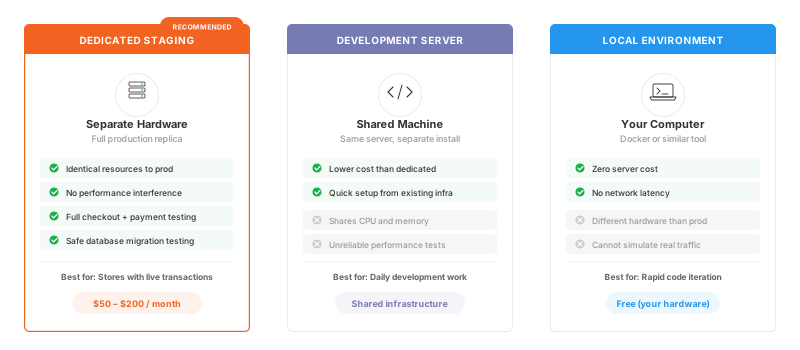
1. Dedicated Staging Server (Recommended)
A staging server is a complete replica of your production environment running on separate hardware. It has its own web server, database, Redis instance, and Varnish cache.
Benefits:
- Identical resource allocation to production
- No performance interference from live traffic
- Full checkout testing with payment gateway sandboxes
- Safe database migration testing
This is the gold standard for Magento testing. Every store processing real transactions should have a dedicated staging server. With managed Magento hosting, staging environments come preconfigured and ready to use.
2. Development Server
A development server runs on the same physical or virtual machine as production but uses a separate Magento installation and database. Developers use it for active feature work and debugging.
Benefits:
- Lower cost than dedicated hardware
- Quick setup from existing infrastructure
- Good for daily development work
Limitations:
- Shares CPU and memory with production
- Performance testing results are unreliable
- Risk of accidental production database access
3. Local Development Environment
A local server runs Magento on your own computer using Docker or a similar tool. It provides the fastest feedback loop for code changes.
For a complete setup walkthrough, see our guide on setting up a Magento 2 local development environment with Docker.
Benefits:
- Zero cost for server resources
- No network latency during development
- Full control over the environment
Limitations:
- Hardware differs from production
- Cannot simulate real traffic or load
- Payment gateway testing requires tunneling
How to Set Up a Magento Staging Server
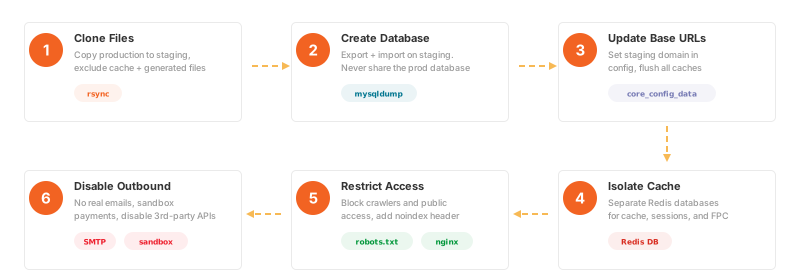
Step 1: Clone Production Files
Use rsync to copy your Magento installation to the staging server:
rsync -avz --exclude='var/cache' --exclude='var/session' \
  --exclude='pub/media/catalog/product/cache' \
  production:/var/www/magento/ /var/www/staging/
Exclude cache directories and generated files. These get rebuilt on the staging server after deployment.
Step 2: Create a Separate Database
Export your production database and import it on the staging server:
# On production
mysqldump -u magento_user -p magento_production > magento_prod_backup.sql

# On staging
mysql -u staging_user -p magento_staging < magento_prod_backup.sql
Never point your staging installation at the production database. One wrong query deletes real customer data.
Step 3: Update Base URLs
Magento stores base URLs in core_config_data. Update them for your staging domain:
UPDATE core_config_data SET value = 'https://staging.yourstore.com/'
WHERE path IN ('web/unsecure/base_url', 'web/secure/base_url');

UPDATE core_config_data SET value = 'https://staging.yourstore.com/static/'
WHERE path IN ('web/unsecure/base_static_url', 'web/secure/base_static_url');

UPDATE core_config_data SET value = 'https://staging.yourstore.com/media/'
WHERE path IN ('web/unsecure/base_media_url', 'web/secure/base_media_url');
Run bin/magento cache:flush after the URL update.
Step 4: Isolate Cache and Sessions
Staging and production must use separate Redis databases. If both share the same Redis instance, configure different database numbers:
// app/etc/env.php on staging
'cache' => [
    'frontend' => [
        'default' => [
            'backend' => 'Magento\Framework\Cache\Backend\Redis',
            'backend_options' => [
                'server' => '127.0.0.1',
                'database' => '2',  // Production uses 0
                'port' => '6379'
            ]
        ],
        'page_cache' => [
            'backend' => 'Magento\Framework\Cache\Backend\Redis',
            'backend_options' => [
                'server' => '127.0.0.1',
                'database' => '3',  // Production uses 1
                'port' => '6379'
            ]
        ]
    ]
],
'session' => [
    'save' => 'redis',
    'redis' => [
        'database' => '4',  // Production uses 2
    ]
]
Shared cache between staging and production is the number one cause of "ghost" changes appearing on live stores.
Step 5: Restrict Public Access
Block search engines and unauthorized users from your staging server:
robots.txt:
User-agent: *
Disallow: /
HTTP Basic Auth (Nginx):
location / {
    auth_basic "Staging Server";
    auth_basic_user_file /etc/nginx/.htpasswd;
}
For extra protection, add an X-Robots-Tag header in Nginx to block indexing at the HTTP level:
add_header X-Robots-Tag "noindex, nofollow" always;
An open staging server leaks unreleased features to competitors and creates duplicate content issues with Google.
Step 6: Disable Outbound Communications
Prevent staging from sending real emails and triggering live payment transactions:
# Via CLI (no direct DB access needed)
bin/magento config:set system/smtp/disable 1
Also disable:
- Payment gateway live credentials (use sandbox keys)
- Third party API integrations (shipping, ERP, CRM)
- Analytics tracking codes
- Push notification services
Staging vs Development vs Production
| Staging | Development | Production | |
|---|---|---|---|
| Purpose | Final validation before deploy | Active feature work | Live customer store |
| Data | Production clone (anonymized) | Sample or partial data | Real customer data |
| Access | QA team, project managers | Developers | Public |
| Performance | Mirrors production specs | Lower specs acceptable | Full resources |
| Updates | Before each production deploy | Continuous | Scheduled maintenance |
| Payment | Sandbox mode | Sandbox or disabled | Live processing |
Testing Frameworks and Tools for Your Magento Test Server
A staging server is only useful when you run proper tests on it. Magento supports several testing frameworks that cover different test levels.
Magento Functional Testing Framework (MFTF)
The Magento Functional Testing Framework automates end-to-end tests for storefront and admin panel workflows. MFTF uses Selenium WebDriver to simulate real user interactions like adding products to cart, completing checkout, and managing orders in the admin.
Adobe Commerce and Magento Open Source both ship with MFTF test suites you can run on your staging server.
Official documentation:
- MFTF Full Documentation
- Getting Started with MFTF (includes installation for 2.4.8)
Unit and Integration Testing
PHPUnit handles unit tests for isolated code segments and integration tests that verify how Magento modules interact. Run the full test suite on staging before every production deploy:
bin/magento dev:tests:run unit
bin/magento dev:tests:run integration
Performance and Load Testing
Use Apache JMeter or Gatling to simulate traffic and measure how your Magento store performs under load. These testing tools reveal bottlenecks in database queries, cache configuration, and server resources.
Key metrics to track:
- Time to First Byte (TTFB) under concurrent users
- Checkout completion time during peak load
- Database query time during catalog browsing
- Memory and CPU usage at traffic spikes
Performance test results are only valid when staging mirrors production hardware. A test server with half the RAM produces misleading benchmarks.
5 Common Staging Mistakes
1. Stale staging data. A staging database from three months ago misses new product attributes, price rules, and customer segments. Refresh your staging data before every major deployment.
2. Shared Redis or Elasticsearch. Staging and production sharing a cache layer causes cross-contamination. Always isolate every service.
3. Missing cron jobs. Magento relies on cron for indexing, email queues, and catalog rules. A staging server without cron configured produces misleading test results.
4. Skipping database anonymization. Staging with real customer emails means your test emails reach real customers. Anonymize personal data after every database clone. Use dedicated tools for automated anonymization:
- dbanon: runs anywhere with zero dependencies
- integer-net/Anonymizer: generates Faker data while preserving Magento relations
- quafzi/magento-anonymizer: simple shell script for quick anonymization
Run the tool right after importing the backup. Real customer data should never exist on a staging server.
5. No automated deployment process. Manual FTP uploads to staging defeat the purpose. Use automated code deployment to mirror how code reaches production.
Managed Hosting: Staging Without Setup Overhead
Setting up and maintaining a staging environment takes time. Database cloning, Redis isolation, SSL certificates, cron configuration, and server monitoring all require ongoing attention.
Managed Magento hosting eliminates this overhead. Your hosting provider handles staging server provisioning, automated database syncing, and environment isolation. You focus on testing your Magento store instead of maintaining servers.
What managed staging includes:
- One-click staging environment creation
- Automated production-to-staging data sync
- Separate SSL certificates and domains
- Isolated cache, sessions, and search indexes
- Built-in access restrictions
For ecommerce stores that deploy new code every week or run multiple extensions, managed hosting with staging support pays for itself in reduced downtime and faster release cycles.
Adobe Commerce Cloud users get staging environments included with one-click sync and full isolation. See the official Adobe Commerce Cloud staging documentation for details. For self-hosted Magento stores, managed hosting provides the same convenience.
Magento Content Staging is a separate Adobe Commerce feature for scheduling CMS content changes within the Admin panel. Do not confuse it with staging servers for code and infrastructure testing.
FAQ
What is a Magento test server?
A Magento test server is a separate server environment that runs a copy of your production store. Developers use it to validate code changes, test extensions, and run performance tests without affecting the live site.
How much does a Magento staging server cost?
A dedicated staging server costs between $50 and $200 per month depending on specifications. Managed hosting providers often include staging environments in their hosting plans at no extra charge.
Can I use my local computer as a Magento test server?
Yes. Docker-based local environments work well for development and debugging. They are not suitable for performance testing or payment gateway validation because hardware and network conditions differ from production.
How often should I sync staging with production?
Sync your staging database before every major deployment. For stores with frequent changes, a sync every week keeps test data current. Always anonymize customer data after syncing.
What is the difference between staging and development environments?
A staging server mirrors production for final validation. A development server is where developers write and debug code. Staging uses production-grade resources. Development prioritizes fast iteration over accuracy.
Do I need a staging server for a small Magento store?
Yes. Even small stores run extensions, process payments, and update PHP versions. A staging server prevents these changes from breaking your live storefront.
How do I prevent Google from indexing my staging server?
Add a robots.txt file that disallows all crawlers, use HTTP Basic Authentication to block unauthorized access, and add an X-Robots-Tag: noindex, nofollow header in Nginx. Never use the same domain as your production store.
What is the difference between Magento Content Staging and a staging server?
Magento Content Staging is an Adobe Commerce feature for scheduling CMS content changes like campaigns and product updates. A staging server is separate infrastructure for testing code, extensions, and server configuration changes.
Can I run automated tests on a staging server?
Yes. Staging servers support automated testing frameworks including PHPUnit for unit tests, the Magento Functional Testing Framework (MFTF) for end-to-end tests, and tools like JMeter for load testing.
How do I deploy code from staging to production?
Use automated deployment tools like MGT Code Deploy or CI/CD pipelines. Manual file transfers introduce human error. Automated deployments ensure staging and production run identical code.
Conclusion
A Magento test server protects your live store from untested changes. Start with a dedicated staging server that mirrors production, follow the six setup steps in this guide, and sync your data before every deployment.
For staging environments that configure and maintain themselves, explore managed Magento hosting from MGT Commerce. Preconfigured staging, automated syncing, and isolated environments let your team focus on building new features instead of maintaining servers.
