

How to Change the Magento 2 Copyright Notice (3 Methods)
[Updated: March 23, 2026]
Your Magento 2 footer still shows last year's copyright? An outdated notice signals neglect to visitors and search engines.
This guide covers three methods to update your Magento 2 copyright notice: Admin Panel, PHP for dynamic year updates, and XML layout overrides.
Key Takeaways
- Change the copyright in Content > Design > Configuration > Footer in the admin panel.
- Use PHP
date('Y')to update the year automatic each January. - XML layout overrides give full control over the copyright block template.
- Set different copyright notices per store view for multi-language stores.
- Flush cache after every change to see updates on the frontend.
Quick Answer
Magento 2 copyright notice = the footer text showing ownership and year for your store. Change it in Content > Design > Configuration > Footer in the admin panel.
Perfect for: Store owners updating their footer, developers automating year changes, multi-store operators needing per-store notices.
Not ideal for: Headless or PWA storefronts with custom footer components.
What is the Copyright Notice in Magento 2?
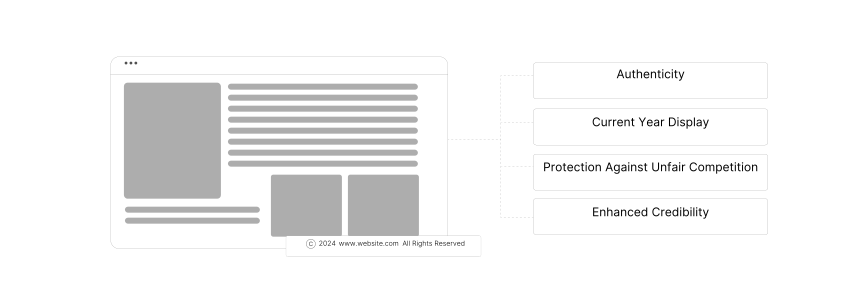
The copyright notice sits in the footer of every page in your Magento store. It displays the copyright symbol, year, and business name.
A current copyright notice serves three purposes:
- Establishes ownership of your store's content and design.
- Shows the store is active when the year matches the current calendar year.
- Provides legal foundation for pursuing content theft claims.
Magento 2.4.8 ships with a default notice that reads "Copyright © Magento, Inc. All rights reserved." Most store owners replace this with their own business name and current year.
Method 1: Change Copyright via Admin Panel
The fastest method. No code required.
- Log in to your Magento admin panel.
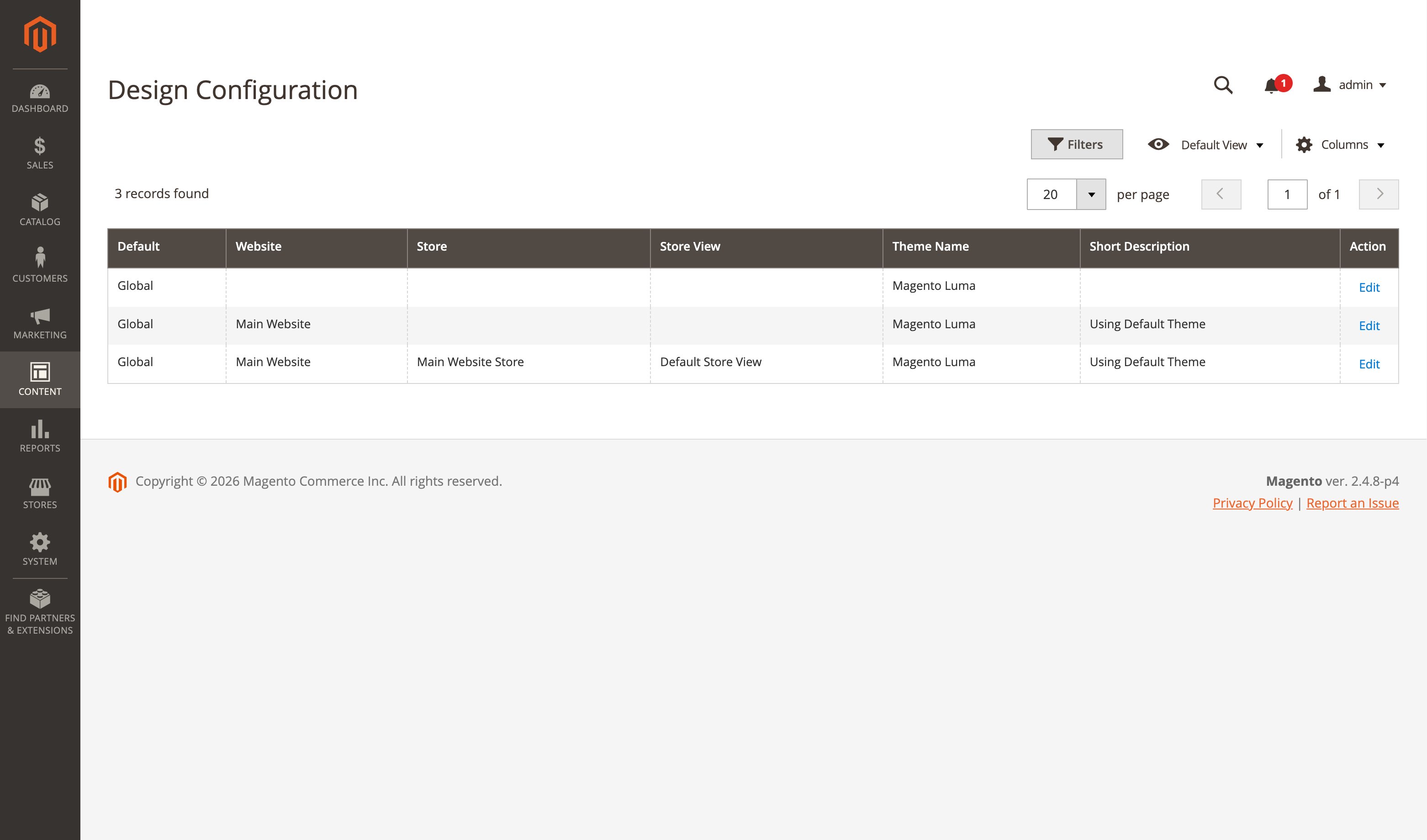
- Navigate to Content > Design > Configuration.
- Select your store view and click Edit.
- Expand the Footer section.
- Edit the Copyright field with your custom text.
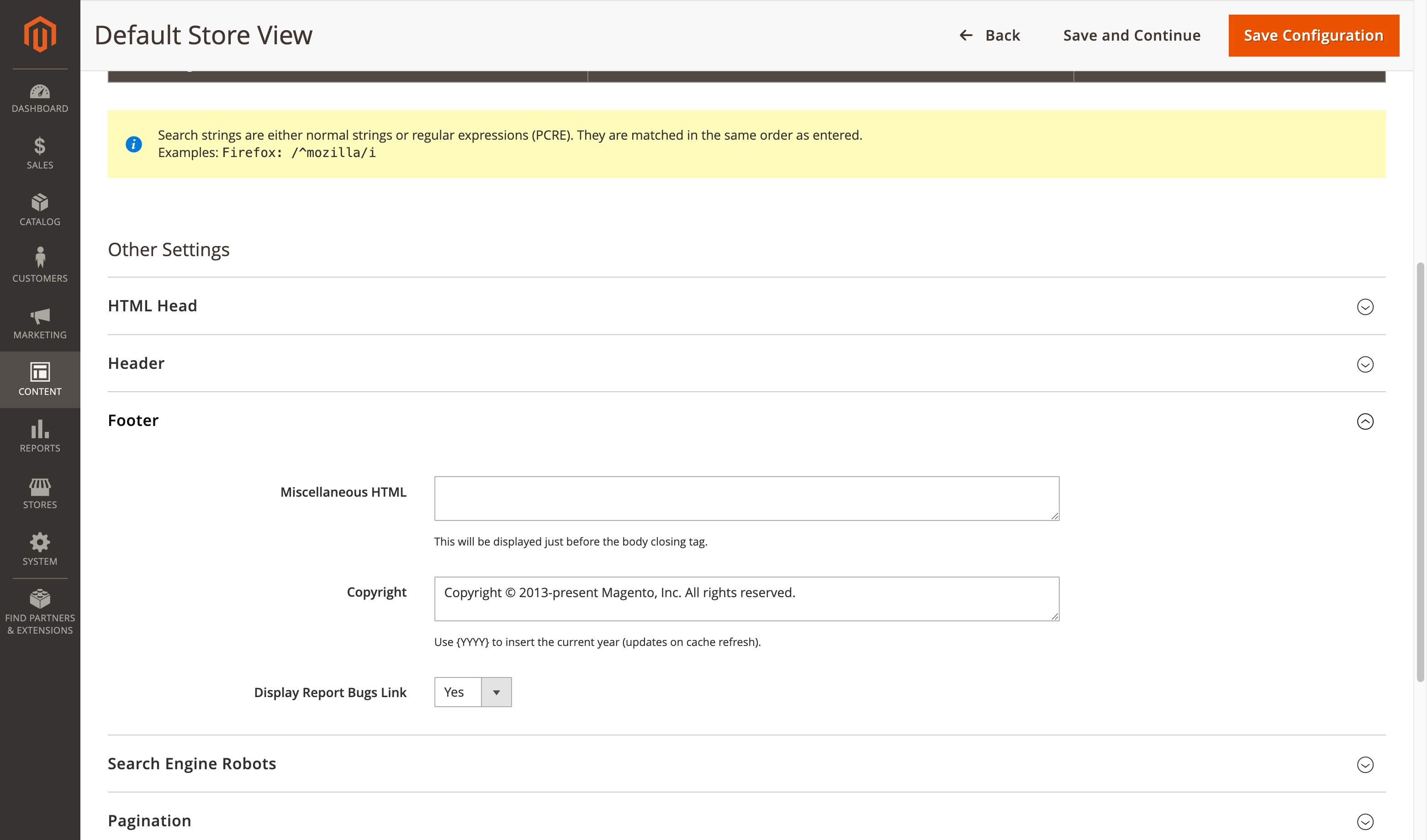
- Click Save Configuration.
The copyright notice now appears in the storefront footer:
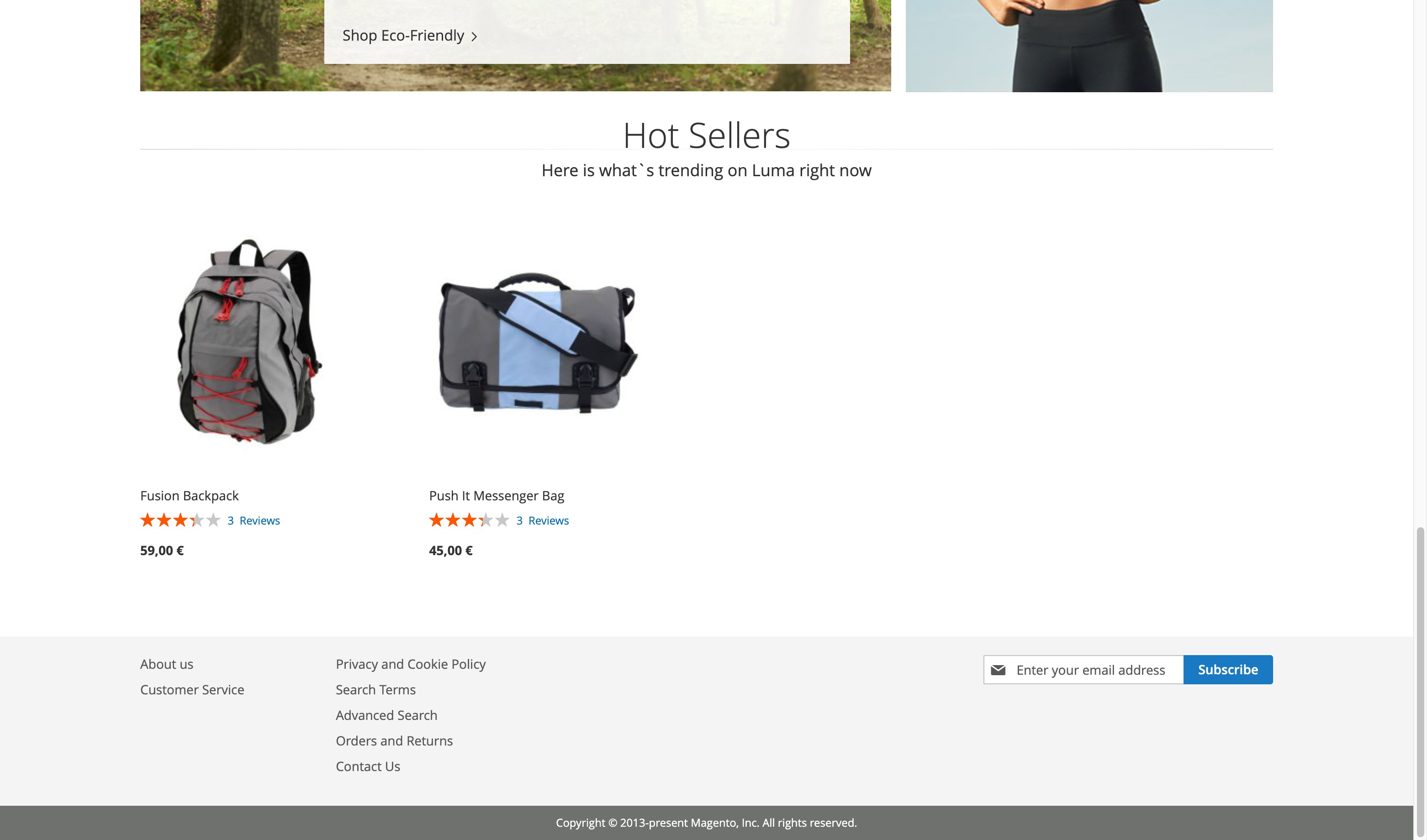
Recommended format: Copyright © 2026 Your Company Name. All rights reserved.
Use the © HTML entity or paste the © symbol direct. Both render the same in the storefront.
After saving, flush your cache to see the change on the frontend (see "Clear Cache After Changes" below).
Method 2: Dynamic Year with PHP
Editing the admin panel every January gets repetitive. A small template override updates the year on its own.
Step 1: Create the override file in your theme:
app/design/frontend/[Vendor]/[Theme]/Magento_Theme/templates/html/copyright.phtml
Step 2: Add this code:
<?php
$copyright = $block->getCopyright();
$currentYear = date('Y');
$copyright = preg_replace('/\d{4}/', $currentYear, $copyright);
?>
<small class="copyright">
    <span><?= $block->escapeHtml($copyright) ?></span>
</small>
Step 3: Deploy the changes:
bin/magento setup:upgrade
bin/magento setup:static-content:deploy -f
bin/magento cache:flush
The template pulls the copyright text from admin but replaces any four-digit year with the current one. Set it once and never touch it again.
Method 3: XML Layout Override
For stores that need to replace the entire copyright block or add HTML elements, use a layout XML override.
Create or edit this file in your theme:
app/design/frontend/[Vendor]/[Theme]/Magento_Theme/layout/default.xml
<?xml version="1.0"?>
<page xmlns:xsi="http://www.w3.org/2001/XMLSchema-instance"
      xsi:noNamespaceSchemaLocation="urn:magento:framework:View/Layout/etc/page_configuration.xsd">
    <body>
        <referenceBlock name="copyright">
            <arguments>
                <argument name="copyright" xsi:type="string">
                    Copyright © 2026 Your Company. All rights reserved.
                </argument>
            </arguments>
        </referenceBlock>
    </body>
</page>
This overrides the admin setting at the theme level. Useful for themes that need a hardcoded copyright independent of admin configuration.
Multi-Store View Copyright
Magento lets you set a different copyright per store view. This matters for stores operating in multiple countries or languages.
- Go to Content > Design > Configuration.
- Select the specific store view from the list.
- Expand Footer and enter the localized copyright text.
- Click Save Configuration.
Example for multi-language stores:
| Store View | Copyright Text |
|---|---|
| English | Copyright © 2026 Your Brand. All rights reserved. |
| German | Urheberrecht © 2026 Ihre Marke. Alle Rechte vorbehalten. |
| French | Droits d'auteur © 2026 Votre Marque. Tous droits réservés. |
Each store view saves its own copyright value. The correct text loads based on which store view the customer visits.
Clear Cache After Changes
Footer changes won't appear until you flush the cache. Two options:
Admin Panel: Go to System > Tools > Cache Management and click Flush Magento Cache.
bin/magento cache:clean
bin/magento cache:flush
The two cache types that affect the footer are Block HTML Cache and Full Page Cache. Flushing both ensures the new copyright text appears across all pages.
With managed Magento hosting, cache invalidation triggers on configuration changes. No manual flush required.
FAQ
How do I add a dynamic year to the Magento 2 copyright?
Override the copyright.phtml template in your theme and use PHP's date('Y') function to replace the static year. See Method 2 above for the complete code example.
Can I remove the copyright notice from the footer?
Clear the Copyright field in Content > Design > Configuration > Footer and save the configuration. The footer renders without a copyright line. Keeping a copyright notice is still recommended for legal protection.
Does the copyright notice affect SEO?
The copyright text has no direct SEO impact. An outdated year (showing 2023 in 2026) signals to visitors that the site may be inactive, which can increase bounce rates.
Can I use HTML in the copyright field?
The copyright field accepts HTML tags. You can add links, bold text, or spans. Example: Copyright © 2026 <a href="/privacy-policy/">Your Brand</a>. All rights reserved.
How do I set different copyright text per store view?
Navigate to Content > Design > Configuration, select the specific store view, expand the Footer section, and enter the unique copyright text. Each store view maintains its own notice.
Summary
Three methods to change the Magento 2 copyright notice: Admin Panel for quick edits, PHP template override for automatic year updates, and XML layout for full theme-level control. Set different notices per store view for multi-language stores and flush cache after every change.
