

Magento 2 CMS Pages: How to Create, Manage and Optimize
[Updated: March 13, 2026]
Your Magento store needs more than product pages. About Us, Privacy Policy, landing pages, and custom content pages all live in the Magento CMS. Getting them right affects both user experience and search rankings.
This guide walks you through creating, editing, and optimizing Magento 2 CMS pages with blocks, widgets, and Page Builder.
Key Takeaways
- CMS pages handle all static content: homepage, About Us, Privacy Policy, 404 pages, and custom landing pages.
- Create pages through Content > Elements > Pages in the admin panel. Each page supports custom layouts, SEO fields, and store view assignments.
- CMS blocks let you build reusable content components. Widgets place those blocks (and other dynamic content) on any page.
- Page Builder (native since Magento 2.4) provides drag-and-drop editing without code.
- Every CMS page needs a unique URL key, meta title, and meta description for search visibility.
- Performance depends on proper caching and managed Magento hosting that handles server optimization.
What Are Magento 2 CMS Pages?
Magento 2 CMS pages = static pages with unique URLs that display informational or promotional content on your storefront. They handle everything product and category pages do not.
Perfect for: store owners managing content pages, marketing teams building landing pages, developers customizing store layouts
Not ideal for: product catalog content (use product/category pages instead)
CMS pages are the backbone of non-catalog content. Every Magento store ships with default CMS pages:
- Home Page — main storefront landing page with banners and product highlights
- About Us — company information, team, mission
- Privacy Policy — data handling and compliance information
- Customer Service — support resources and contact details
- 404 Not Found — custom error page with navigation back to the store
- Enable Cookies — browser-specific cookie instructions
- 503 Service Unavailable — maintenance mode page
- Access Denied — B2B permission restriction page (Adobe Commerce)
Each page has its own URL key, meta data, layout configuration, and store view assignment. You control every aspect from the Magento admin panel.
Key Attributes for CMS Pages
| Attribute | Description | Format | Example |
|---|---|---|---|
| title | Page title text | Any text | Sample Page Title |
| identifier | URL key | Lowercase, hyphens | about-us |
| store_view_code | Store view assignment | Comma-separated or 'All' | All, default |
| is_active | Page status | 0 or 1 | 1 |
| content_heading | Content header | Any text | About Our Company |
| content | Main content | Text with HTML | <p>Hello, world</p> |
| page_layout | Page structure | Layout name | 2columns-left |
| meta_title | SEO title | Any text | About Us |
| meta_description | SEO description | Any text | Learn about our company |
| layout_update_xml | Custom XML | Valid XML code | <referenceContainer...> |
How to Create a New CMS Page
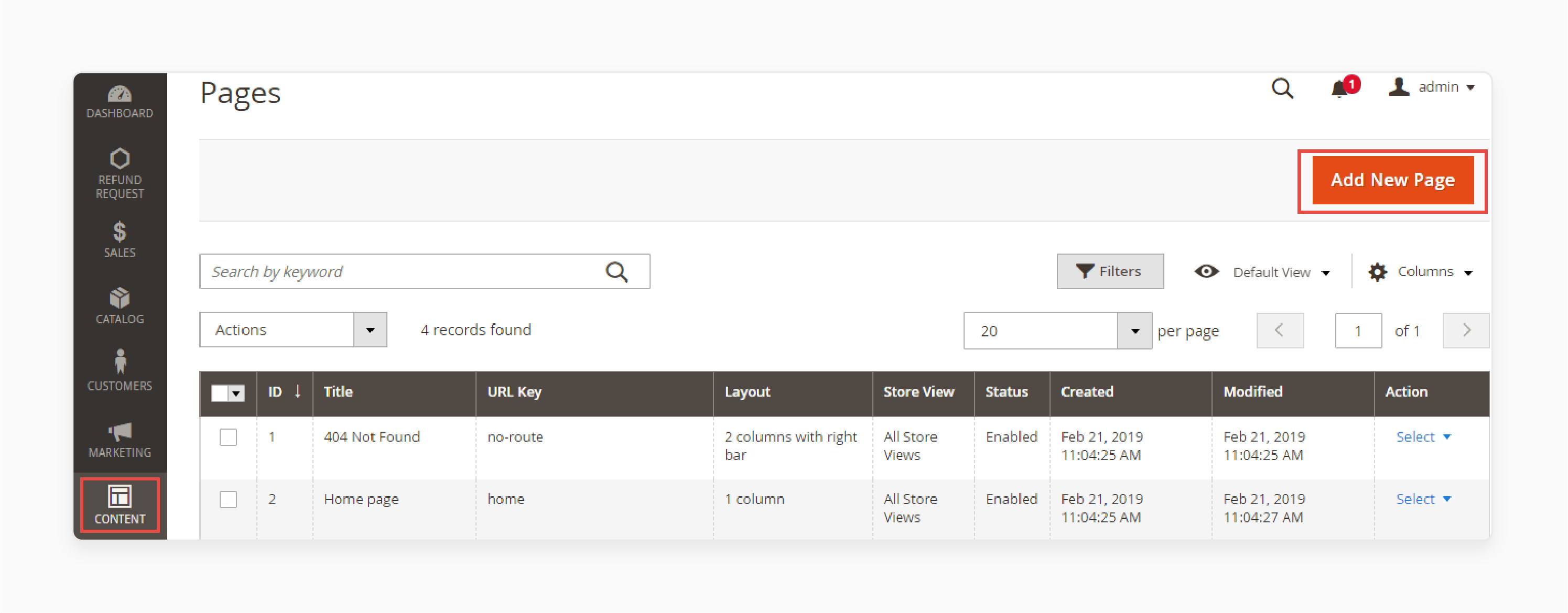
Navigate to Content > Elements > Pages and click Add New Page.
Step 1: Page Title and URL
Enter the Page Title. This appears in the browser tab and admin grid.
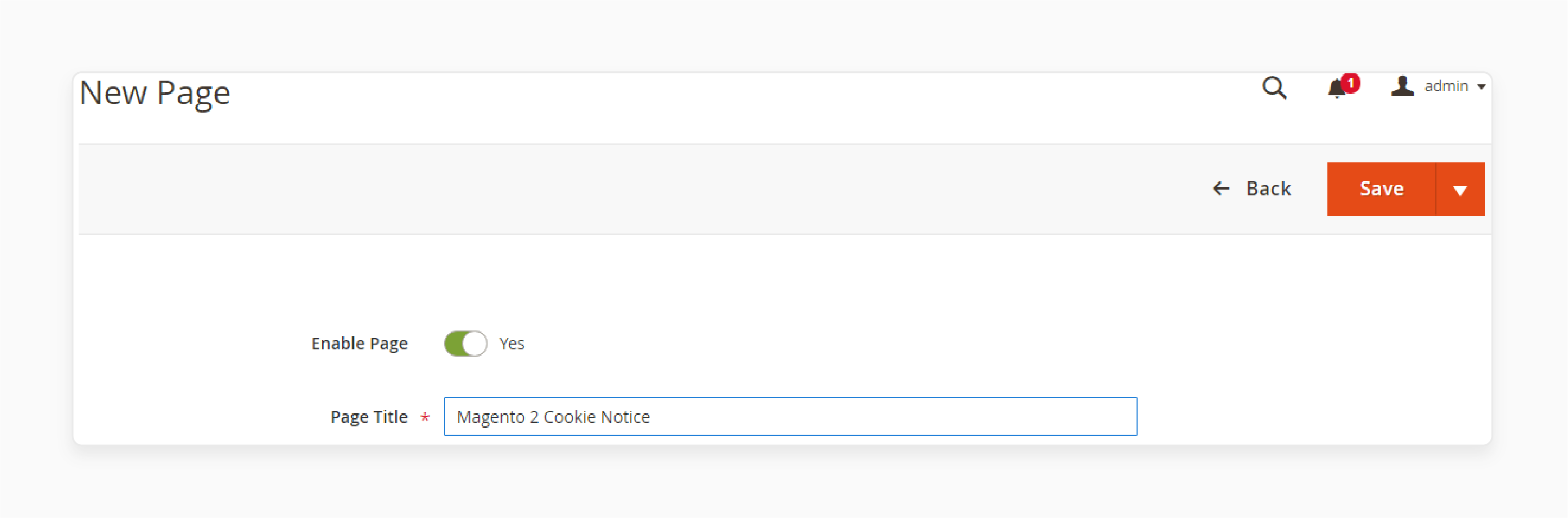
Set the URL Key using lowercase characters and hyphens only. No spaces. This key becomes the page address after your base URL.
Select the Store View where the page will appear. Set status to Disable if the page is not ready for publishing.
Step 2: Add Content
Expand the Content section. Add a Content Heading and use the WYSIWYG editor to write your page content.
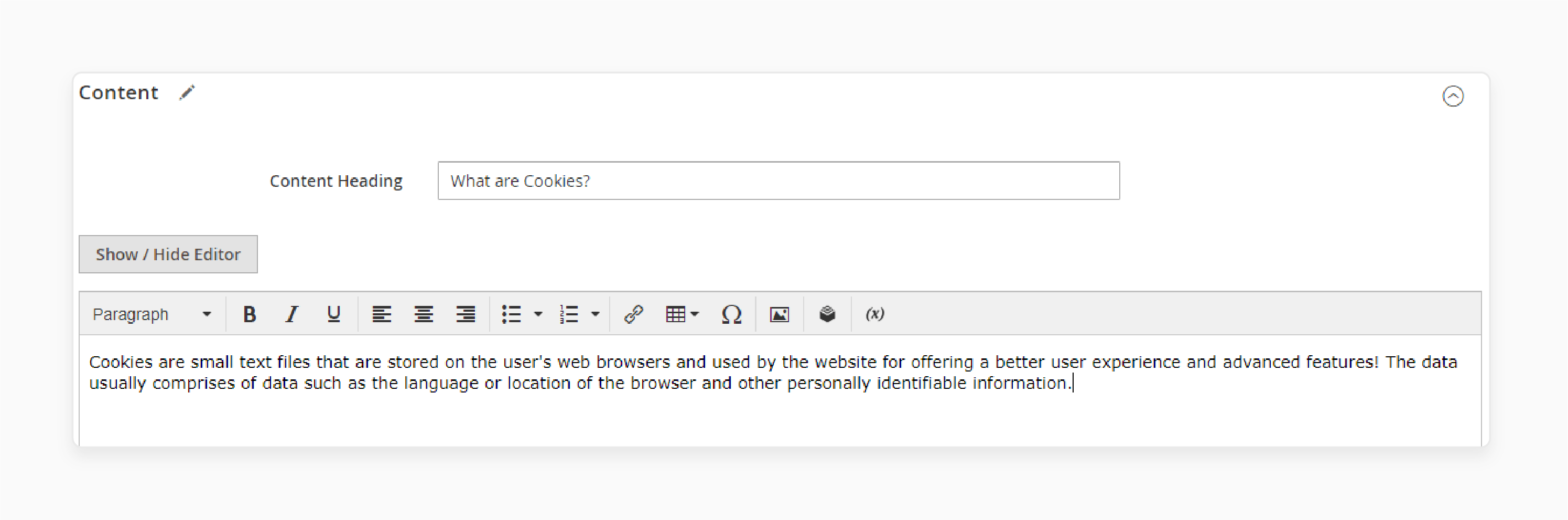
Magento 2.4+ includes Page Builder as the default content editor. It provides drag-and-drop rows, columns, tabs, banners, sliders, and HTML blocks. For stores on older versions or those needing more control, third-party Page Builder extensions offer additional content types.
Step 3: SEO Configuration
Expand the Search Engine Optimization section.
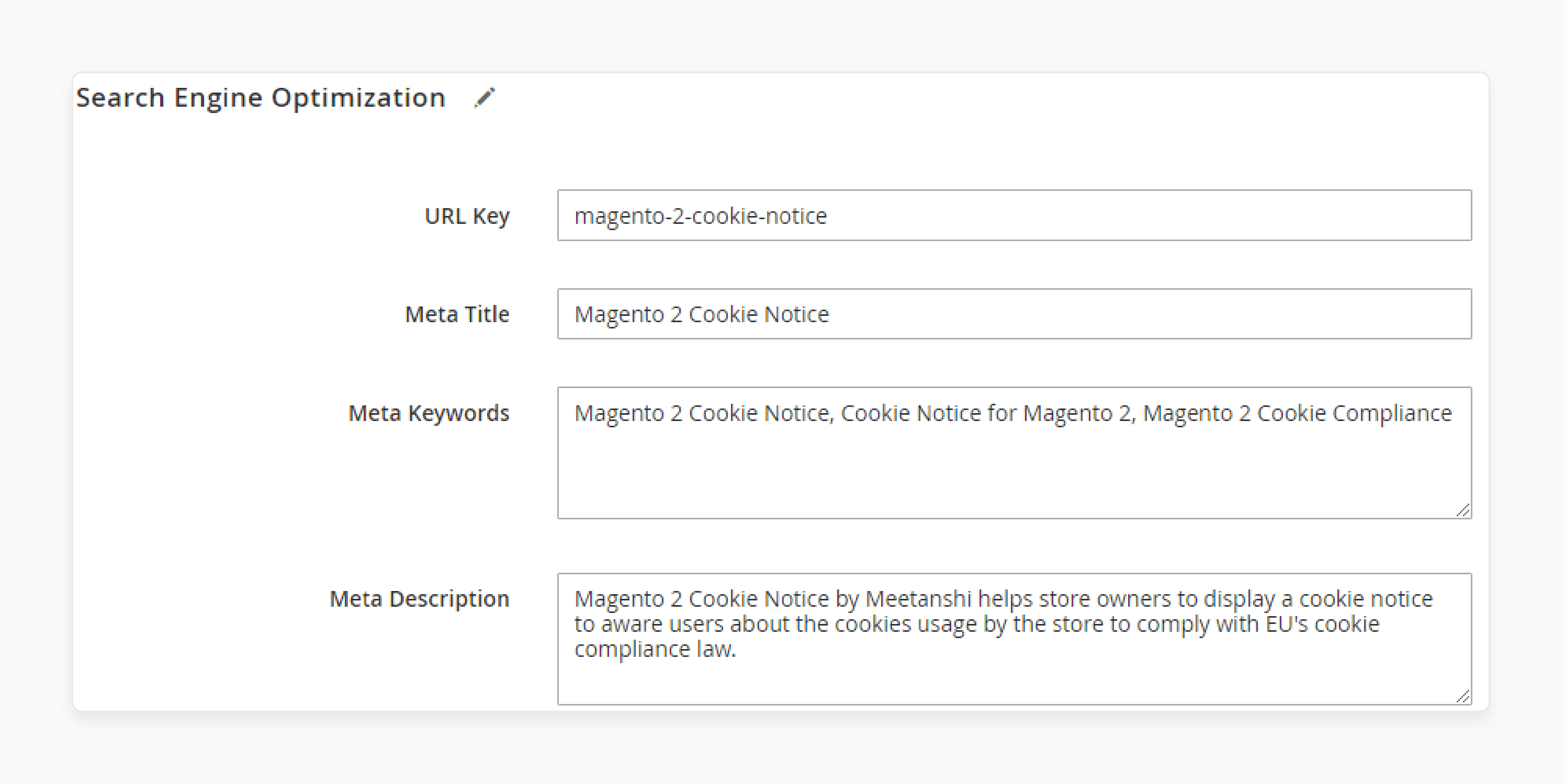
Fill in:
- URL Key — clean, keyword-relevant slug
- Meta Title — target keyword plus benefit (max 60 characters)
- Meta Keywords — comma-separated terms (low weight in 2026, but harmless to include)
- Meta Description — compelling summary with call to action (max 155 characters)
Step 4: Store View and Design
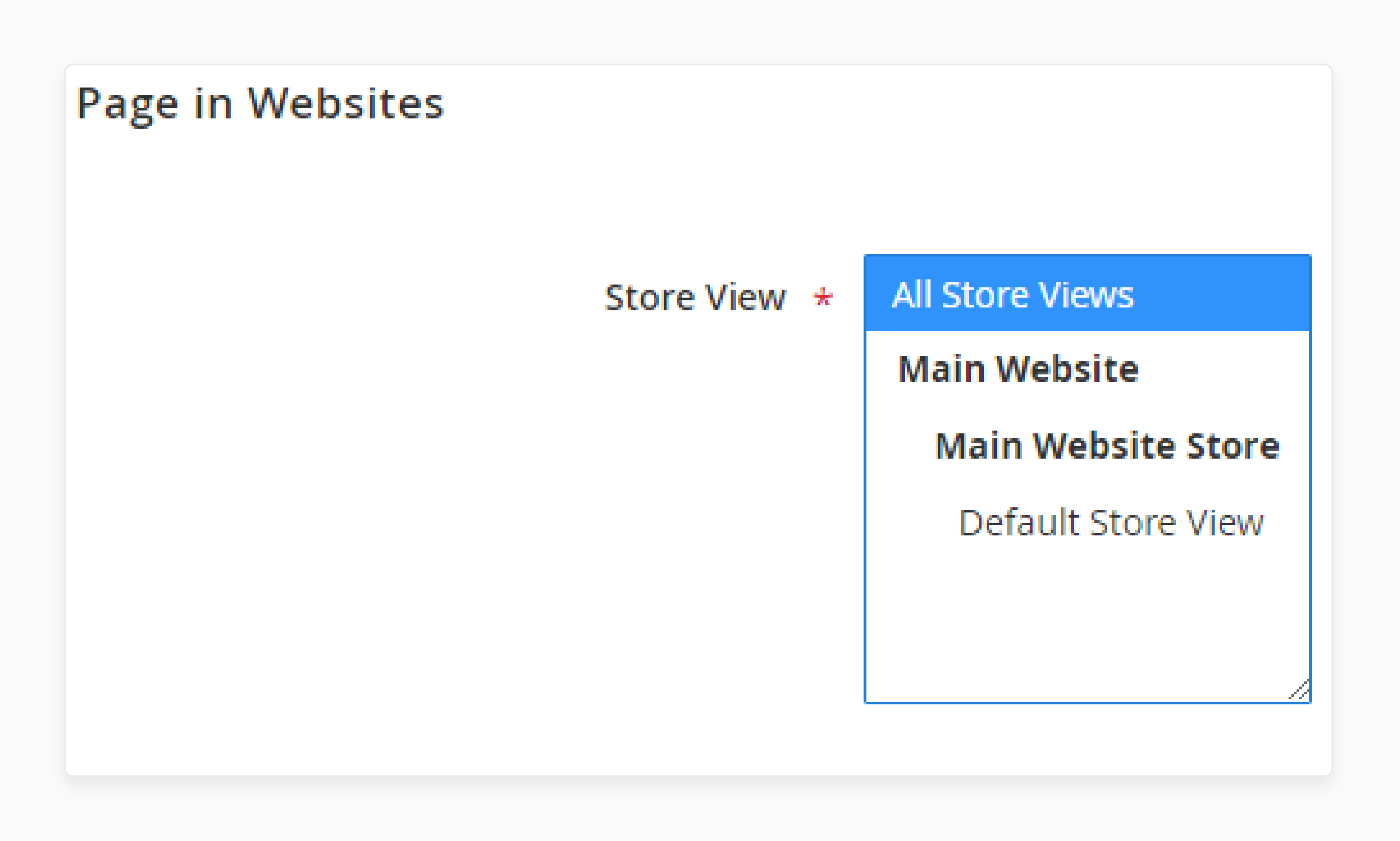
Under Pages in Websites, choose which store views display this page.
In the Design section, select the page layout:
- 1 Column — full-width content
- 2 Columns with Left Bar — content with left sidebar
- 2 Columns with Right Bar — content with right sidebar
- 3 Columns — content with both sidebars
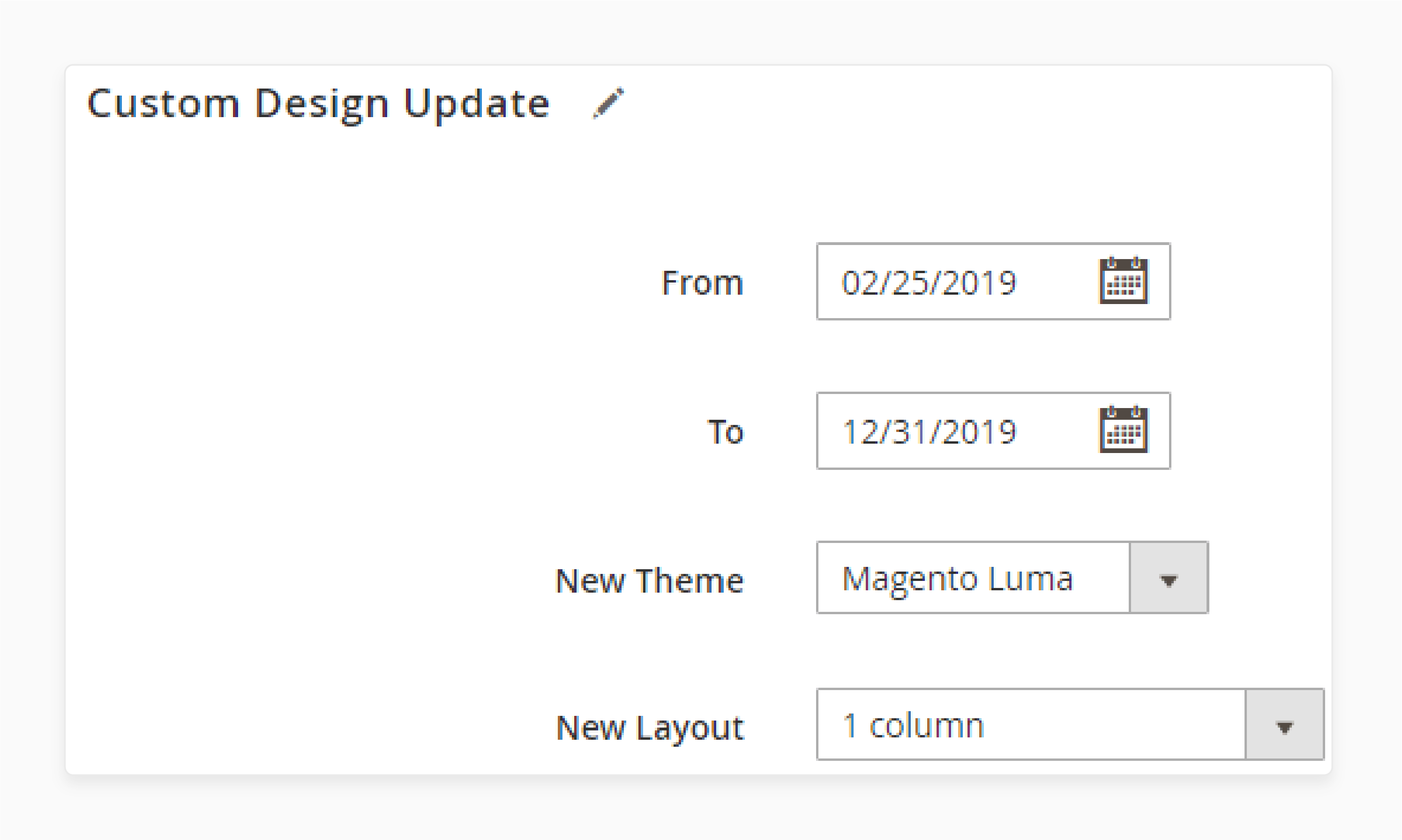
The Custom Design Update section lets you apply a different theme or layout for a specific time period. This is useful for seasonal campaigns or promotional landing pages.
Step 5: Save and Verify
Click Save Page. Clear the store cache to make changes visible on the frontend. You can clear cache through the admin notification bar or via CLI with bin/magento cache:flush.
How to Create CMS Blocks
CMS blocks are reusable content components that you can place on multiple pages, categories, or through widgets.
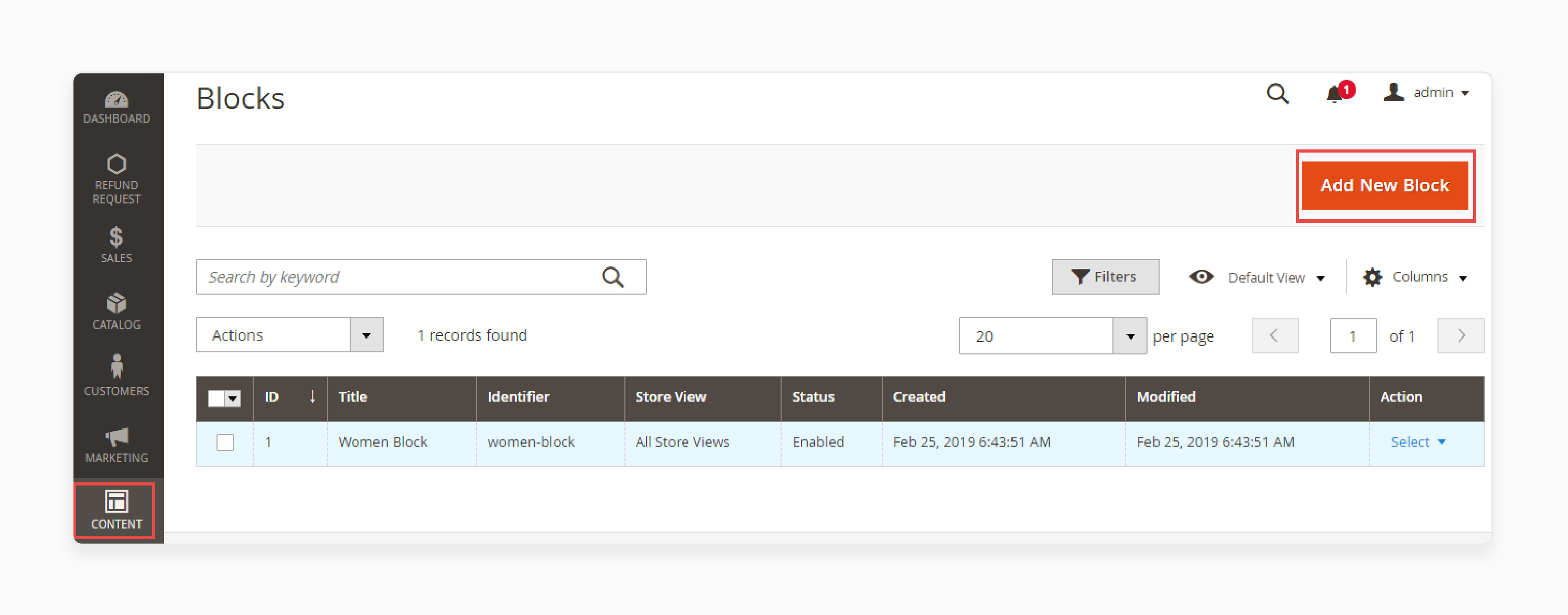
Navigate to Content > Elements > Blocks and click Add New Block.
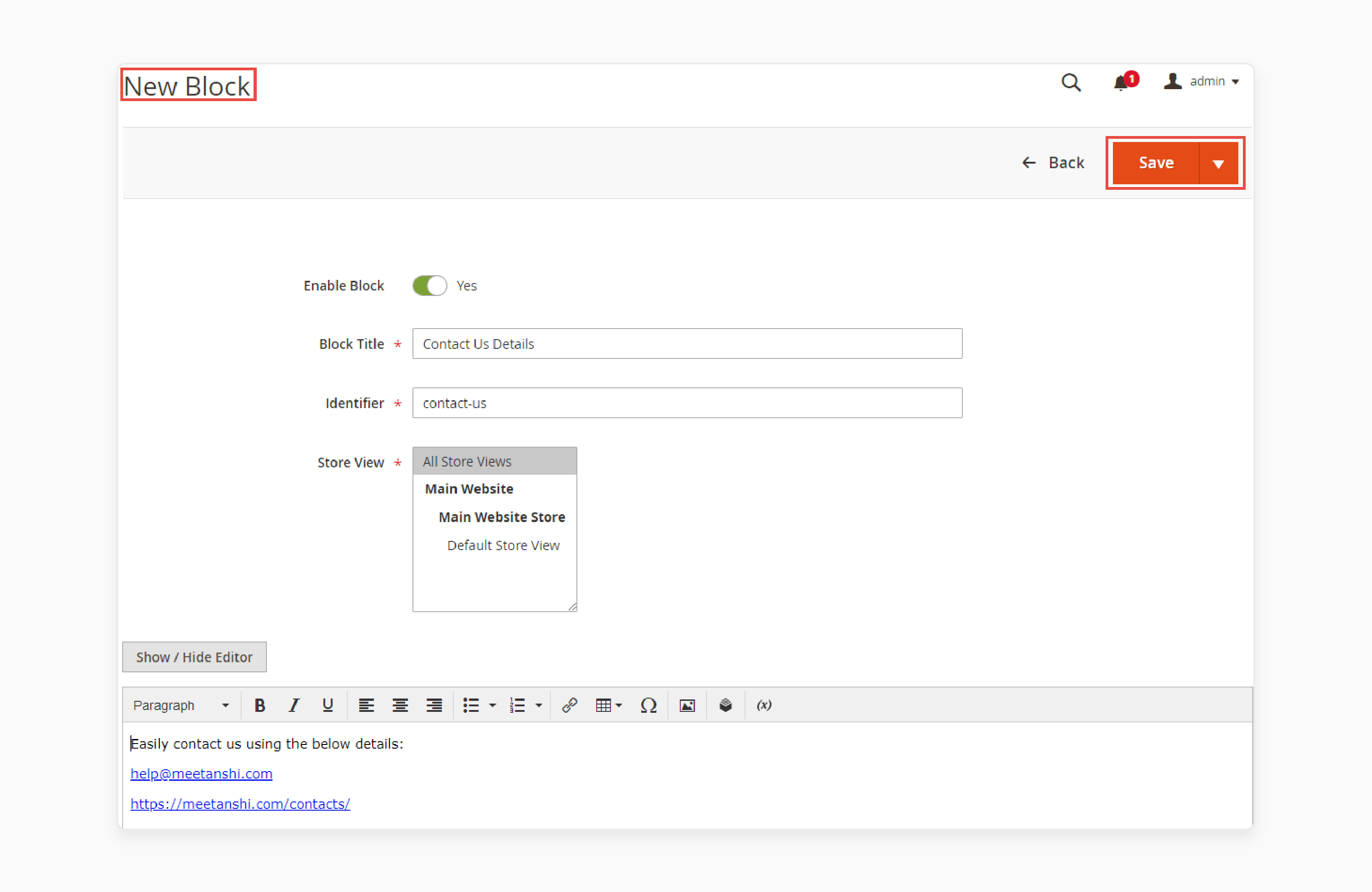
- Enable the block and enter a Block Title.
- Set a unique Identifier (lowercase, underscores instead of spaces).
- Select the Store View.
- Add content: text, links, images, tables, or HTML.
- Click Save.
Blocks are powerful for content you repeat across pages: promotional banners, footer information, trust badges, or shipping notices. Edit the block once and it updates everywhere.
How to Add Widgets
Widgets place dynamic content on your storefront without editing layout XML files. They can display CMS blocks, product lists, recently viewed items, or custom content on specific pages.
Navigate to Content > Elements > Widgets and click Add New Widget.
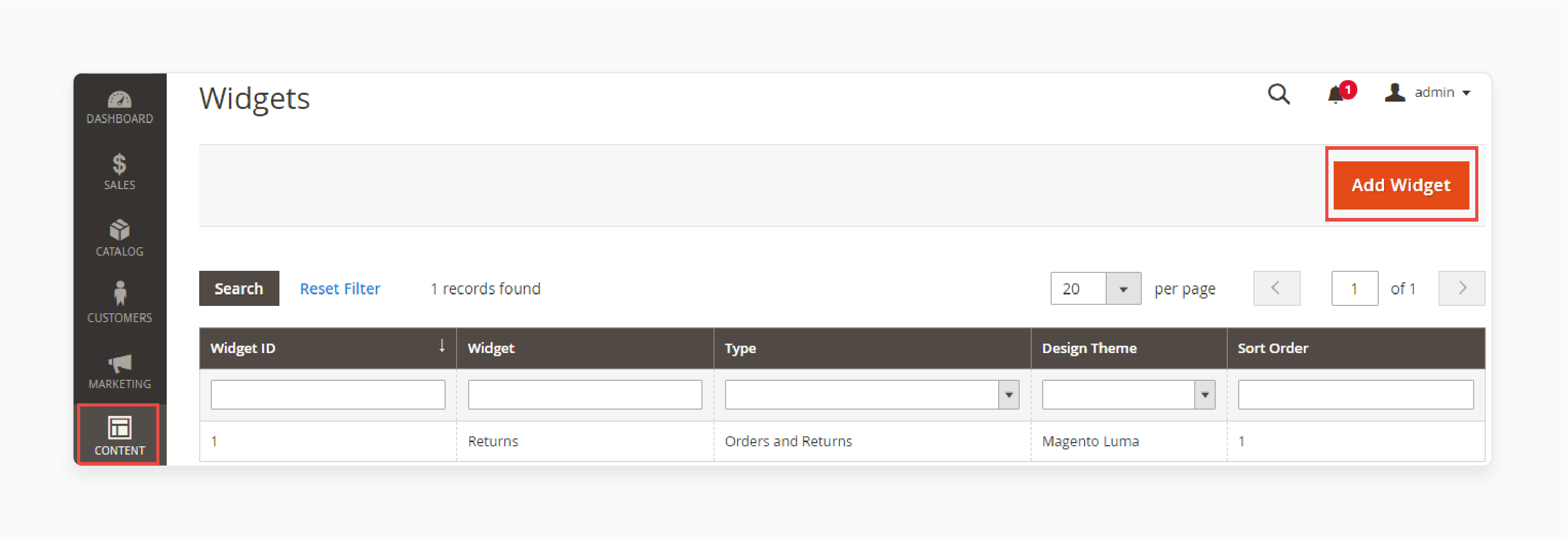
- Select the Widget Type and Design Theme.
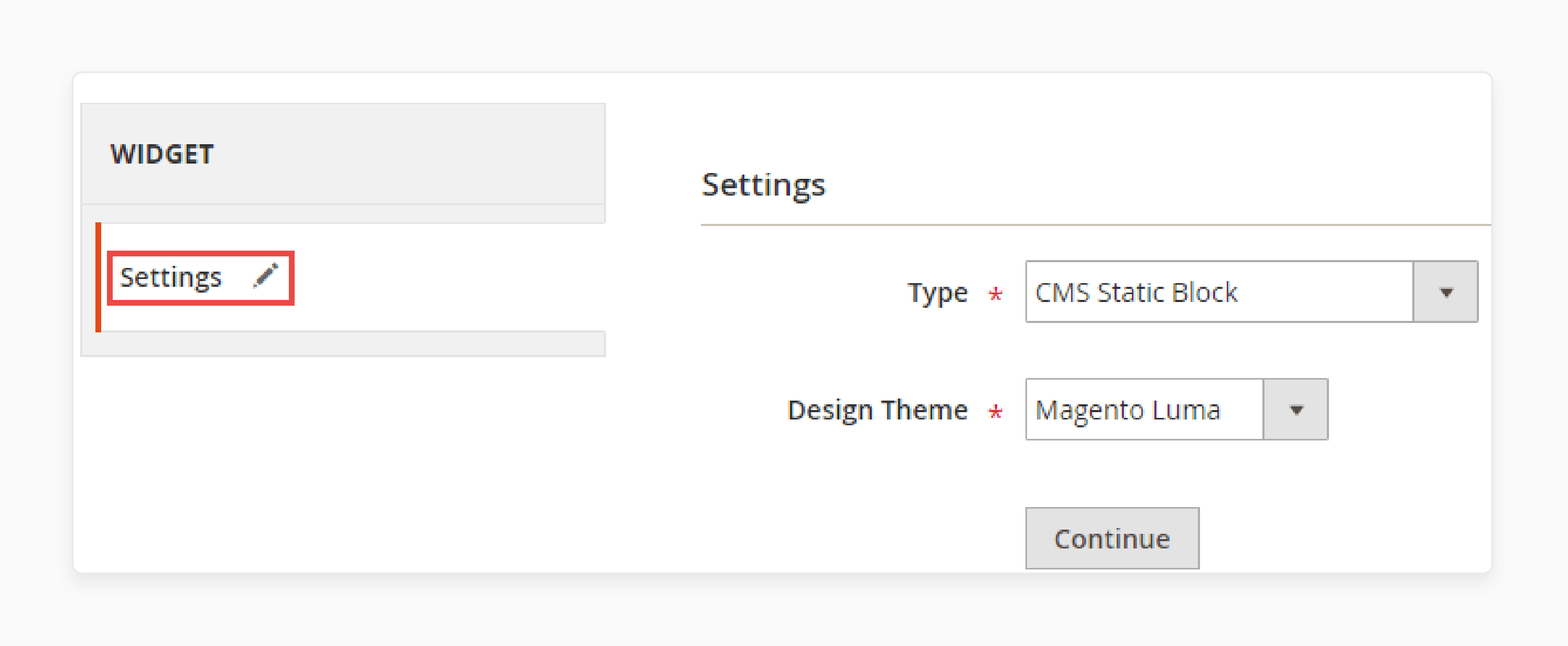
- Click Continue. Add a Widget Title and assign Store Views.
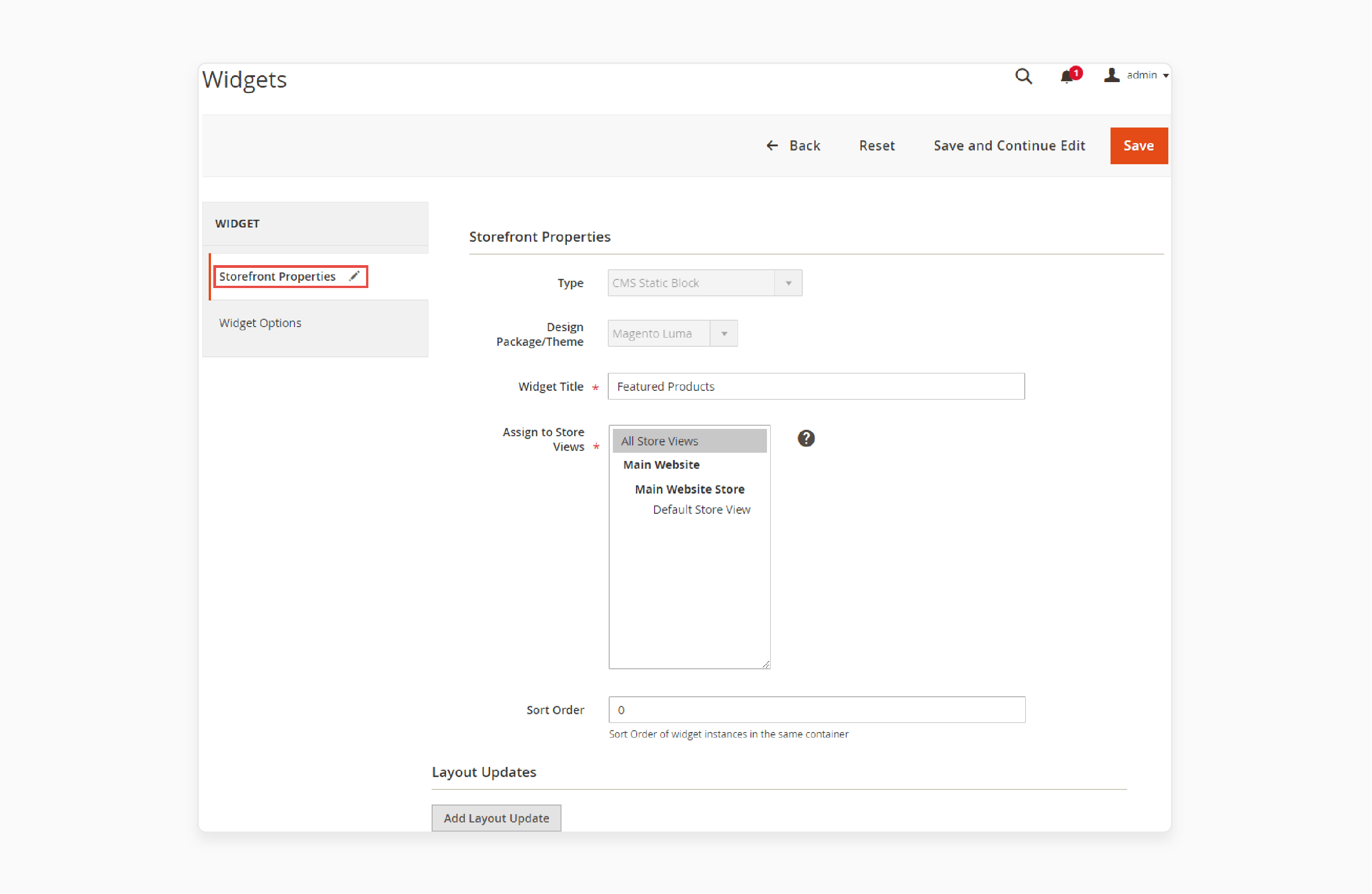
- Set the Sort Order (0 = top position).
- Click Add Layout Update to define where the widget appears. Choose the Display On location, Page, Container, and Template.
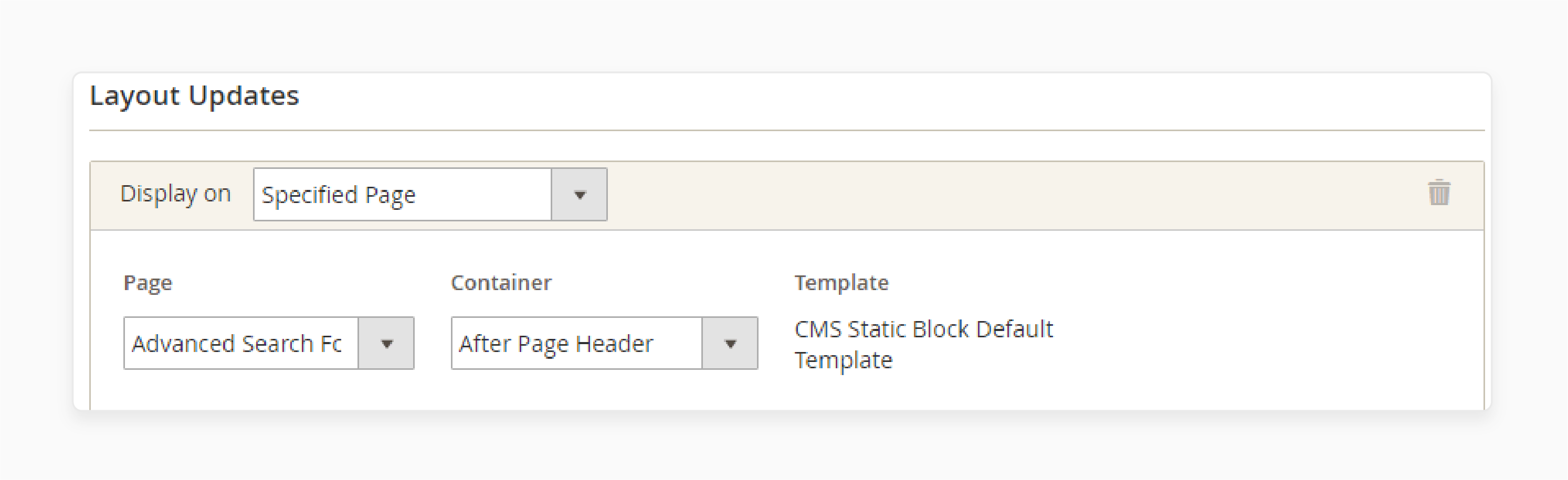
- Under Widget Options, select the block or content source.
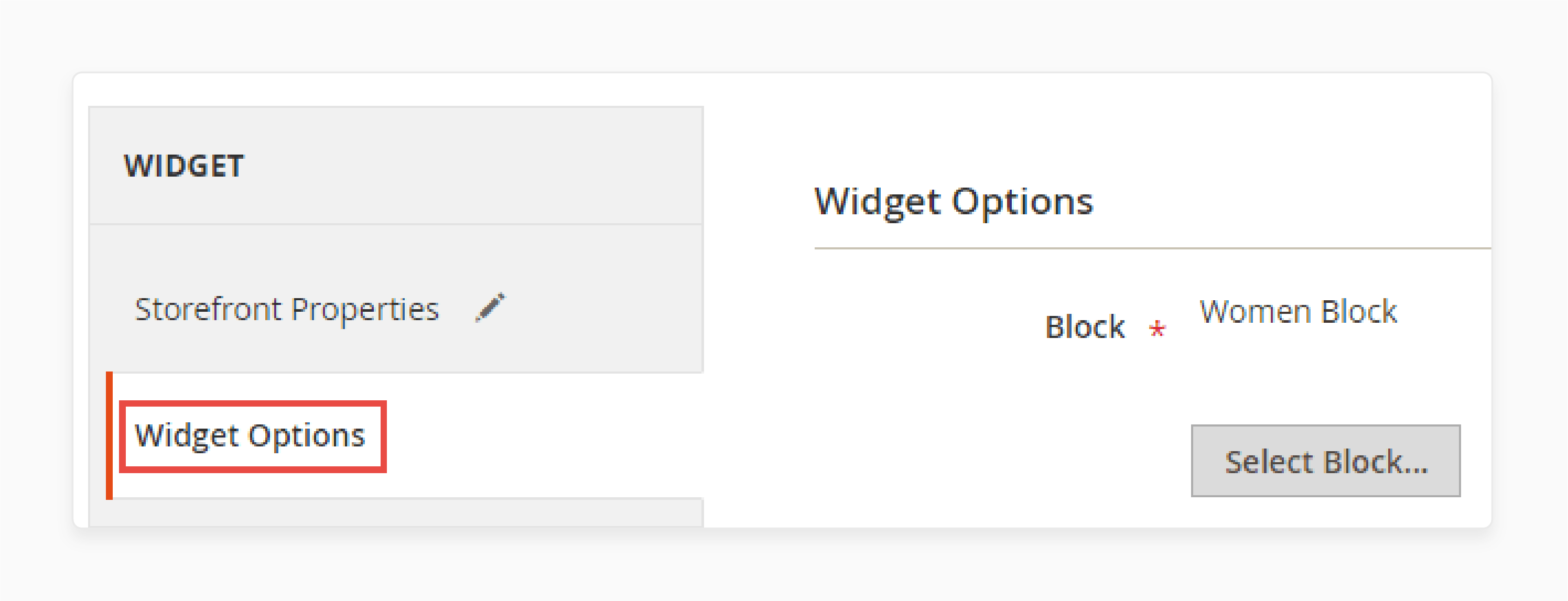
- Save and clear the cache.
How to Edit Existing CMS Pages
Navigate to Content > Pages to see the full list. Use the search bar or filters to locate specific pages.
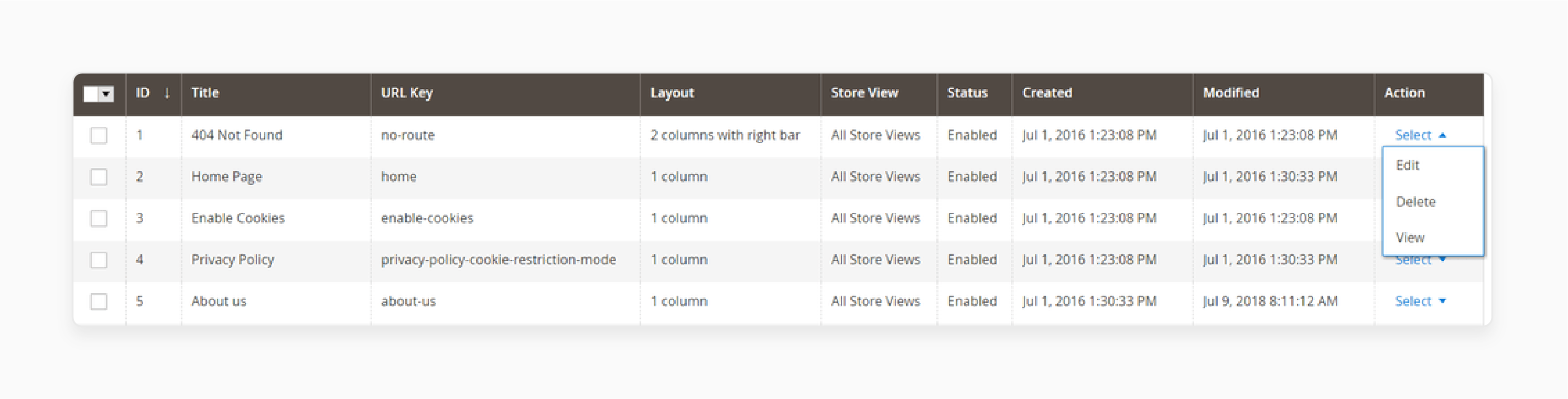
From the grid, you can quick-edit:
- Page Title
- URL Key
- Layout
- Status (enabled/disabled)
Click Select in the Action column for more options including full edit and duplicate.

For bulk operations, check multiple pages and use the dropdown to enable, disable, or delete them.
How to Set a Homepage
After creating the page you want as your homepage:
- Go to Stores > Settings > Configuration.
- Under General, select Web.
- Expand Default Pages.
- Set CMS Home Page to your new page.
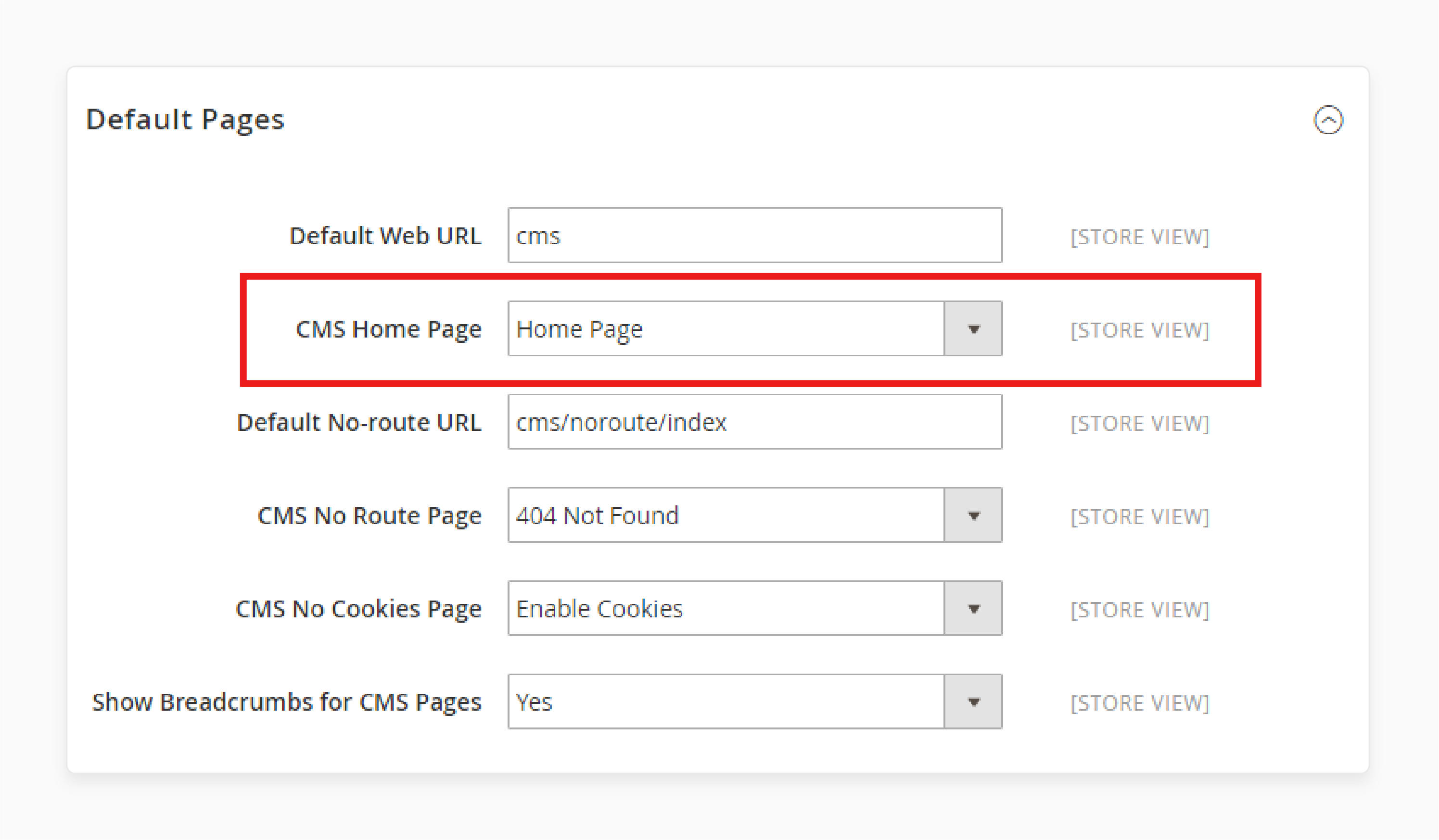
Other default page settings you can configure:
- CMS No Route Page — the 404 error page
- CMS No Cookies Page — shown when cookies are disabled
- Show Breadcrumbs for CMS Pages — enable or disable navigation breadcrumbs
Click Save Config and clear the cache.
CMS Page Performance Optimization
CMS pages load fast on a clean Magento install. Real-world stores with extensions, custom themes, and dynamic widgets need optimization.
| Area | Action | Impact |
|---|---|---|
| Caching | Enable Full Page Cache with Varnish. Set TTL to 86400 for static CMS pages. | Reduces server load, sub-second response times |
| Images | Compress images, convert to WebP, enable lazy loading | Smaller page size, faster initial render |
| JavaScript | Enable deferred loading and JS bundling in production mode | Faster content paint, fewer render-blocking resources |
| CSS | Minify and merge CSS files | Reduced HTTP requests |
| CDN | Use a CDN for static assets | Faster global delivery |
For stores where CMS pages serve as high-traffic landing pages, the hosting infrastructure matters as much as the code. Auto-scaling, Redis caching, and Varnish configuration require server-level setup. Managed Magento hosting handles this so your team can focus on content staging and scheduled updates.
Troubleshooting Common CMS Issues
Content won't save: Check mod_security logs. Aggressive firewall rules block content that contains HTML or JavaScript. Adjust the rules or whitelist the admin URL.
Widget content not refreshing: Clear the full page cache after every widget change. Verify the widget configuration and product visibility settings if displaying catalog content.
Pages loading slow: Switch to production mode (bin/magento deploy:mode:set production). Enable Varnish caching. Check for extensions that inject heavy JavaScript into CMS pages.
Layout or formatting broken: Review any custom XML in the layout update field. Check theme compatibility. Verify block positioning in your layout files.
404 on new CMS page: Confirm the page status is set to Enabled. Verify the URL key contains no spaces or special characters. Re-index if needed: bin/magento indexer:reindex.
FAQ
What is the difference between a CMS page and a CMS block?
A CMS page has its own URL and displays as a standalone page on the storefront. A CMS block is a content component without its own URL. Blocks get placed inside pages, categories, or widget positions.
How do I display a CMS block on a category page?
Go to Catalog > Categories, select the category, scroll to Content, and assign the block. You can also use a widget to place the block on category pages through Content > Widgets.
Can I schedule CMS page changes?
Yes. Use the Custom Design Update section to set start and end dates for layout or theme changes. For full content scheduling, Adobe Commerce (not Open Source) includes Content Staging that lets you create and schedule content updates.
Why does my CMS page show a blank white page?
This often indicates a PHP error. Check var/log/exception.log and var/log/system.log. Common causes include invalid XML in the layout update field, a missing template file, or a syntax error in raw HTML content.
How do I create a CMS page programmatically?
Use the Magento\Cms\Api\PageRepositoryInterface or the REST API endpoint POST /rest/V1/cmsPage. Both methods let you create, update, and delete CMS pages through code, useful for migration scripts or automated deployments.
How many CMS pages can Magento handle?
There is no hard limit. Stores with thousands of CMS pages run without issues when caching is configured. Performance depends on server resources and database optimization, not the page count.
Do CMS pages affect SEO?
Yes. Each CMS page has its own URL, meta title, meta description, and heading structure. Search engines index them like any other page. Well-optimized CMS pages (About Us, service descriptions, resource hubs) strengthen your site's topical authority.
How do I restrict CMS page access to specific customer groups?
This requires a custom module or extension. Out of the box, Magento CMS pages are visible to all visitors. Adobe Commerce B2B includes the Access Denied page for company user permission restrictions.
Summary
Magento 2 CMS pages give you full control over non-catalog content. Create pages, blocks, and widgets through the admin panel. Use Page Builder for visual editing. Configure SEO fields for search visibility. Set custom layouts and scheduled design changes for campaigns.
The performance of your CMS pages depends on your caching setup and server infrastructure. For stores where landing pages and content drive conversions, reliable Magento cloud hosting ensures every page loads fast under any traffic load.
