

Magento 2 Customer Tax Class: Types, Setup, and Configuration
[Updated: March 16, 2026]
Tax misconfiguration costs online stores real money. One wrong customer tax class assignment and your checkout charges the wrong rate to every buyer in that group.
This guide covers Magento 2 customer tax classes from the ground up: what they are, the different types, how to create and assign them, and how they interact with tax rules and zones for accurate calculations.
Key Takeaways
-
Magento 2 uses three tax class categories: customer, product, and shipping. Each plays a distinct role in tax calculations at checkout.
-
The default customer tax class is Retail Customer. You can create custom classes for wholesale buyers, tax-exempt organizations, and international customers.
-
Tax rules combine customer tax classes with product tax classes and tax rates to calculate the correct amount at checkout.
-
Cross-border and VAT scenarios require separate tax classes and rules per region to stay compliant.
-
Third-party tools like Avalara and TaxJar automate rate lookups and nexus management for stores selling across multiple jurisdictions.
What is a Customer Tax Class in Magento 2?
Magento 2 customer tax class = a classification assigned to customer groups that determines how taxes apply at checkout. The system matches the customer's tax class with the product's tax class and a geographic tax rate to calculate the final amount.
Use it for: Multi-region stores, B2B with tax exemptions, international sellers with VAT obligations.
Not needed for: Single-rate stores selling one product type to one customer type in one jurisdiction.
Magento 2 supports three distinct tax class categories:
| Category | What It Classifies | Example |
|---|---|---|
| Customer Tax Class | Buyer groups (retail, wholesale, exempt) | "Retail Customer", "Wholesale", "Non-Profit" |
| Product Tax Class | Goods and services | "Taxable Goods", "Digital Products", "Gift Options" |
| Shipping Tax Class | Delivery fees | Taxable or non-taxable shipping per region |
The customer tax class is one piece of a three-part formula:
Customer Tax Class + Product Tax Class + Tax Rate = Tax Rule
When a buyer reaches checkout, Magento checks their customer group, finds the assigned tax class, matches it against the product tax classes in the cart, and applies the correct rate based on the shipping (or billing) address. For the full reference, see the official Adobe Commerce tax class documentation.
Types of Customer Tax Classes
Magento 2 ships with one default customer tax class: Retail Customer. Store owners create additional classes based on business needs. Here are the most common types.
1. Retail Customer (Default)
The standard tax class assigned to individual consumers. These buyers pay the full applicable tax rate based on their location.
Every new customer account defaults to this class unless you assign a different one at the customer group level. For most B2C stores, this single class handles all tax scenarios.
2. Wholesale Customer
Designed for B2B buyers purchasing in bulk. Wholesale customers often qualify for reduced tax rates or exemptions depending on the jurisdiction.
Create this class when your store serves both individual consumers and business accounts. Assign it to a dedicated "Wholesale" customer group so the tax class setup applies the correct rates at checkout.
3. Tax-Exempt Customer
Used for organizations that do not pay sales tax:
- Non-profit organizations
- Government agencies
- Resellers with valid tax exemption certificates
Assign this class to exempt customer groups. Magento skips tax calculation for these buyers at checkout. Keep records of exemption certificates, as tax authorities audit these regularly.
4. International Customer
For stores selling across borders, create separate tax classes for international buyers. Different countries have different VAT rates, and some cross-border transactions qualify for zero-rate treatment.
A UK store selling to EU customers, for example, needs distinct tax classes for domestic (20% VAT) and EU buyers where VAT configuration varies by destination country.
5. Custom Tax Classes
Magento lets you create as many custom classes as your business requires. Common examples:
- Employee discount group with modified tax handling
- VIP members with region-specific rates
- Customers from tax-free zones (e.g., certain US states with no sales tax)
How Customer Tax Classes Work with Tax Rules
Tax classes alone do not apply taxes. They work through tax rules that combine three elements:
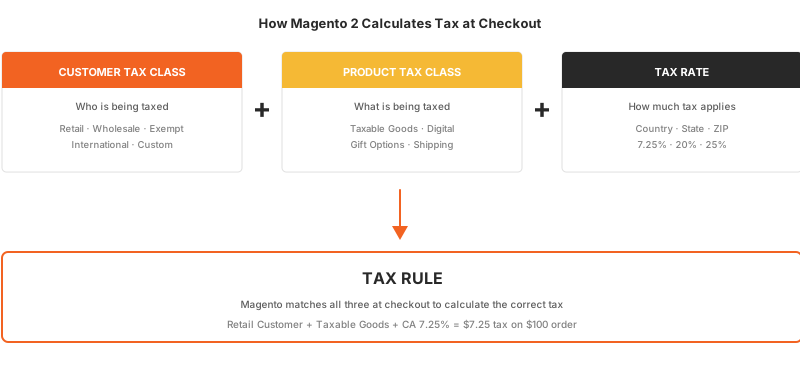
The Tax Rule Structure
| Component | Role | Example |
|---|---|---|
| Customer Tax Class | Who is being taxed | Retail Customer |
| Product Tax Class | What is being taxed | Taxable Goods |
| Tax Rate | How much tax applies | California 7.25% |
When a retail customer in California buys a taxable product, Magento matches all three components and applies 7.25%.
Priority and Sort Order
Tax rules support priority levels. Rules at the same priority level get their rates added together. Rules at different priority levels get their rates compounded.
Example with California's multi-tier structure:
- State tax: 6.00% (Priority 0)
- Local tax: 1.25% (Priority 0)
- Result: 7.25% (added, not compounded)
If you set local tax to Priority 1 instead, Magento calculates 6.00% first, then applies 1.25% on top of that total. This distinction matters for jurisdictions with compound tax structures.
Tax Calculation Methods
Navigate to Stores > Configuration > Sales > Tax > Calculation Settings to choose how Magento calculates tax:
| Method | How It Works | Best For |
|---|---|---|
| Unit Price | Tax calculated per item, then multiplied by quantity | Simple catalogs |
| Row Total | Tax calculated on line total (price × quantity) | Most stores |
| Total | Tax calculated on entire order subtotal | Stores wanting one tax line |
The calculation method also determines rounding behavior. Row Total minimizes rounding discrepancies on multi-item orders.
How to Create and Assign Customer Tax Classes
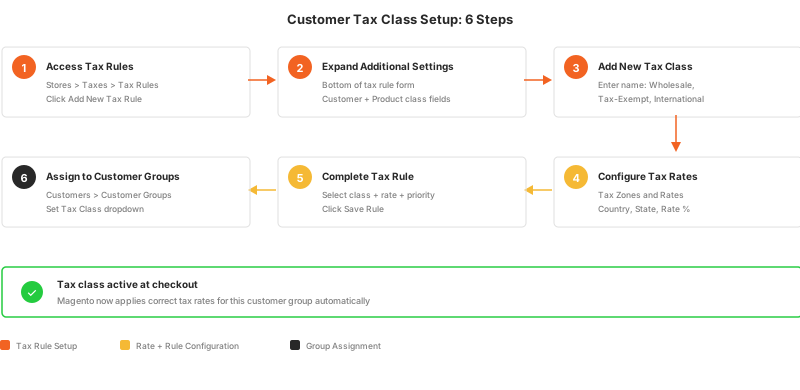
Step 1: Access Tax Rules
Log in to your Magento admin panel. Navigate to Stores > Taxes > Tax Rules. Click Add New Tax Rule.
Step 2: Expand Additional Settings
Locate the Additional Settings section at the bottom of the tax rule form. Click to expand it. You will see Customer Tax Class and Product Tax Class fields.
Step 3: Add a New Customer Tax Class
Under Customer Tax Class, click Add New Tax Class. Enter the name (e.g., "Wholesale" or "Tax-Exempt"). Check the confirmation box to save the new class.
Step 4: Configure Tax Zones and Rates
Before saving the rule, set up the geographic rates. Go to Stores > Taxes > Tax Zones and Rates. Click Add New Tax Rate and fill in:
- Tax Identifier: A descriptive name (e.g., "US-CA-7.25")
- Country and State: The jurisdiction
- Rate Percent: The tax percentage
- Zip/Post Code Range: Optional, for sub-state precision
Step 5: Complete the Tax Rule
Return to your tax rule. Select:
- The customer tax class (your new class or existing ones)
- The product tax class
- The tax rate you created
Set Priority and Sort Order as needed. Click Save Rule.
Step 6: Assign to Customer Groups
Navigate to Customers > Customer Groups. Edit the relevant group and set its Tax Class dropdown to your new customer tax class.
Configuring Shipping Tax
Shipping tax is a separate configuration that many store owners miss. Whether delivery charges are taxable depends on your jurisdiction.
Set Up Shipping Tax Class
- Navigate to Stores > Configuration > Sales > Tax > Tax Classes
- Set Tax Class for Shipping to the appropriate product tax class
- Create a tax rule that includes this shipping tax class
When Shipping Is Taxable
| Jurisdiction | Shipping Taxable? |
|---|---|
| California, USA | Yes, if product is taxable |
| Oregon, USA | No state sales tax |
| EU (VAT) | Yes, at the product's VAT rate |
| UK | Yes, standard 20% VAT applies |
Always check local regulations. Some states tax shipping only when the product itself is taxable. Others exempt delivery charges from sales tax entirely.
Cross-Border Trade and VAT Configuration
Stores selling across international borders need careful tax class configuration to handle different VAT rates.
Enable Cross-Border Trade
Navigate to Stores > Configuration > Sales > Tax > Calculation Settings. Set Enable Cross Border Trade to Yes.
With this setting enabled, Magento adjusts the product price to maintain a consistent display price for all customers, regardless of their tax rate. The store absorbs any difference between domestic and foreign VAT rates.
Example: A UK store sells a product at £120 (including 20% VAT). A Croatian customer with 25% VAT still sees £120. The store absorbs the 5% difference rather than showing the customer a different price.
EU VAT Setup
For EU sellers, create separate customer tax classes for each VAT scenario:
- Domestic customers: Standard domestic VAT rate
- EU B2C customers: Destination country VAT rate
- EU B2B customers (with valid VAT ID): Reverse charge (0%)
- Non-EU customers: Zero-rated export
Each scenario requires its own tax rule linking the customer tax class to the appropriate rate. For stores selling in multiple EU countries, this means creating rates for each destination country where you have EU tax obligations.
Tax Display Settings
How taxes appear to customers affects both compliance and conversion rates. Navigate to Stores > Configuration > Sales > Tax to configure display settings across three areas:
Catalog Prices
| Setting | Options |
|---|---|
| Display Product Prices | Excluding Tax / Including Tax / Both |
| Display Shipping Prices | Excluding Tax / Including Tax / Both |
B2C stores in the EU and UK: Display prices including tax (legal requirement in many jurisdictions).
B2B stores and US retailers: Display prices excluding tax (industry standard).
Shopping Cart Display
Configure how tax appears in the cart summary:
- Display Prices: Including, excluding, or both
- Display Subtotal: Including, excluding, or both
- Display Shipping Amount: Including, excluding, or both
- Include Tax in Grand Total: Yes/No
- Display Full Tax Summary: Shows breakdown by tax rule
Order, Invoice, and Credit Memo
Match your cart display settings for consistency across order confirmation emails, invoices, and credit memos. Mismatched display settings between cart and invoice create customer confusion and support tickets.
Third-Party Tax Automation
Manual tax configuration works for stores selling in a few jurisdictions. Stores with complex multi-state or international obligations benefit from automated tax calculation services.
Avalara AvaTax
Calculates tax rates in real time based on the buyer's exact address. Handles over 12,000 US tax jurisdictions automatically. Integrates with Magento 2 through a dedicated extension.
Best for: US stores selling across multiple states with nexus obligations.
TaxJar
Provides automated sales tax calculation, reporting, and filing. TaxJar tracks where you have nexus and applies the correct rates without manual zone and rate setup.
Best for: Growing stores that need both calculation and filing automation.
When to Use Automation vs. Native Configuration
| Scenario | Recommendation |
|---|---|
| Single state, one tax rate | Native Magento configuration |
| 2-5 states with simple rates | Native configuration with manual rates |
| 6+ states or frequent rate changes | Automated service (Avalara/TaxJar) |
| International + US sales | Automated service |
| EU VAT with multiple countries | Native + VAT extension or automated service |
Best Practices for Tax Class Management
1. Test Every Tax Rule Before Going Live
Place test orders with different customer profiles and shipping addresses. Verify that tax amounts appear correct in the cart, on the order confirmation, and on the invoice. A misconfigured tax rule can overcharge or undercharge thousands of orders before anyone notices.
2. Keep Tax Classes Minimal
Create only the tax classes you need. Every additional class increases the matrix of possible tax rules. Three customer tax classes with five product tax classes and ten rates already produce 150 potential rule combinations.
3. Audit Tax Configuration After Every Magento Update
Magento 2.4.8 (the current release as of March 2026) introduced stricter database foreign key validation with MySQL 8.4. After upgrades, verify that your tax rules and rates still function as expected. See the Adobe Commerce 2.4.8 release notes for details on MySQL 8.4 compatibility changes.
4. Document Your Tax Logic
Record which customer groups map to which tax classes, and which rules apply to each combination. When tax laws change or new team members join, this documentation prevents configuration drift.
5. Monitor Tax Law Changes
US sales tax laws change after every legislative session. EU VAT thresholds shift as member states update regulations. Set a quarterly review to check rates against current law, or use an automated service that updates rates for you.
6. Use Tax Reports for Compliance
Navigate to Reports > Sales > Tax to view collected tax amounts. Export this data for your tax filings. Reconcile reported amounts against your payment processor records before each filing deadline.
Difference Between Product and Customer Tax Classes
| Criteria | Product Tax Class | Customer Tax Class |
|---|---|---|
| Purpose | Classifies what is sold (taxable, exempt, reduced rate) | Classifies who is buying (retail, wholesale, exempt) |
| Assigned To | Individual products | Customer groups |
| Default | Taxable Goods | Retail Customer |
| Examples | Taxable Goods, Digital Products, Gift Options | Retail, Wholesale, Tax-Exempt, International |
| Checkout Impact | Determines if the product carries tax | Determines if the buyer pays tax |
| Customization | Create classes for special product types (eco-tax, digital) | Create classes for special buyer segments |
Both classes feed into tax rules. Neither works alone. A product marked "Taxable Goods" still pays zero tax if the customer belongs to a "Tax-Exempt" class in a matching rule.
FAQ
What is the default customer tax class in Magento 2?
Retail Customer is the only default customer tax class. All new customer groups use it unless you assign a different class. You can create additional classes through Stores > Taxes > Tax Rules > Additional Settings.
How do I make a customer tax-exempt in Magento 2?
Create a "Tax-Exempt" customer tax class. Then create a tax rule with that class and a 0% tax rate. Assign the customer to a group linked to the Tax-Exempt class. Magento will skip tax at checkout for those customers.
Can I have different tax classes for different countries?
Yes. Create separate customer tax classes for each country or region (e.g., "EU Customer", "UK Customer", "US Customer"). Then create tax rules that match each class to the correct regional rates.
What happens if no tax rule matches a customer?
Magento applies zero tax. If a customer's tax class and product tax class combination has no matching tax rule, the checkout proceeds without adding tax. This makes testing critical before going live.
How do I configure VAT for EU customers in Magento 2?
Enable Cross Border Trade in tax calculation settings. Create customer tax classes for domestic, EU B2C, EU B2B (reverse charge), and non-EU buyers. Set up tax rates for each EU country and link them through tax rules.
What is the difference between tax class and tax rule?
A tax class is a label (customer type or product type). A tax rule is the logic that connects tax classes to tax rates. Tax classes categorize, tax rules calculate.
Can I assign multiple tax classes to one customer group?
No. Each customer group has one tax class. If you need different tax treatment for customers within the same group, split them into separate customer groups with distinct tax class assignments.
How do I add a shipping tax class in Magento 2?
Navigate to Stores > Configuration > Sales > Tax > Tax Classes. Set the Tax Class for Shipping dropdown to a product tax class. Then include that class in a tax rule with the appropriate rate.
Does Magento 2 support automatic tax rate updates?
Not natively. Magento's built-in tax system requires manual rate updates. For automatic updates, integrate a third-party service like Avalara or TaxJar that pulls current rates from tax authority databases.
How do I troubleshoot incorrect tax calculations?
Check three things: the customer group's tax class assignment, the product's tax class, and the tax rule linking them. Then verify the tax rate matches the customer's shipping address. Navigate to Reports > Sales > Tax to compare expected vs. collected amounts.
Accurate tax configuration needs a server that handles complex calculations without slowing down checkout. High-traffic stores with multiple tax rules and customer groups add processing load to every order. Managed Magento hosting ensures your store processes tax calculations fast, even during peak traffic.
