

Magento 2 Filters Not Showing: 9 Causes and How to Fix Each One
[Updated: March 16, 2026]
Magento 2 filters vanish from category pages without warning. Customers lose the ability to narrow product results, conversion rates drop, and support tickets pile up. The root cause ranges from a single misconfigured attribute to a broken search engine connection.
This guide covers the 9 most common causes of missing Magento 2 filters and provides exact steps to fix each one.
Key Takeaways
- Anchor categories must be enabled for filters to appear on category pages
- Product attributes need
Use in Layered Navigationset toFilterable (with results) - OpenSearch or Elasticsearch misconfiguration is a leading cause in Magento 2.4.x
- CLI reindexing and cache flushing resolve most display issues after configuration changes
- Out-of-stock product settings and product visibility affect which filters render
What Causes Magento 2 Filters to Disappear?
Magento 2 filters = product attribute options (color, size, price) displayed in layered navigation on category pages. When filters stop showing, the cause is a configuration, indexing, or search engine problem.
Common causes: disabled anchor categories, unfilterable attributes, stale indexes, OpenSearch misconfiguration
Quick fix: check anchor setting, verify attribute config, run
php bin/magento indexer:reindex && php bin/magento cache:flush
Filters in Magento 2 rely on three systems working together: product attributes marked as filterable, category anchor settings that enable layered navigation, and a search engine (OpenSearch or Elasticsearch) that indexes the attribute data. A failure in any one of these systems causes filters to disappear.
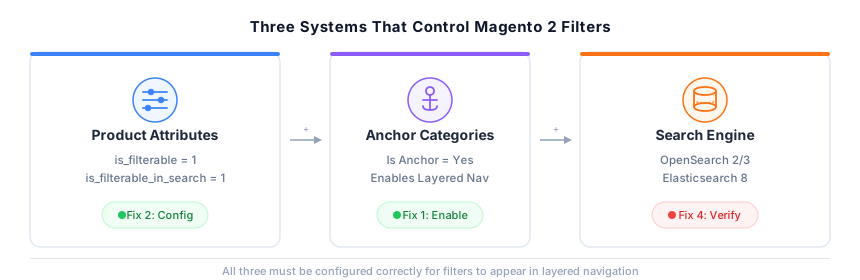
Fix 1: Enable Anchor Categories
The most overlooked cause of missing filters is a disabled anchor setting on the category. Magento 2 requires categories to be marked as "anchor" before layered navigation and filters appear.
How to check and fix:
- Go to Catalog > Categories in the Admin Panel
- Select the affected category
- Open the Display Settings tab
- Set Is Anchor to Yes
- Save the category
Without the anchor setting, Magento will not render any filters on that category page. This applies to all subcategories as well. If a parent category has anchor disabled, child categories inherit the restriction.
Fix 2: Configure Product Attributes for Filtering
Each attribute you want as a filter must have specific storefront properties configured.
Required settings:
- Go to Stores > Attributes > Product
- Select the attribute (e.g., Color, Size)
- Under Storefront Properties, set:
-
Use in Layered Navigation →
Filterable (with results)orFilterable (no results) -
Use in Search Results Layered Navigation →
Yes
-
Use in Layered Navigation →
- Save the attribute
The database column is_filterable controls category page filters. The column is_filterable_in_search controls search results page filters. Both must be set for full filter coverage.
Attribute types that support filtering: Dropdown, Multiple Select, Price, and Visual Swatch. Text and Textarea attributes cannot be used as filters.
For the full configuration reference including price tax matching, see the Adobe layered navigation documentation.
Fix 3: Assign Attribute Values to Products
Filters only appear when products in a category have values assigned for that attribute. A "Color" filter will not show if no products in the category have a color value set.
Diagnostic steps:
- Go to Catalog > Products
- Filter by the affected category
- Check that products have values assigned for the filter attribute
- For configurable products, verify that child simple products also have attribute values
Empty attribute values are a frequent cause after bulk product imports where attribute columns were skipped.
Fix 4: Fix OpenSearch or Elasticsearch Configuration
Magento 2.4.x requires a search engine for catalog and filter operations. Since Magento 2.4.8, OpenSearch is the recommended engine. Elasticsearch 8 still functions but displays a "Deprecated" label in the Admin Panel and is no longer supported by Adobe.
Verify the connection:
php bin/magento config:show catalog/search/engine
This returns the active search engine. For Magento 2.4.8, the supported engine is OpenSearch 2.x or 3.x. See the Adobe search engine configuration guide for setup details.
Test the search engine connection:
curl -X GET "localhost:9200/_cluster/health?pretty"
If the cluster status returns "red" or the connection fails, the search engine is down or misconfigured.
Common fixes:
- Verify the host, port, and index prefix in Stores > Configuration > Catalog > Catalog > Catalog Search
- Restart the OpenSearch service:
sudo systemctl restart opensearch - Reindex the catalog search:
php bin/magento indexer:reindex catalogsearch_fulltext
Search engine problems affect both product search results and layered navigation filters.
Fix 5: Reindex Magento Data
Stale indexes prevent updated attribute data from reaching the frontend. After any configuration change, a full reindex is required.
Reindex via CLI (recommended):
php bin/magento indexer:reindex
Reindex specific indexes:
php bin/magento indexer:reindex catalog_category_product catalog_product_attribute catalogsearch_fulltext
The three indexes above are responsible for category assignments, attribute data, and search engine sync. Run these after adding or modifying product attributes.
Check index status:
php bin/magento indexer:status
Any index showing "Reindex Required" or "Processing" needs attention. You can also check via System > Index Management in the Admin Panel.
Fix 6: Clear Cache
Magento caches filter data. After attribute or category changes, stale cache prevents updated filters from appearing.
Flush all caches via CLI:
php bin/magento cache:flush
Or clear specific cache types:
php bin/magento cache:clean full_page block_html
For production stores on managed Magento hosting, Varnish and Redis caches may also need clearing. Check with your hosting provider for Varnish purge commands.
Fix 7: Check Out-of-Stock Product Display
By default, Magento hides out-of-stock products from category pages. If all products matching a filter option are out of stock, that filter option disappears.
To show out-of-stock products in filters:
- Go to Stores > Configuration > Catalog > Inventory
- Set Display Out of Stock Products to Yes
- Save and flush the cache
This setting affects all categories. Enable it if you want customers to see filter options even when stock is unavailable.
Known issue: In Magento 2.4.5 and earlier, configurable products may appear in filtered results even when the specific variant (e.g., Size L) is out of stock. This was addressed in later patches.
Fix 8: Check Product Visibility Settings
Products with incorrect visibility settings will not appear in filters or category listings.
Required visibility setting: Catalog, Search
Products set to Not Visible Individually are hidden from category pages and layered navigation. This setting is correct for simple products used as variants of a configurable product, but standalone products must have full visibility.
Verify via Admin:
- Go to Catalog > Products
- Check the Visibility column
- Set standalone products to
Catalog, Search
Fix 9: Resolve Theme and Extension Conflicts
Custom themes and third-party extensions can override default layered navigation behavior.
Diagnostic approach:
- Switch to the default Luma theme to test if filters appear
- If filters work on Luma, the custom theme has a template or layout override breaking filters
- Disable third-party extensions one by one to isolate the conflict
- Check the browser console for JavaScript errors that may prevent filter rendering
Common extension conflicts:
- AJAX layered navigation extensions that modify filter rendering
- Custom catalog extensions that override the
catalog_category_view.xmllayout - SEO extensions that modify URL handling for filtered pages
For layered navigation configuration issues beyond filter visibility, see our detailed guide on layered navigation troubleshooting.
Price Filter Not Showing: Special Case
The price filter has its own configuration separate from regular attribute filters.
Configuration path: Stores > Configuration > Catalog > Catalog > Layered Navigation
| Setting | Options | Recommended |
|---|---|---|
| Display Product Count | Yes / No | Yes |
| Price Navigation Step Calculation | Automatic (equalize price ranges) / Automatic (equalize product counts) / Manual | Automatic (equalize price ranges) |
You can also set a per-category price step:
- Go to Catalog > Categories > select category
- Open Display Settings
- Set Layered Navigation Price Step value
If the price filter shows a single range covering all products, the price step calculation method needs adjustment. Switch between "equalize price ranges" and "equalize product counts" to find the best fit for your catalog.
Troubleshooting Checklist
Use this checklist when Magento 2 filters stop showing. Work through each step in order:
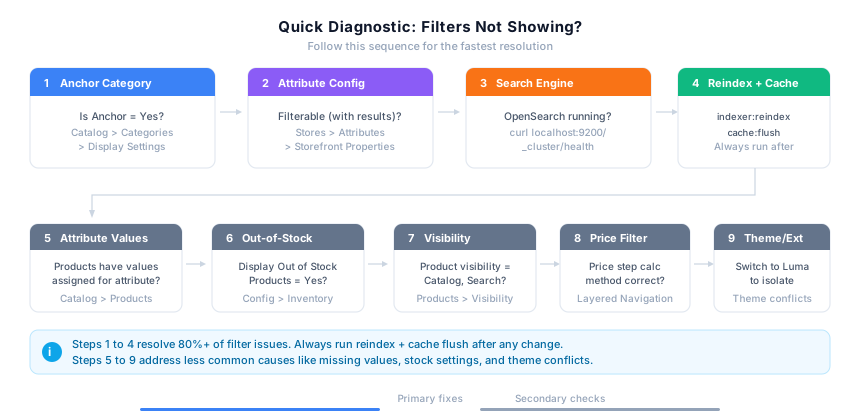
| Step | Check | CLI/Admin Path |
|---|---|---|
| 1 | Category is set to Anchor | Catalog > Categories > Display Settings |
| 2 | Attribute is filterable | Stores > Attributes > Product > Storefront Properties |
| 3 | Products have attribute values | Catalog > Products > check attribute columns |
| 4 | Search engine is running | curl localhost:9200/_cluster/health |
| 5 | Indexes are current | php bin/magento indexer:status |
| 6 | Cache is cleared | php bin/magento cache:flush |
| 7 | Out-of-stock display enabled | Stores > Configuration > Catalog > Inventory |
| 8 | Product visibility correct | Catalog > Products > Visibility column |
| 9 | No theme/extension conflicts | Switch to Luma, disable extensions |
FAQ
Why do filters show on some category pages but not others?
Each category has its own anchor setting. Filters only appear on categories where Is Anchor is set to Yes in Display Settings. Check each affected category individual.
How do I make filters appear on search results pages?
Set the attribute property Use in Search Results Layered Navigation to Yes under Stores > Attributes > Product > Storefront Properties. Then reindex with php bin/magento indexer:reindex.
Can I use custom attributes as filters?
Yes. Create a custom attribute with input type Dropdown, Multiple Select, or Visual Swatch. Set Use in Layered Navigation to Filterable (with results) and assign values to your products.
Why did filters disappear after upgrading Magento?
Magento 2.4.0 removed MySQL as a search engine and made Elasticsearch required. If the search engine was not configured during upgrade, filters and search results break. Verify the search engine connection and reindex.
How do I fix filters that show incorrect product counts?
Incorrect counts indicate stale index data. Run php bin/magento indexer:reindex followed by php bin/magento cache:flush. If counts remain wrong, check the search engine index integrity.
What Magento versions require a search engine?
Elasticsearch has been required since Magento 2.4.0, which removed MySQL search. OpenSearch support was added in 2.4.3-p2. Since 2.4.8, OpenSearch is the recommended engine and Elasticsearch is deprecated. The current stable release is Magento 2.4.8 (April 2025) with patch 2.4.8-p4 (March 2026).
How do I migrate to OpenSearch after upgrading to 2.4.8?
Install OpenSearch 2.x or 3.x on your server. In the Admin Panel, go to Stores > Configuration > Catalog > Catalog > Catalog Search and set the engine to OpenSearch. Then run php bin/magento indexer:reindex catalogsearch_fulltext followed by php bin/magento cache:flush. Filters and search results will use the new engine after reindexing completes.
How do I check if an attribute is filterable via the database?
Query the catalog_eav_attribute table: SELECT * FROM catalog_eav_attribute WHERE attribute_id = X. Check is_filterable (category page) and is_filterable_in_search (search results) columns. Value 1 means enabled.
Can I enable filters for simple products only?
Filters work with all product types that have the relevant attributes assigned. Simple, configurable, grouped, and bundle products all support filtering. The key is assigning attribute values to each product.
Summary
Missing Magento 2 filters trace back to nine root causes. Anchor categories and attribute configuration account for most cases. Search engine connectivity and stale indexes cause the rest.
Fix sequence for fastest resolution:
- Verify category anchor setting
- Check attribute filterable properties
- Confirm search engine health (OpenSearch recommended since 2.4.8)
- Reindex and flush cache
For production stores where filter downtime affects revenue, managed Magento hosting provides proactive monitoring that catches these issues before customers notice.
