

How to Set Up Stripe Payments in Magento 2
[Updated: March 12, 2026]
Payment processing can make or break a Magento store. Stripe handles billions in transactions each year and integrates direct with Adobe Commerce through its official connector.
This guide covers the complete Stripe setup for Magento 2, from installation to live payments with built-in fraud protection.
Key Takeaways
- The Stripe Connector for Adobe Commerce supports 100+ payment methods including cards, Apple Pay, Google Pay, and Buy Now Pay Later options.
- Installation requires one Composer command (
stripe/stripe-payments) followed by standard Magento setup commands. - Webhooks configure themselves since connector version 3.0.0. No manual setup needed.
- Standard US transaction fees run 2.9% + $0.30 per successful online card payment with no monthly fees.
- The Payment Element provides an embedded checkout form with dynamic payment method display based on customer location and device.
- Stripe Radar offers built-in fraud detection and risk scoring for every transaction at no extra cost.
What is Stripe for Magento 2?
Stripe for Magento 2 = A free, official payment connector that integrates Stripe's payment platform direct into Adobe Commerce stores. It supports cards, digital wallets, and alternative payment methods with built-in fraud protection.
Perfect for: Online stores processing domestic and international payments, businesses that want one integration for multiple payment methods, merchants who need PCI compliant payment processing.
Not ideal for: Stores operating in countries where Stripe is unavailable, businesses requiring payment gateway features outside Stripe's scope.
The Stripe Connector for Adobe Commerce is the official integration maintained by Stripe. It replaces manual payment form implementations with the Payment Element, an iFrame-based interface that handles card input, validation, and 3D Secure authentication.
The connector supports Adobe Commerce versions 2.3.7 through 2.4.x, including the latest 2.4.8 release. Magento 2.4.8 requires PHP 8.3 or 8.4 (PHP 8.1 is no longer supported). The Composer package name is stripe/stripe-payments with stripe/stripe-php as its core dependency. Check the latest connector releases on GitHub for current version details.
Stripe Pricing and Transaction Fees
Stripe charges per transaction with no monthly fees on the standard plan. Here are the current US rates:
| Transaction Type | Fee (US, 2026) |
|---|---|
| Online domestic card | 2.9% + $0.30 |
| In-person card | 2.7% + $0.05 |
| Manual card entry | 3.4% + $0.30 |
| International card surcharge | +1.5% |
| Currency conversion | +1% |
| ACH direct debit | 0.8%, capped at $5 |
| Disputes/chargebacks | $15 per dispute |
Fees may vary by region and transaction volume. High-volume merchants can negotiate custom rates.
A $100 domestic online transaction costs $3.20 in processing fees. International cards add 1.5% to that total.
Stripe deducts fees before depositing funds. Payouts arrive in your bank account within 2 business days for US merchants. No setup fees, no cancellation fees, and no hidden charges.
Supported Payment Methods
The Stripe Connector provides access to 100+ payment method options. The most relevant ones for Magento stores:
Cards: Visa, Mastercard, American Express, Discover, JCB, UnionPay, Diners Club.
Digital Wallets: Apple Pay, Google Pay, and Link (Stripe's own express checkout that stores payment details across all Stripe-powered stores).
Buy Now Pay Later: Klarna, Afterpay/Clearpay, and Affirm. Availability varies by country. Your store gets paid in full upfront while customers pay in installments.
Bank Payments: ACH direct debit, SEPA direct debit, and bank transfers for regions where card penetration is lower.
The Payment Element displays available methods based on the customer's location, device, and currency. Apple Pay shows for Safari and iOS users. Google Pay shows for Chrome users with saved cards. BNPL options appear based on order value and country.
Step 1: Install the Stripe Connector
Back up your files and database before installation.
Run this Composer command from your Magento root directory:
composer require stripe/stripe-payments
Enter your Adobe Commerce authentication credentials when prompted. Then run the setup commands:
php bin/magento setup:upgrade
php bin/magento cache:flush
php bin/magento cache:clean
For production environments, compile and deploy static files:
php bin/magento setup:di:compile
php bin/magento setup:static-content:deploy
The installation takes under 5 minutes on a well-configured server.
Step 2: Connect Your Stripe Account
-
In your Magento admin panel, go to Stores > Configuration > Sales > Payment Methods.
-
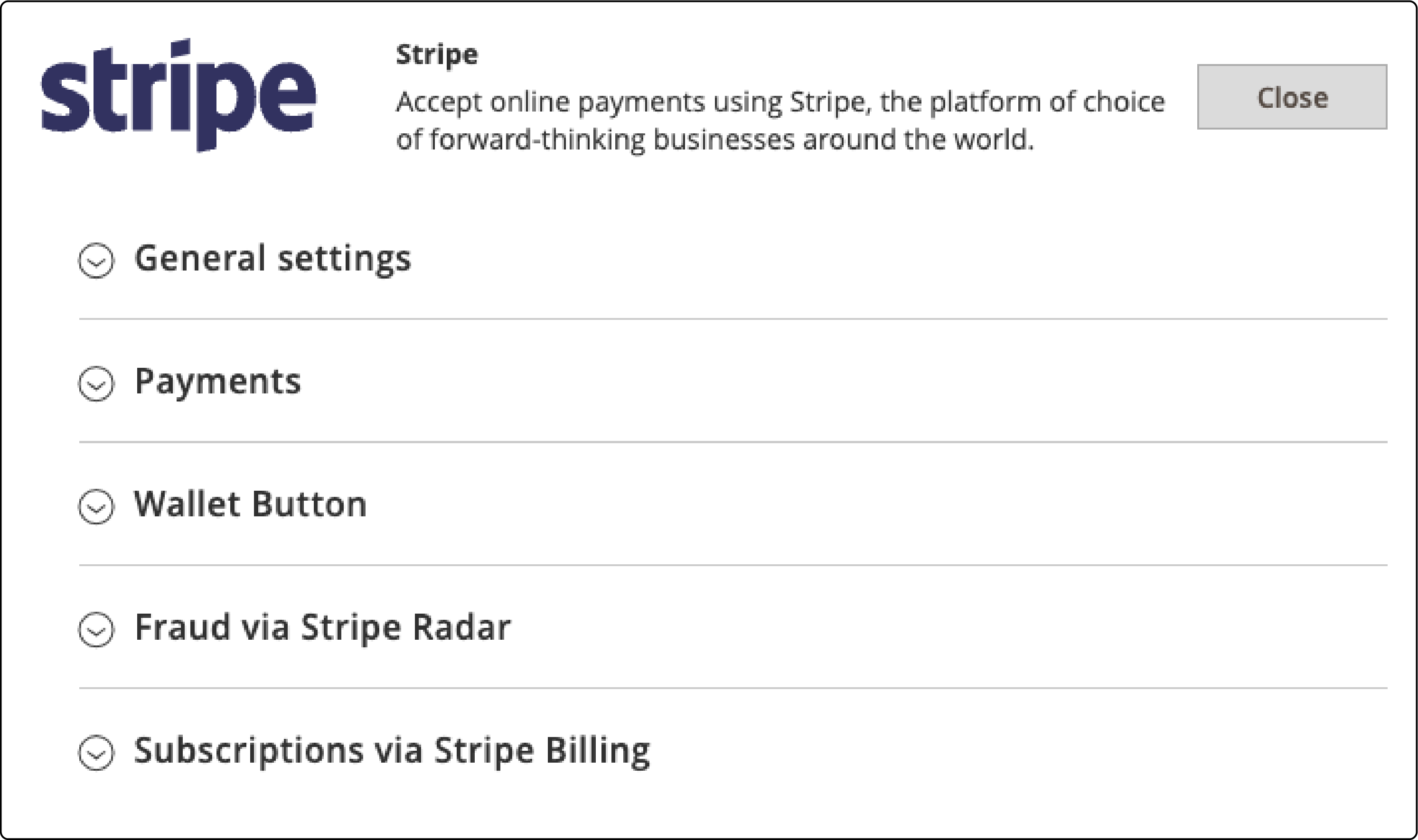
Find Stripe in the payment methods list and click Configure.
-
Install the Adobe Commerce app from the Stripe App Marketplace. This generates your API keys through OAuth 2.0 authentication.
-
Select your Stripe account and approve the required permissions.
-
Choose between Sandbox (test) or Live mode.
The connector stores your API keys after the OAuth flow completes. No need to copy keys from the Stripe Dashboard.
Note: Since January 2024, Stripe requires all plugins to use a Stripe App for authentication via OAuth 2.0 or a restricted API key.
Step 3: Configure Payment Settings
The Stripe configuration panel offers these core settings:
Payment Flow: Choose between embedded (Payment Element renders on your checkout page) or redirect (sends customer to Stripe's hosted checkout page).
Payment Action:
- Authorize and Capture charges the card at order placement (default for most stores).
- Authorize Only holds the amount until you capture it from the admin panel.
- Order creates an order without charging the card.
Form Layout: Select horizontal tabs or vertical accordion for the Payment Element display. Horizontal tabs work best for stores with 3 or fewer payment methods. Vertical accordion handles larger method lists.
Saved Cards: Let customers store payment methods for future purchases through Magento Vault. Returning customers can check out in one click.
Payment Receipts: Configure whether Stripe sends email receipts to customers after successful transactions.
High-Risk Orders: Enable Stripe Radar integration to evaluate risk scores on every transaction. High-risk orders get flagged for manual review.
Step 4: Enable Express Checkout
Express checkout buttons (Apple Pay, Google Pay, Link) appear above the standard checkout form. Enable them in the Stripe configuration:
-
Go to Stores > Configuration > Sales > Payment Methods > Stripe.
-
Find the Express Checkout section.
-
Enable the wallet buttons you want to display.
-
Configure button style and placement.
Apple Pay requires domain verification with Apple. The Stripe connector handles this verification during configuration.
Google Pay works without extra setup for merchants with valid SSL certificates.
Link is Stripe's express checkout. Customers save their payment details once and reuse them across all Stripe-powered stores, reducing cart abandonment for returning buyers.
Step 5: Test in Sandbox Mode
Switch to Sandbox mode in the Stripe configuration before accepting real payments.
Use these test card numbers from Stripe:
| Card Number | Scenario |
|---|---|
| 4242 4242 4242 4242 | Successful payment |
| 4000 0000 0000 3220 | 3D Secure authentication required |
| 4000 0000 0000 9995 | Declined card |
Enter any future expiration date and any 3-digit CVC.
Test checklist:
- Place a test order with a successful card number.
- Verify the order appears in both Magento and the Stripe Dashboard.
- Test a 3D Secure card to confirm the authentication popup works.
- Process a refund from the Magento admin panel (partial and full).
- Test Apple Pay and Google Pay if enabled.
Webhooks configure themselves since connector version 3.0.0. The module sets up webhook endpoints during installation, updates, and API key changes, then verifies signatures to ensure request legitimacy.
Step 6: Go Live
Once testing is complete:
- Switch from Sandbox to Live mode in the Stripe configuration.
- The connector uses your live API keys through the same OAuth connection.
- Place a small real order to verify production transactions work.
- Monitor the first few transactions in the Stripe Dashboard for any issues.
Before going live, review this checklist to confirm your store is production-ready.
Your payment setup now processes real transactions.
Stripe Fraud Detection with Radar
Stripe Radar is included in every Stripe account at no extra cost. It uses machine learning trained on data from millions of global businesses to evaluate transaction risk.
What Radar does:
- Evaluates a risk score for every transaction in real time.
- Blocks known fraudulent card numbers and suspicious IP addresses.
- Detects unusual spending patterns based on transaction history.
- Triggers 3D Secure authentication for high-risk transactions.
Radar for Fraud Teams is a paid add-on that costs $0.05 per screened transaction ($0.02 for merchants on standard Stripe processing). It adds custom rules based on transaction attributes, manual review queues for flagged orders, and advanced fraud analytics.
Configure Radar behavior in the Stripe Dashboard under Settings > Radar. The Magento connector integrates with Radar without extra configuration on your side.
For stores handling sensitive payment data, understanding PCI compliance in Magento is essential. The Stripe Payment Element handles card data through a secure iFrame, so your server never touches raw card numbers. This qualifies your store for PCI SAQ A, the simplest compliance level.
FAQ
What payment methods does Stripe support in Magento 2?
Stripe supports 100+ payment methods. For Magento stores, the most common are credit and debit cards (Visa, Mastercard, Amex, Discover), Apple Pay, Google Pay, Link, Klarna, Afterpay, ACH direct debit, and SEPA transfers. Available methods vary by country and currency.
How much does Stripe charge per transaction?
Standard US rates are 2.9% + $0.30 for online card payments. International cards add 1.5%. In-person payments cost 2.7% + $0.05. ACH debits cost 0.8% with a $5 cap. There are no monthly fees for the standard plan. High-volume merchants can negotiate custom rates.
Does Stripe work with Magento 2.4.8?
Yes. The Stripe Connector supports Adobe Commerce versions 2.3.7 through 2.4.x. This includes Magento 2.4.8 with PHP 8.3 and 8.4 support.
Do I need to configure webhooks for Stripe in Magento?
No. Since connector version 3.0.0, webhooks configure themselves during installation, updates, or API key changes. The module handles all webhook management and verifies signatures for security.
Can I test Stripe payments without processing real charges?
Yes. Switch to Sandbox mode in the Stripe configuration. Use test card number 4242 4242 4242 4242 with any future date and CVC. The Stripe Dashboard shows test transactions separate from live data.
Does Stripe support subscriptions and recurring payments in Magento 2?
Yes. The Stripe Connector supports subscriptions through Stripe Billing. Customers can sign up for recurring plans, and the connector manages payment collection, retries for failed charges, and plan changes through the Magento admin panel.
How does Stripe handle fraud detection in Magento?
Stripe Radar evaluates every transaction with machine learning. It blocks known fraudulent cards, detects unusual patterns, and triggers 3D Secure for high-risk payments. Radar is included free with every Stripe account.
Is Stripe PCI compliant for Magento stores?
Yes. The Payment Element handles card data through a secure iFrame. Your server never processes or stores raw card numbers. This qualifies your store for PCI SAQ A compliance, the simplest level.
Can customers save their cards for future purchases?
Yes. Enable the saved cards feature in the Stripe configuration. The connector stores payment tokens through Magento Vault. Returning customers can select saved cards during checkout for faster transactions.
Does Stripe support multi-currency in Magento 2?
Yes. Stripe processes payments in 135+ currencies. Configure your store's accepted currencies and Stripe handles conversion. Multi-store setups can accept different currencies per store view. A 1% currency conversion fee applies when converting between currencies.
Summary
The Stripe Connector for Adobe Commerce gives Magento stores access to 100+ payment methods through a single integration. Installation takes one Composer command, configuration happens through the admin panel, and webhooks set themselves up.
With built-in fraud detection through Stripe Radar, PCI compliance via the Payment Element, and support for modern checkout options like Apple Pay and Google Pay, Stripe covers the full payment stack for Magento merchants.
Fast, reliable payment processing depends on server response time. Explore managed Magento hosting to keep your checkout performing well during peak traffic.
