

Magento Images: How to Manage and Optimize Product Images
[Updated: March 13, 2026]
Product images account for up to 70% of a Magento store's page weight. Unoptimized images slow page loads, hurt search rankings, and drive customers away.
This guide covers Magento image roles, upload workflows, and optimization techniques that keep your store fast and your products visible.
Key Takeaways
- Magento 2 supports four image roles: Base, Small, Thumbnail, and Swatch, each with specific dimensions and display contexts
- WebP and AVIF formats reduce image file size by 25 to 50% compared to JPEG without visible quality loss
- Lazy loading defers offscreen images and reduces initial page load by several seconds on image-heavy catalog pages
- Proper image SEO (descriptive filenames, alt text, sRGB color profiles) improves both rankings and accessibility
- Core Web Vitals scores depend on image optimization, with LCP (Largest Contentful Paint) the most image-sensitive metric
What Are Magento Image Roles?
Magento image roles = Four image types (Base, Small, Thumbnail, Swatch) that control where and how product images appear across your store. Each role serves a different display context with specific size requirements.
Perfect for: Store owners managing product catalogs, developers configuring theme image settings, merchants optimizing product pages
Not ideal for: Static CMS pages, non-product content areas
Magento 2 lets you upload unlimited images per product. Each image gets assigned one or more roles that determine where it appears on your storefront. The four roles map to specific display contexts in your theme's view.xml configuration file.
Base Image
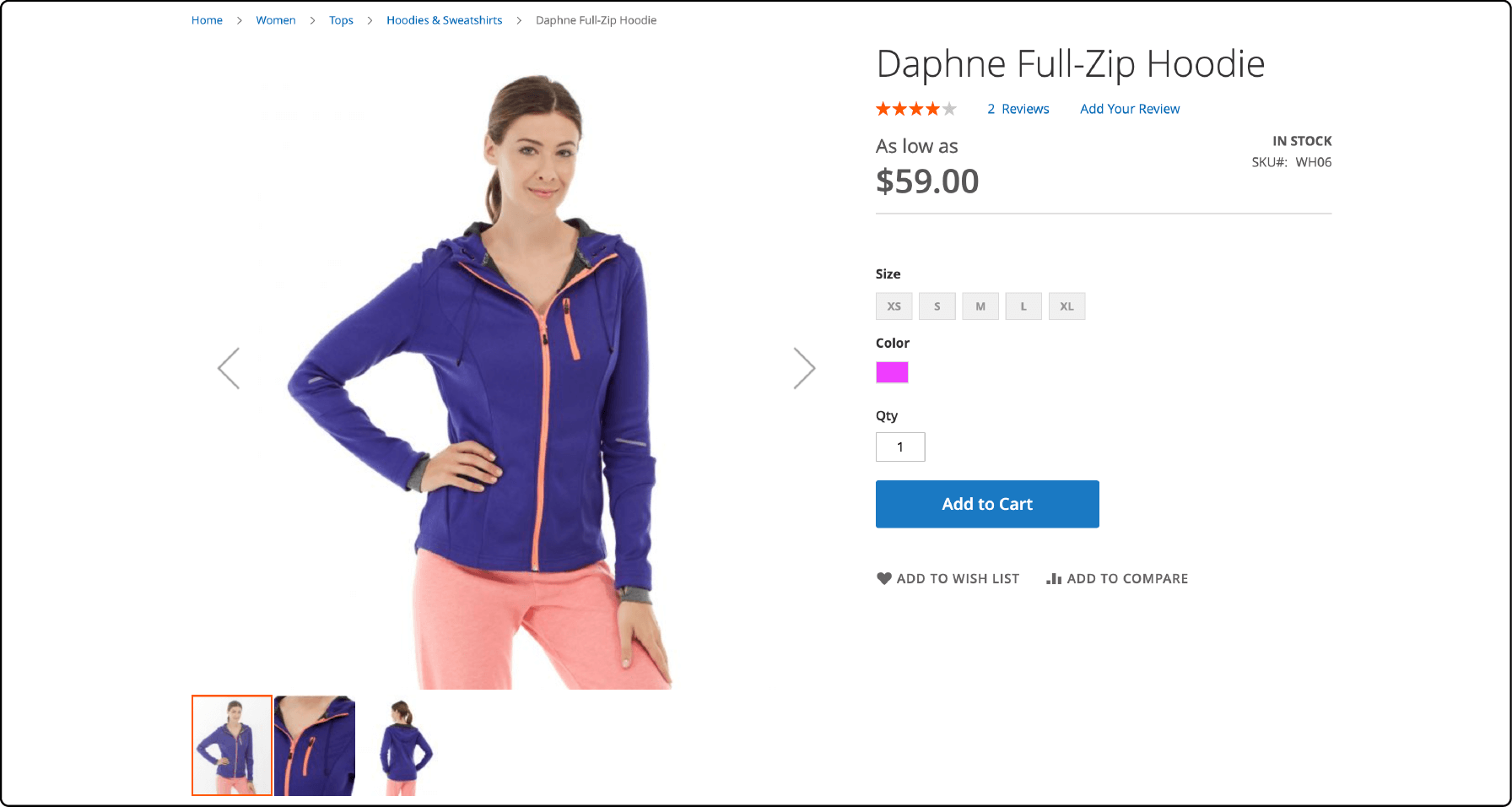
The base image is the main product photo on the product detail page. It carries the highest resolution of all image roles.
Recommended sizes:
- Without zoom: 470 x 470 pixels
- With zoom enabled: 1100 x 1100 pixels
Upload images at the zoom-ready size (1100 x 1100 or larger) so the magnification feature works. The system scales down for the standard view and uses the full resolution when customers hover to zoom.
Small Image
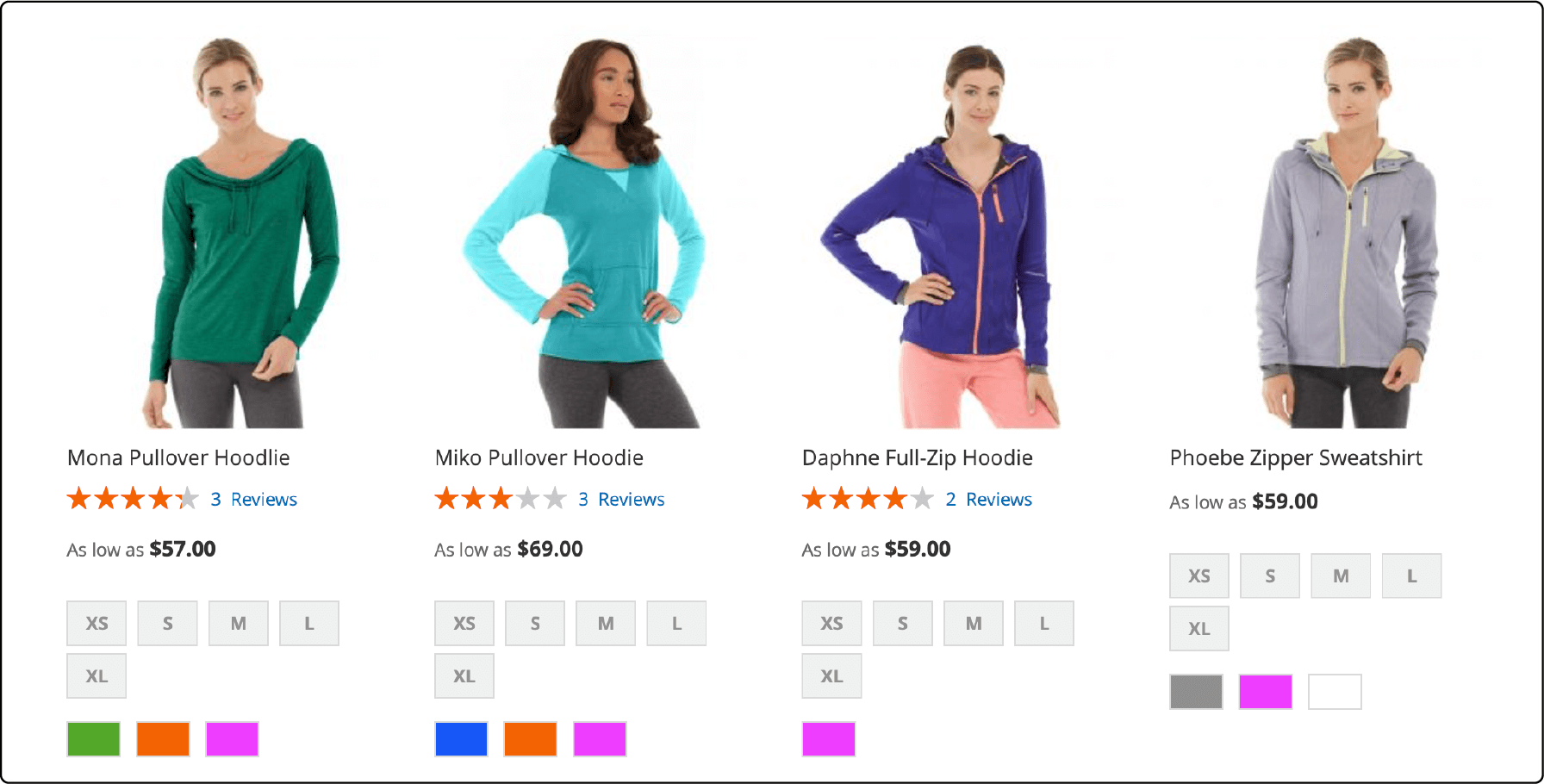
Small images appear in product listings on category pages, search results, and promotional blocks like Up-sells and Cross-sells.
Recommended size: 470 x 470 pixels
These images help customers identify products while browsing. They appear in the New Products list, related product widgets, and the shopping cart sidebar.
Thumbnail Image
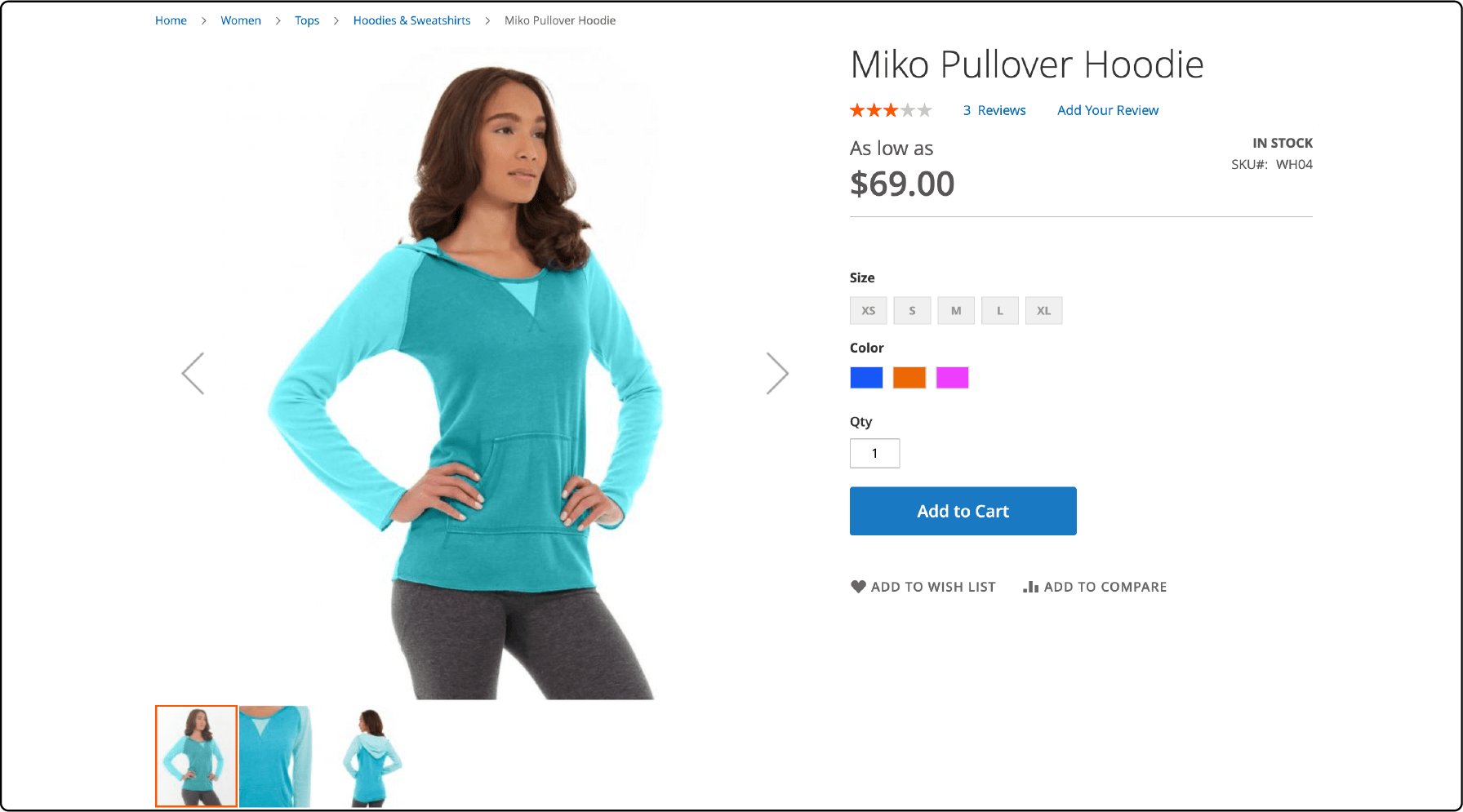
Thumbnails appear in the product detail page gallery strip, the shopping cart, and related items blocks.
Recommended size: 50 x 50 pixels
Keep thumbnails small. Their purpose is navigation, not detail. Oversized thumbnails waste bandwidth without adding value.
Swatch Image
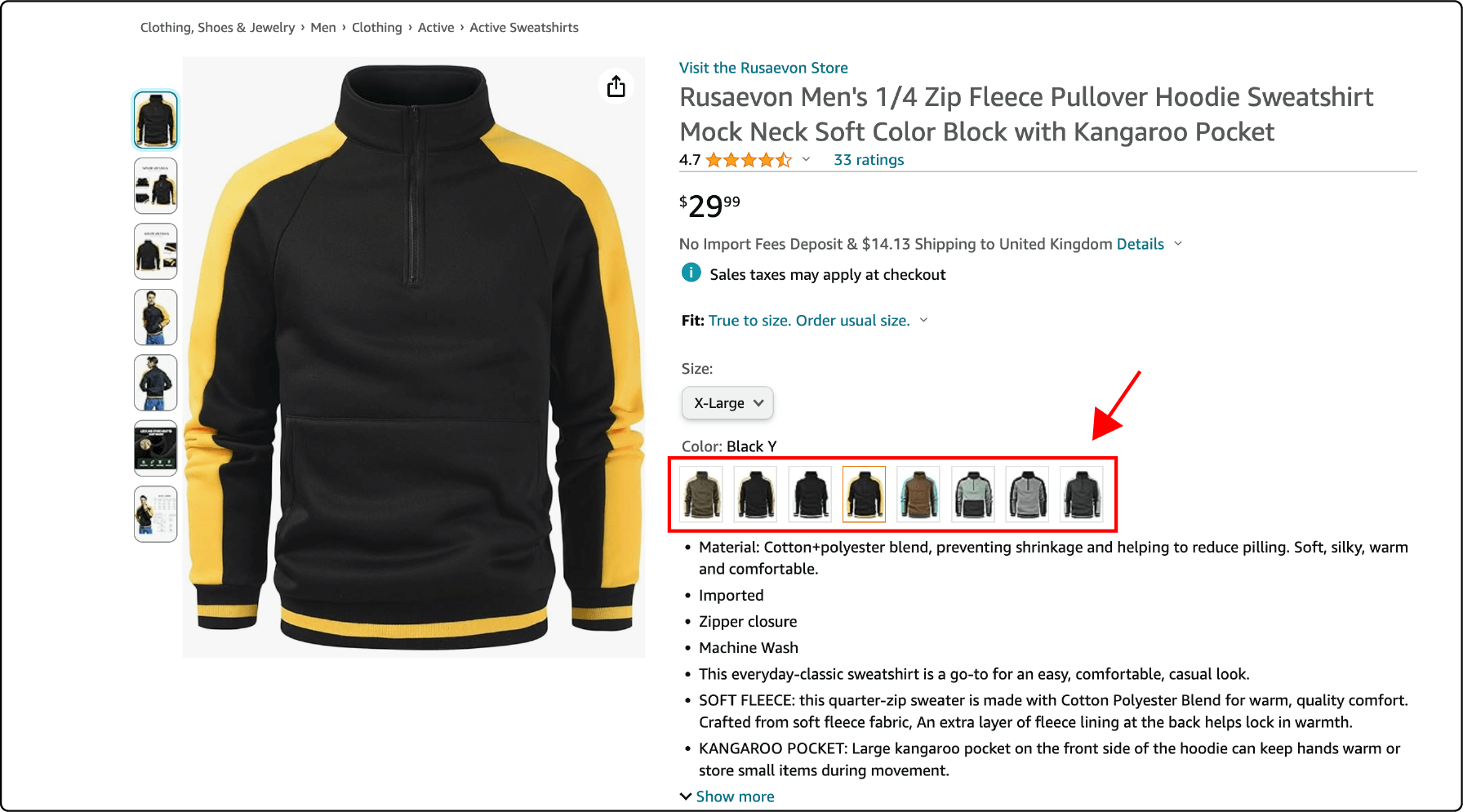
Swatch images show product variations like color, pattern, or texture. Customers click a swatch to see the base image update to that variant.
Recommended size: 50 x 50 pixels
Configure swatches through Stores > Attributes > Product and set the input type to "Visual Swatch" for the relevant attribute.
Why Image Optimization Matters for Magento Stores
Images make up about 70% of a standard ecommerce page's total weight. On a Magento product page with 5 to 10 images, this percentage climbs higher.
The performance impact is measurable:
| Metric | Effect of Unoptimized Images |
|---|---|
| Page load time | Adds 2 to 5 seconds on mobile |
| Bounce rate | Increases 32% from 1s to 3s load time (Google) |
| Conversion rate | Can drop up to 7% per additional second (Portent) |
| LCP score | Fails Core Web Vitals threshold (>2.5s) |
Google's Page Experience update uses Core Web Vitals as a ranking signal. LCP (Largest Contentful Paint) measures how fast the main visual element loads. For most Magento product pages, the hero product image IS the LCP element.
A store running unoptimized 2MB product images will fail the 2.5-second LCP target on mobile connections. The same images compressed and served as WebP hit that target with room to spare.
How to Resize Images in Magento 2
Magento includes built-in image upload configuration. Set maximum dimensions to prevent oversized uploads from bloating your media storage.
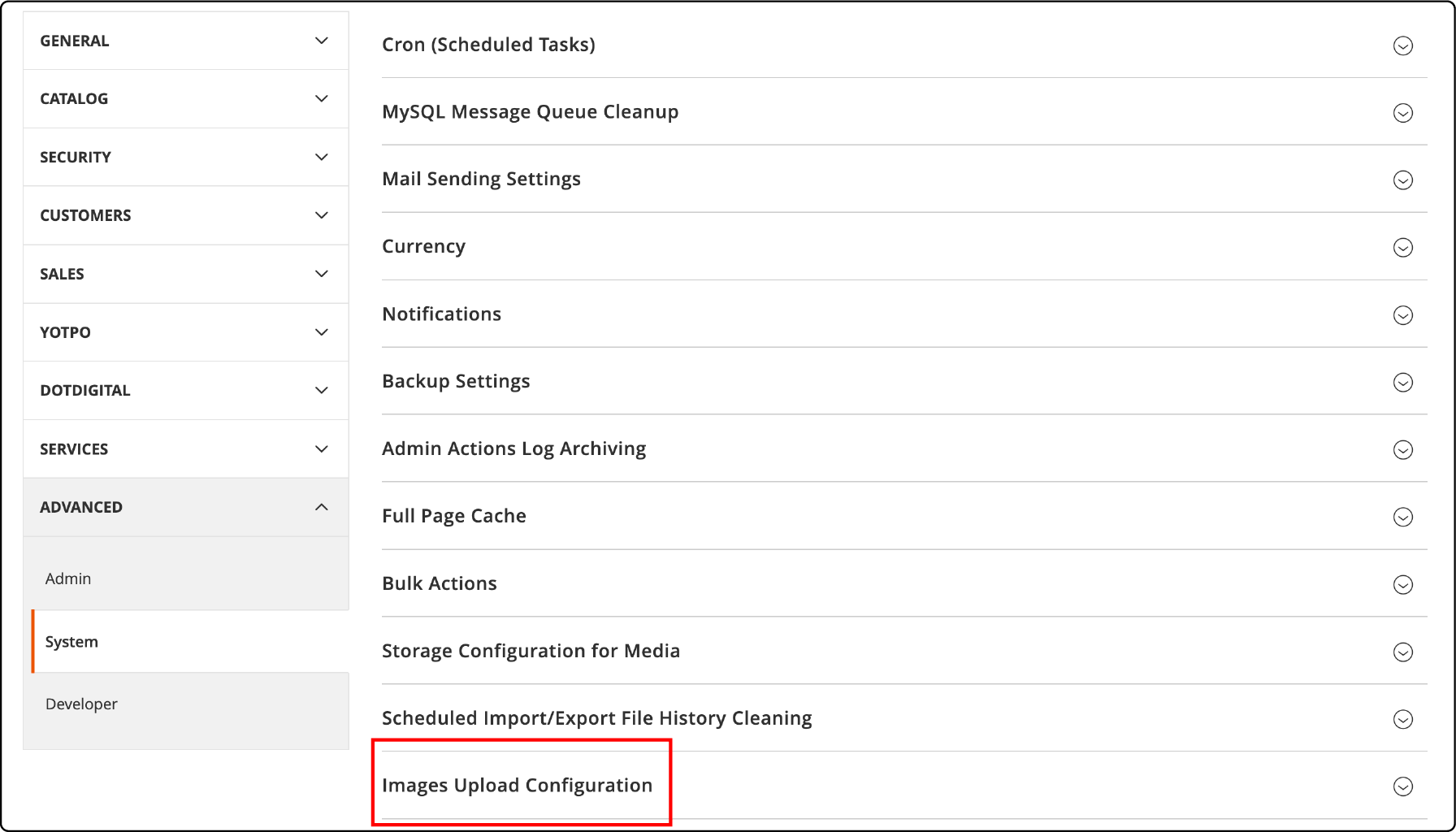
- Log in to your Magento 2 admin panel
- Navigate to Stores > Settings > Configuration
- Expand Advanced > System
- Find the Images Upload Configuration section
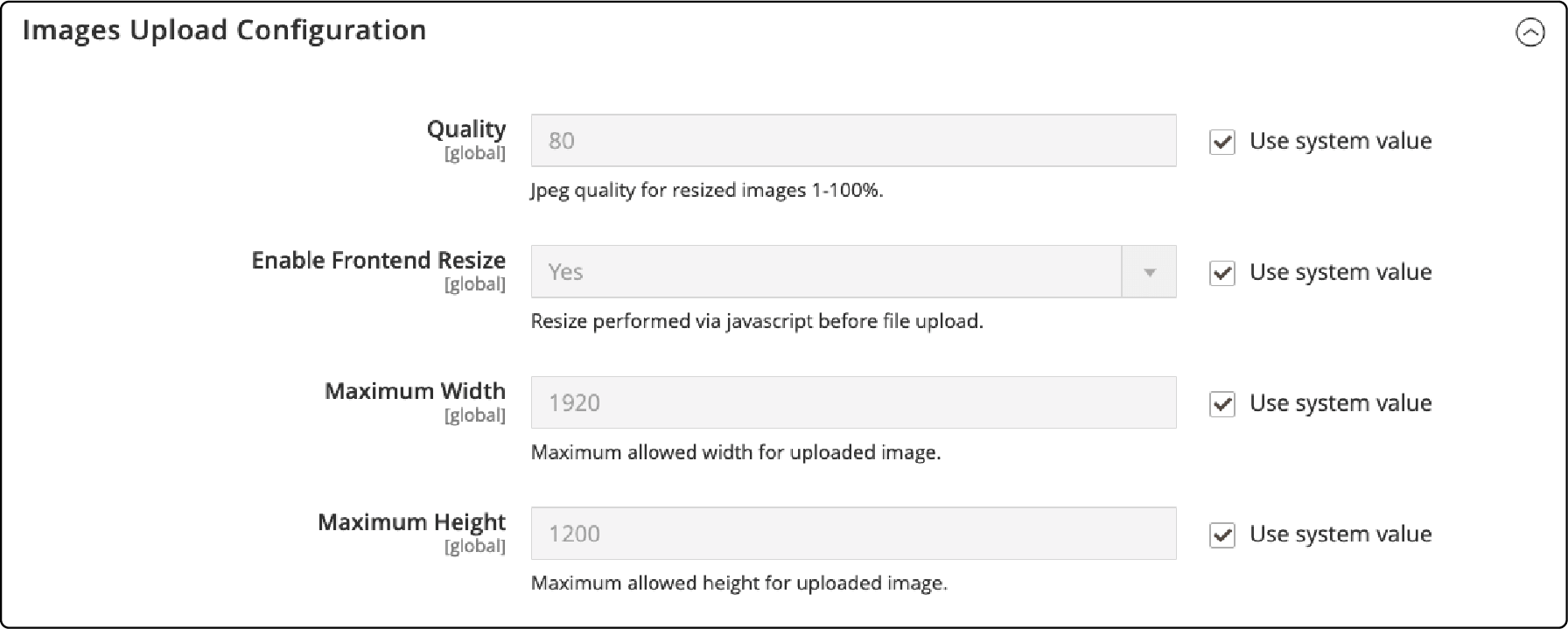
- Deselect the Use system value checkbox
- Set Enable Frontend Resize to Yes
- Set Quality from 1 to 100. Use 80 for the best balance of quality and file size
- Set Maximum Width in pixels. The default is 1920
- Set Maximum Height in pixels. The default is 1200
- Click Save Config
Image filenames cannot exceed 90 characters including the extension. Use descriptive but concise names.
How to Manage Product Images in Magento 2
Upload Images
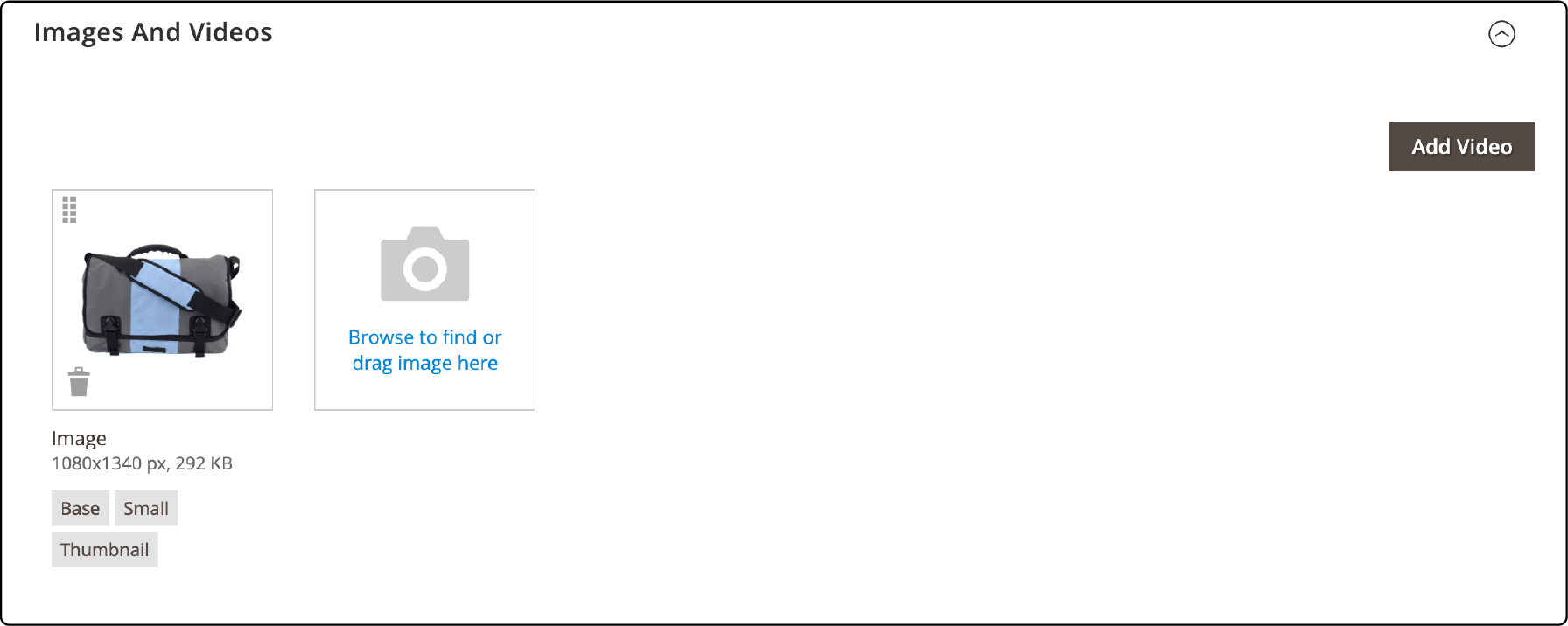
Open the product editor and scroll to the Images and Videos section. Drag and drop files onto the camera icon, or click it to browse your computer.
Magento accepts JPG, GIF, and PNG formats. Upload all images with the sRGB color profile to prevent color shifts between your admin preview and the storefront.
After uploading, assign image roles by clicking the image and selecting Base, Small, Thumbnail, or Swatch. The first uploaded image gets all roles by default.
Rearrange and Delete Images
Drag images into the order you want them displayed in the product gallery. The first position becomes the main display image.
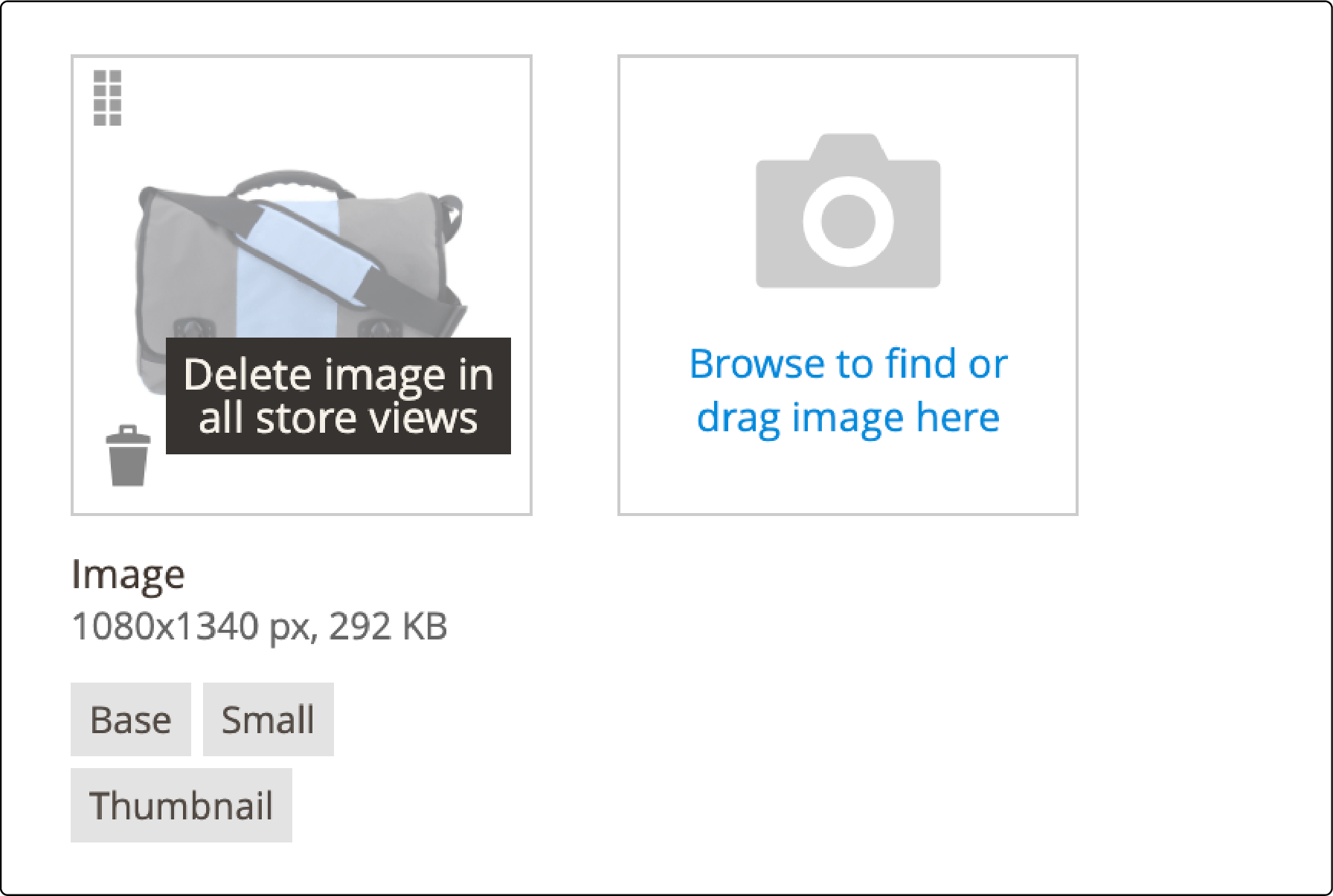
To delete an image, hover over it and click the trash bin icon. Remove outdated product photos and seasonal images that no longer apply. Unused images consume storage and slow down catalog operations.
Set Image Details and Alt Text
Click any product image to open its detail panel. Configure:
- Alt Text: Describe what the image shows. Use the product name and a key detail (color, angle, use case). Good alt text improves your store's search visibility and accessibility for screen readers.
- Role Assignment: Reassign Base, Small, Thumbnail, or Swatch roles as needed.
- Visibility: Hide specific images from certain store views.
Alt text formula: [Product Name] [Detail] [Context]
Example: "Luma Yoga Mat Purple Front View"
Add Watermarks
Protect original product images with watermarks. Navigate to Content > Design > Configuration and set watermarks for each image role.
Configure opacity (as a percentage), size (in pixels), and position (tile or corner placement). Use transparent PNG files for the watermark source. Clear the image cache after applying watermark changes.
How to Optimize Magento Images for Performance
Use WebP and AVIF Formats
WebP delivers 25 to 30% smaller files than JPEG at equal visual quality. AVIF pushes savings to 50%. Both formats support transparency, making them viable PNG replacements too.
Magento 2 does not convert images to WebP or AVIF out of the box. Two options exist:
Option 1: CDN-based conversion (recommended) Enable image optimization on your content delivery network. Fastly IO (included with Adobe Commerce Cloud) detects the browser and serves WebP or AVIF on the fly. No code changes needed.
Option 2: Extensions Install a WebP/AVIF extension that converts uploaded images and serves the correct format based on browser support. Popular options include JaJuMa Ultimate Image Optimizer and Mageplaza Image Optimizer.
Enable Lazy Loading
Lazy loading defers images below the fold until the customer scrolls near them. This cuts initial page weight and improves LCP scores.
Magento 2.4.x supports native lazy loading through the loading="lazy" HTML attribute. Most modern themes apply it to product gallery images, category listings, and CMS content blocks.
Check your implementation: Inspect your product page source. Look for loading="lazy" on <img> tags below the fold. If missing, add it through your theme's template files or use a dedicated extension to boost load times.
The hero product image (above the fold) should NOT be lazy-loaded. Lazy loading the LCP element delays it further and hurts your Core Web Vitals score.
Implement Responsive Images
Serve different image sizes based on the visitor's screen. A mobile phone does not need a 1100-pixel wide product image.
Use the srcset and sizes attributes in your theme templates:
<img
  src="product-470.jpg"
  srcset="product-320.jpg 320w, product-470.jpg 470w, product-1100.jpg 1100w"
  sizes="(max-width: 768px) 320px, (max-width: 1024px) 470px, 1100px"
  alt="Product Name Color Front View"
  loading="lazy"
>
Configure image dimensions per breakpoint in your theme's view.xml file. The image element maps to the Base Image role, small_image to Small, swatch_image to Swatch, and thumbnail to Thumbnail.
Use a CDN for Image Delivery
A CDN caches and serves images from servers close to each visitor. This reduces latency for international customers and offloads bandwidth from your origin server.
CDN benefits for Magento images:
| Benefit | Impact |
|---|---|
| Automatic format conversion | Serves WebP/AVIF without code changes |
| On-the-fly resizing | Delivers optimized images per device |
| Geographic distribution | Reduces latency by 50 to 200ms |
| Origin offloading | Cuts server bandwidth by 60 to 80% |
Pair your CDN with Magento's cache system and Varnish for the best results. Proper Magento hosting includes CDN integration, server-side caching, and infrastructure tuned for image-heavy ecommerce workloads.
Image SEO Best Practices for Magento
Search engines cannot see images. They rely on context signals to understand and index visual content.
File naming: Use descriptive, keyword-relevant filenames. blue-running-shoes-side-view.jpg beats IMG_4521.jpg. Separate words with hyphens.
Alt text: Write alt text for every product image. Include the product name and one distinguishing detail. Keep it under 125 characters.
File size: Compress every image before upload. Target under 200KB for product photos, under 100KB for thumbnails and swatches.
Color profile: Upload in sRGB. Other profiles (Adobe RGB, ProPhoto RGB) cause color shifts on web browsers.
Structured data: Magento's product schema markup includes image URLs. Verify your product attributes populate the schema so Google can display product images in rich results and Google Shopping.
Batch import: For large catalogs, use Magento's import feature to upload product images in bulk. Organize images into folders by category or season in the Media Gallery before importing.
Core Web Vitals and Magento Images
Google measures three Core Web Vitals. Two depend on image optimization:
| Metric | What It Measures | Image Impact | Target |
|---|---|---|---|
| LCP | Largest Contentful Paint | Hero/base product image load time | Under 2.5 seconds |
| CLS | Cumulative Layout Shift | Images without width/height cause layout jumps | Under 0.1 |
| INP | Interaction to Next Paint | Minimal direct image impact | Under 200ms |
Fix LCP issues:
- Preload the hero image with
<link rel="preload" as="image" href="..."> - Serve compressed WebP or AVIF
- Use a CDN for geographic distribution
- Set cache headers to at least 1 year for static images
Fix CLS issues:
- Always specify
widthandheightattributes on<img>tags - Use CSS
aspect-ratiofor responsive containers - Avoid inserting images into the DOM after initial paint
Test your store with Google PageSpeed Insights. Check both mobile and desktop scores. Mobile matters more since Google uses mobile-first indexing.
FAQ
What image formats does Magento 2 support?
Magento 2 accepts JPG, GIF, and PNG formats for product image uploads. WebP and AVIF are supported through CDN services like Fastly IO or third-party extensions. Native WebP support is not built into Magento's core upload system as of version 2.4.8.
What is the best image size for Magento 2 products?
Upload base images at 1100 x 1100 pixels to support the zoom feature. Small images display at 470 x 470 pixels. Thumbnails use 50 x 50 pixels. Swatch images also use 50 x 50 pixels. Match your uploads to these dimensions or configure Magento to resize them through the upload settings.
How do I convert Magento images to WebP?
Enable WebP conversion through your CDN (Fastly IO handles this on Adobe Commerce Cloud) or install a WebP extension. CDN-based conversion requires no code changes. Extension-based conversion processes images on your server during upload or on the first page request.
Does lazy loading work in Magento 2?
Yes. Magento 2.4.x supports the native HTML loading="lazy" attribute. Most updated themes apply it to images below the fold. Do not lazy-load the main product image above the fold because it delays the LCP metric.
How do I fix Largest Contentful Paint issues caused by images?
Preload the hero product image in the HTML head. Compress it to WebP or AVIF format. Serve it through a CDN. Set width and height attributes to prevent layout shift. These four steps address the most common LCP failures on Magento product pages.
What is the maximum image upload size in Magento 2?
The default maximum upload dimensions are 1920 x 1200 pixels. Change this in Stores > Configuration > Advanced > System > Images Upload Configuration. Filenames cannot exceed 90 characters including the file extension. The quality setting (1 to 100) controls compression level during upload.
How do I add alt text to product images in Magento 2?
Open the product in the admin panel. Click the image in the Images and Videos section. Enter descriptive text in the Alt Text field. Include the product name and one key detail. Alt text supports both SEO indexing and screen reader accessibility.
Should I use PNG or JPEG for Magento product images?
Use JPEG for standard product photos. JPEG offers better compression for photographs. Use PNG when the image requires transparency (logos, icons, layered graphics). For the best results, convert both formats to WebP through your CDN or an optimization extension.
How do responsive images work in Magento 2?
Magento uses the view.xml theme configuration to define image dimensions per display context. The srcset and sizes HTML attributes serve different resolutions based on the visitor's screen width. Configure breakpoints in your theme's view.xml to match your design's responsive layout.
How does image optimization affect Magento hosting performance?
Optimized images reduce bandwidth consumption and server load. A store with compressed WebP images uses less disk space, generates less CDN traffic, and delivers faster page loads. Managed hosting pairs image optimization with server-side caching, Varnish, and CDN integration for the best combined results.
Summary
Magento image management combines proper role assignment with format optimization, lazy loading, and SEO best practices. Start with correct image dimensions for each role. Then optimize delivery through WebP conversion, a CDN, and responsive image markup.
Test your results with Google PageSpeed Insights. Focus on the LCP metric for product pages and CLS for category listings. These scores reflect how well your image strategy works in practice.
For stores handling thousands of products, managed Magento hosting ensures the server infrastructure supports efficient image processing and delivery at scale.
