

How to Enable Low Stock Email Notifications in Magento 2
[Updated: March 17, 2026] A sold-out product page costs you revenue and trust. Magento 2 provides built-in tools to monitor low stock levels, including a Low Stock Report and configurable thresholds. Actual email delivery to administrators requires an extension. This guide covers the native configuration, the built-in report, extension options, and customer product alerts.
Key Takeaways
- Magento 2 supports three levels of low stock thresholds: global, product-level, and MSI source-level configuration.
- The built-in Low Stock Report (Reports > Products > Low Stock) shows all products below their threshold. This is the primary native monitoring tool.
- Native Magento does NOT send low stock emails to administrators. The "Notify for Quantity Below" field controls the Low Stock Report and RSS feed only.
- For actual admin email alerts, a third-party extension is required.
- Customer "Notify Me" alerts (back-in-stock, price changes) are a separate native system that does send emails via the
catalog_product_alertcron job.
What Are Low Stock Notifications?
Low stock notifications = Magento's system for flagging products when inventory drops below a set threshold. Native tools include the Low Stock Report and RSS feed. Admin email notifications require an extension.
Perfect for: Store owners managing large catalogs, multi-warehouse operations, businesses that cannot afford stockouts.
Not ideal for: Stores with fewer than 10 products where manual checks are sufficient, drop-shipping operations where third parties manage inventory.
Magento 2 uses its Inventory Management (MSI) module to track stock levels across all sources. The "Notify for Quantity Below" setting determines which products appear in the Low Stock Report at Reports > Products > Low Stock.
Important distinction: Native Magento 2 does not send automatic emails to administrators when stock is low. The threshold setting controls the report and an optional RSS feed. If you need email delivery to your inbox, you need a third-party extension (see the Extensions section below). This is different from customer-facing "Notify me when in stock" alerts, which Magento handles natively.
How to Configure Low Stock Thresholds
Magento 2 uses a three-tier configuration hierarchy. Each level overrides the one above it:
- Global sets the default threshold for all products.
- Product-level overrides the global value for individual products via Advanced Inventory.
- Source-level sets MSI thresholds per warehouse or source.
These thresholds determine which products appear in the Low Stock Report and RSS feed.
Global Configuration
This sets the default "Notify for Quantity Below" value for every product in your store.
-
Navigate to the Magento admin panel and go to Stores > Configuration.
-
In the left menu, expand Catalog and select Inventory.
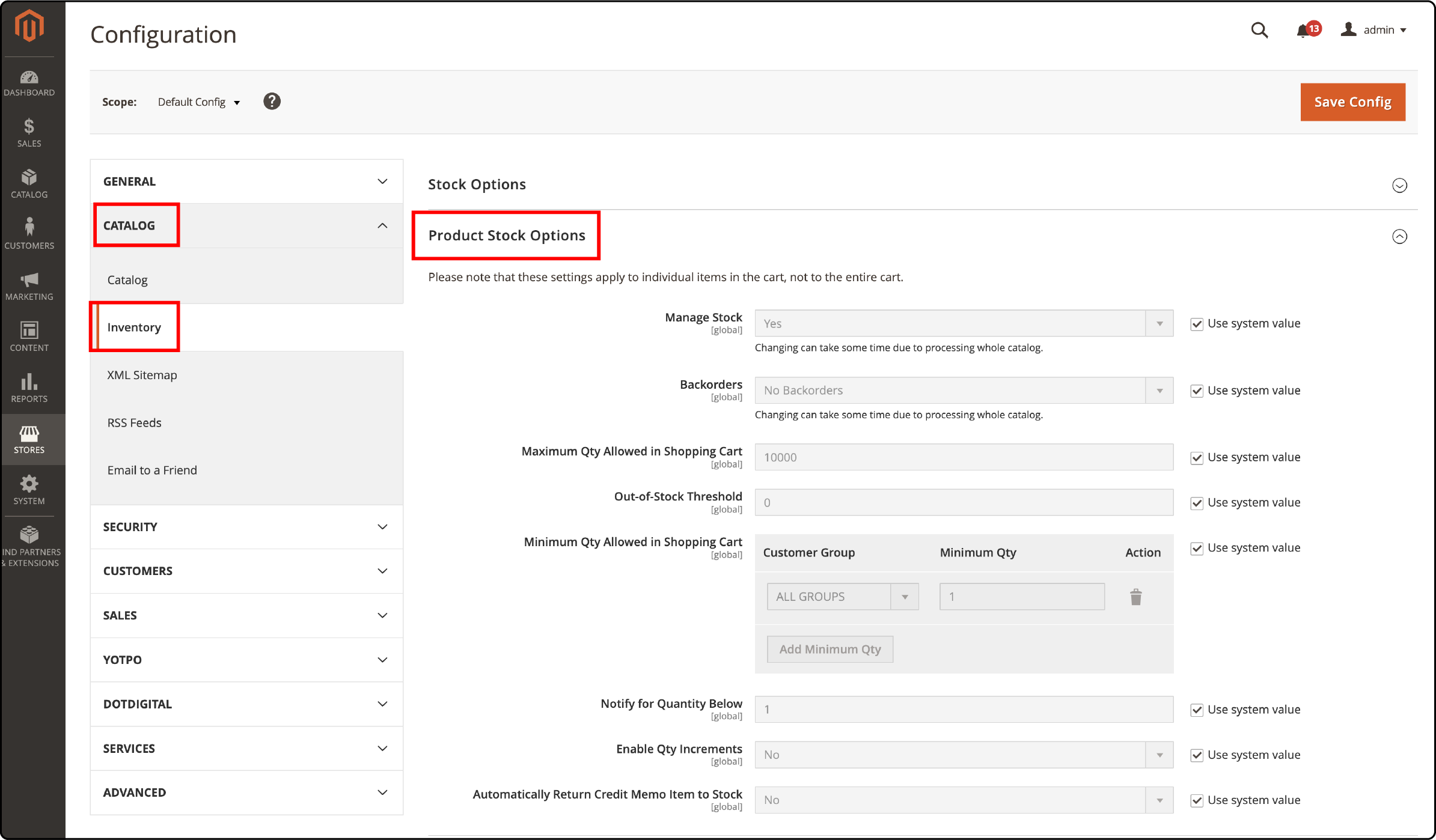
- Under Product Stock Options, set Manage Stock to Yes.

- Configure Backorders based on your business needs:

- No Backorders means products show as out of stock when quantity hits zero.
- Allow Qty Below 0 accepts orders even with zero stock.
- Allow Qty Below 0 and Notify Customer does the same, but the customer sees a backorder notice on the product page.
- Set the Notify for Quantity Below field. This threshold determines which products appear in the Low Stock Report. For example, entering 5 flags products when stock drops below 5 units.
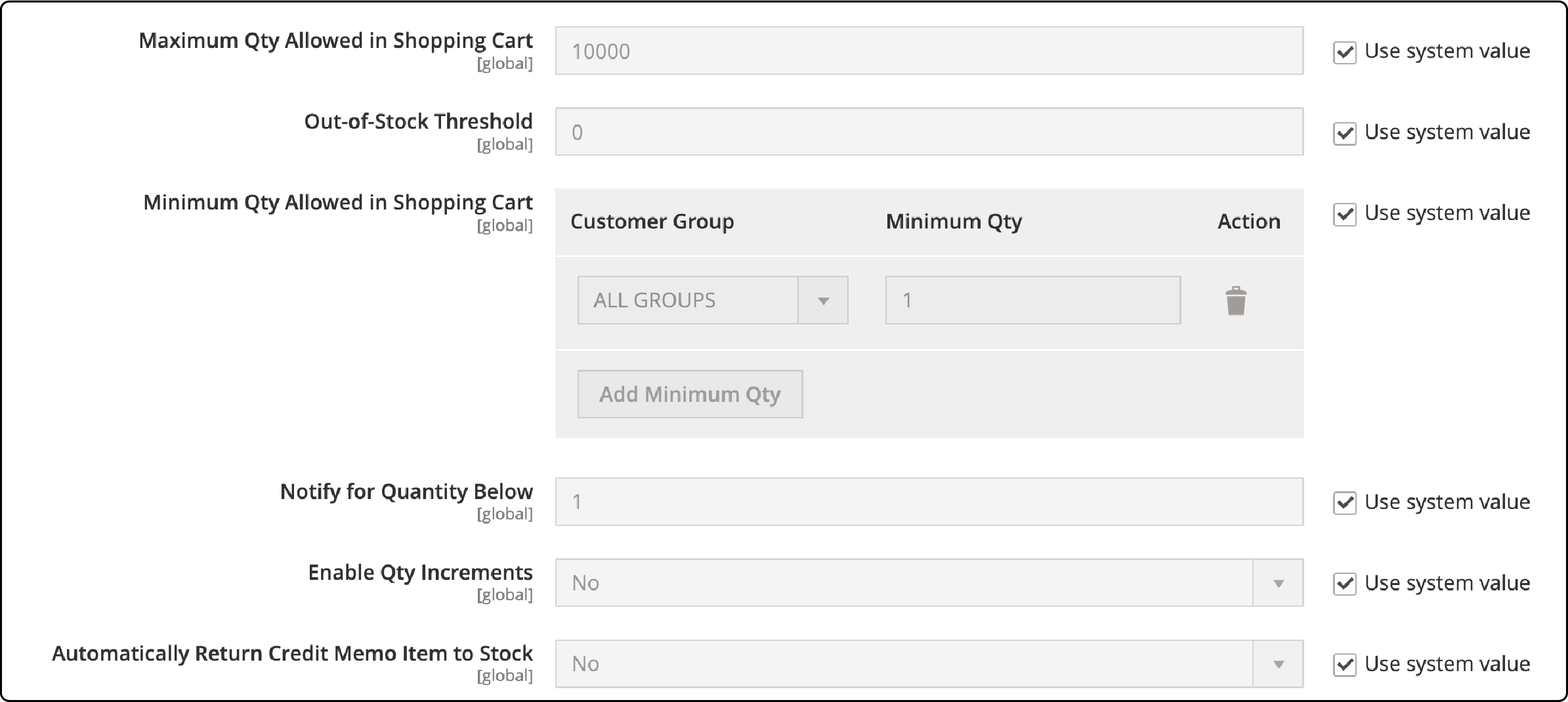
- Configure the remaining fields:
- Maximum Qty Allowed in Shopping Cart limits per-order quantity.
- Qty for Item's Status to Become Out of Stock controls when the product shows as out of stock on the frontend (default: 0).
- Minimum Qty Allowed in Shopping Cart sets the minimum order quantity.
-
Set Enable Qty Increments to Yes if you sell products in fixed quantities (for example, packs of 6).
-
Click Save Config.
Product-Level Overrides
For individual products that need a different threshold than the global default:
- Go to Catalog > Products and open the product.
- Scroll to the Advanced Inventory section (under the Quantity field).
- Uncheck Use Config Settings next to the Notify for Quantity Below field.
- Enter the product-specific threshold.
- Save the product.
This override affects this product alone. All other products continue using the global threshold.
Use case: High-value items with long lead times need a threshold of 20 or 30, while fast-replenished commodities can stay at the global default of 5.
Source-Level Thresholds (Multi-Source Inventory)
If your store uses MSI with multiple warehouses or sources, you can set per-source notification thresholds:
- Go to Catalog > Products and open the product.
- Navigate to the Assigned Sources section.
- Set the Notify Qty value for each individual source.
This is the most granular level of control. A product with stock in three warehouses can have different alert thresholds for each warehouse based on local restock speed.
Important: MSI distinguishes between "Quantity per Source" (physical stock in each warehouse) and "Salable Quantity" (total available across all sources minus reservations). If you manage multiple sources, use source-level thresholds to get warehouse-specific visibility in the Low Stock Report.
Using the Low Stock Report
The Low Stock Report is the primary native tool for monitoring inventory levels:
- Go to Reports > Products > Low Stock.
- The report displays product name, SKU, current quantity, and configured threshold.
- Export the report as CSV for inventory planning.
This report runs against your current stock data and is available without cron jobs or extensions. It shows every product with inventory below its configured "Notify for Quantity Below" threshold.
Note: The report scope follows your selected store view. Switch to "All Store Views" for a complete picture across all websites.
Limitation: The report requires manual checking. Magento does not send automatic email alerts when products appear on this report. For automated email notifications, see the Extensions section below.
Extensions for Admin Low Stock Email Alerts
Native Magento 2 does not send automatic emails to administrators when stock is low. To receive email notifications, you need a third-party extension. Popular options include:
- Magefan Admin Email Notifications covers low stock alerts plus order notifications, cache alerts, and customer registration alerts. It supports multiple recipients and CSV attachments.
- Mirasvit Inventory Planner combines low stock alerts with demand forecasting and automated reorder suggestions.
- Additional options are available on the Adobe Commerce Marketplace.
When evaluating extensions, look for:
- Daily summary vs real-time alerts (daily summaries reduce inbox noise)
- CSV attachment support (for importing into spreadsheets)
- MSI compatibility (per-source thresholds)
- Multiple recipient support
Your Magento hosting environment must support cron execution and SMTP for any extension-based email alerts to work.
Email Delivery Setup (SMTP)
Whether using extensions for admin alerts or native customer product alerts, reliable email delivery requires SMTP configuration.
Adobe recommends SMTP over Sendmail for all Magento email template delivery. The official documentation warns against using Sendmail due to security concerns.
Configure SMTP at Stores > Settings > Configuration > Advanced > System > Mail Sending Settings:
- Set Transport to SMTP.
- Enter your SMTP host, port, username, and password.
- Choose SSL or TLS for encryption.
- Select authentication method (LOGIN or PLAIN).
Test email delivery after configuration. Send a test order confirmation to verify emails arrive and are not flagged as spam.
Customer Product Alerts (Native Email System)
Magento 2 does include a native email alert system, but it serves customers, not administrators.
| Feature | Admin Low Stock Monitoring | Customer Product Alerts |
|---|---|---|
| Purpose | Monitor inventory levels | Notify customers of restocks/price drops |
| Native email delivery | No (report + RSS only) | Yes (via cron job) |
| Configuration | Stores > Config > Catalog > Inventory | Stores > Config > Catalog > Catalog > Product Alerts |
| Recipient | Admin checks report manually | Subscribed customers |
| Cron job | None (report is on-demand) | catalog_product_alert |
Note for Magento 2.4.8+: The cron job was renamed from catalog_product_alert to product_alert. If you see "No callbacks found for cron job catalog_product_alert" in your logs after upgrading, this is a known issue.
To enable customer product alerts:
- Go to Stores > Configuration > Catalog > Catalog > Product Alerts.
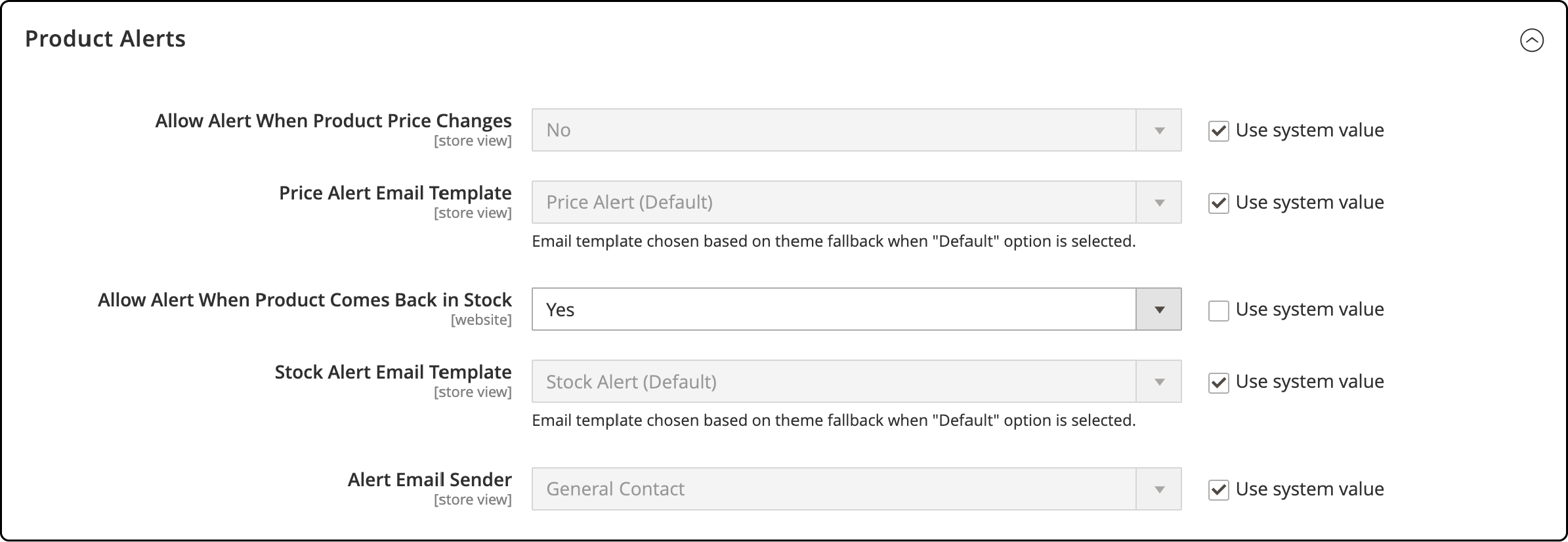
- Set Allow Alert When Product Comes Back in Stock to Yes.
- Set Allow Alert When Product Price Changes to Yes (optional, enables price drop notifications).
- Choose email templates and sender contact.
- Click Save Config.
Verify the cron job is running:
bin/magento cron:run
This runs all cron groups. Check var/log/cron.log for product_alert (2.4.8+) or catalog_product_alert (earlier versions).
When enabled, out-of-stock product pages show a "Notify me when this product is in stock" link. Customers who subscribe receive an email when the product is restocked.
Troubleshooting
Low Stock Report shows empty results:
- Verify product stock is managed. Products with "Manage Stock" set to "No" do not appear in the report.
- Check the store view scope. Switch to "All Store Views" in the admin report page.
- Confirm thresholds are set. Products with "Notify for Quantity Below" set to 0 never appear.
Customer product alert emails are not arriving:
- Check SMTP settings. Go to Stores > Configuration > Advanced > System > Mail Sending Settings. Verify transport is set to SMTP with correct host, port, and credentials.
-
Verify cron jobs. Run
bin/magento cron:runand checkvar/log/cron.logfor errors related toproduct_alertorcatalog_product_alert. - Check the error email recipient. Go to Stores > Configuration > Catalog > Catalog > Product Alerts Run Settings. The error recipient must be a valid address.
- Test with default templates. Custom email templates can cause rendering failures. Switch to the default Magento template to isolate the issue.
Extension-based admin alerts not working:
-
Check extension cron jobs. Most low stock email extensions register their own cron jobs. Check
var/log/cron.logfor the extension's job name. - Verify SMTP configuration. Extensions use the same SMTP settings as core Magento.
- Check extension configuration. Verify the alert threshold, recipient email, and frequency settings in the extension's configuration panel.
-
Review server logs. Check
var/log/system.logandvar/log/exception.logfor errors related to email sending or stock calculations.
FAQ
1. Does Magento 2 send low stock emails to administrators natively?
No. Native Magento 2 provides the Low Stock Report (Reports > Products > Low Stock) and an RSS feed for inventory monitoring. Automatic email delivery to administrators requires a third-party extension such as Magefan Admin Email Notifications or similar marketplace solutions.
2. What does the "Notify for Quantity Below" setting do?
It sets the threshold that determines which products appear in the Low Stock Report. Products with stock below this number are flagged in the report. It does not trigger automatic email delivery. The setting also feeds the RSS notification system if RSS is enabled in your store configuration.
3. How does Multi-Source Inventory (MSI) affect low stock notifications?
MSI adds a third configuration level. Beyond global and product-level thresholds, you can set per-source "Notify Qty" values in the Assigned Sources section of each product. This allows warehouse-specific visibility in the Low Stock Report. MSI also introduces the concept of "Salable Quantity" versus physical stock per source.
4. How do I set different thresholds for different products?
Open the product in Catalog > Products, scroll to Advanced Inventory, uncheck "Use Config Settings" next to "Notify for Quantity Below", and enter the product-specific threshold. This overrides the global setting for that product alone.
5. What is the difference between admin low stock monitoring and customer product alerts?
Admin low stock monitoring uses the Low Stock Report and requires manual checking (or an extension for email). Customer product alerts are a native email system where shoppers subscribe to out-of-stock or price-change notifications. These are two independent systems configured in different sections of the admin panel.
6. Which cron job handles customer product alerts?
The catalog_product_alert cron job (renamed to product_alert in Magento 2.4.8) processes customer price and back-in-stock alerts. It does not handle admin low stock notifications. Configure its frequency at Stores > Configuration > Catalog > Catalog > Product Alerts Run Settings.
7. Can I get low stock alerts for each warehouse in a multi-source setup?
Yes, for the Low Stock Report. Navigate to the product's Assigned Sources section and set a "Notify Qty" value for each source. For email alerts per warehouse, check that your chosen extension supports MSI source-level thresholds.
8. What is the Low Stock Report in Magento 2?
Access it at Reports > Products > Low Stock. It shows all products with inventory below their configured notification threshold. The report includes product name, SKU, quantity, and threshold value. Export it as CSV for inventory planning. No cron jobs or extensions are required for the report.
9. Should I use Sendmail or SMTP for email delivery?
Use SMTP. Adobe documentation recommends SMTP over Sendmail due to security concerns. Configure SMTP at Stores > Configuration > Advanced > System > Mail Sending Settings with your email provider's credentials.
10. What changed with the product alert cron job in Magento 2.4.8?
The cron job was renamed from catalog_product_alert to product_alert. If you upgrade to 2.4.8 and see "No callbacks found for cron job catalog_product_alert" errors in your logs, this is expected. The alerts still run under the new name.
