How to Use Magento 2: Admin Panel and Store Setup Guide
[Updated: March 09, 2026]
Magento 2 packs hundreds of features into dozens of admin panel menus. Without a clear roadmap, new store owners waste hours clicking through settings that don't matter yet.
This guide walks you through every core section of the Magento 2 admin panel, from first login to store launch.
Key Takeaways
- Access the admin panel at
yourdomain.com/adminwith your credentials and two-factor authentication - Configure store settings, locale, and currency before adding products
- Manage products, categories, and inventory through the Catalog section
- Set up payment gateways and shipping methods under Stores > Configuration
- Customize your storefront design with themes and Page Builder
- Install extensions through Composer for added functionality
What is the Magento 2 Admin Panel?
Magento 2 Admin Panel = The backend dashboard where store owners manage products, orders, customers, content, and configuration. It controls every aspect of your online store without touching code.
Perfect for: Store owners, ecommerce managers, marketing teams, catalog administrators
Not ideal for: Frontend-only tasks, customers, or users without admin credentials
The Magento 2 admin panel serves as your store's control center. Every operational task runs through it: adding products, processing orders, configuring payments, and customizing your storefront.
Magento 2.4.8 (the current stable release since April 2025, part of Adobe Commerce) requires PHP 8.3 (recommended) or PHP 8.4 (future support). PHP 8.2 is tolerated for upgrades but no longer recommended for production since its EOL in December 2025. The admin panel works in all modern browsers and includes built-in two-factor authentication for security.
How to Access the Admin Panel
- Open your browser and navigate to
https://yourdomain.com/admin/ - Enter your admin username and password
- Complete two-factor authentication (2FA is mandatory since Magento 2.4.0)
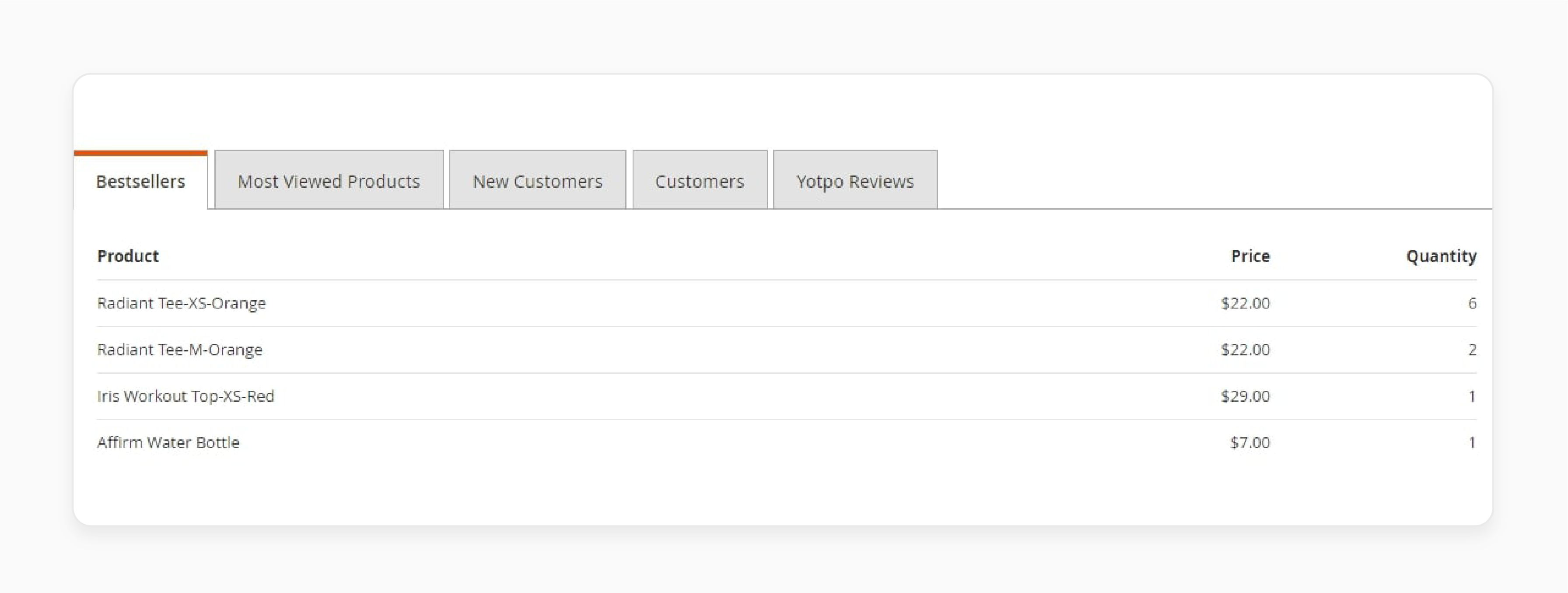
The dashboard displays sales summaries, recent orders, top products, and customer activity. Five tabs provide quick access to best sellers, most viewed products, new customers, and review data.
Enable dashboard charts: Navigate to Stores > Settings > Configuration > Advanced > Admin. Set "Enable Charts" to Yes, save, and clear the cache.
Custom admin path: For better security, change the default /admin/ URL in app/etc/env.php to a custom path. This reduces brute-force login attempts.
Configure Your Store Settings
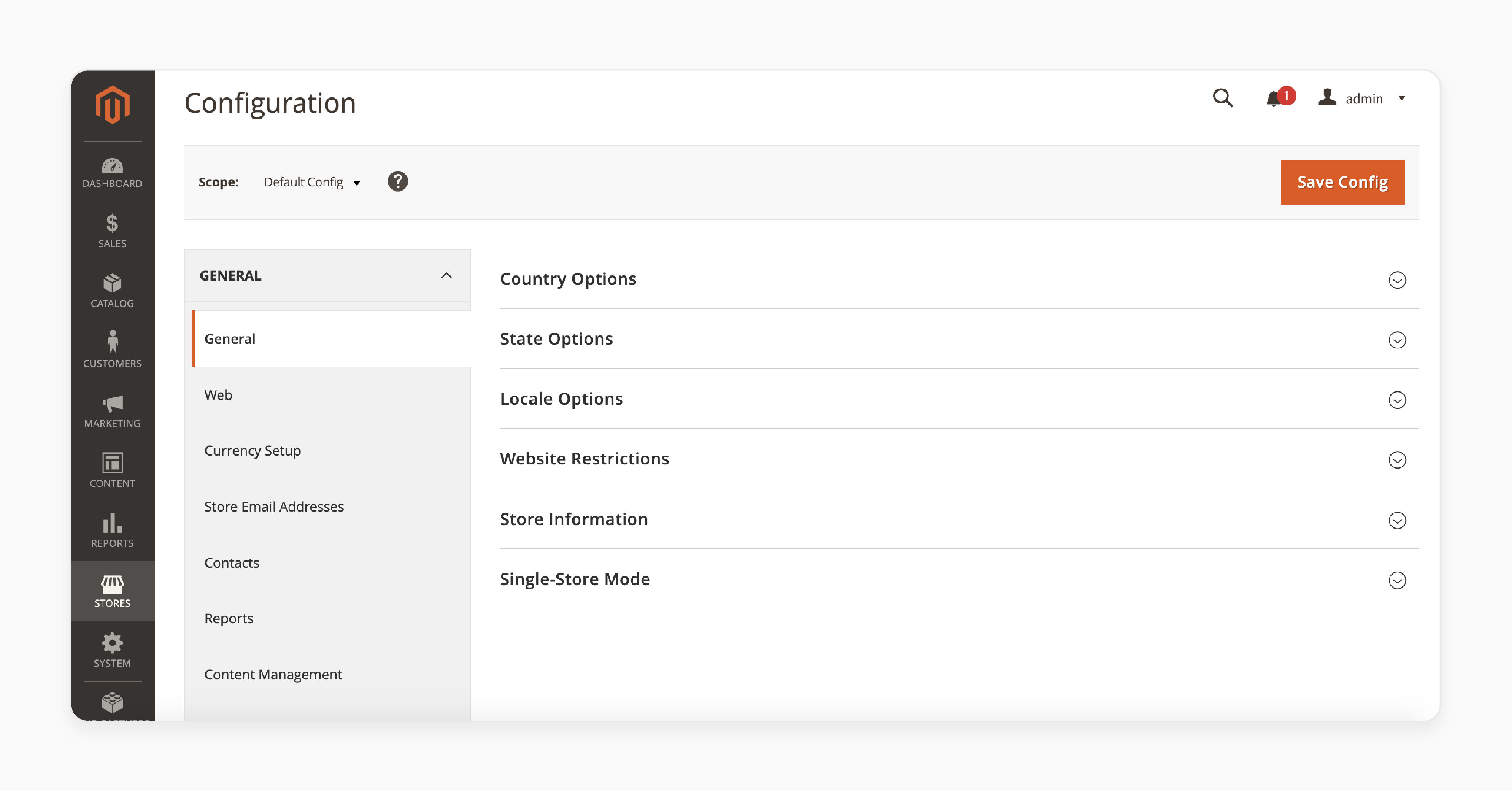
Navigate to Stores > Configuration to set up your store's foundation.
Store Information
Under General > General, configure:
- Store Name (appears on invoices and emails)
- Phone Number and Hours of Operation
- Country, Region, ZIP Code
- Street Address and VAT Number
Locale and Currency
Under General > Locale Options, set:
- Timezone for your operating region
- Locale (language and region format)
- Weight Unit (pounds or kilograms)
- First Day of Week and Weekend Days
Configure your base and display currencies under the Currency section. Magento supports automatic exchange rate updates from third-party services.
These settings affect order processing, customer communications, shipping calculations, and tax rules across your entire store.
Product and Catalog Management
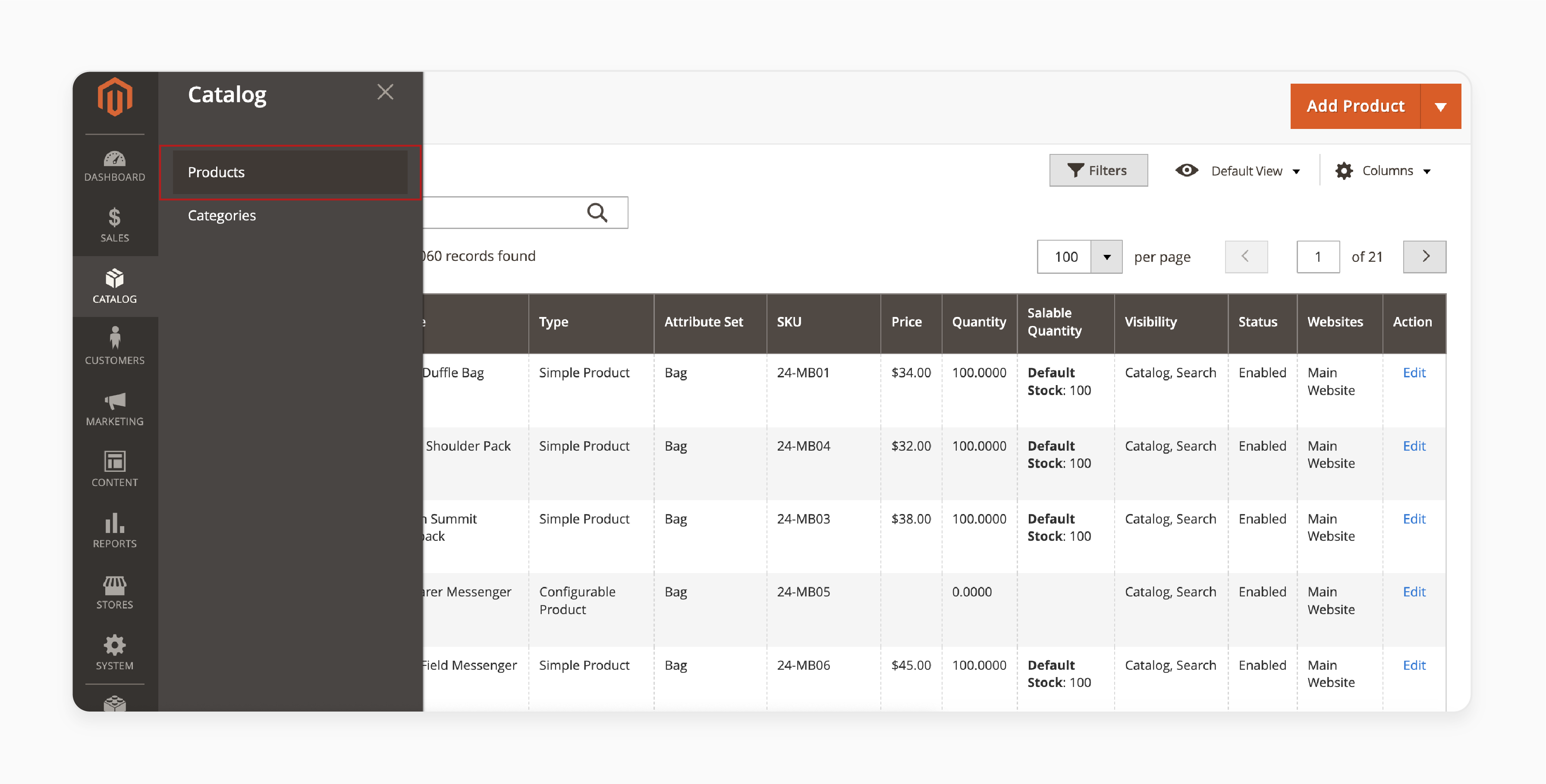
Navigate to Catalog > Products to manage your product listings.
Adding Products
Click Add Product and select the product type: Simple, Configurable, Grouped, Virtual, Bundle, or Downloadable. Fill in:
- Product name, SKU, and price
- Descriptions (short and detailed)
- Images and videos
- Stock quantity and availability
- Weight and shipping class
Managing Categories
Navigate to Catalog > Categories to organize your product hierarchy.
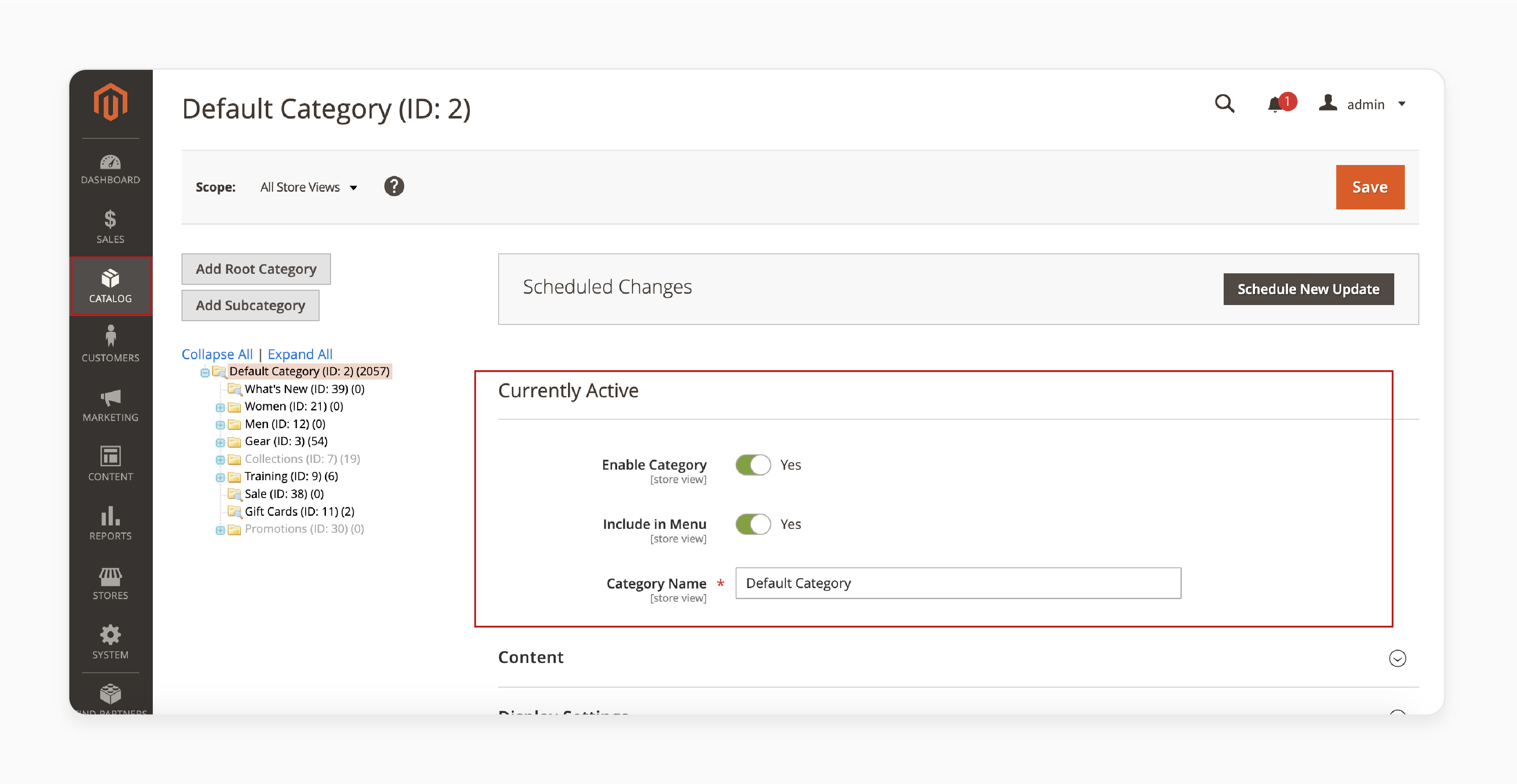
Create parent and subcategories, assign products, and configure:
- Display Mode: Products only, Static block only, or both
- Anchor: Enable for layered navigation filtering
- SEO fields: Meta title, keywords, and description for each category
- Sort options: Position, name, or price
Drag and drop categories to reorder your hierarchy. Use filters to locate products in large inventories.
Payment and Shipping Setup
Payment Methods
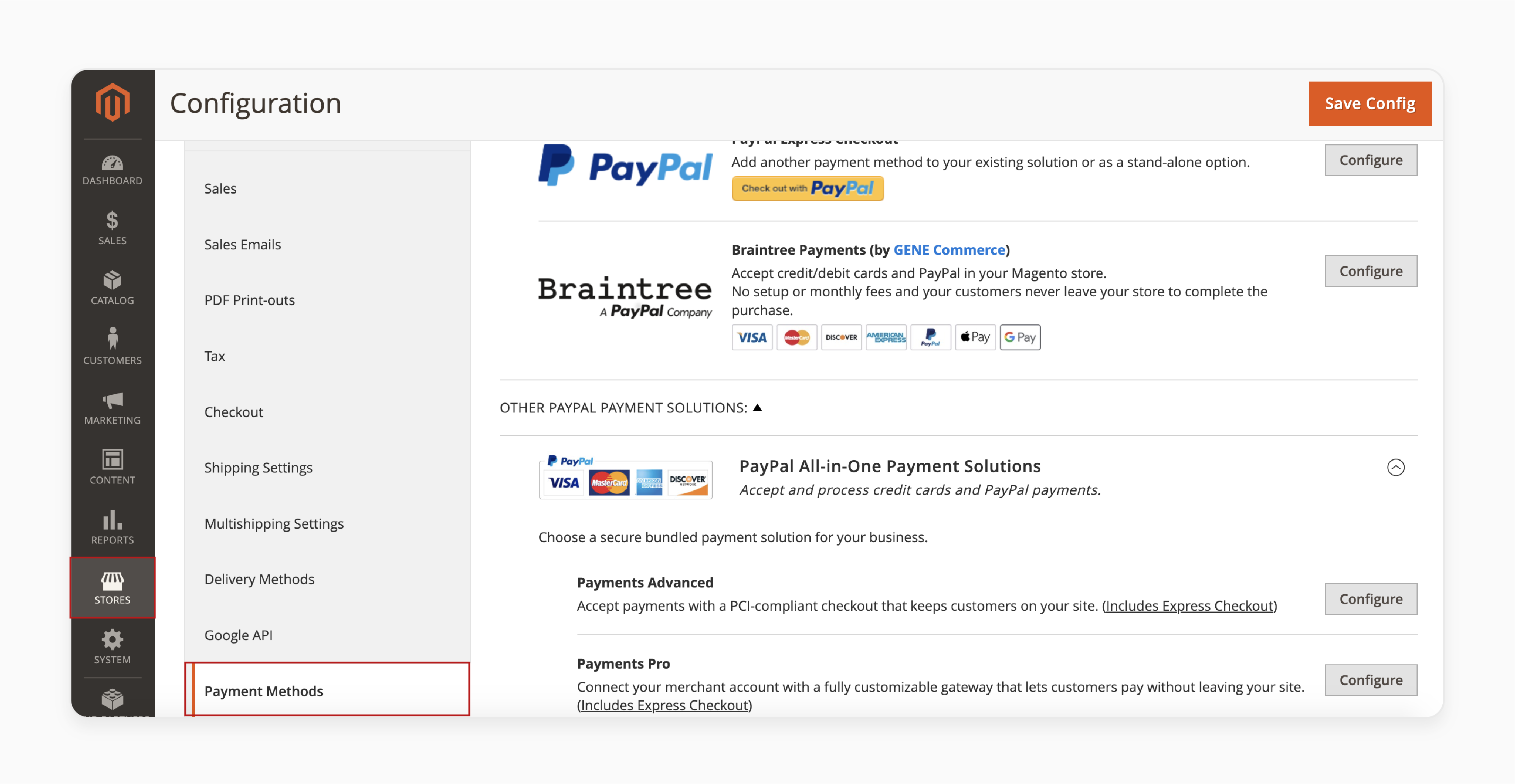
Navigate to Stores > Configuration > Sales > Payment Methods to configure your checkout options:
- Built-in options: PayPal, Braintree, bank transfer, check/money order
- Third-party gateways through extensions: Stripe, Adyen, Authorize.net
Shipping Methods
Under Stores > Configuration > Sales > Shipping Methods, configure:
- Free Shipping with minimum order threshold
- Flat Rate for fixed shipping costs
- Table Rates for weight and destination-based pricing
- Carrier integrations: UPS, USPS, FedEx, DHL
Each method supports country restrictions, error messages, and sort order at checkout.
Customize Your Store Design
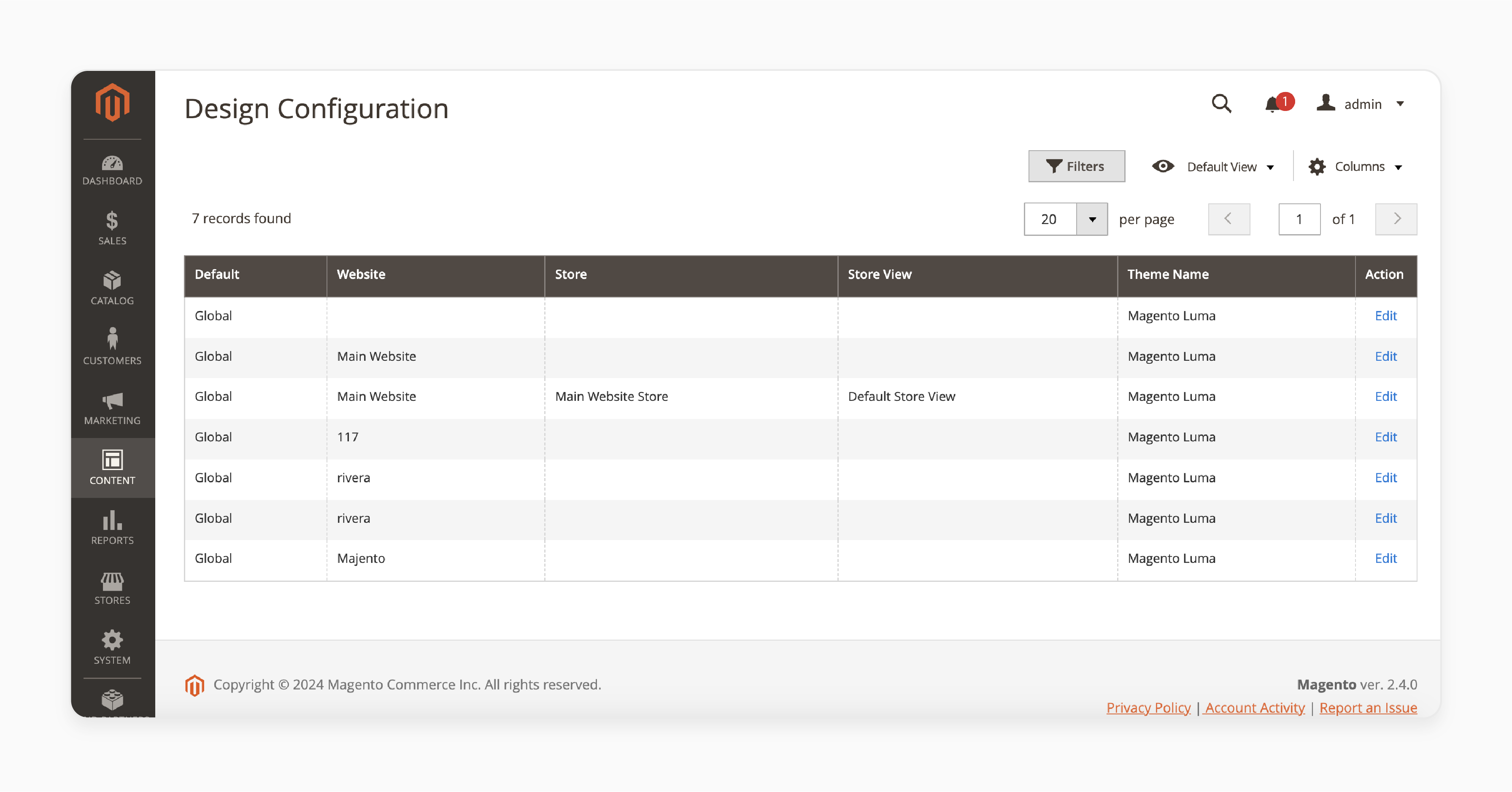
Navigate to Content > Design Configuration to manage your storefront appearance.
Themes
Select a theme from the Magento Marketplace or install a custom theme via Composer:
composer require vendor/theme-package
php bin/magento setup:upgrade
php bin/magento setup:static-content:deploy
For high-performance storefronts, consider community-driven themes like Hyvä or headless setups with PWA Studio and the Adobe Commerce frontend. These approaches decouple the frontend from the backend and deliver faster page loads for stores that need to scale beyond the default Luma theme.
Page Builder
Magento's built-in Page Builder provides drag-and-drop content creation for CMS pages, product descriptions, and category landing pages. Create layouts with rows, columns, tabs, banners, sliders, and custom HTML blocks without writing code.
Custom CSS and JavaScript
For advanced customization, add custom CSS through Content > Design Configuration > HTML Head. For theme-level changes, create a custom child theme to preserve modifications through upgrades.
Marketing and Customer Management
Promotions
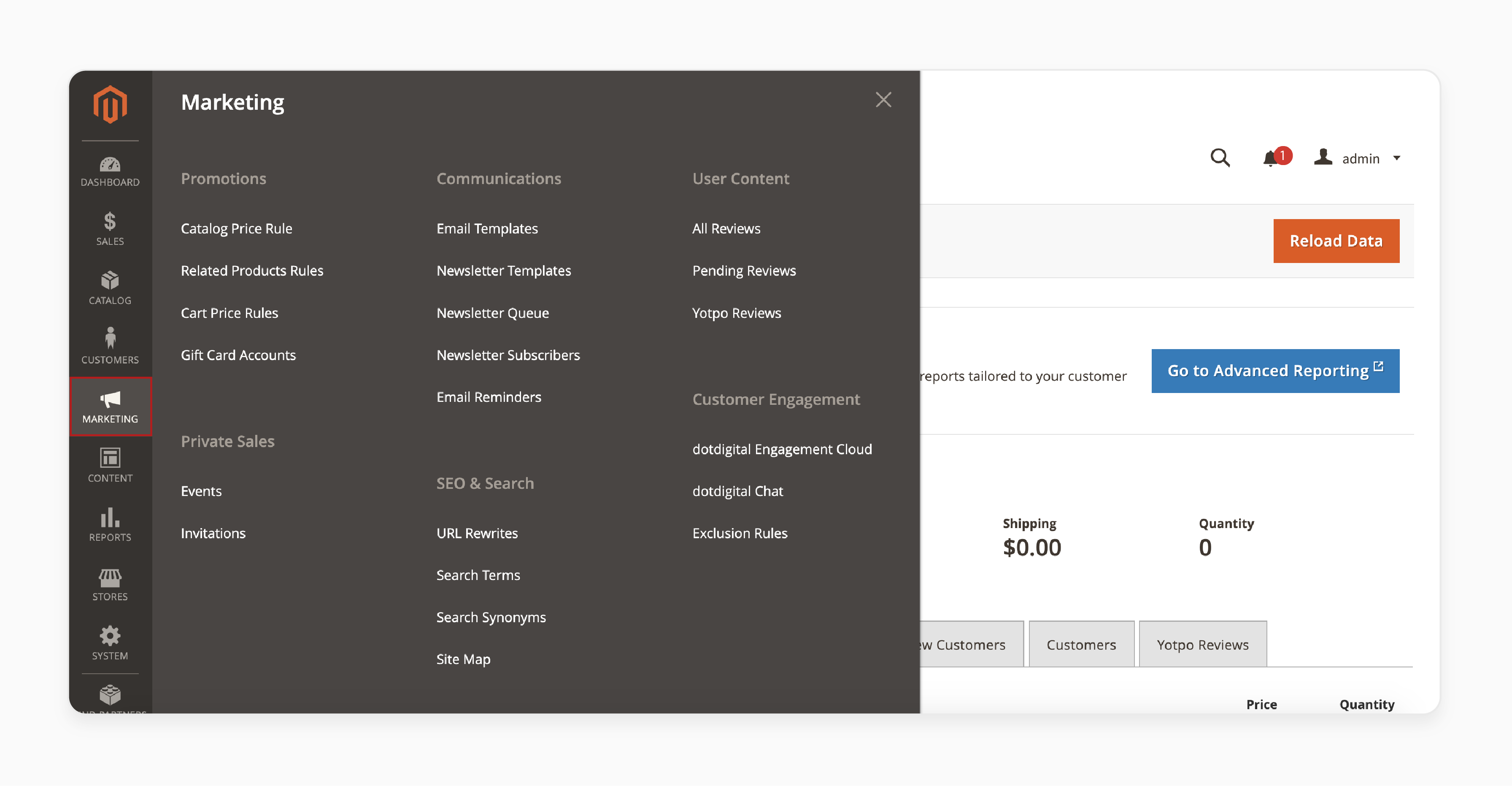
Navigate to Marketing > Promotions to create:
- Catalog Price Rules: Automatic discounts based on product attributes, categories, or customer groups
- Cart Price Rules: Coupon codes, free shipping thresholds, buy-X-get-Y deals
Customer Management
The Customers section provides:
- All Customers: View, edit, and export customer records
- Customer Groups: Segment customers for targeted pricing and promotions
- Now Online: Monitor active sessions in real-time
SEO Tools
Under Marketing > SEO & Search, manage URL rewrites, create XML sitemaps, and review popular search terms. Configure meta defaults and URL key formats under Stores > Configuration > Catalog > SEO.
Reports and Analytics
The Reports section provides built-in analytics across your store:
- Sales Reports: Orders, tax, shipping, refunds, and coupon usage
- Product Reports: Best sellers, most viewed, low stock alerts
- Customer Reports: New accounts, order totals, and customer segments
- Marketing Reports: Cart activity, abandoned carts, and search terms
For deeper analytics, integrate Google Analytics 4 with your store through Stores > Configuration > Sales > Google API. Third-party extensions add advanced reporting dashboards with real-time data visualization.
Install Extensions via Composer
The Adobe Commerce Marketplace offers thousands of extensions for added functionality. Install extensions through Composer (the Web Setup Wizard was removed in Magento 2.4):
composer require vendor/extension-name
php bin/magento setup:upgrade
php bin/magento cache:clean
Before installation, verify compatibility with your Magento version (e.g. 2.4.8) and PHP version using the Marketplace filters. Check user ratings, update frequency, and Adobe verification status.
Security and Maintenance
Security Best Practices
- Two-Factor Authentication: Enforced for all admin accounts since Magento 2.4.0. Use app-based 2FA (Google Authenticator, Authy) over SMS
-
Custom Admin Path: Change the default
/admin/URL to reduce automated attacks - Security Patches: Since 2026, Adobe releases isolated security fixes as needed (no longer quarterly only) plus one major annual security patch in May. Sign up for Adobe Security Notifications to stay informed
- SSL/HTTPS: Required for PCI compliance. Use TLS 1.2+ with HSTS headers
-
File Permissions: Follow the least-privilege principle. Restrict write access to
var/,pub/media/, andgenerated/directories
Performance Maintenance
- Cache Management: Clear specific caches after content updates via System > Cache Management. Use Redis for session and cache storage on production stores
- Index Management: Schedule reindexing during low-traffic hours via System > Index Management
-
Database Optimization: Run
bin/magento cron:runfor scheduled cleanup tasks - Monitoring: Track response times, error rates, and server resource usage. Address performance issues before they affect customers
For production stores, managed Magento hosting handles server optimization, security patches, and infrastructure scaling so you can focus on store management.
FAQ
1. What is the default Magento 2 admin URL?
The default admin URL is yourdomain.com/admin/. You can change this in app/etc/env.php by modifying the backend > frontName value. Changing the default URL is a recommended security practice.
2. How do I reset my Magento 2 admin password?
Use the CLI command: php bin/magento admin:user:unlock adminusername to unlock the account, then php bin/magento admin:user:create to reset credentials. You can also use the "Forgot Password" link on the admin login page.
3. What PHP version does Magento 2 require in 2026?
Magento 2.4.8 requires PHP 8.3 (minimum and recommended) and supports PHP 8.4. PHP 8.2 is allowed for upgrade purposes only, not for production since its end-of-life in December 2025. Always check the current Adobe Commerce system requirements for your exact patch version.
4. How do I add products to my Magento 2 store?
Navigate to Catalog > Products > Add Product. Select the product type (Simple, Configurable, Grouped, Virtual, Bundle, or Downloadable), fill in the required fields (name, SKU, price, stock), upload images, and click Save.
5. Can I run multiple stores from one Magento 2 installation?
Yes. Magento 2 supports multiple websites, stores, and store views from a single installation. Configure these under Stores > Settings > All Stores. Each store view can have its own language, currency, and design.
6. How do I install extensions in Magento 2.4+?
Use Composer: composer require vendor/extension-name, then run php bin/magento setup:upgrade and php bin/magento cache:clean. The Web Setup Wizard was removed in Magento 2.4, so all extension installation happens through the command line.
7. What two-factor authentication options does Magento 2 support?
Magento 2.4+ supports Google Authenticator, Authy, Duo Security, and U2F security keys. 2FA is mandatory for all admin accounts and cannot be disabled without a module override.
8. How do I improve Magento 2 admin panel performance?
Enable full-page cache (Varnish recommended), use Redis for session and cache storage, schedule index updates during off-peak hours, and enable production mode. A Content Delivery Network reduces load times for static assets.
9. How do I back up my Magento 2 store?
Use php bin/magento setup:backup --code --media --db for a complete backup. Schedule automated database backups through your hosting provider or cron jobs. Store backups off-server for disaster recovery.
10. What is the difference between Magento Open Source and Adobe Commerce?
Magento Open Source is free and covers core ecommerce functionality. Adobe Commerce (formerly Magento Commerce) adds B2B features, AI-powered personalization, staging environments, customer segmentation, and dedicated Adobe support. Both share the same admin panel interface.
Summary
The Magento 2 admin panel gives you complete control over your online store. Master these core areas: store configuration, product catalog, payment and shipping, design, marketing, and security.
Start with the basics (store settings, products, payment methods) and expand into advanced features (promotions, Page Builder, analytics) as your store grows. Keep your installation updated, enforce 2FA for all admin accounts, and apply security patches promptly.
For production stores that need reliable performance and expert server management, managed Magento hosting handles the infrastructure while you focus on growing your business.