

How to Configure and Customize Your Magento 2 Contact Form
[Updated: March 12, 2026] Your contact form is the first interaction most customers have with your support team. A broken or generic form costs you leads and frustrates buyers who need help. This guide covers full configuration, custom field creation, reCAPTCHA v3 spam protection, and fixes for the most common email delivery issues.
Key Takeaways
- The Magento 2 contact form creates a built-in "Contact Us" page at /contact/ with four default fields: Name, Email, Phone Number, and Comment.
- Configuration takes four steps in the admin panel: enable the form, set email options, customize the content block, and verify on the frontend.
- Adding custom fields requires a small module with a modified form.phtml template and a layout XML override.
- reCAPTCHA v3 runs invisible in the background and assigns risk scores from 0.0 to 1.0 to filter bots without disrupting real users.
- Custom email templates and Google Maps integration add professional touches that build customer trust.
What is the Magento 2 Contact Form?
Magento 2 contact form = a built-in feature that creates a Contact Us page at /contact/ with Name, Email, Phone, and Comment fields. Zero setup cost, but limited to four fields without customization.
Perfect for: Store owners needing basic customer communication, support teams handling inquiries, B2B stores collecting lead information.
Not ideal for: Stores requiring multi-step forms, file uploads, or conditional logic without extensions.
The contact form ships with every Magento 2 installation. Customers submit their message through the storefront, and Magento sends it to your configured email address using the transactional email system.
In Magento 2.4.8 (the current release as of 2026), the contact form supports reCAPTCHA v3 for spam protection, custom email templates, and CMS block integration for additional content on the Contact Us page.
How to Configure the Contact Form in 4 Steps
Step 1: Access the Configuration
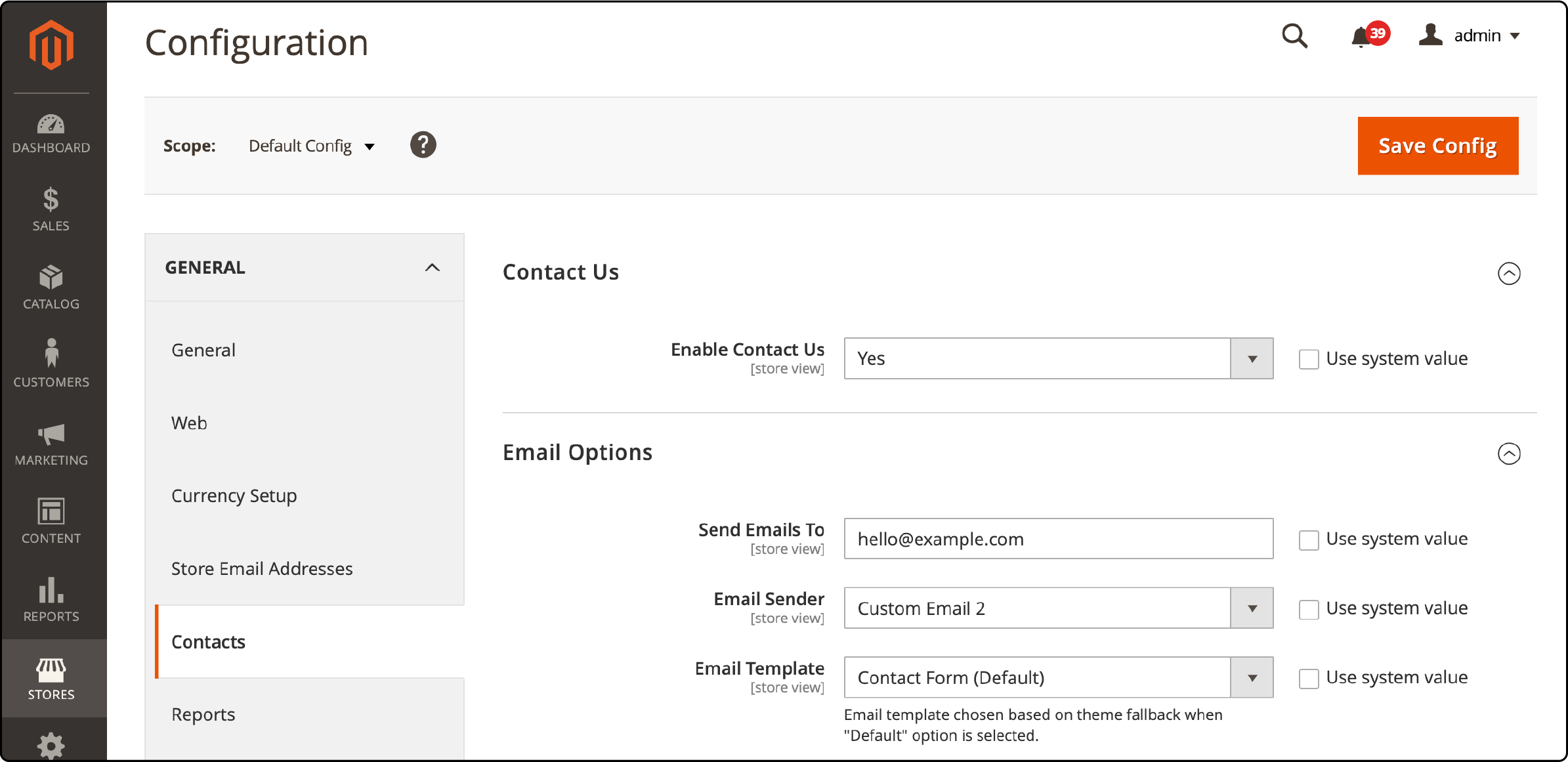
Log into your Magento 2 admin panel. Navigate to Stores > Settings > Configuration. In the left panel, expand General and select Contacts.
Step 2: Enable the Contact Form
Expand the Contact Us section. Set Enable Contact Us to Yes. This activates the /contact/ page on your storefront.

Step 3: Configure Email Options
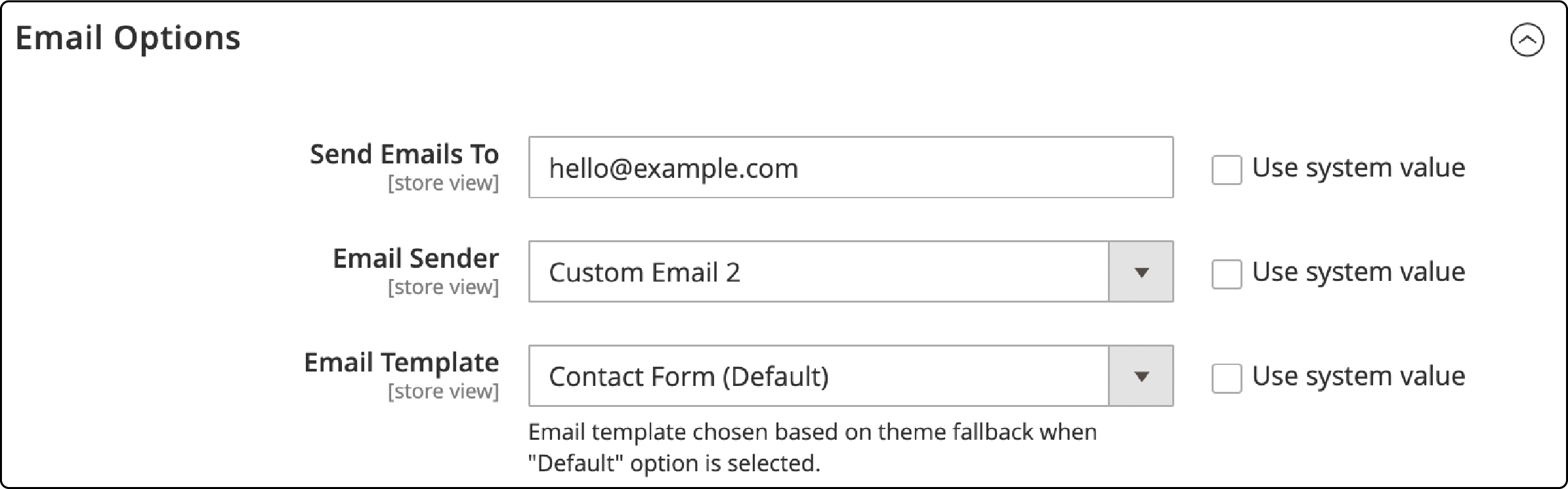
Expand the Email Options section and set the following:
- Send Emails To: Enter the email address that receives form submissions.
- Email Sender: Select the store identity that appears as the sender (e.g., "General Contact" or "Custom Email 2").
- Email Template: Choose the transactional email template for contact form messages.
Click Save Config when done.
Step 4: Customize the Contact Us Info Block
The Contact Us page includes a CMS block for additional content like phone numbers, business hours, or office addresses.
Navigate to Content > Elements > Blocks. Find the Contact Us Info block and click Edit.
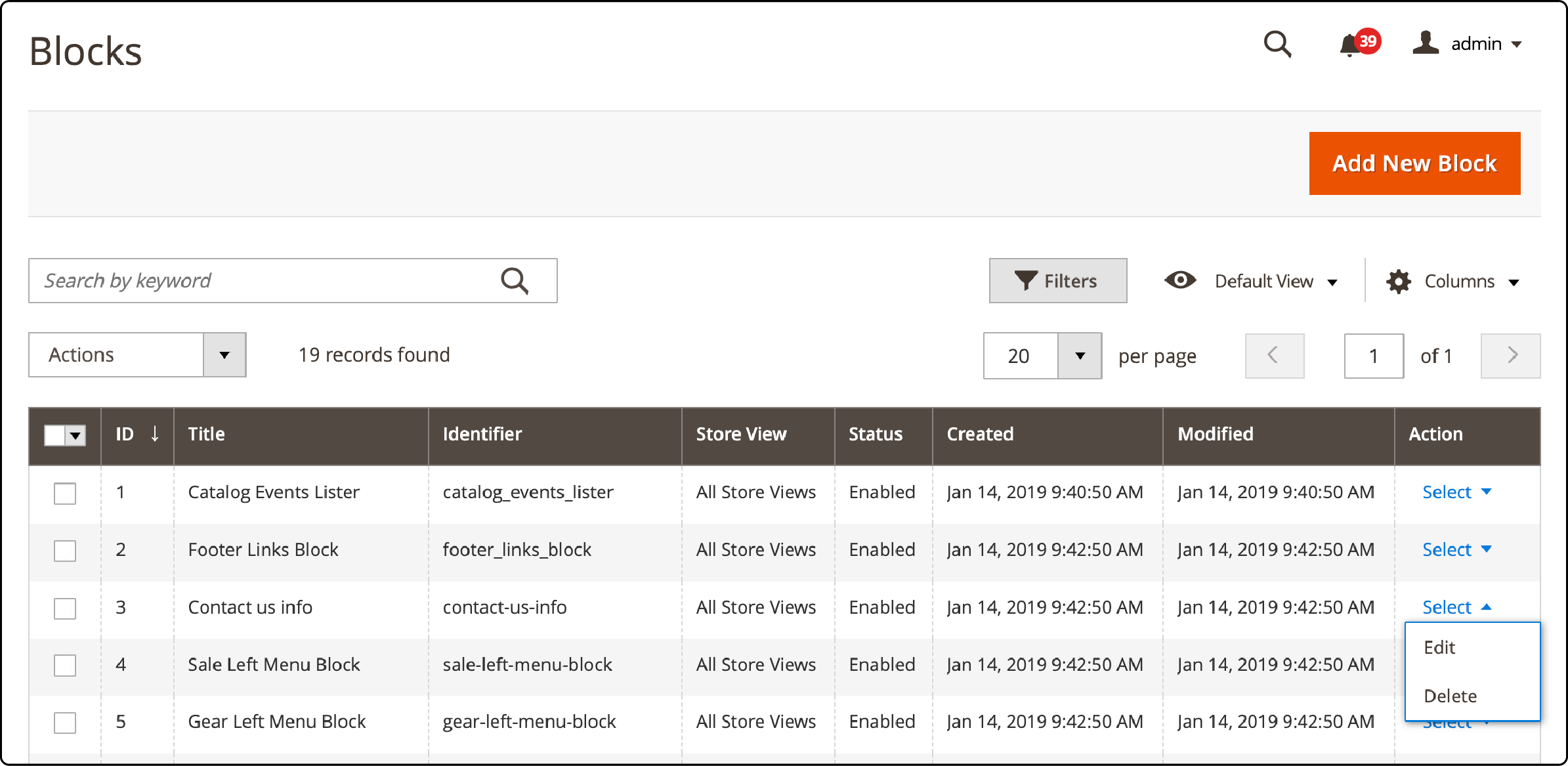
Update the content using the WYSIWYG editor. Add your business contact details, operating hours, or physical address. Click Save Block.
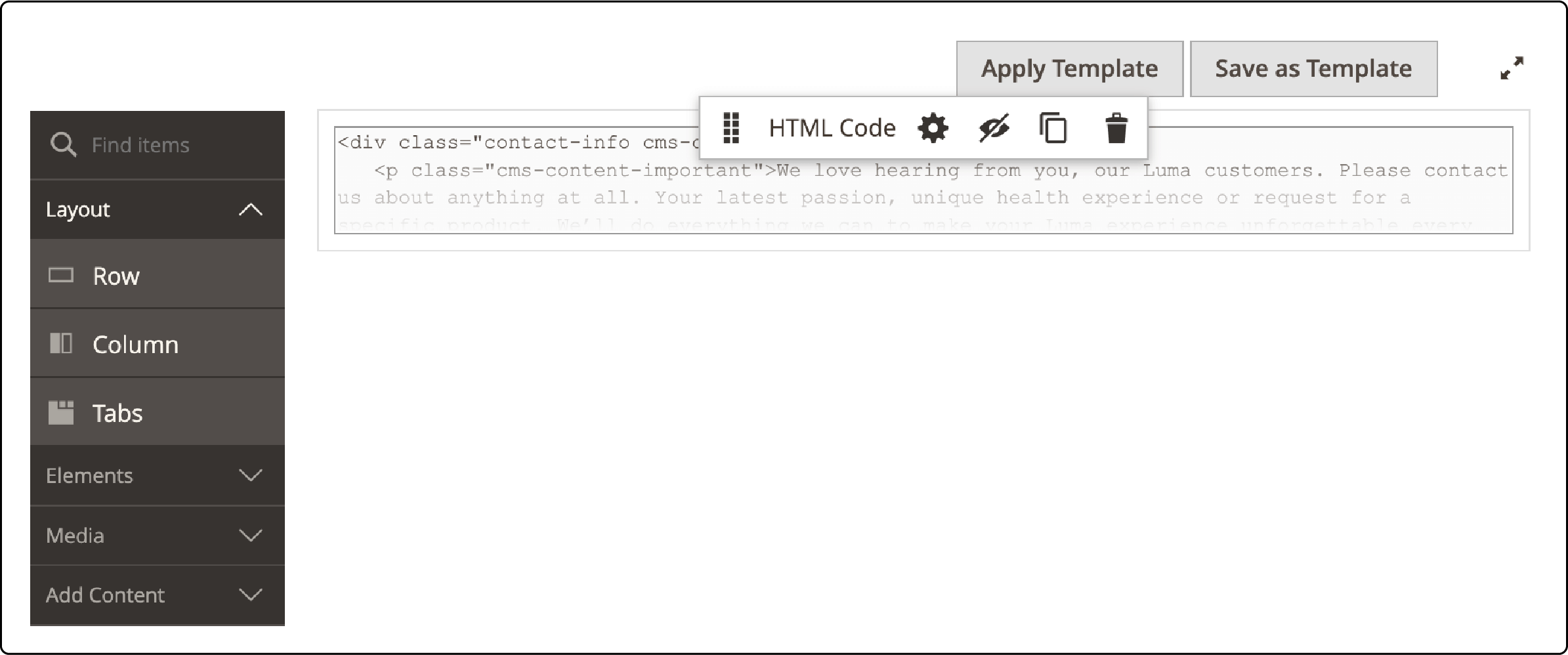
Visit your storefront /contact/ page to verify the form displays and the info block shows your updated content.
How to Add Custom Fields to the Contact Form
The default form covers basic needs. For fields like Subject, Order Number, or Department selection, you need a custom module.
If you prefer a no-code approach, a Magento 2 custom contact form extension offers drag-and-drop form building with field validation and file uploads.
Create the Module Structure
Create these files in app/code/YourVendor/ContactForm/:
1. Module declaration (etc/module.xml):
<config xmlns:xsi="https://www.w3.org/2001/XMLSchema-instance"
    xsi:noNamespaceSchemaLocation="urn:magento:framework:Module/etc/module.xsd">
    <module name="YourVendor_ContactForm"/>
</config>
2. Registration (registration.php):
<?php
\Magento\Framework\Component\ComponentRegistrar::register(
    \Magento\Framework\Component\ComponentRegistrar::MODULE,
    'YourVendor_ContactForm',
    __DIR__
);
Override the Form Template
3. Layout override (view/frontend/layout/contact_index_index.xml):
<?xml version="1.0"?>
<page xmlns:xsi="https://www.w3.org/2001/XMLSchema-instance" layout="1column"
    xsi:noNamespaceSchemaLocation="urn:magento:framework:View/Layout/etc/page_configuration.xsd">
    <body>
        <referenceBlock name="contactForm" remove="true"/>
        <referenceContainer name="content">
            <block class="Magento\Contact\Block\ContactForm"
                name="customContactForm"
                template="YourVendor_ContactForm::form.phtml"/>
        </referenceContainer>
    </body>
</page>
4. Custom form template (view/frontend/templates/form.phtml):
Add your custom field inside the form. This example adds a Subject field:
<div class="field subject required">
    <label class="label" for="subject">
        <span><?= $block->escapeHtml(__('Subject')) ?></span>
    </label>
    <div class="control">
        <input name="subject" id="subject"
            title="<?= $block->escapeHtml(__('Subject')) ?>"
            value="" class="input-text" type="text"
            data-validate="{required:true}"/>
    </div>
</div>
Update the Email Template
After adding custom fields, update the email template so submissions include the new data.
Go to Marketing > Email Templates and click Add New Template. Select Contact Form from the dropdown and click Load Template. Enter a template name (e.g., "Custom Contact Form").
Add the new field variable to the Template Content:
{{trans "Subject: %subject" subject=$data.subject}}
The field name in $data.subject must match the name attribute in your form HTML. Click Save Template, then select your new template under Stores > Configuration > General > Contacts > Email Options.
Run these commands to activate the module:
bin/magento setup:upgrade
bin/magento cache:flush
Important: Custom fields added this way appear in the email notification but are not stored in the Magento database. For persistent storage, observe the contact_controller_index_post event or create a preference on the Contact controller to save submissions to a custom table.
How to Set Up reCAPTCHA v3 for Spam Protection
reCAPTCHA v3 is the recommended spam protection for Magento 2.4.8. Unlike reCAPTCHA v2 (the "I am not a robot" checkbox), v3 runs invisible in the background. It assigns risk scores between 0.0 (bot) and 1.0 (human) without showing challenges to real users.
Get Your API Keys
Register your domain at the Google reCAPTCHA Admin Console. Select reCAPTCHA v3 as the type. Copy your Site Key and Secret Key.
Configure in Magento Admin
- Navigate to Stores > Configuration > Security > Google reCAPTCHA Storefront.
- Enter your Site Key and Secret Key under the reCAPTCHA v3 Invisible section.
- Set the Minimum Score Threshold to 0.5 (default). Lower values allow more traffic through. Higher values block more aggressively.
- Scroll to Storefront and set Enable for Contact Us to reCAPTCHA v3 Invisible.
- Click Save Config.
Every contact form submission now gets validated in the background. Monitor your reCAPTCHA admin dashboard to review scores and adjust the threshold if legitimate users report problems.
For a full walkthrough with screenshots, see our reCAPTCHA configuration guide.
How to Customize the Contact Form Email Template
Custom email templates let you brand automated responses and format submission data for your support team.
- Go to Marketing > Email Templates and click Add New Template.
- Select Contact Form from the template dropdown and click Load Template.
- Enter a template name (e.g., "Branded Contact Response").
- Edit the Template Content to match your brand. Add company logo, custom formatting, and any additional field variables.
- Click Save Template.
- Navigate to Stores > Configuration > General > Contacts > Email Options and select your new template from the Email Template dropdown.

How to Enable Google Maps on the Contact Page
Adding a map helps customers locate your physical store or office. Magento 2's Page Builder includes a native Map widget for this.
Configure the API Key
- Get a Google Maps API key from the Google Cloud Console.
- Navigate to Stores > Configuration > General > Content Management in the admin panel.
- Enter your key in the Google Maps API Key field.
- Click Save Config.
Add the Map to Your Contact Page
- Go to Content > Pages and edit the Contact Us page.
- Open the Page Builder editor and drag the Map element from the Media section into your content area.
- Configure the location, zoom level, and pin details.
- Save the page.
For a step-by-step walkthrough with screenshots, see our Google Maps integration tutorial. Full documentation is available in the Adobe Commerce Page Builder Map Guide.
Troubleshooting: Contact Form Not Sending Emails
If contact form submissions never reach your inbox, check these common causes:
1. Wrong email address: Verify the "Send Emails To" field under Stores > Configuration > General > Contacts > Email Options. A single typo means all submissions get lost.
2. Missing SMTP configuration: The default PHP mail() function fails on many server environments. Configure a proper SMTP transport through Mailgun, SendGrid, or Amazon SES. Managed hosting providers handle SMTP at the server level, so email delivery works without additional setup.
3. Spam folder: Check your spam and junk folders. Automated form emails from web servers often trigger spam filters.
4. Cron not running: Magento queues emails through cron jobs. If cron is not active, emails sit in the queue and never send. Verify with:
bin/magento cron:run
Check the cron_schedule database table for failed jobs.
5. Cache needs flushing: After any configuration change, clear the cache:
bin/magento cache:flush
For a full troubleshooting walkthrough, see our guide on fixing contact form email issues.
FAQ
How do I find the Contact Us page URL in Magento 2?
The default URL is yourdomain.com/contact/. This path is built into the Magento 2 core contact module and works without any configuration changes.
Can I add file upload fields to the contact form?
The default contact form does not support file uploads. You need a custom module or a contact form extension that includes file upload field types with configurable size limits and allowed file formats.
Does the Magento 2 contact form work with Hyvä theme?
Hyvä replaces Magento's default Luma frontend with Alpine.js and Tailwind CSS. The contact form template needs a Hyvä-compatible override. Check the Hyvä compatibility module list at hyva.io or create a custom form.phtml using Alpine.js directives instead of Knockout.js bindings.
How do I add the contact form to a CMS page?
Use the layout XML directive to insert the contact form block on any CMS page. You can also add it through the admin panel via Content > Pages > select your page > Insert Widget, then choose "Contact Form" as the widget type.
What is the difference between CAPTCHA and reCAPTCHA in Magento 2?
Magento's built-in CAPTCHA displays distorted text images that users must type to submit forms. Google reCAPTCHA v3 runs invisible in the background using behavioral analysis and risk scoring. reCAPTCHA v3 provides better user experience and stronger spam protection without adding friction.
How do I remove the phone number field from the contact form?
Edit the form.phtml template in your theme or custom module. Remove or comment out the telephone field div. The phone field has no required validation by default. You can also hide it with CSS: #contact-form .field.telephone { display: none; }.
Can I send contact form submissions to multiple email addresses?
The "Send Emails To" field accepts one email address. To notify multiple team members, create an email distribution group or alias (e.g., support@yourdomain.com) that forwards to all recipients.
How do I change the success message after form submission?
Override the default message through your theme's translation file (i18n/en_US.csv). Add the original string and your replacement text. The default message reads "Thanks for contacting us with your comments and questions. We'll respond to you very soon."
Summary
The Magento 2 contact form ships ready to use with four default fields and integrates with the transactional email system. Configuration takes minutes through the admin panel. reCAPTCHA v3 keeps bots out without friction for real users. Custom fields and branded email templates let you collect the exact data your support team needs.
For stores running on managed Magento hosting, email delivery and server-side form processing work out of the box with pre-configured SMTP and cron services.
