

Magento Product Attributes: Complete Guide to Types, Scope, and Best Practices
[Updated: March 11, 2026]
Product attributes control how customers find, filter, and compare products in your Magento store. Misconfigured attributes slow down indexing and break layered navigation.
This guide covers all 13 input types, attribute scope, attribute sets, and performance best practices for Magento 2.4.8.
Key Takeaways
- Product attributes define every piece of product data in Magento, from color and size to price and SKU.
- Magento 2 ships with around 70–80 system attributes in a standard installation. Custom attributes extend the catalog for your specific needs.
- All 13 input types serve different purposes. Choose the right one to avoid performance issues.
- Attribute scope (Global, Website, Store View) determines where attribute values apply across your store hierarchy.
- Attribute sets act as templates that group attributes for different product types.
- Unused attributes slow down catalog indexing. Remove them to keep your store fast.
What Are Magento Product Attributes?
Magento product attributes = the building blocks of your product catalog. Each attribute stores one piece of product data (color, size, price, material) and controls how customers search, filter, and compare products.
Perfect for: Store owners managing large catalogs, developers building custom product types, agencies setting up new Magento stores.
Not ideal for: Static single-product stores with no filtering needs.
Product attributes in Magento use the Entity-Attribute-Value (EAV) data model. Instead of storing every product field in a single database row, the EAV model stores each attribute value in a separate row. This makes the system flexible. You can add new attributes without changing the database schema.
Every product page, category filter, search result, and comparison table relies on attributes. A well-structured attribute setup improves the shopping experience. A poorly planned one creates slow page loads and confusing navigation.
System vs Custom Attributes
Magento 2 includes two categories of product attributes.
System Attributes
System attributes ship with every Magento installation. You cannot delete them. They handle core catalog functions:
| System Attribute | Purpose |
|---|---|
| Name | Product title on storefront and search results |
| SKU | Unique product identifier for inventory management |
| Price | Product cost, used in cart totals and price rules |
| Weight | Shipping calculations and carrier rate lookups |
| Status | Enables or disables the product in the store |
| Visibility | Controls where the product appears (catalog, search, or both) |
| Tax Class | Determines tax calculation rules |
| URL Key | Sets the product's URL slug |
Magento 2 includes around 70–80 system attributes out of the box. The exact count depends on the version and installed modules (e.g., Downloadable Products, Gift Cards add extra attributes).
Custom Attributes
Store owners create custom attributes to capture product data not covered by system attributes. Common use cases include:
- Material composition for clothing stores
- Certification badges (organic, fair trade) for food retailers
- Compatibility specs (device model, operating system) for electronics
- Warranty duration for appliance stores
To create a custom attribute: navigate to Stores > Attributes > Product and click Add New Attribute. Fill in the attribute code, select the input type, and configure the storefront properties.
Once created, assign the attribute to the relevant attribute set. It then appears on product edit pages and (if configured) on the storefront.
All 13 Attribute Input Types
Magento 2.4.8 supports 13 standard input types for product attributes. Each type determines how the attribute value is entered in the admin panel and displayed on the storefront.
| Input Type | Description | Use Case |
|---|---|---|
| Text Field | Single-line text input | Short values like brand name, model number |
| Text Area | Multi-line text input | Extended descriptions, care instructions |
| Text Editor | WYSIWYG editor (TinyMCE 7.3.0 in 2.4.8) | Rich content with formatting, links, images |
| Date | Calendar date picker | Release dates, expiration dates |
| Date and Time | Calendar with time selection | Event start times, auction deadlines |
| Yes/No | Boolean toggle | "Is New", "On Sale", "Free Shipping" |
| Dropdown | Single selection from predefined options | Brand, manufacturer, product line |
| Multiple Select | Multiple selections from predefined options | Compatible accessories, certifications |
| Price | Numeric field with currency formatting | Special price, cost, MSRP |
| Media Image | Image upload field | Additional product images beyond the gallery |
| Fixed Product Tax | Tax rate fields per region | FPT/eco-tax for specific jurisdictions |
| Visual Swatch | Color/pattern swatch selector | Color options for configurable products |
| Text Swatch | Text-based swatch selector | Size labels (S, M, L, XL) |
Page Builder integration: For attributes like product descriptions or custom content fields, Magento 2.4.8 supports the Page Builder renderer. This enables complex visual layouts, image blocks, and widgets per product. Page Builder is not a separate input type in the "Catalog Input Type for Store Owner" dropdown. It is an extended rendering option for compatible text attributes.
When to use Visual Swatch vs Text Swatch vs Dropdown: Use Visual Swatch for attributes with a visual component (colors, patterns, textures). Use Text Swatch for short text labels where the value itself is the visual indicator (sizes, material codes). Use Dropdown for longer option lists where swatches add no value (brand names, categories).
Source: Adobe Commerce Input Types Documentation
Attribute Scope: Global, Website, and Store View
Attribute scope controls where an attribute value applies across your Magento store hierarchy. This matters for multi-store and multi-language setups.
| Scope | Behavior | Example |
|---|---|---|
| Global | Same value across all websites and store views | SKU, weight, manufacturer |
| Website | Different value per website, shared across store views within that website | Price (USD on US site, EUR on EU site) |
| Store View | Different value per store view | Product name (English on EN view, German on DE view) |
Set the scope when creating or editing an attribute under Catalog Input Type for Store Owner > Scope. The default scope is Global.
Practical example: A store selling in the US and Germany needs the product name in English and German. Set the Name attribute scope to Store View. Price in USD vs EUR requires Website scope. The SKU stays the same everywhere, so it uses Global scope.
Changing scope after products have been saved can cause data loss. Plan your scope strategy before adding products to the catalog.
Attribute Sets: Product Templates
Attribute sets group attributes into organized collections. Think of them as templates for different product types. A "Clothing" attribute set includes size, color, and material. An "Electronics" set includes voltage, warranty, and compatibility.
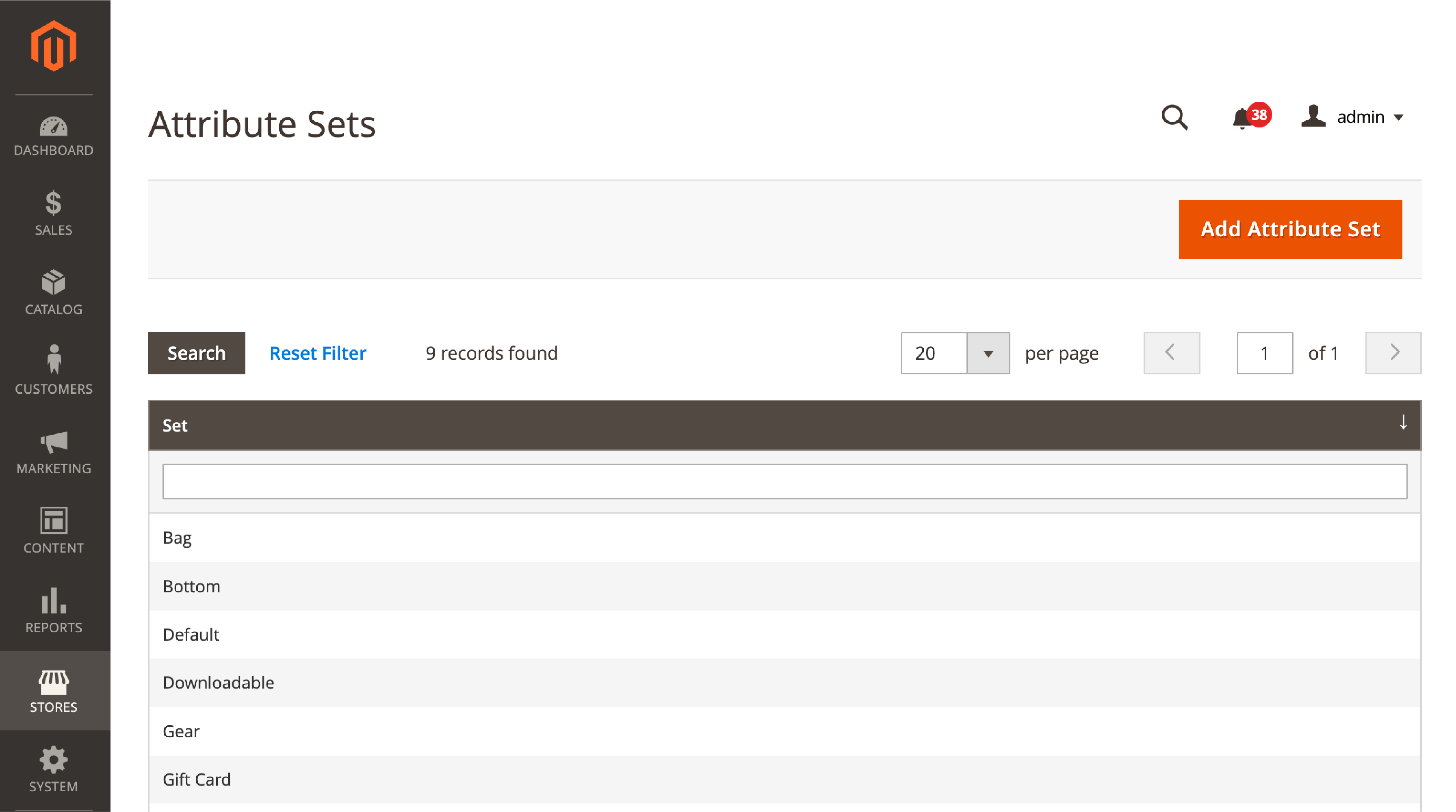
Creating an Attribute Set
- Navigate to Stores > Attributes > Attribute Set.
- Click Add Attribute Set.
- Enter a name (e.g., "Footwear").
- Select an existing set from the Based On dropdown as your starting template.
- Click Save.
The new set inherits all attributes and groups from the template. Modify it by dragging attributes between groups.
Attribute Groups Within Sets
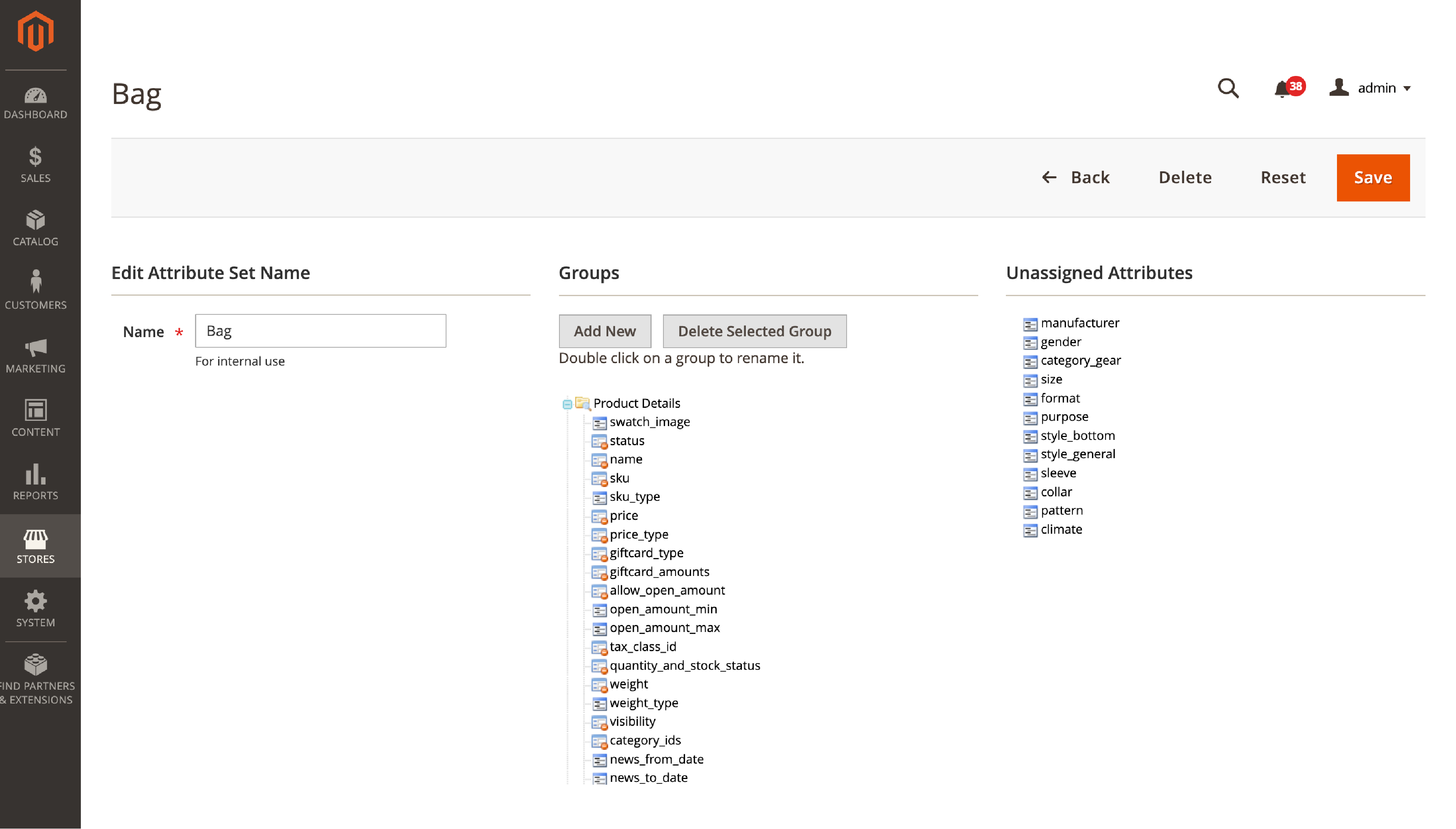
Attribute groups organize attributes into tabs on the product edit page. Default groups include "General", "Content", "Images and Videos", and "Search Engine Optimization".
To create a custom group:
- Open the attribute set in edit mode.
- Click Add New in the Groups column.
- Name the group (e.g., "Technical Specifications").
- Drag attributes from the Unassigned Attributes panel into the new group.
- Save the set.
Keep groups logical and minimal. Too many groups create a cluttered product edit page that slows down catalog management.
How to Create a Product Attribute in Magento 2
Follow these steps to create a new custom attribute in the admin panel.
Step 1: Access the Attributes Page
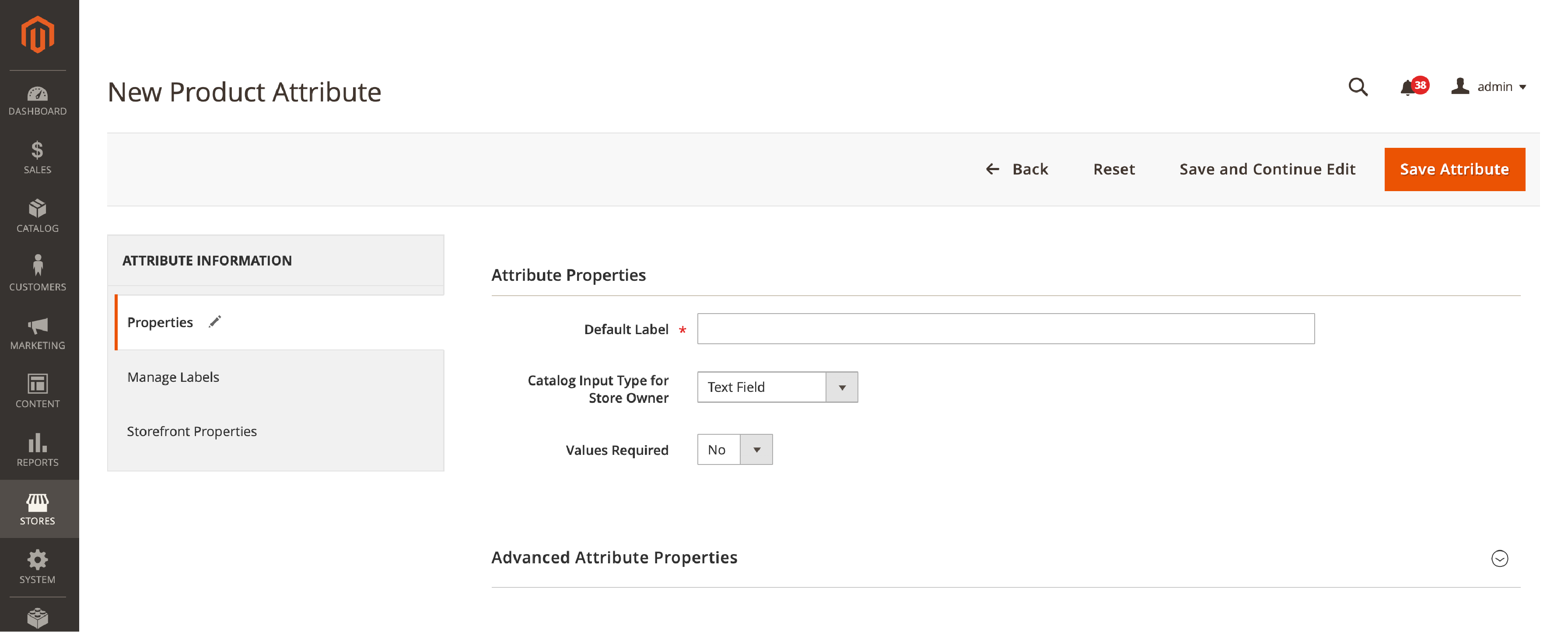
Log in to the Magento admin panel. Navigate to Stores > Attributes > Product. Click Add New Attribute.
Step 2: Configure Basic Properties
- Default Label: Enter the attribute name visible in admin and storefront (e.g., "Fabric Type").
- Catalog Input Type: Select one of the 13 input types (see table above).
- Values Required: Set to Yes if every product in the assigned attribute set must have this value.
- Attribute Code: Auto-generated from the label. Use lowercase letters and underscores only.
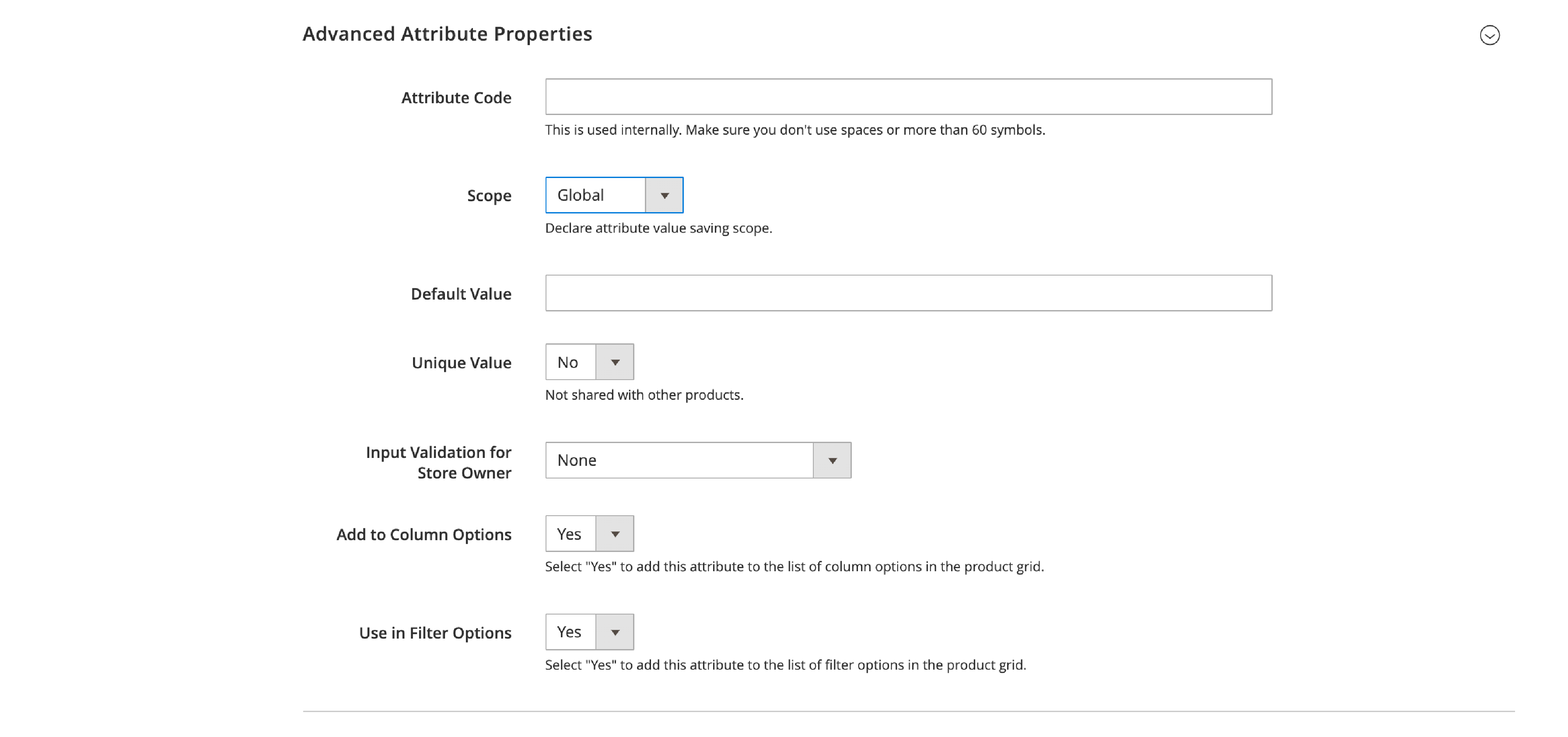
Step 3: Set Advanced Properties
- Scope: Choose Global, Website, or Store View.
- Unique Value: Enforce unique values across all products (useful for serial numbers).
- Input Validation: Apply rules like integer, decimal, URL, or email format.
- Add to Column Options / Filter Options: Makes the attribute available in the product grid.
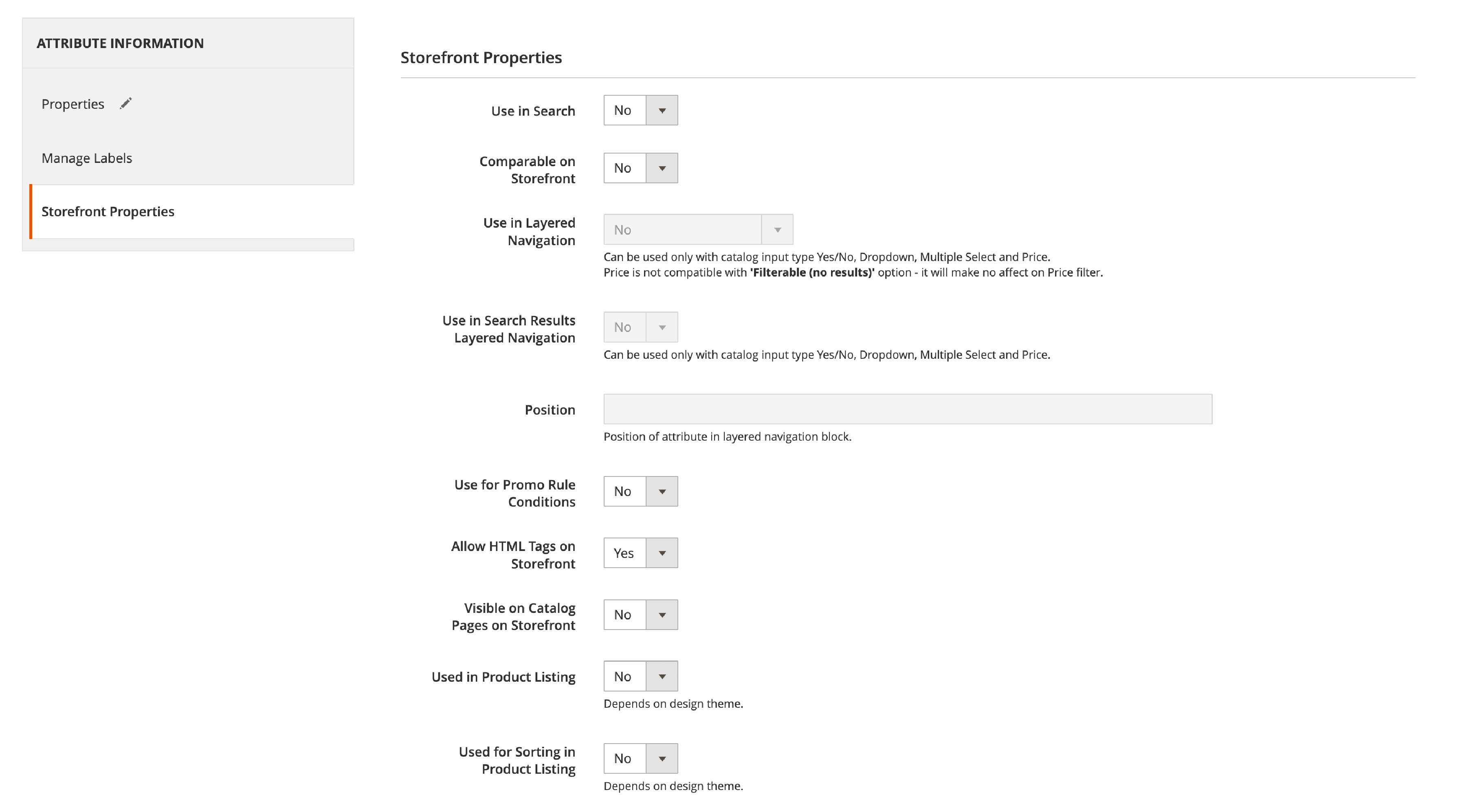
Step 4: Configure Storefront Properties
This step determines how the attribute behaves on the frontend:
- Use in Layered Navigation: Enable for filterable attributes (dropdown, multiple select, yes/no, or price types only).
- Use in Search Results Layered Navigation: Enable for search result page filters.
- Visible on Catalog Pages: Show the attribute value on product listing pages.
- Used in Product Listing / Sorting: Make the attribute available for sorting and display on category pages.
- Use for Promo Rule Conditions: Allow this attribute in catalog and cart price rule conditions.
- Comparable on Storefront: Include in the product comparison feature.
- Use for Search: Add to the full-text search index with configurable search weight.
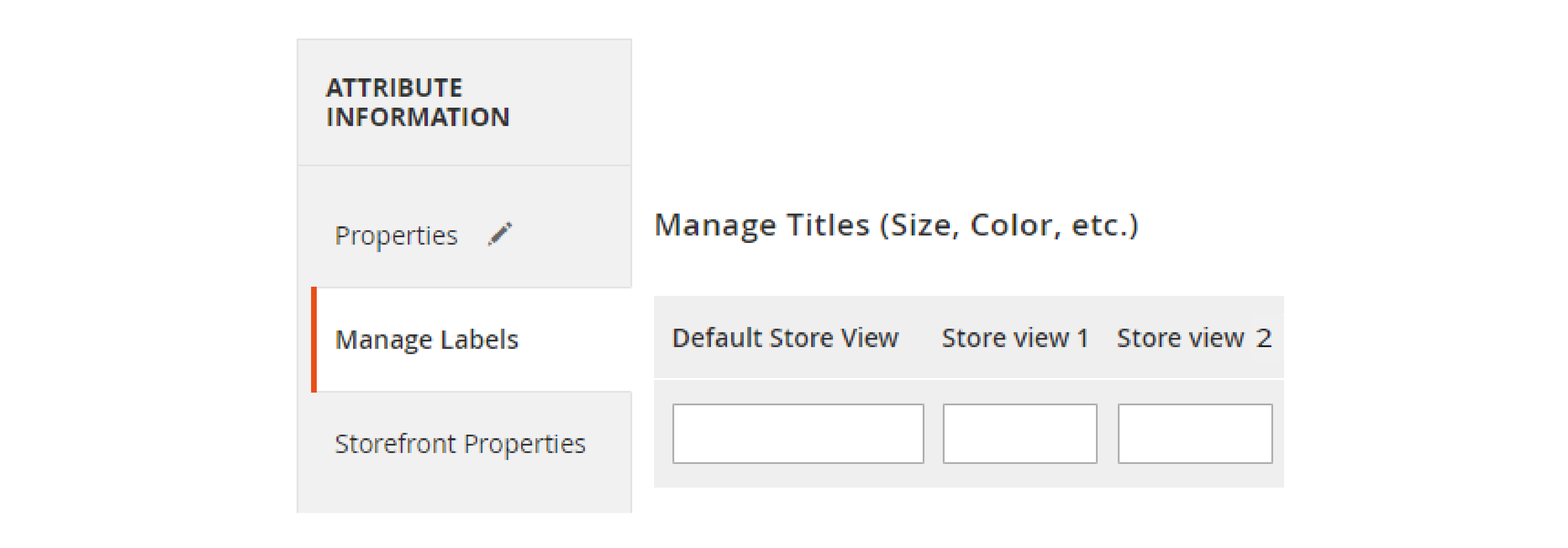
Step 5: Manage Labels
Click the Manage Labels tab. Add translated labels for each store view. This is required for multi-language stores.
Step 6: Save and Assign
Click Save Attribute. Then assign it to the appropriate attribute set via Stores > Attributes > Attribute Set.
Layered Navigation and Filterable Attributes
Layered navigation lets customers narrow product listings by attribute values. It is one of the most important features for large catalogs.
Requirements for Filterable Attributes
Not every input type supports layered navigation. Only these four work:
- Dropdown
- Multiple Select
- Yes/No
- Price
Text fields, text areas, and date fields cannot be used as filters.
Configuration Options
When enabling an attribute for layered navigation, you choose between two modes:
| Mode | Behavior |
|---|---|
| Filterable (with results) | Shows only filter options that return products |
| Filterable (no results) | Shows all options, even if no products match |
Use "Filterable (with results)" for most stores. It prevents customers from clicking filters that return empty pages.
Performance Considerations
Each filterable attribute adds to the indexing workload. Adobe and community best practices recommend a maximum of 15–20 filterable attributes for optimal index rebuild times. Stores with 30+ filterable attributes experience slow index rebuilds and sluggish category pages. For most stores, 8–12 filterable attributes is the sweet spot.
Programmatic Attribute Creation
Developers can create attributes through code using InstallData or UpgradeData scripts. Magento 2 uses Magento\Eav\Setup\EavSetup::addAttribute() for this purpose.
use Magento\Eav\Setup\EavSetup;
use Magento\Eav\Setup\EavSetupFactory;

$eavSetup = $this->eavSetupFactory->create(['setup' => $setup]);

$eavSetup->addAttribute(
    \Magento\Catalog\Model\Product::ENTITY,
    'fabric_type',
    [
        'type' => 'varchar',
        'label' => 'Fabric Type',
        'input' => 'select',
        'global' => \Magento\Eav\Model\Entity\Attribute\ScopedAttributeInterface::SCOPE_GLOBAL,
        'required' => false,
        'visible' => true,
        'user_defined' => true,
        'searchable' => true,
        'filterable' => true,
        'comparable' => true,
        'visible_on_front' => true,
        'used_in_product_listing' => true,
    ]
);
The global key sets the attribute scope. Use SCOPE_GLOBAL, SCOPE_WEBSITE, or SCOPE_STORE depending on your multi-store requirements.
Retrieving Attribute Values in Code
Two methods exist for retrieving product attribute values in Magento 2:
Method 1: getData() (more reliable for product models)
$value = $product->getData('fabric_type');
Method 2: getCustomAttribute()
if ($product->getCustomAttribute('fabric_type') !== null) {
    $value = $product->getCustomAttribute('fabric_type')->getValue();
}
getData() reads from the product's internal data array. getCustomAttribute() has known edge cases where it conflicts with the internal $_data array, returning null for attributes that exist. For product models, getData() is the safer choice.
Source: Adobe Developer Attributes Documentation
Performance Best Practices
Product attributes have a direct impact on store speed and indexing time. Every attribute adds rows to EAV tables. Follow these best practices to keep your catalog fast.
1. Remove Unused Attributes
Adobe's official documentation recommends removing unused properties to improve indexing speed. Audit your attribute list every quarter. Delete custom attributes that no products use. Unused attributes still get processed during flat table and search index rebuilds.
Learn how to remove unnecessary attributes from your catalog.
2. Limit Filterable Attributes
Keep filterable attributes between 8 and 12 for most stores. Adobe and community best practices set the upper limit at 15–20 filterable attributes. Each filterable attribute generates additional index entries for layered navigation. Stores with 30+ filterable attributes see index rebuild times grow by a factor of 3 to 5.
3. Keep Total Attribute Count Reasonable
Catalogs with more than 500 total attributes experience noticeable EAV overhead. Every attribute adds columns to flat index tables and rows to EAV value tables. Aim to stay under 200–300 custom attributes for optimal query performance.
4. Use Consistent Naming Conventions
Name attributes with clear, descriptive labels. Use snake_case for attribute codes (e.g., fabric_type, not FabricType or ft). Consistent naming simplifies bulk updates and reduces errors during imports.
5. Plan Attribute Sets Before Launch
Create attribute sets based on your product categories before adding products. Moving products between attribute sets after launch requires re-saving every affected product. This is time-consuming for catalogs with thousands of SKUs.
6. Choose the Right Hosting for Attribute-Heavy Catalogs
Catalogs with 100+ custom attributes and 50,000+ products need server resources that match the workload. EAV table queries grow with every attribute. Database memory, CPU, and disk I/O determine how fast index rebuilds and product saves complete.
Managed Magento hosting environments optimized for EAV-heavy workloads handle these demands without manual server tuning.
Using Attributes in Promotion Rules
Magento 2 supports product attributes as conditions in both Catalog Price Rules and Cart Price Rules. This lets you create promotions targeting specific product characteristics.
Setting Up Attribute-Based Promotions
- Navigate to Marketing > Promotions > Catalog Price Rules (or Cart Price Rules).
- Click Add New Rule and fill in the rule information.
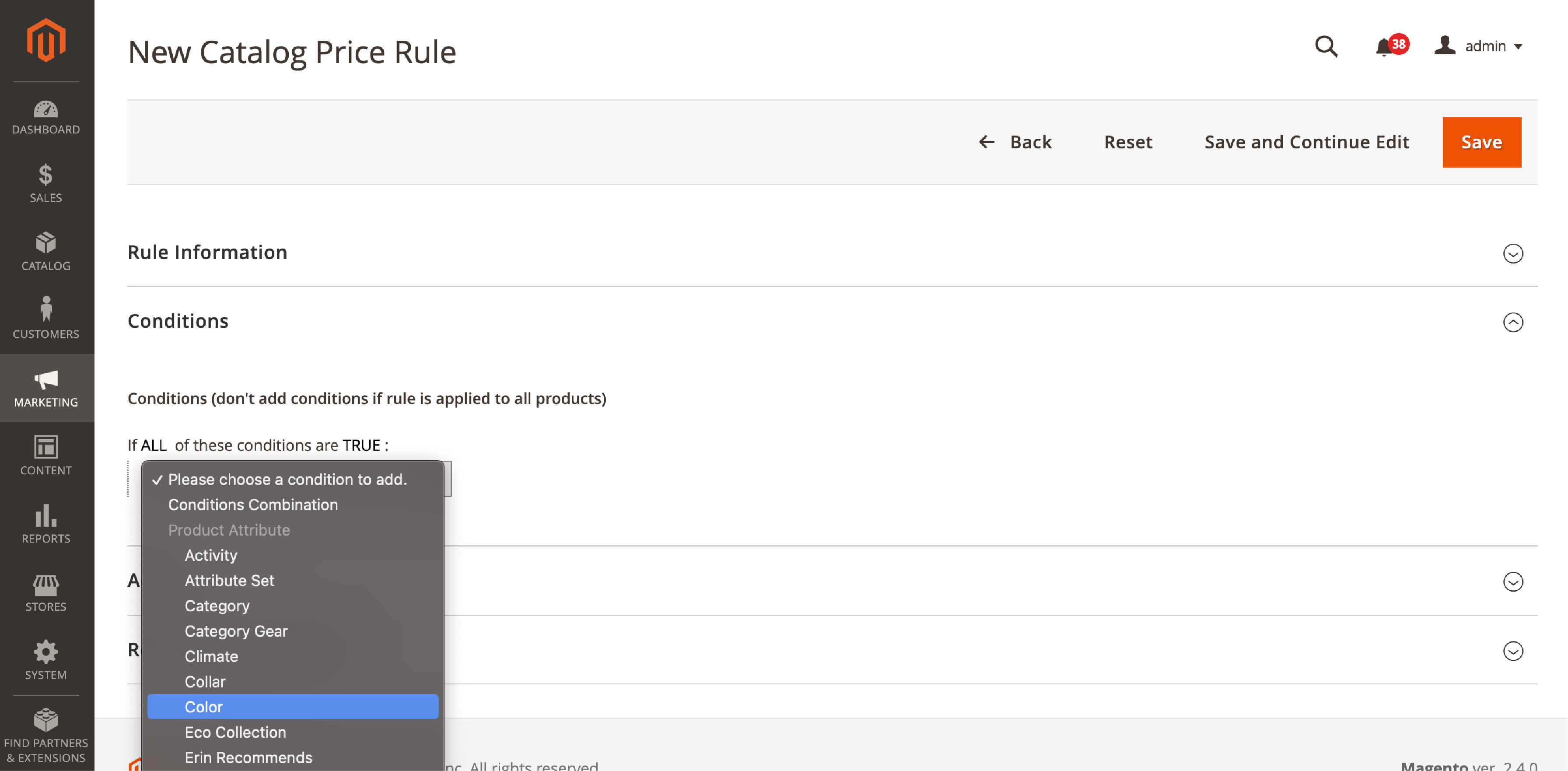
- Open the Conditions tab.
- Click the + button and select Product Attribute Combination.
- Choose the attribute (e.g., "Brand") and set the condition value (e.g., "equals Nike").
- Configure the discount action and save.
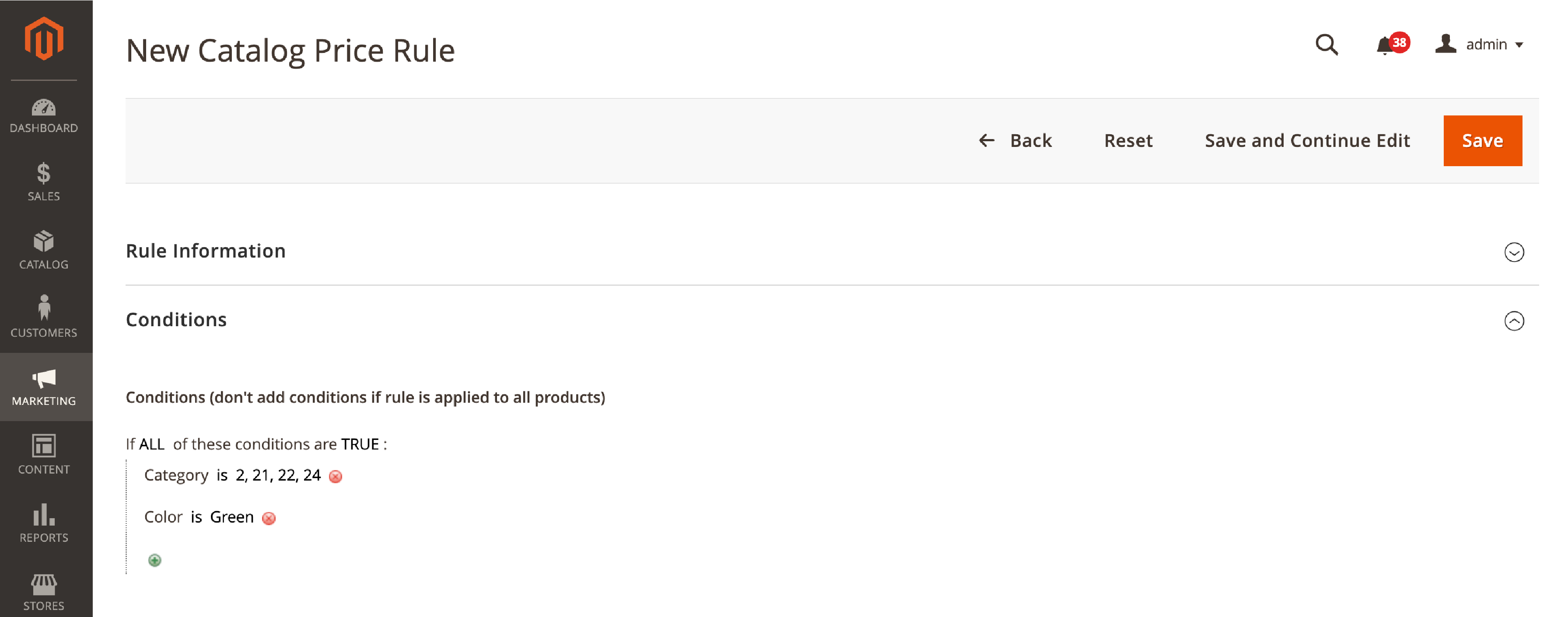
Requirement: The attribute must have Use for Promo Rule Conditions set to Yes in its storefront properties.
Promotion rules work with dropdown, multiple select, yes/no, text field, and price attributes. Review your attribute management setup to confirm promotion-eligible attributes are configured.
FAQ
What is the EAV model in Magento? EAV (Entity-Attribute-Value) is the database architecture Magento uses to store product, category, and customer data. Each attribute value gets its own database row instead of its own column. This allows unlimited custom attributes without altering the database schema.
How many default attributes does Magento 2 include? Magento 2 ships with around 70–80 system attributes in a standard installation. The exact number depends on the version and installed modules. System attributes cannot be deleted because core functionality depends on them.
What is the difference between attribute sets and attribute groups? Attribute sets define which attributes belong to a product type (e.g., "Clothing" vs "Electronics"). Attribute groups organize attributes into tabs within an attribute set (e.g., "General", "Technical Specs"). Sets control assignment. Groups control organization.
Can I make a text field attribute filterable in layered navigation? No. Layered navigation only supports Dropdown, Multiple Select, Yes/No, and Price input types. If you need a text-based filter, convert the attribute to a Dropdown with predefined options.
How does attribute scope affect multi-store setups? Global scope shares the value everywhere. Website scope allows different values per website (e.g., different prices per country). Store View scope allows different values per language/store view (e.g., translated product names).
What happens if I change an attribute's scope after saving products? Values may be lost for scopes that did not have data. For example, changing from Global to Store View means existing values apply only to the default store view. Other store views start empty. Always back up before changing scope.
How do product attributes affect store performance? Each attribute adds rows to EAV database tables. More attributes mean larger tables, slower queries, and longer index rebuild times. Adobe recommends removing unused attributes to improve indexing speed. Keep filterable attributes under 15–20 and total custom attributes under 300 for optimal performance.
Should I use getCustomAttribute() or getData() in code?
For product models, getData('attribute_code') is more reliable. getCustomAttribute() has known issues where internal data conflicts return null values. Both methods work in Magento 2.4.x, but getData() avoids the edge cases.
What are Visual Swatches used for? Visual Swatches display color or pattern samples instead of text labels for configurable product options. Customers see the actual color or pattern before selecting. This improves the shopping experience for fashion, home decor, and any product where visual selection matters.
Can I use product attributes in cart price rules? Yes. Enable Use for Promo Rule Conditions in the attribute's storefront properties. Then use the attribute as a condition in Catalog Price Rules or Cart Price Rules to create targeted promotions based on specific attribute values.
Conclusion
Product attributes form the foundation of every Magento catalog. They control how products appear, how customers search and filter, and how promotion rules target specific items. A clean attribute setup with the right input types, proper scope configuration, and organized attribute sets keeps your store fast and your catalog manageable.
This guide covers Magento Open Source / Adobe Commerce 2.4.8 (as of March 2026). Version 2.4.9-beta1 was released on March 10, 2026, with no changes to the product attribute system.
Audit your attributes on a regular basis. Remove what you do not use. Keep filterable attributes lean. And make sure your hosting infrastructure can handle the EAV workload your catalog demands.
