

Create a Magento 2 Coupon Code for Specific Products in 5 Steps
[Updated: March 16, 2026]
Store-wide discounts cut into margins on products that sell fine without incentives. A Magento 2 coupon code for a specific product lets you control which items get discounted, who qualifies, and how often.
This guide walks you through the complete Cart Price Rules setup with SKU-based conditions.
Key Takeaways
- Product-specific coupon codes protect margins by targeting items that need a sales push instead of discounting everything
- SKU and category conditions in Cart Price Rules define which products qualify for the discount
- Usage limits and customer group restrictions prevent coupon abuse
- Adobe Commerce 2.4.7+ supports multiple coupon codes per cart natively (Open Source needs extensions)
- Test all promotions in a staging environment before activating on production
Quick Answer
Magento 2 coupon code for specific product = Use Cart Price Rules with Product Attribute Combination conditions to target individual SKUs or categories. Configure discount type, usage limits, and customer group restrictions for precise control.
Perfect for: Store owners running targeted promotions, marketing teams clearing specific inventory, merchants launching product-level campaigns
Not ideal for: Store-wide percentage discounts, catalog-level price adjustments without coupon codes
Why Target Specific Products With Coupon Codes
Product-specific coupons focus discounts where they matter most. Target slow-moving inventory to free up warehouse space. Drive attention to new product launches with exclusive deals. Create segment-specific offers for VIP customers or wholesale buyers.
Each approach protects your overall margin while moving the right products. Product-level targeting also delivers better campaign analytics. Track which coupons drive conversions for specific SKUs and adjust your promotion strategy based on real data. For more ways to run special promotions in Magento, Cart Price Rules are one of several tools available.
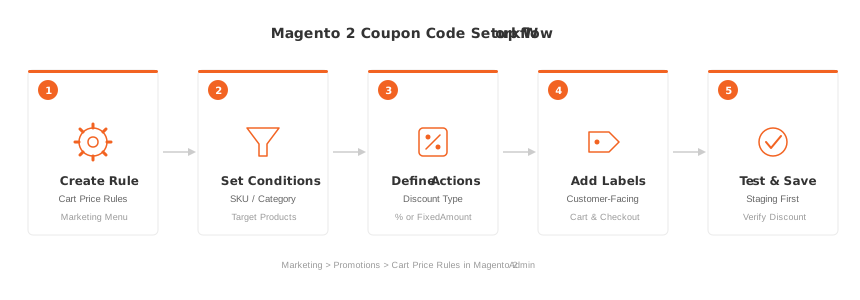
5 Steps to Create a Coupon Code for a Specific Product
Step 1: Access Cart Price Rules
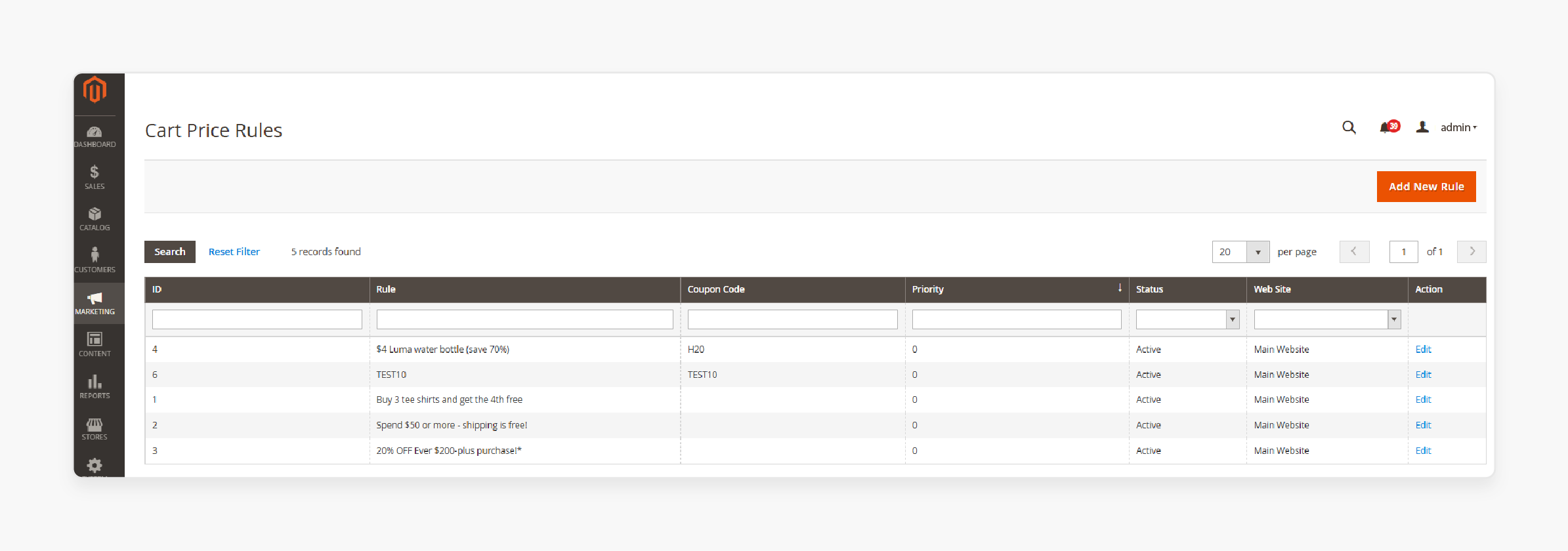
Log in to your Magento 2 admin panel. Navigate to Marketing > Promotions > Cart Price Rules. Click Add New Rule.
Cart Price Rules control discounts applied at checkout. Catalog Price Rules handle displayed product prices on listing pages. For coupon-based promotions, Cart Price Rules are the right choice.
Step 2: Configure Rule Information
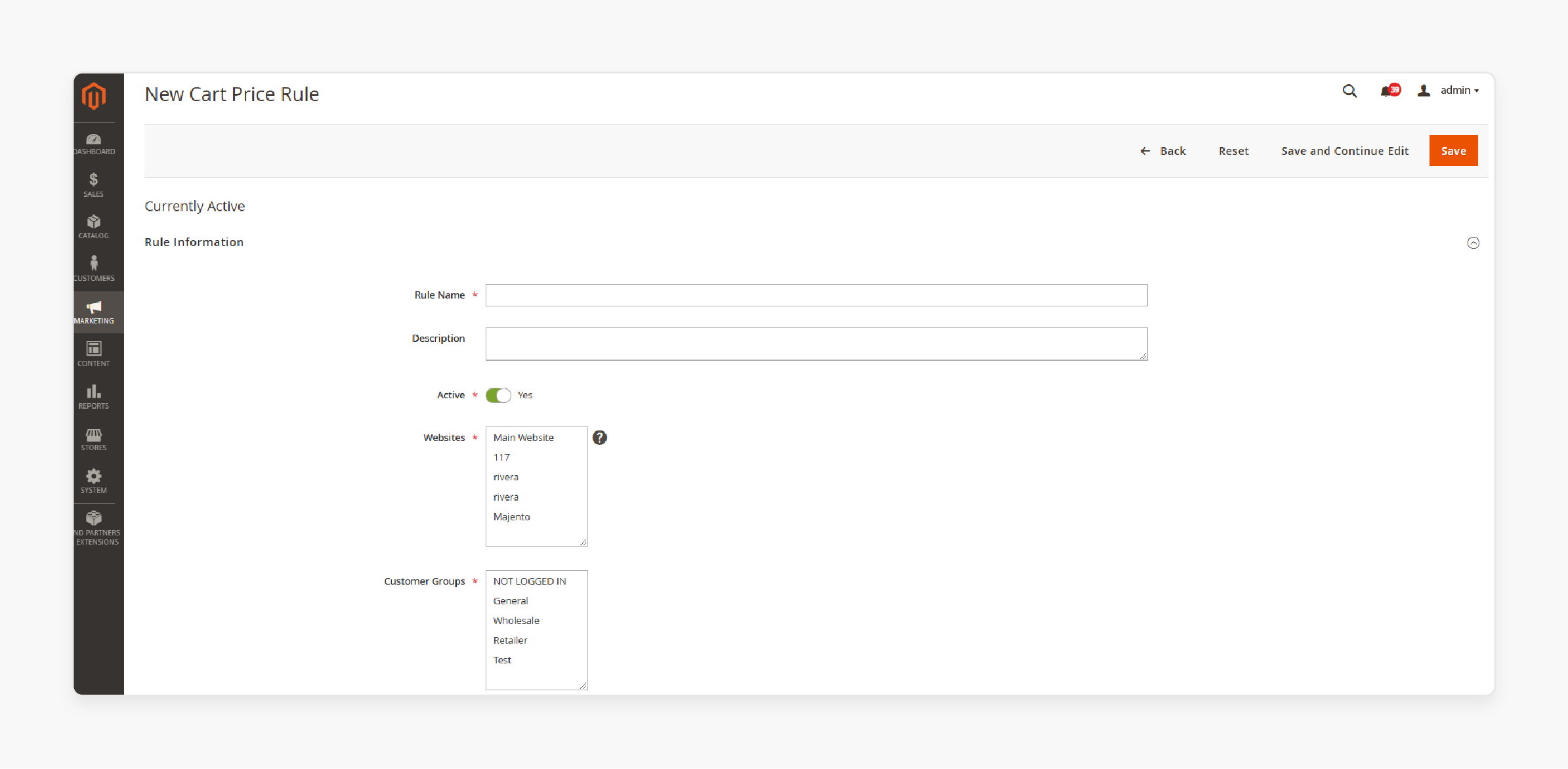
Fill in these fields:
- Rule Name: A clear internal label (e.g., "Spring Sale Shoes Only")
- Status: Active
- Websites: Select applicable store views
- Customer Groups: Choose which groups can use the code
- Coupon: Select "Specific Coupon"
- Coupon Code: Enter your code (e.g., "SHOE20")
- Uses per Coupon: Total redemptions allowed (leave blank for unlimited)
- Uses per Customer: Limit per individual customer
- Priority: Lower number = higher priority when multiple rules compete
- From/To Date: Set the promotion window
Step 3: Set Product Conditions
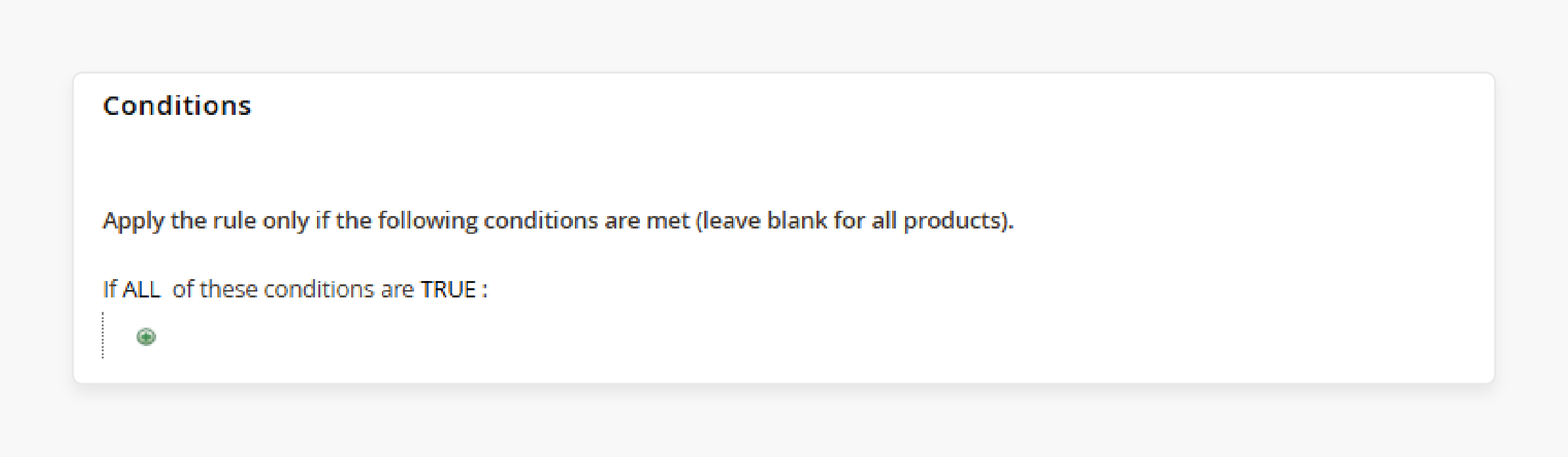
This step defines which products qualify for the coupon.
Before you start: SKU does not appear in the conditions dropdown by default. Go to Stores > Attributes > Product, find the SKU attribute, and set Use for Promo Rule Conditions to Yes under Storefront Properties. Save the attribute, then reindex and clear cache.
Go to the Conditions tab. Click the green + icon. Select Product Attribute Combination and click + again.
Target by SKU:
- Choose "SKU" from the attribute dropdown
- Set operator to "is" for a single SKU or "is one of" for multiple
- Enter the SKU values
Target by category:
- Choose "Category" from the attribute dropdown
- Set operator to "is"
- Select the target category
Combine conditions: Use "ALL" (AND logic) or "ANY" (OR logic) for complex rules. Example: SKU is "SHOE-001" OR Category is "Footwear."
Step 4: Define Discount Actions
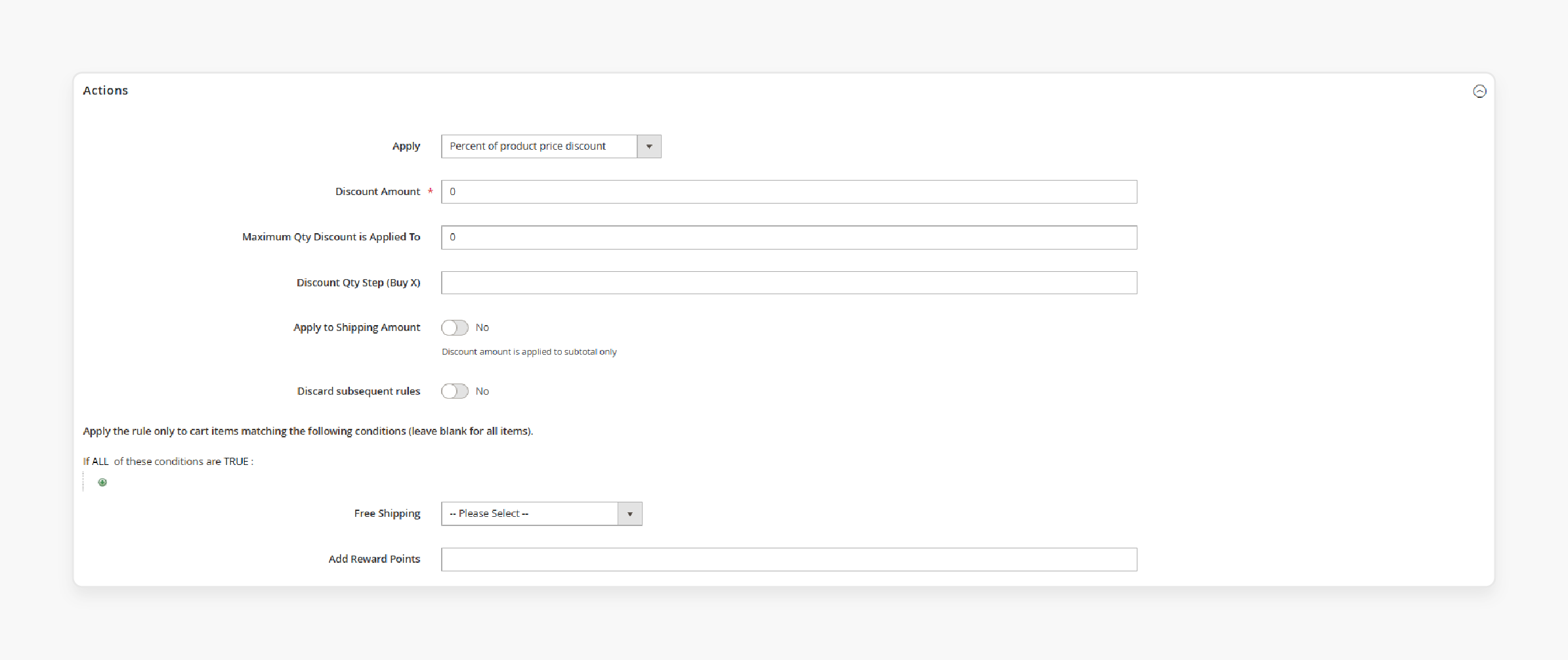
Under the Actions tab, configure these settings:
| Setting | Options | When to Use |
|---|---|---|
| Apply | Percent of product price | Percentage discounts (e.g., 20% off) |
| Fixed amount discount | Fixed per-item discount (e.g., $10 off each) | |
| Fixed amount for whole cart | Flat cart discount (e.g., $25 off) | |
| Buy X get Y free | BOGO-style promotions | |
| Discount Amount | Numeric value | The discount value (20 for 20%, 10 for $10) |
| Maximum Qty | Number | Cap on discounted items per order |
| Discount Qty Step | Number | Minimum quantity to qualify |
| Discard Subsequent Rules | Yes/No | Stop processing lower-priority rules |
For Buy X Get Y Free promotions, set the "Apply" field to the BOGO option and define the step quantity.
Enable the shipping discount option to include delivery costs in the calculation. See our guide on setting up a free shipping promotion for full details.
Step 5: Add Labels and Save
Go to the Labels tab. Enter a customer-facing label (e.g., "20% Off Selected Shoes"). This text appears in the cart next to the discount line item.
Click Save Rule. Test the coupon in a staging environment before activating it on your production store.
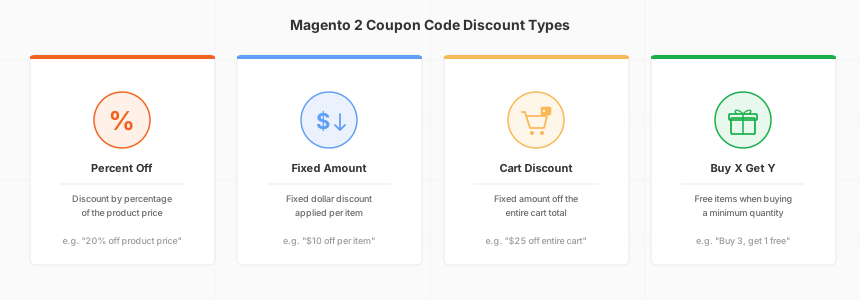
Common Configuration Issues
| Issue | Cause | Fix |
|---|---|---|
| SKU not visible in Conditions dropdown | "Use for Promo Rule Conditions" not enabled | Go to Stores > Attributes > Product, edit SKU, set "Use for Promo Rule Conditions" to Yes, reindex and clear cache |
| Coupon doesn't apply to product | SKU mismatch or missing condition | Verify SKU in the Conditions tab matches the exact product SKU |
| Coupon works for all products | No product conditions set | Add a Product Attribute Combination condition with specific SKU or category |
| Changes not taking effect | Stale cache or outdated indexes | Run php bin/magento cache:flush and php bin/magento indexer:reindex |
| Usage limit exceeded during flash sale | Static limit too low for traffic | Monitor usage at 80% capacity and increase the limit before it caps out |
| Wrong discount amount | Conflict with other active rules | Set higher priority (lower number) and enable "Discard Subsequent Rules" |
| Coupon expired early | Timezone mismatch in date settings | Standardize all promotion dates to your server timezone |
| Guest users can't apply coupon | Customer group restriction | Include "NOT LOGGED IN" in the customer groups selection |
For the complete Cart Price Rules reference, see the official Adobe Commerce documentation.
Multiple Coupons Per Cart
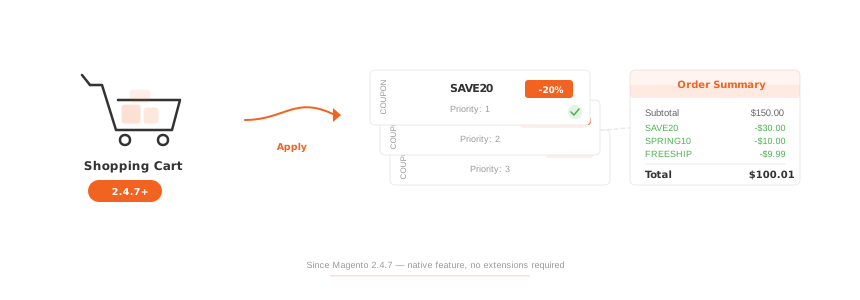
Adobe Commerce 2.4.7 introduced native support for multiple coupon codes per cart. The admin setting "Maximum number of coupons per order" controls how many codes a shopper can stack at checkout (default: 1). Magento Open Source users need a third-party extension for this feature.
When multiple coupons target the same product, the rule with the highest priority (lowest number) processes first. Enable "Discard Subsequent Rules" on your primary coupon to prevent unintended stacking.
Stores on Magento Open Source or older versions can add this feature through coupon code extensions from third-party providers.
Auto-Generating Bulk Coupon Codes
Campaigns that need unique codes per customer (email blasts, influencer partnerships) benefit from auto-generation. You can also set codes to auto-apply at checkout for a frictionless experience.
To generate codes in bulk:
- Open your Cart Price Rule
- Under Coupon Information, check "Use Auto Generation"
- Open the Manage Coupon Codes section
- Configure: Code Quantity, Code Length, Code Format (alphanumeric, alphabetical, numeric)
- Add a Prefix or Suffix for campaign tracking (e.g., "SPRING-" prefix)
- Click Generate
All generated codes inherit the parent rule's conditions, discount type, and usage limits. Use prefixes to track performance across different marketing channels.
FAQ
How do I create a coupon code for one specific product in Magento 2?
Go to Marketing > Promotions > Cart Price Rules. Create a new rule, select "Specific Coupon," and enter your code. In the Conditions tab, add a Product Attribute Combination condition with the product's exact SKU. Configure the discount in the Actions tab and save.
Can I apply a coupon to an entire product category?
Yes. In the Conditions tab, choose "Category" instead of "SKU" and select your target category. The coupon applies to all products within that category.
Does Magento 2 support multiple coupon codes at checkout?
Adobe Commerce supports this natively since version 2.4.7. Set "Maximum number of coupons per order" in the admin config. Magento Open Source requires a third-party extension. Rule priority settings determine the processing order.
What is the difference between Cart Price Rules and Catalog Price Rules?
Cart Price Rules apply discounts at checkout, often triggered by coupon codes. Catalog Price Rules adjust the displayed product price on listing and detail pages without requiring a code.
How do I limit a coupon to specific customer groups?
In the Rule Information tab, select the target groups from the multi-select field. Only members of those groups can redeem the coupon at checkout.
How do I generate unique coupon codes for email campaigns?
Use the auto-generation feature in Cart Price Rules. Check "Use Auto Generation," open Manage Coupon Codes, set quantity, length, format, and optional prefix/suffix. Click Generate to create the batch.
What happens when two coupon rules conflict on the same product?
The rule with the highest priority (lowest number) applies first. If that rule has "Discard Subsequent Rules" enabled, no other rules process for that cart.
How do I test a coupon before going live?
Create the rule in a staging environment. Add qualifying products to a cart, apply the coupon code, and verify the discount. Test edge cases: wrong product, expired date, exceeded usage limit, and guest checkout.
Summary
Product-specific coupon codes in Magento 2 give you precise control over which items receive discounts. The five-step setup covers rule creation, SKU-based targeting, discount configuration, and testing.
Set clear usage limits. Target by SKU or category. Test in staging before launch. Track redemption data to refine future campaigns.
Managed Magento hosting ensures your checkout handles coupon processing at scale without performance issues during high-traffic promotions.
