

10 Steps to Complete Magento 2 Server Migration to a New Server

A single flash sale on an underpowered server can cost more in lost revenue than the migration itself. Moving to better hardware takes hours, not days.
This guide walks you through every step to move Magento site files, database, and config to a new server with correct CLI commands, verified backups, and a post-migration checklist.
[Updated: February 17, 2026]
Key Takeaways
- A server move transfers your store files, database, and configuration to new hardware without changing your Magento version or extensions
- Use
bin/magentoCLI for maintenance mode, cache clearing, and reindexing - Database credentials live in
app/etc/env.php(notlocal.xml) - Zero-downtime migration is achievable with rsync + low DNS TTL
- Post-migration: verify cron, Redis/Varnish, OpenSearch, and SSL before going live
Quick Answer
Magento 2 server migration = moving your store's files, database, and configuration from one server to another. The process takes 2-6 hours for most stores and can achieve near-zero downtime with proper planning.
Perfect for: Magento 2 store owners upgrading hardware, switching hosting providers, moving to managed Magento hosting, or migrating from shared to dedicated servers.
Not ideal for: Magento 1 to Magento 2 platform upgrades (that requires Adobe's data migration tool, not a server move).
What is Magento 2 Server Migration?
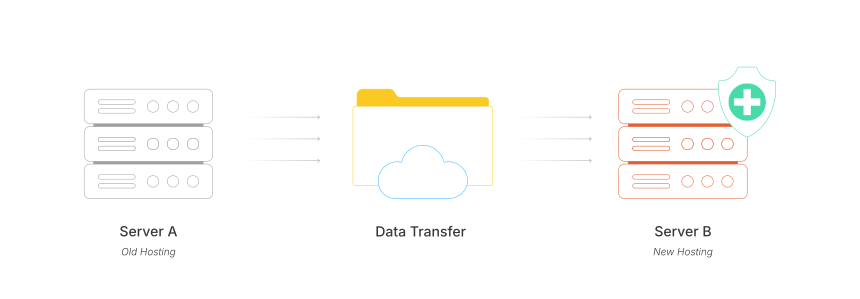
The process transfers your entire ecommerce store (files, media, and configuration) from one server to another. This is different from a platform upgrade (M1 to M2), which requires code rewrites and data transformation.
A Magento server migration keeps your version, extensions, and customizations intact. You change the hardware underneath, not the application.
Common reasons to move your store to a new server:
- Performance: Page load times exceed 3 seconds under normal traffic
- Provider switch: Moving to managed hosting to optimize performance and get expert support
- Scaling: Upgrading from shared hosting to a dedicated or cloud server
- Security: Current host runs outdated software or no longer receives security patches
- Cost: Move your Magento site to a provider with better price-to-performance ratio
Server Requirements for Magento 2 (2026)
Before migrating, confirm your new server meets these Magento hosting requirements:
| Component | Minimum | Recommended (Production 2026) |
|---|---|---|
| PHP | 8.2 | 8.3 |
| MySQL / MariaDB | 8.0 / 10.6 | 8.0 / 10.6 |
| OpenSearch | 2.x | 2.x (Elasticsearch 7.17 legacy only) |
| Composer | 2.x | 2.7+ |
| RAM | 4 GB | 8-16 GB |
| Storage | 20 GB SSD | 50+ GB NVMe |
| Magento | 2.4.7 | 2.4.7-p3 / 2.4.8 |
Required PHP extensions: bcmath, ctype, curl, dom, gd, hash, iconv, intl, mbstring, openssl, pdo_mysql, simplexml, soap, xsl, zip, sockets.
Check your current Magento version before starting:
bin/magento --version
10 Steps to Migrate Magento 2 to a New Server
Step 1: Enable Maintenance Mode
Put your store in maintenance mode to prevent data changes during migration:
bin/magento maintenance:enable
Allow your IP for testing while the store is in maintenance:
bin/magento maintenance:allow-ips 203.0.113.10
Step 2: Back Up Files and Database
Create a compressed archive of your Magento installation. Exclude the cache directory and temporary files:
tar -czf ~/magento-files.tar.gz \
  --exclude=var/cache \
  --exclude=var/page_cache \
  --exclude=var/session \
  --exclude=var/log \
  --exclude=var/report \
  --exclude=generated \
  .
Export the database:
mysqldump -u dbuser -p magento_db | gzip > ~/magento-db.sql.gz
Verify your backup before proceeding:
tar -tzf ~/magento-files.tar.gz | head -20
gzip -t ~/magento-db.sql.gz && echo "DB backup OK"
Step 3: Transfer Files to the New Server
Use SCP to transfer backups:
scp ~/magento-files.tar.gz ~/magento-db.sql.gz user@newserver:/home/user/
For large stores (10+ GB), rsync with compression is faster:
rsync -avz --progress ~/magento-files.tar.gz user@newserver:/home/user/
Step 4: Restore Files on the Target
SSH into the target server and extract:
mkdir -p /var/www/magento
tar -xzf ~/magento-files.tar.gz -C /var/www/magento
Step 5: Import the Database
Create a new database, user, and import the dump:
mysql -u root -p -e "CREATE DATABASE magento_db;"
mysql -u root -p -e "CREATE USER 'magento'@'localhost' IDENTIFIED BY 'strong_password';"
mysql -u root -p -e "GRANT ALL ON magento_db.* TO 'magento'@'localhost';"
gzip -dc ~/magento-db.sql.gz | mysql -u magento -p magento_db
Step 6: Update Connection Settings
Edit app/etc/env.php with the credentials for your target host:
'db' => [
    'table_prefix' => '',
    'connection' => [
        'default' => [
            'host' => 'localhost',
            'dbname' => 'magento_db',
            'username' => 'magento',
            'password' => 'strong_password',
            'model' => 'mysql4',
            'engine' => 'innodb',
            'initStatements' => 'SET NAMES utf8;',
            'active' => '1',
        ]
    ]
],
Also update Redis, OpenSearch, and session settings in env.php if those services changed on the target host. Here is a typical Redis configuration for cache and sessions:
'cache' => [
    'frontend' => [
        'default' => [
            'backend' => 'Magento\\Framework\\Cache\\Backend\\Redis',
            'backend_options' => [
                'server' => '127.0.0.1',
                'port' => '6379',
                'database' => '0'
            ]
        ],
        'page_cache' => [
            'backend' => 'Magento\\Framework\\Cache\\Backend\\Redis',
            'backend_options' => [
                'server' => '127.0.0.1',
                'port' => '6379',
                'database' => '1'
            ]
        ]
    ]
],
'session' => [
    'save' => 'redis',
    'redis' => [
        'host' => '127.0.0.1',
        'port' => '6379',
        'database' => '2'
    ]
],
For a complete server setup guide covering Varnish, Redis, and OpenSearch configuration, see our dedicated article.
Step 7: Set File Permissions
cd /var/www/magento
find . -type f -exec chmod 644 {} \;
find . -type d -exec chmod 755 {} \;
chmod -R 775 var/ generated/ pub/static/ pub/media/
chown -R www-data:www-data .
Adjust the web server user (www-data) and directory ownership to match your setup.
Step 8: Clear Cache, Compile, and Deploy
Run the full Magento build sequence:
bin/magento cache:flush
bin/magento setup:upgrade
bin/magento setup:di:compile
bin/magento setup:static-content:deploy -f
bin/magento indexer:reindex
See our Magento cache clearing guide for more detail on cache management.
Step 9: Test the Store
Edit your local /etc/hosts file to point the Magento website domain to the target IP:
203.0.113.50 www.yourdomain.com yourdomain.com
Verify these work:
- Homepage loads with CSS and JavaScript
- Product pages show images and correct prices
- Add-to-cart and checkout complete a test order
- Admin panel accessible at
/admin - Search returns results (OpenSearch connected)
- Cron running:
bin/magento cron:run
Step 10: Switch DNS and Go Live
Once testing passes:
- Lower DNS TTL to 300 seconds (do this 24-48 hours before cutover)
- Sync any new orders from the old server's database
- Update DNS A records to point to the target IP
- Disable maintenance mode:
bin/magento maintenance:disable
- Monitor
var/log/system.logandvar/log/exception.logfor the first 24 hours
Zero-Downtime Strategy
For stores that process orders around the clock, use this approach to keep interruption under 5 minutes:
- Set up the new server with a full copy of the store (Steps 1-8 above)
- Keep both servers running while the old one serves live traffic
- Lower DNS TTL to 300 seconds at least 24 hours before the switch
-
During a short maintenance window (15-30 minutes, lowest traffic period):
- Enable maintenance mode on old server
- Run a final rsync for recent file changes:
rsync -avz --delete \ --exclude=var/cache \ --exclude=var/page_cache \ --exclude=var/session \ --exclude=app/etc/env.php \ oldserver:/var/www/magento/ /var/www/magento/- Export and import the latest database snapshot
- Flush cache on the target:
bin/magento cache:flush - Update DNS A records
- Total visible interruption: 5-15 minutes (DNS propagation with low TTL)
Common Migration Issues and Fixes
| Issue | Cause | Fix |
|---|---|---|
| White screen | Missing PHP extensions or wrong file access | Check var/log/system.log, install missing extensions, verify ownership |
| CSS/JS not loading | Static content not deployed | Run bin/magento setup:static-content:deploy -f |
| Connection error | Wrong credentials in env.php | Verify host, dbname, username, password in app/etc/env.php |
| Admin login fails | Session or cache issues | Run bin/magento cache:flush, clear var/session/ |
| Images missing | Media folder not transferred | Check that pub/media/ was included in the backup |
| Cron not running | Crontab not configured | Run bin/magento cron:install |
| Search broken | OpenSearch not connected | Check search engine config in env.php, verify service is running |
| Slow performance | Redis/Varnish not configured | Set up Redis for cache + sessions, add Varnish for full-page cache |
Post-Migration Checklist
The migration process continues after DNS cutover. Run through this list within 48 hours:
- All pages load without 500 errors
- Product search returns correct results
- Checkout completes with a test order
- Admin panel works (reports, orders, catalog)
- Transactional emails send (order confirmation, contact form)
- Cron installed and active:
bin/magento cron:install && crontab -l - SSL certificate installed, HTTPS enforced
- Redis connected:
bin/magento cache:status - Varnish configured (if used)
- CDN serving static assets from correct URLs
- Google Search Console verified for target server
- Analytics tracking code firing on all pages
Choosing Hosting for Your Migration

The hosting provider determines how your Magento migration performs long-term. Look for:
- Dedicated resources (not shared hosting) with SSD/NVMe storage
- Redis and Varnish pre-configured for Magento 2
- PHP 8.3 and OpenSearch ready out of the box
- Automated daily backups and one-click restore
- 24/7 Magento support from engineers who know the platform
- Free migration assistance as part of onboarding
Managed Magento hosting includes free migration support, 24/7 engineers who know the platform, and a fully optimized stack (Redis, Varnish, OpenSearch) out of the box.
FAQs
How long does it take to move Magento to a new server?
A typical store with under 10 GB of files and under 5 GB of data takes 2-4 hours. Large stores with extensive media libraries take 4-8 hours. The DNS cutover adds 15-60 minutes depending on TTL settings.
Can I move Magento without downtime?
Yes. Set up the target in advance while the old one serves traffic. Do a final DB sync and DNS switch during a short maintenance window. With DNS TTL at 300 seconds, most visitors see the switch within 5 minutes.
What is the difference between a server move and platform migration?
A server move transfers your existing Magento 2 installation to different hardware. Code, extensions, and customer data stay the same. Platform migration (M1 to M2) rewrites the codebase and transforms data using Adobe's tool. These are separate processes.
Where is the DB configuration file in Magento 2?
Credentials are stored in app/etc/env.php. This replaced app/etc/local.xml from Magento 1. Never commit env.php to version control since it contains passwords and API keys.
Do I need to reinstall extensions after migration?
No. Extensions travel with the file backup. After restoring files, run bin/magento setup:upgrade and bin/magento setup:di:compile to regenerate dependency injection and execute upgrade scripts.
Should I upgrade Magento during the migration?
No. Migrate first, verify the store runs stable, then upgrade in a separate step. Combining migration and upgrade makes troubleshooting harder if something breaks.
What is the best hosting after a Magento 2 move?
A managed Magento hosting provider with dedicated resources, Redis/Varnish pre-configured, and trained support. Many managed hosts offer free assistance as part of their onboarding.
How do I verify the move was successful?
Run bin/magento setup:db:status to check schema consistency. Test search, checkout, and admin functions. Compare page load times between old and target. Monitor var/log/system.log and var/log/exception.log for errors during the first 48 hours.
What file permissions does Magento 2 need?
Files: 644. Directories: 755. Writable paths (var/, generated/, pub/static/, pub/media/): 775. The web server user must own these files. Run bin/magento setup:permissions or set them with find and chmod.
How do I handle SSL certificates during migration?
Install the SSL certificate on the target server before switching DNS. If you use Let's Encrypt, set it up there and verify it works. After DNS switches, certificate renewal happens on the target. Your old certificate remains valid until expiry.
Summary
The migration follows a clear sequence: backup, transfer, restore, adjust settings, test, switch DNS. The critical details most guides miss:
- Database configuration lives in
app/etc/env.php, notlocal.xml - Use
bin/magentoCLI for maintenance mode, cache clearing, and reindexing - Verify OpenSearch connectivity before going live
- Test with a hosts file edit before touching DNS records
- Monitor logs for 48 hours after cutover
For stores that need zero downtime and expert support, managed Magento hosting providers handle the entire process from setup through DNS cutover.
